# How to Create Bucket in AWS for External backups (S3)
##### To create your bucket for backups, follow these steps.
- **Step 1**:- Use your AWS account ID or account alias, your IAM user name, and your password to sign in to the ***[IAM console](https://console.aws.amazon.com/iam)***
- **Step 2**:- Search for S3 in the ***Services*** section of the navigation menu on the top left, or just click *[**here** ](https://s3.console.aws.amazon.com/s3/buckets "https://s3.console.aws.amazon.com/s3/buckets")*to go.
- **Step 3**:- Click the ***Create Bucket*** button for the next step.
[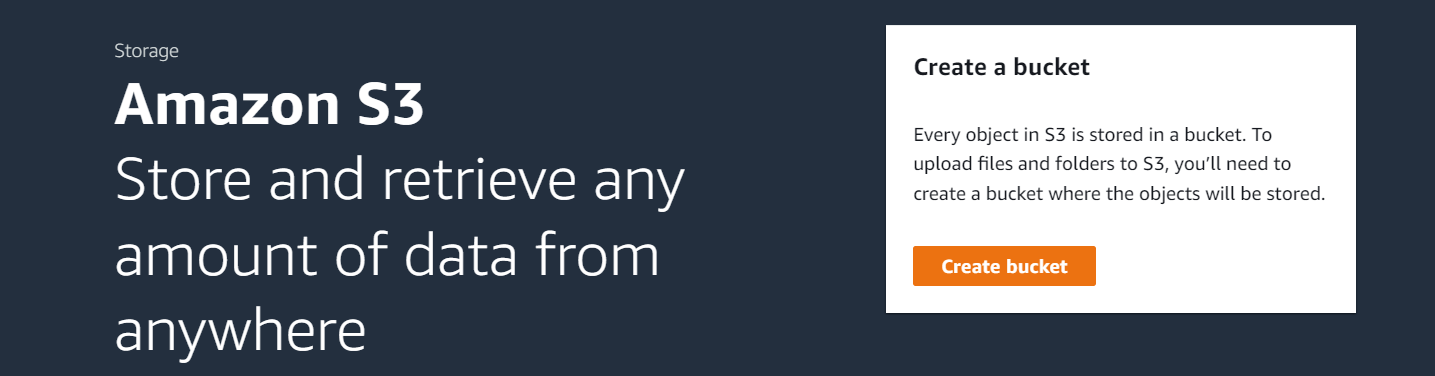](https://docs.elest.io/uploads/images/gallery/2023-04/screenshot-2023-04-21-200134.png)
- **Step 4**:- Give your bucket a name in the ***Bucket name*** column, and in the ***AWS Region*** column, choose the region where you want to create it.
[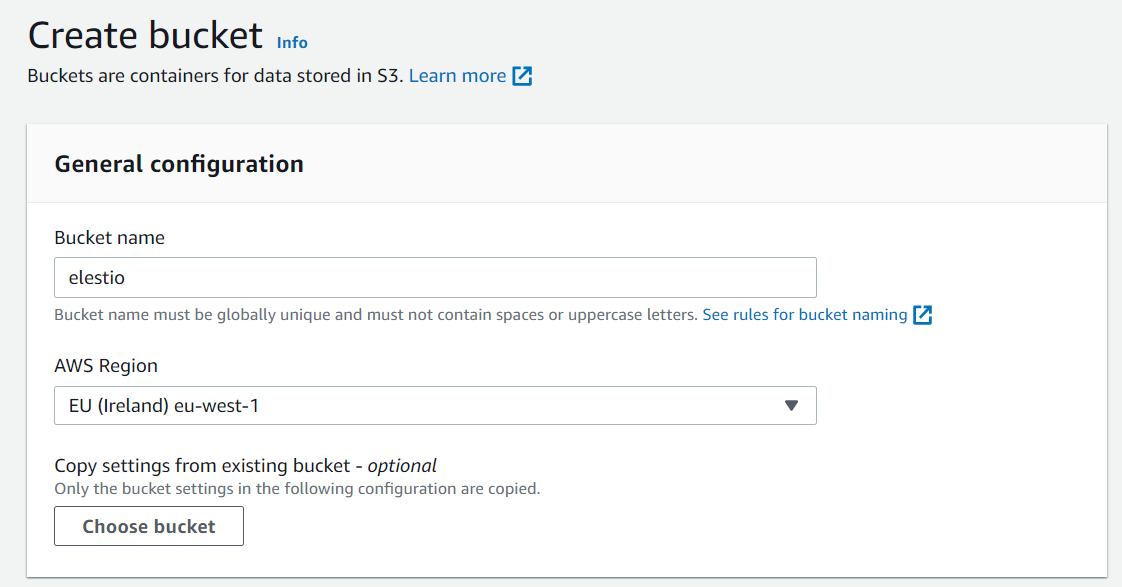](https://docs.elest.io/uploads/images/gallery/2023-04/screenshot-2023-04-21-200703.png)
- **Step 5**:- After you've completed both columns, scroll down and click the ***Create Bucket*** button to create it.
- **Step 6**:- Your bucket will be created and listed in buckets following these successful steps.
[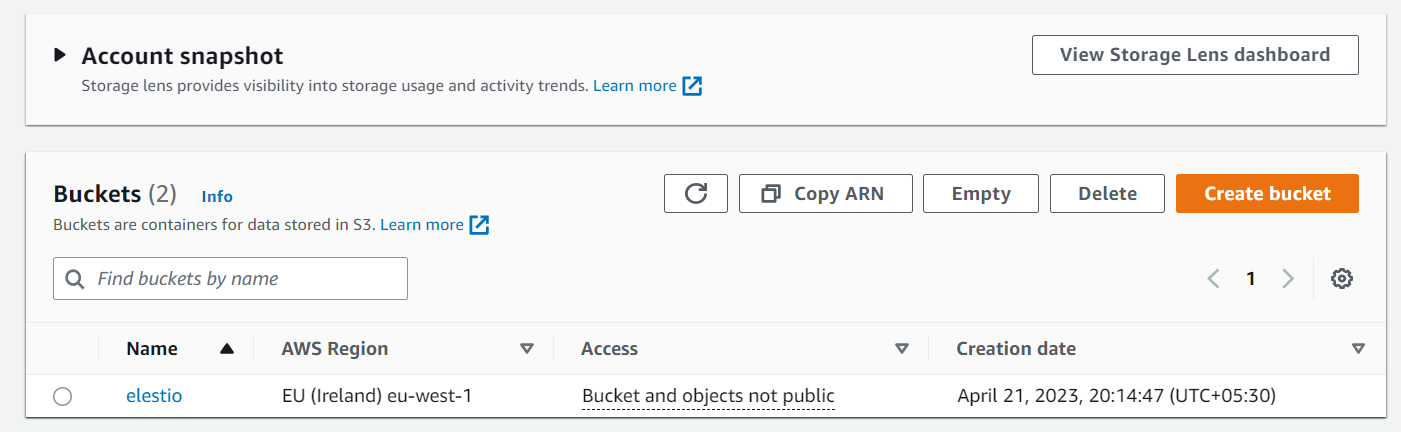](https://docs.elest.io/uploads/images/gallery/2023-04/6ySimage.png)