ClickHouse Cluster Management
Deploy and manage ClickHouse clusters: nodes, backups, resync, migration, IP restrictions, and deletion.
Overview
Elestio provides a complete solution for setting up and managing software clusters. This helps users deploy, scale, and maintain applications more reliably. Clustering improves performance and ensures that services remain available, even if one part of the system fails. Elestio supports different cluster setups to handle various technical needs like load balancing, failover, and data replication.
Supported Software for Clustering:
Elestio supports clustering for a wide range of open-source software. Each is designed to support different use cases like databases, caching, and analytics:
-
MySQL:
Supports Single Node, Primary/Replica, and Multi-Master cluster types. These allow users to create simple setups or more advanced ones where reads and writes are distributed across nodes. In a Primary/Replica setup, replicas are updated continuously through replication. These configurations are useful for high-traffic applications that need fast and reliable access to data. -
PostgreSQL:
PostgreSQL clusters can be configured for read scalability and failover protection. Replication ensures that data written to the primary node is copied to replicas. Clustering PostgreSQL also improves query throughput by offloading read queries to replicas. Elestio handles replication setup and node failover automatically. -
Redis/KeyDB/Valkey:
These in-memory data stores support clustering to improve speed and fault tolerance. Clustering divides data across multiple nodes (sharding), allowing horizontal scaling. These tools are commonly used for caching and real-time applications, so fast failover and data availability are critical. -
Hydra and TimescaleDB:
These support distributed and time-series workloads, respectively. Clustering helps manage large datasets spread across many nodes. TimescaleDB, built on PostgreSQL, benefits from clustering by distributing time-based data for fast querying. Hydra uses clustering to process identity and access management workloads more efficiently in high-load environments. -
ClickHouse:
ClickHouse supports distributed and replicated clustering modes, enabling high-performance analytics on large datasets. Clustering allows sharding across multiple nodes for horizontal scaling and replication for fault tolerance. This makes ClickHouse ideal for real-time dashboards, monitoring, and analytical workloads that require fast ingestion and low-latency queries. Elestio automates the setup of shards and replicas, making it easy to deploy robust ClickHouse clusters with minimal manual effort.
Cluster Configurations:
Elestio offers several clustering modes, each designed for a different balance between simplicity, speed, and reliability:
- Single Node:
This setup has only one node and is easy to manage. It acts as a standalone Primary node. It’s good for testing, development, or low-traffic applications. Later, you can scale to more nodes without rebuilding the entire setup. Elestio lets you expand this node into a full cluster with just a few clicks. - Primary/Replica:
One node (Primary) handles all write operations, and one or more Replicas handle read queries. Replication is usually asynchronous and ensures data is copied to all replicas. This improves read performance and provides redundancy if the primary node fails. Elestio manages automatic data syncing and failover setup.
Cluster Management Features:
Elestio’s cluster dashboard includes tools for managing, monitoring, and securing your clusters. These help ensure stability and ease of use:
- Node Management:
You can scale your cluster by adding or removing nodes as your app grows. Adding a node increases capacity; removing one helps reduce costs. Elestio handles provisioning and configuring nodes automatically, including replication setup. This makes it easier to scale horizontally without downtime. - Backups and Restores:
Elestio provides scheduled and on-demand backups for all nodes. Backups are stored securely and can be restored if something goes wrong. You can also create a snapshot before major changes to your system. This helps protect against data loss due to failures, bugs, or human error. - Access Control:
You can limit access to your cluster using IP allowlists, ensuring only trusted sources can connect. Role-based access control (RBAC) can be applied for managing different user permissions. SSH and database passwords are generated securely and can be rotated easily from the dashboard. These access tools help reduce the risk of unauthorized access. - Monitoring and Alerts:
Real-time metrics like CPU, memory, disk usage, and network traffic are available through the dashboard. You can also check logs for troubleshooting and set alerts for high resource usage or failure events. Elestio uses built-in observability tools to monitor the health of your cluster and notify you if something needs attention. This allows you to catch problems early and take action.
Deploying a New Cluster
Creating a cluster is a foundational step when deploying services in Elestio. Clusters provide isolated environments where you can run containerized workloads, databases, and applications. Elestio’s web dashboard helps the process, allowing you to configure compute resources, choose cloud providers, and define deployment regions without writing infrastructure code. This guide walks through the steps required to create a new cluster using the Elestio dashboard.
Prerequisites
To get started, you’ll need an active Elestio account. If you’re planning to use your own infrastructure, make sure you have valid credentials for your preferred cloud provider (like AWS, GCP, Azure, etc.). Alternatively, you can choose to deploy clusters using Elestio-managed infrastructure, which requires no external configuration.
Creating a Cluster
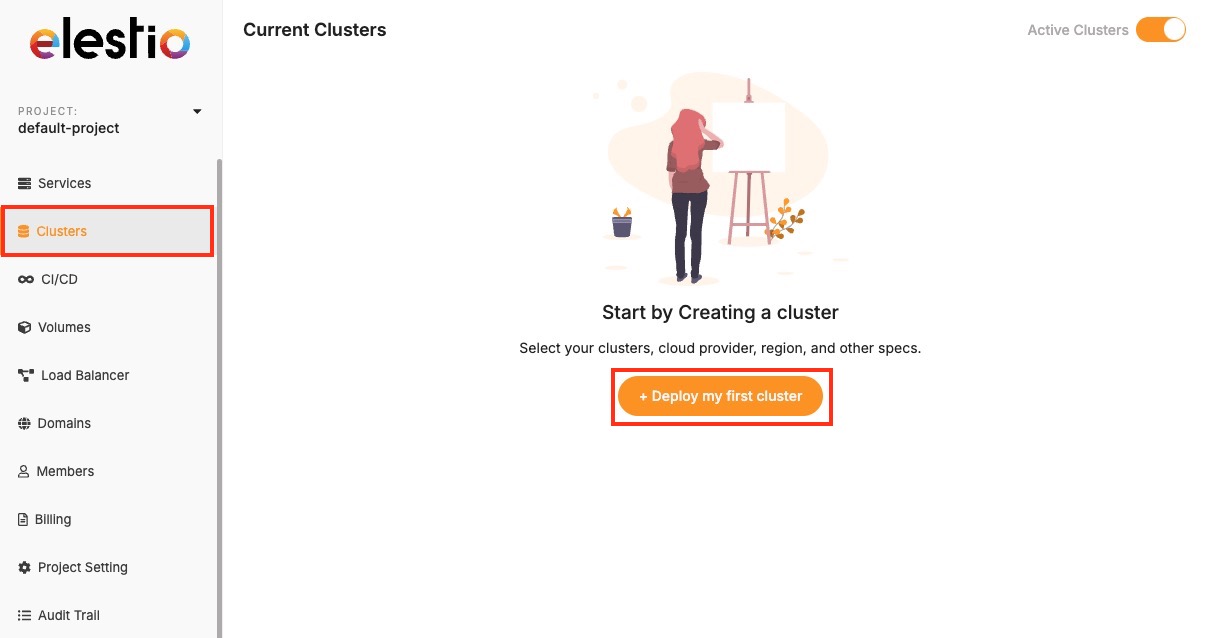
Once you’re logged into the Elestio dashboard, navigate to the Clusters section from the sidebar. You’ll see an option to Create a new cluster clicking this will start the configuration process. The cluster creation flow is flexible but simple for defining essential details like provider, region, and resources in one place.
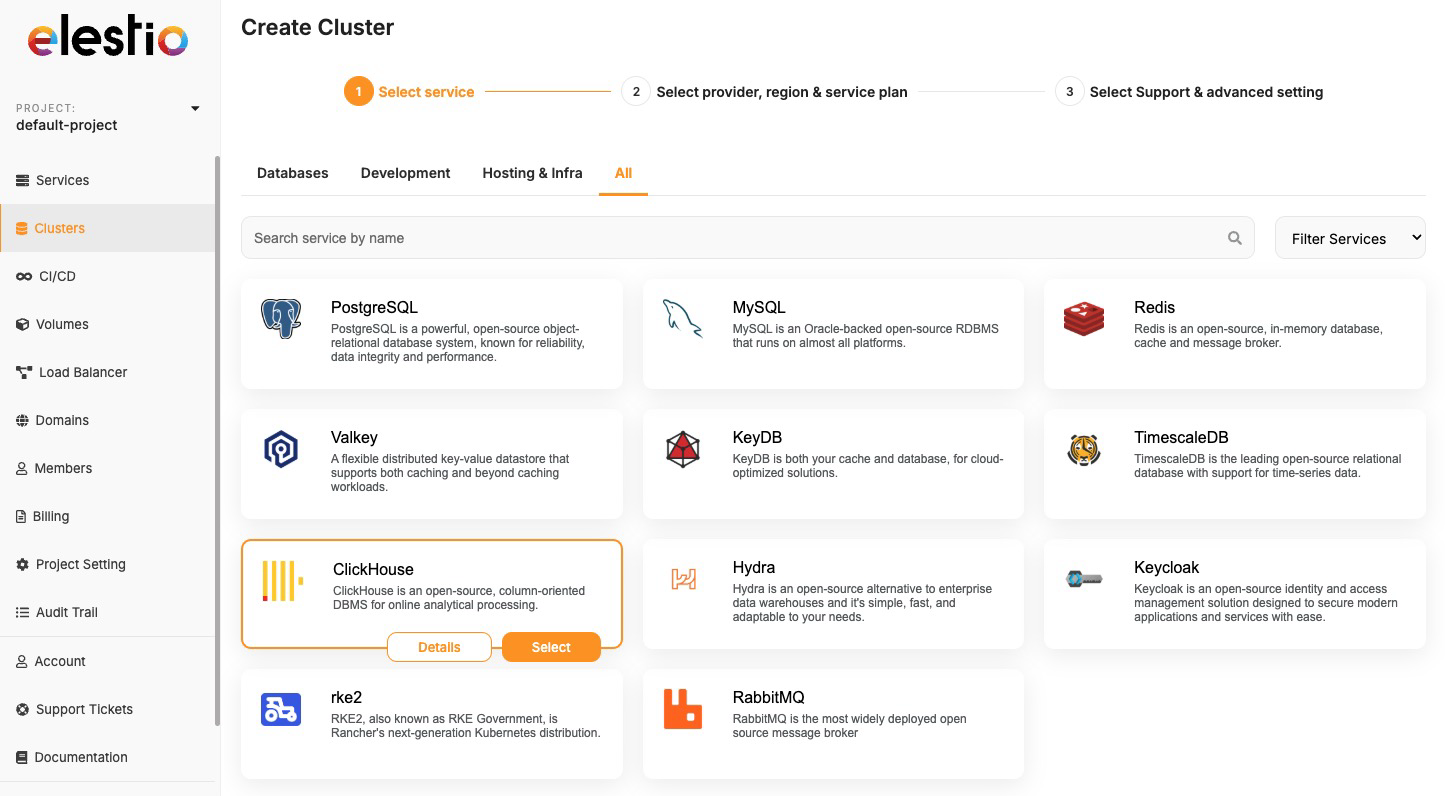
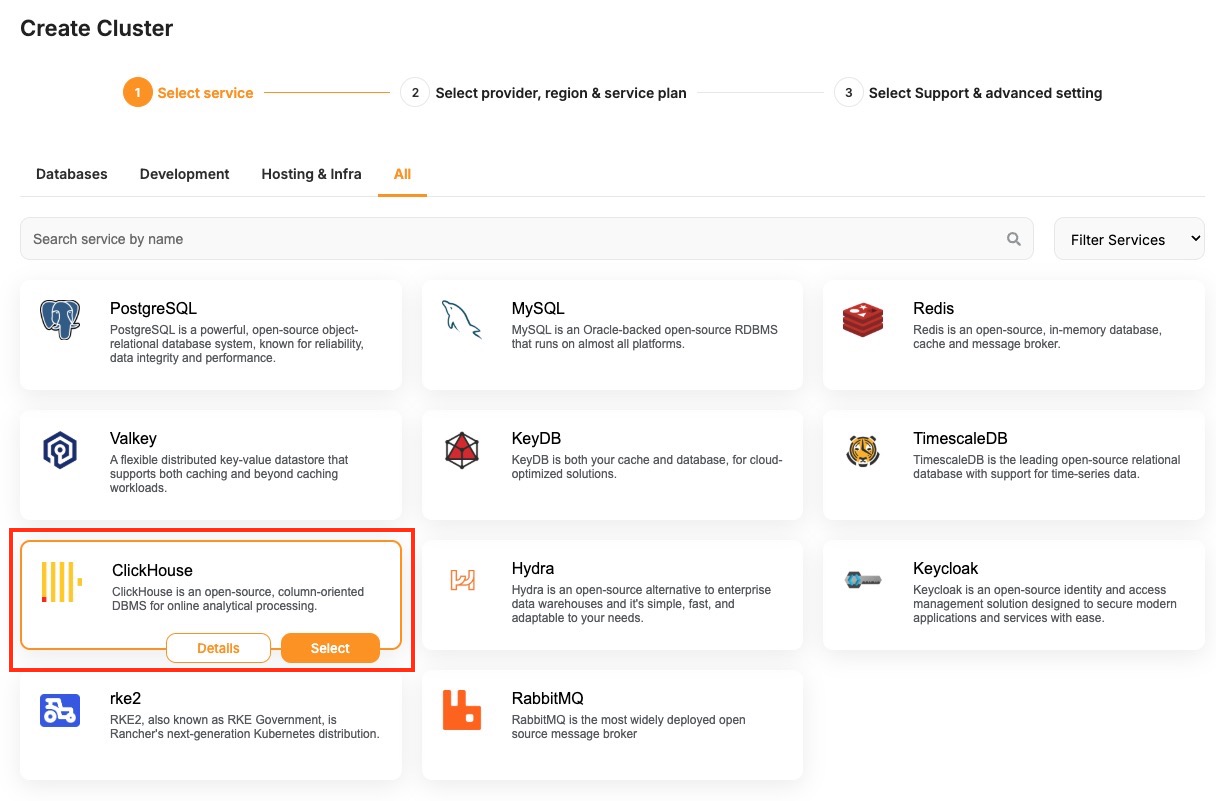
Now, select the database service of your choice that you need to create in a cluster environment. Click on Select button as you choose one.
During setup, you’ll be asked to choose a hosting provider. Elestio supports both managed and BYOC (Bring Your Own Cloud) deployments, including AWS, DigitalOcean, Hetzner, and custom configurations. You can then select a region based on latency or compliance needs, and specify the number of nodes along with CPU, RAM, and disk sizes per node.
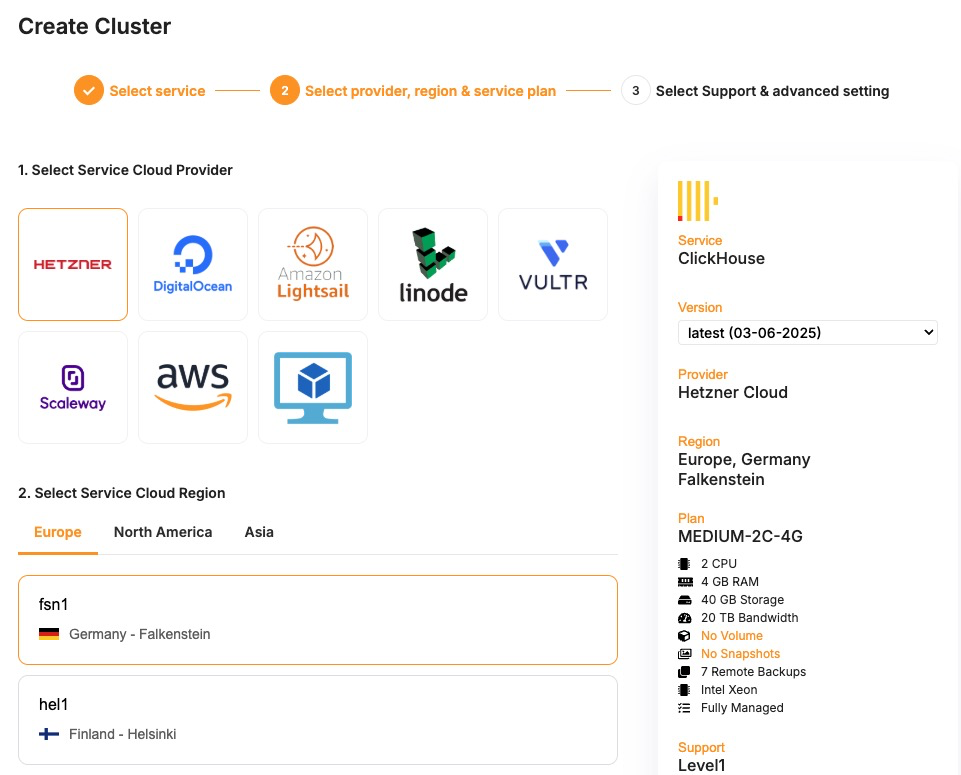
If you’re setting up a high-availability cluster, the dashboard also allows you to configure cluster-related details under Cluster configuration, where you get to select things like replication modes, number of replicas, etc. After you’ve configured the cluster, review the summary to ensure all settings are correct. Click the Create Cluster button to begin provisioning.
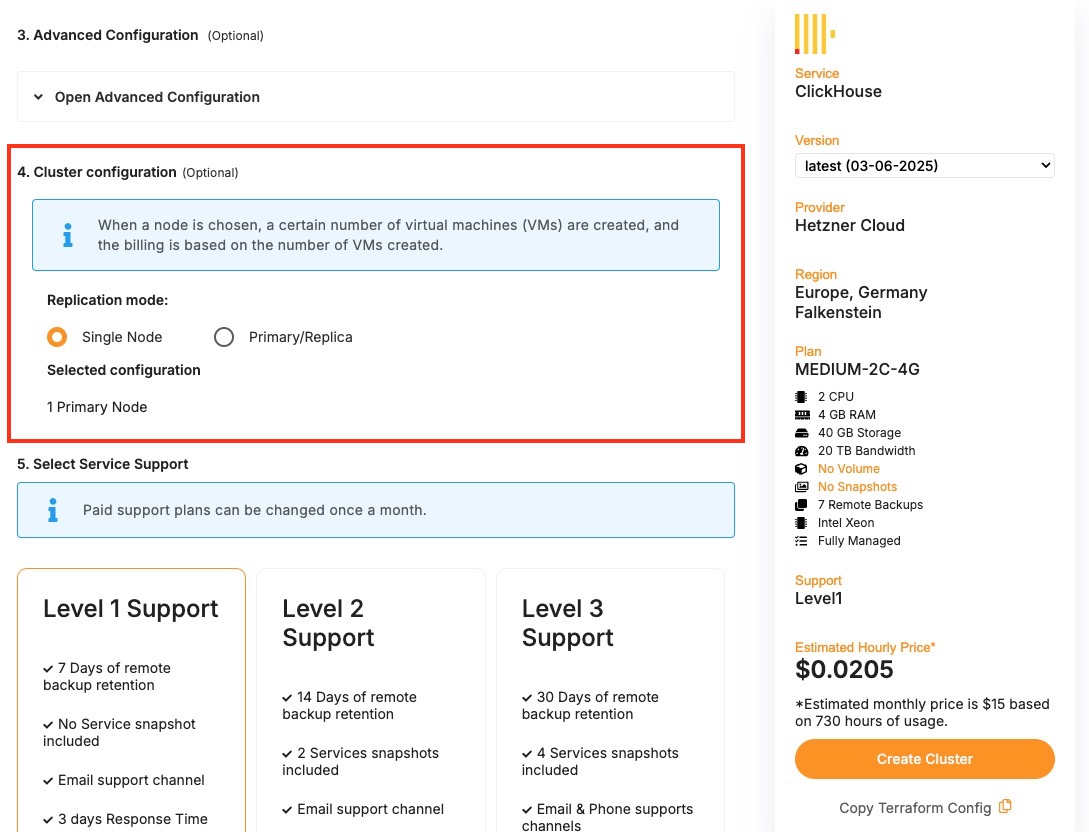
Elestio will start the deployment process, and within a few minutes, the cluster will appear in your dashboard. Once your cluster is live, it can be used to deploy new nodes and additional configurations. Each cluster supports real-time monitoring, log access, and scaling operations through the dashboard. You can also set up automated backups and access control through built-in features available in the cluster settings.
Enter section select mode
Node Management
Node management plays a critical role in operating reliable and scalable infrastructure on Elestio. Whether you’re deploying stateless applications or stateful services like databases, managing the underlying compute units nodes is essential for maintaining stability and performance.
Understanding Nodes
In Elestio, a node is a virtual machine that contributes compute, memory, and storage resources to a cluster. Clusters can be composed of a single node or span multiple nodes, depending on workload demands and availability requirements. Each node runs essential services and containers as defined by your deployed applications or databases.
Nodes in Elestio are provider-agnostic, meaning the same concepts apply whether you’re using Elestio-managed infrastructure or connecting your own cloud provider (AWS, Azure, GCP, etc.). Each node is isolated at the VM level but participates fully in the cluster’s orchestration and networking. This abstraction allows you to manage infrastructure without diving into the complexity of underlying platforms.
Node Operations
The Elestio dashboard allows you to manage the lifecycle of nodes through clearly defined operations. These include:
- Creating a node, which adds capacity to your cluster and helps with horizontal scaling of services. This is commonly used when load increases or when preparing a high-availability deployment.
- Deleting a node, which removes underutilized or problematic nodes. Safe deletion includes draining workloads to ensure service continuity.
- Promoting a node, which changes the role of a node within the cluster—typically used in clusters with redundancy, where certain nodes may need to take on primary or leader responsibilities.
Each of these operations is designed to be safely executed through the dashboard and is validated against the current cluster state to avoid unintended service disruption. These actions are supported by Elestio’s backend orchestration, which handles tasks like container rescheduling and load balancing when topology changes.
Monitoring and Maintenance
Monitoring is a key part of effective node management. Elestio provides per-node visibility through the dashboard, allowing you to inspect CPU, memory, and disk utilization in real time. Each node also exposes logs, status indicators, and health checks to help detect anomalies or degradation early.
In addition to passive monitoring, the dashboard supports active maintenance tasks. You can reboot a node when applying system-level changes or troubleshooting, or drain a node to safely migrate workloads away from it before performing disruptive actions. Draining ensures that running containers are rescheduled on other nodes in the cluster, minimizing service impact.
For production setups, combining resource monitoring with automation like scheduled reboots, log collection, and alerting can help catch issues before they affect users. While Elestio handles many aspects of orchestration automatically, having visibility at the node level helps teams make informed decisions about scaling, updates, and incident response.
Cluster-wide resource graphs and node-level metrics are also useful for capacity planning. Identifying trends such as memory saturation or disk pressure allows you to preemptively scale or rebalance workloads, reducing the risk of downtime.
Adding a Node
As your application usage grows or your infrastructure requirements change, scaling your cluster becomes essential. In Elestio, you can scale horizontally by adding new nodes to an existing cluster. This operation allows you to expand your compute capacity, improve availability, and distribute workloads more effectively.
Need to Add a Node
There are several scenarios where adding a node becomes necessary. One of the most common cases is resource saturation when existing nodes are fully utilized in terms of CPU, memory, or disk. Adding another node helps distribute the workload and maintain performance under load.
In clusters that run stateful services or require high availability, having additional nodes ensures that workloads can fail over without downtime. Even in development environments, nodes can be added to isolate environments or test services under production-like load conditions. Scaling out also gives you flexibility when deploying services with different resource profiles or placement requirements.
Add a Node to Cluster
To begin, log in to the Elestio dashboard and navigate to the Clusters section from the sidebar. Select the cluster you want to scale. Once inside the cluster view, switch to the Nodes tab. This section provides an overview of all current nodes along with their health status and real-time resource usage.
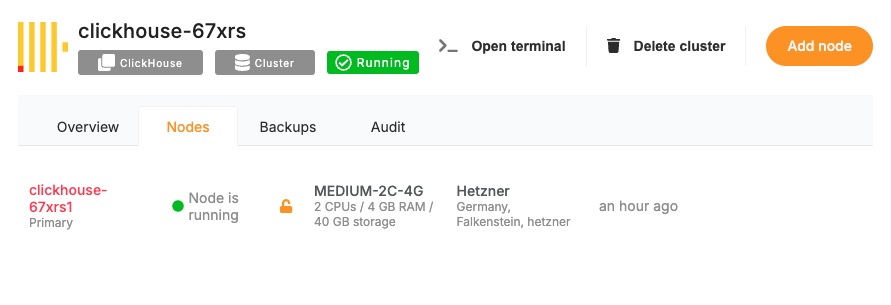
To add a new node, click the “Add Node” button. This opens a configuration panel where you can define the specifications for the new node. You’ll be asked to specify the amount of CPU, memory, and disk you want to allocate. If you’re using a bring-your-own-cloud setup, you may also need to confirm or choose the cloud provider and deployment region.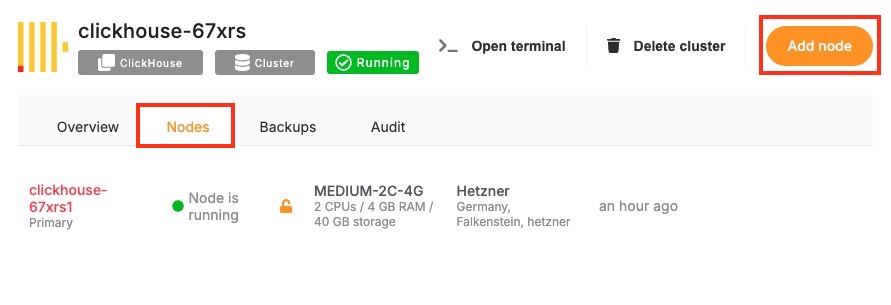
After configuring the node, review the settings to ensure they meet your performance and cost requirements. Click “Create” to initiate provisioning. Elestio will begin setting up the new node, and once it’s ready, it will automatically join your cluster.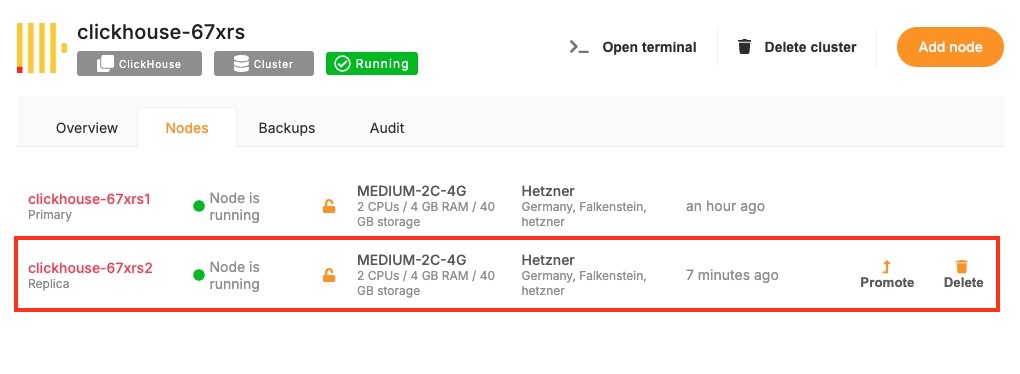
Once provisioned, the new node will appear in the node list with its own metrics and status indicators. You can monitor its activity, verify that workloads are being scheduled to it, and access its logs directly from the dashboard. From this point onward, the node behaves like any other in the cluster and can be managed using the same lifecycle actions such as rebooting or draining.
Post-Provisioning Considerations
After the node has been added, it becomes part of the active cluster and is available for scheduling workloads. Elestio’s orchestration layer will begin using it automatically, but you can further customize service placement through resource constraints or affinity rules if needed.
For performance monitoring, the dashboard provides per-node metrics, including CPU load, memory usage, and disk I/O. This visibility helps you confirm that the new node is functioning correctly and contributing to workload distribution as expected.
Maintenance actions such as draining or rebooting the node are also available from the same interface, making it easy to manage the node lifecycle after provisioning.
Promoting a Node
Clusters can be designed for high availability or role-based workloads, where certain nodes may take on leadership or coordination responsibilities. In these scenarios, promoting a node is a key administrative task. It allows you to change the role of a node. While not always needed in basic setups, node promotion becomes essential in distributed systems, replicated databases, or services requiring failover control.
When to Promote a Node?
Promoting a node is typically performed in clusters where role-based architecture is used. In high-availability setups, some nodes may act as leaders while others serve as followers or replicas. If a leader node becomes unavailable or needs to be replaced, you can promote another node to take over its responsibilities and maintain continuity of service.
Node promotion is also useful when scaling out and rebalancing responsibilities across a larger cluster. For example, promoting a node to handle scheduling, state tracking, or replication leadership can reduce bottlenecks and improve responsiveness. In cases involving database clusters or consensus-driven systems, promotion ensures a clear and controlled transition of leadership without relying solely on automatic failover mechanisms.
Promote a Node in Elestio
To promote a node, start by accessing the Clusters section in the Elestio dashboard. Choose the cluster containing the node you want to promote. Inside the cluster view, navigate to the Nodes tab to see the full list of nodes, including their current roles, health status, and resource usage. Locate the node that you want to promote and open its action menu. From here, select the “Promote Node” option.

You may be prompted to confirm the action, depending on the configuration and current role of the node. This confirmation helps prevent unintended role changes that could affect cluster behavior.

Once confirmed, Elestio will initiate the promotion process. This involves reconfiguring the cluster’s internal coordination state to acknowledge the new role of the promoted node. Depending on the service architecture and the software running on the cluster, this may involve reassigning leadership, updating replication targets, or shifting service orchestration responsibilities.
After promotion is complete, the node’s updated role will be reflected in the dashboard. At this point, it will begin operating with the responsibilities assigned to its new status. You can monitor its activity, inspect logs, and validate that workloads are being handled as expected.
Considerations for Promotion
Before promoting a node, ensure that it meets the necessary resource requirements and is in a stable, healthy state. Promoting a node that is under high load or experiencing performance issues can lead to service degradation. It’s also important to consider replication and data synchronization, especially in clusters where stateful components like databases are in use.
Promotion is a safe and reversible operation, but it should be done with awareness of your workload architecture. If your system relies on specific leader election mechanisms, promoting a node should follow the design patterns supported by those systems.
Removing a Node
Over time, infrastructure needs change. You may scale down a cluster after peak load, decommission outdated resources, or remove a node that is no longer needed for cost, isolation, or maintenance reasons. Removing a node from a cluster is a safe and structured process designed to avoid disruption. The dashboard provides an accessible interface for performing this task while preserving workload stability.
Why Remove a Node?
Node removal is typically part of resource optimization or cluster reconfiguration. You might remove a node when reducing costs in a staging environment, when redistributing workloads across fewer or more efficient machines, or when phasing out a node for maintenance or retirement.
Another common scenario is infrastructure rebalancing, where workloads are shifted to newer nodes with better specs or different regions. Removing an idle or underutilized node can simplify management and reduce noise in your monitoring stack. It also improves scheduling efficiency by removing unneeded targets from the orchestration engine.
In high-availability clusters, node removal may be preceded by data migration or role reassignment (such as promoting a replica). Proper planning helps maintain system health while reducing reliance on unnecessary compute resources.
Remove a Node
To begin the removal process, open the Elestio dashboard and navigate to the Clusters section. Select the cluster that contains the node you want to remove. From within the cluster view, open the Nodes tab to access the list of active nodes and their statuses.
Find the node you want to delete from the list. If the node is currently running services, ensure that those workloads can be safely rescheduled to other nodes or are no longer needed. Since Elestio does not have a built-in drain option, any workload redistribution needs to be handled manually, either by adjusting deployments or verifying that redundant nodes are available. Once the node is drained and idle, open the action menu for that node and select “Delete Node”.
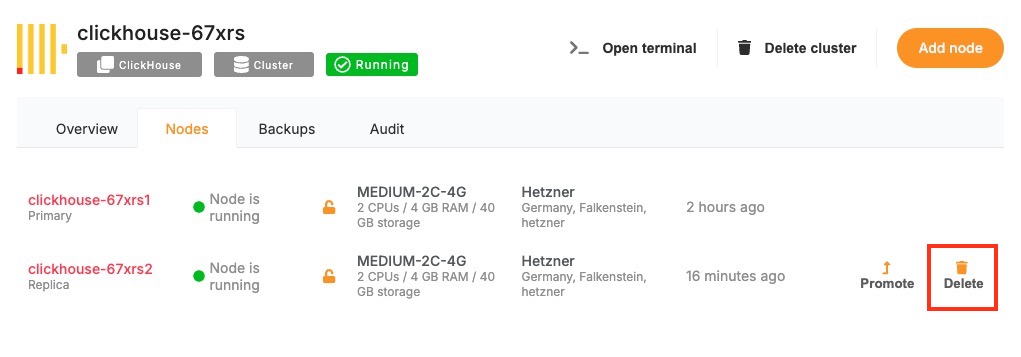
The dashboard may prompt you to confirm the operation. After confirmation, Elestio will begin the decommissioning process. This includes detaching the node from the cluster, cleaning up any residual state, and terminating the associated virtual machine.
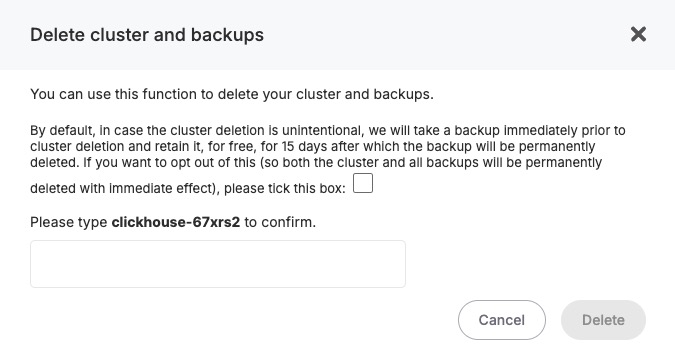
Once the operation completes, the node will no longer appear in the cluster’s node list, and its resources will be released.
Considerations for Safe Node Removal
Before removing a node in Elestio, it’s important to review the services and workloads currently running on that node. Since Elestio does not automatically redistribute or migrate workloads during node removal, you should ensure that critical services are either no longer in use or can be manually rescheduled to other nodes in the cluster. This is particularly important in multi-node environments running stateful applications, databases, or services with specific affinity rules.
You should also verify that your cluster will have sufficient capacity after the node is removed. If the deleted node was handling a significant portion of traffic or compute load, removing it without replacement may lead to performance degradation or service interruption. In high-availability clusters, ensure that quorum-based components or replicas are not depending on the node targeted for deletion. Additionally, confirm that the node is not playing a special role such as holding primary data or acting as a manually promoted leader before removal. If necessary, reconfigure or promote another node prior to deletion to maintain cluster integrity.
Backups and Restores
Reliable backups are essential for data resilience, recovery, and business continuity. Elestio provides built-in support for managing backups across all supported services, ensuring that your data is protected against accidental loss, corruption, or infrastructure failure. The platform includes an automated backup system with configurable retention policies and a straightforward restore process, all accessible from the dashboard. Whether you’re operating a production database or a test environment, understanding how backups and restores work in Elestio is critical for maintaining service reliability.
Cluster Backups
Elestio provides multiple backup mechanisms designed to support various recovery and compliance needs. Backups are created automatically for most supported services, with consistent intervals and secure storage in managed infrastructure. These backups are performed in the background to ensure minimal performance impact and no downtime during the snapshot process. Each backup is timestamped, versioned, and stored securely with encryption. You can access your full backup history for any given service through the dashboard and select any version for restoration.
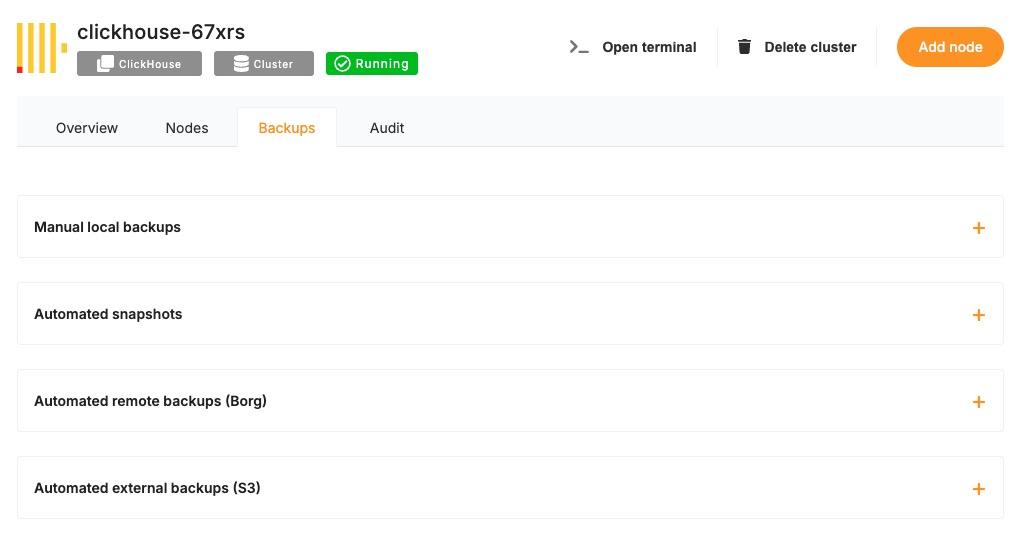
You can utilize different backup options depending on your preferences and operational requirements. Elestio supports manual local backups for on-demand recovery points, automated snapshots that capture the state of the service at fixed intervals, and automated remote backups using Borg, which securely stores backups on external storage volumes managed by Elestio. In addition, you can configure automated external backups to S3-compatible storage, allowing you to maintain full control over long-term retention and geographic storage preferences.
Restoring from a Backup
Restoring a backup in Elestio is a user-initiated operation, available directly from the service dashboard. Once you’re in the dashboard, select the service you’d like to restore. Navigate to the Backups section, where you’ll find a list of all available backups along with their creation timestamps.
To initiate a restore, choose the desired backup version and click on the “Restore” option. You will be prompted to confirm the operation. Depending on the type of service, the restore can either overwrite the current state or recreate the service as a new instance from the selected backup.
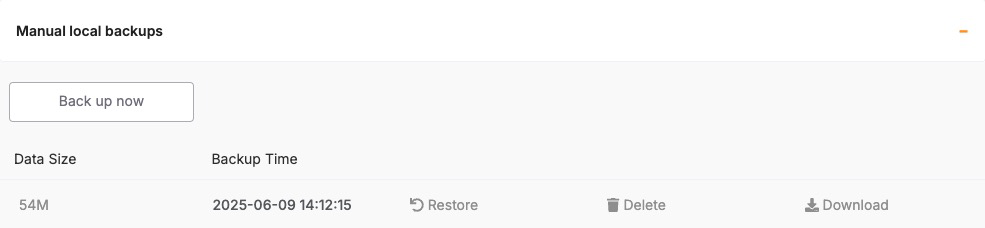
The restore process takes a few minutes, depending on the size of the backup and the service type. Once completed, the restored service is immediately accessible. In the case of databases, you can validate the restore by connecting to the database and inspecting the restored data.
Considerations for Backup & Restore
- Before restoring a backup, it’s important to understand the impact on your current data. Restores may overwrite existing service state, so if you need to preserve the current environment, consider creating a manual backup before initiating the restore. In critical environments, restoring to a new instance and validating the data before replacing the original is a safer approach.
- Keep in mind that restore operations are not instantaneous and may temporarily affect service availability. It’s best to plan restores during maintenance windows or periods of low traffic, especially in production environments.
- For services with high-frequency data changes, be aware of the backup schedule and retention policy. Elestio’s default intervals may not capture every change, so for high-volume databases, consider exporting incremental backups manually or using continuous replication where supported.
Monitoring Backup Health
Elestio provides visibility into your backup history directly through the dashboard. You can monitor the status, timestamps, and success/failure of backup jobs. In case of errors or failed backups, the dashboard will display alerts, allowing you to take corrective actions or contact support if necessary.
It’s good practice to periodically verify that backups are being generated and that restore points are recent and complete. This ensures you’re prepared for unexpected failures and that recovery options remain reliable.
Cluster Resynchronization
In distributed systems, consistency and synchronization between nodes are critical to ensure that services behave reliably and that data remains accurate across the cluster. Elestio provides built-in mechanisms to detect and resolve inconsistencies across nodes using a feature called Cluster Resynchronization. This functionality ensures that node-level configurations, data replication, and service states are properly aligned, especially after issues like node recovery, temporary network splits, or service restarts.
Need for Cluster Resynchronization
Resynchronization is typically required when secondary nodes in a cluster are no longer consistent with the primary node. This can happen due to temporary network failures, node restarts, replication lag, or partial service interruptions. In such cases, secondary nodes may fall behind or store incomplete datasets, which could lead to incorrect behavior if a failover occurs or if read operations are directed to those nodes. Unresolved inconsistencies can result in data divergence, serving outdated content, or failing health checks in load-balanced environments. Performing a resynchronization ensures that all secondary nodes are forcibly aligned with the current state of the primary node, restoring a clean and unified cluster state.
It may also be necessary to perform a resync after restoring a service from backup, during infrastructure migrations, or after recovering a previously offline node. In each of these cases, resynchronization acts as a corrective mechanism to ensure that every node is operating with the same configuration and dataset, reducing the risk of drift and maintaining data integrity across the cluster.
Cluster Resynchronization
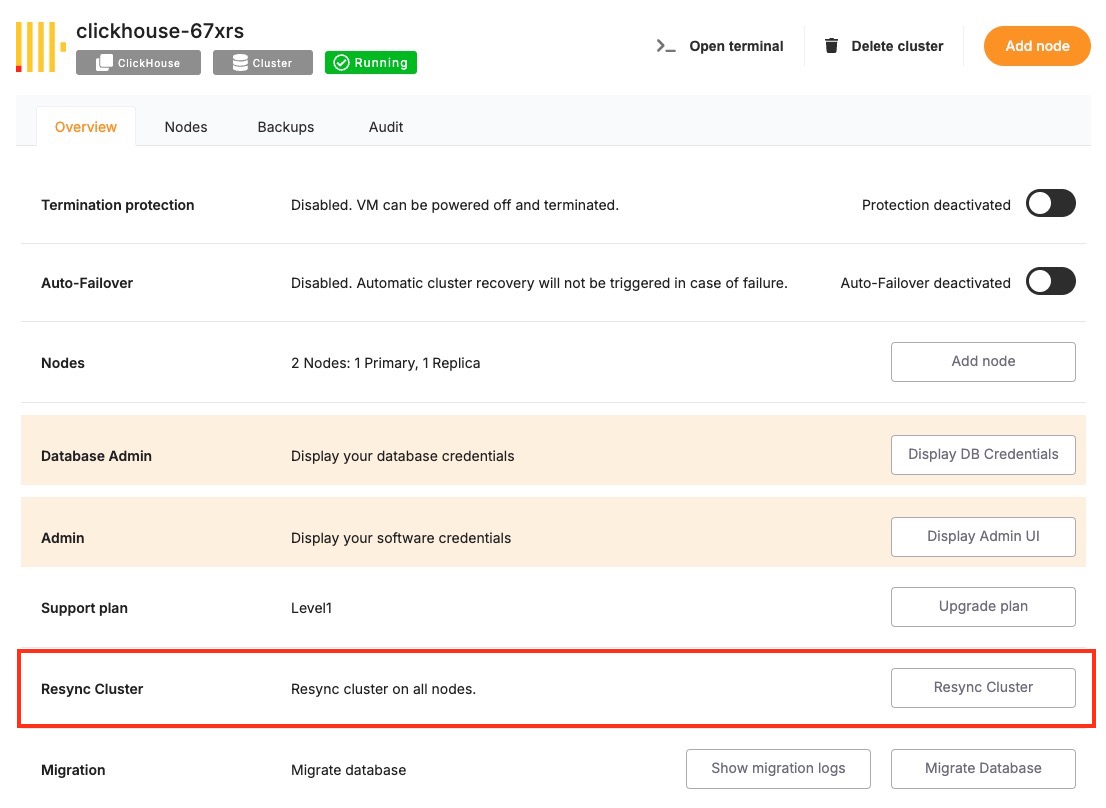
To perform a resynchronization, start by accessing the Elestio dashboard and navigating to the Clusters section. Select the cluster where synchronization is needed. On the Cluster Overview page, scroll down slightly until you find the “Resync Cluster” option. This option is visible as part of the cluster controls and is available only in clusters with multiple nodes and a defined primary node.
Clicking the Resync button opens a confirmation dialog. The message clearly explains that this action will initiate a request to resynchronize all secondary nodes. During the resync process, existing data on all secondary nodes will be erased and replaced with a copy of the data from the primary node. This operation ensures full consistency across the cluster but should be executed with caution, especially if recent changes exist on any of the secondaries that haven’t yet been replicated.
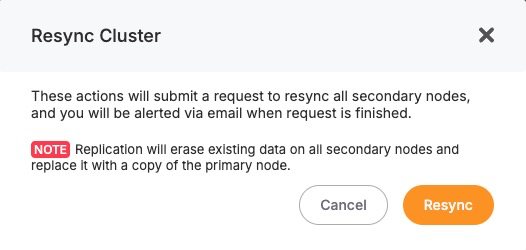
You will receive an email notification once the resynchronization is complete. During this process, Elestio manages the replication safely, but depending on the size of the data, the operation may take a few minutes. It’s advised to avoid making further changes to the cluster while the resync is in progress.
Considerations Before Resynchronizing
- Before triggering a resync, it’s important to verify that the primary node holds the desired state and that the secondary nodes do not contain any critical unsynced data. Since the resync overwrites the secondary nodes completely, any local changes on those nodes will be lost.
- This action is best used when you’re confident that the primary node is healthy, current, and stable. Avoid initiating a resync if the primary has recently experienced errors or data issues. Additionally, consider performing this operation during a low-traffic period, as synchronization may temporarily impact performance depending on the data volume.
- If your application requires high consistency guarantees, it’s recommended to monitor your cluster closely during and after the resync to confirm that services are functioning correctly and that the replication process completed successfully.
Database Migration
When managing production-grade services, the ability to perform reliable and repeatable database migrations is critical. Whether you’re applying schema changes, updating seed data, or managing version-controlled transitions, Elestio provides a built-in mechanism to execute migrations safely from the dashboard. This functionality is especially relevant when running containerized database services like ClickHouse, or similar within a managed cluster.
Need for Migrations
Database migrations are commonly required when updating your application’s data model or deploying new features. Schema updates such as adding columns, modifying data types, creating indexes, or introducing new tables need to be synchronized with the deployment lifecycle of your application code.
Migrations may also be needed during version upgrades to introduce structural or configuration changes required by newer database engine versions. In some cases, teams use migrations to apply baseline datasets, adjust permissions, or clean up legacy objects. Running these changes through a controlled migration system ensures consistency across environments and helps avoid untracked manual changes.
Running Database Migration
To run a database migration in Elestio, start by logging into the Elestio dashboard and navigating to the Clusters section. Select the cluster that contains the target database service. From the Cluster Overview page, scroll down until you find the “Migration” option.
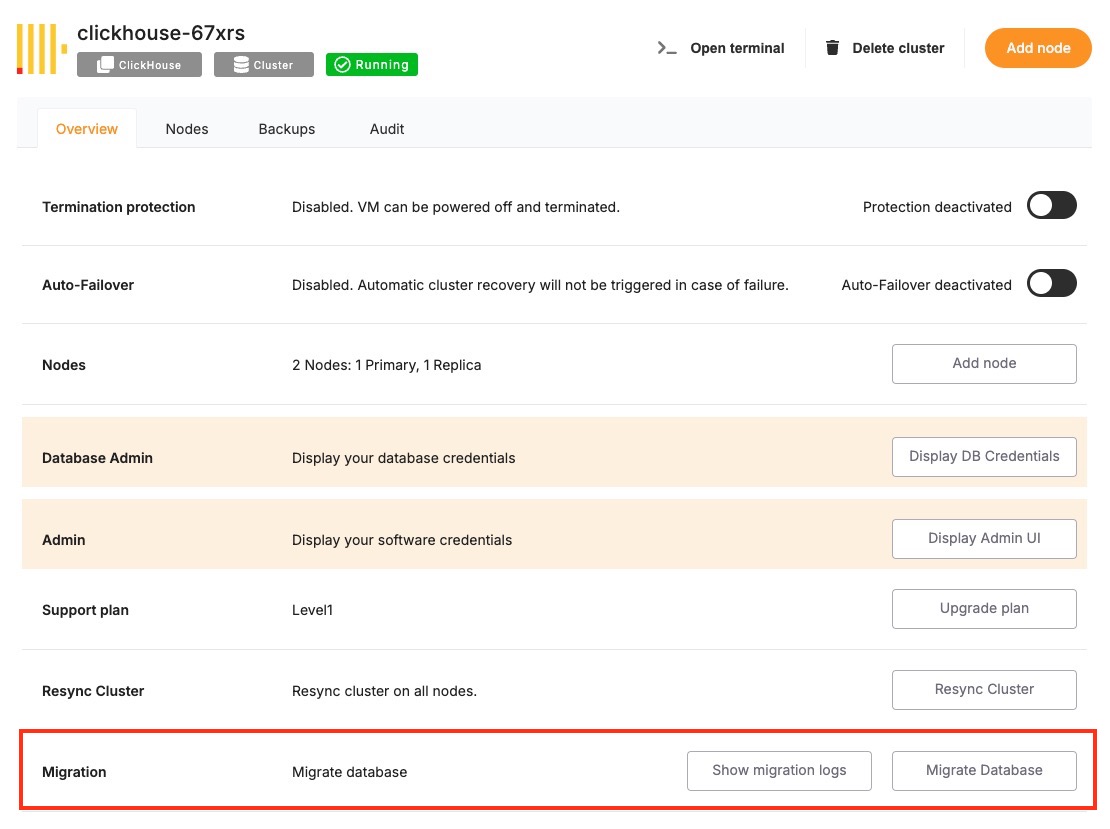
Clicking this option will open the migration workflow, which follows a three-step process: Configure, Validation, and Migration. In the Configure step, Elestio provides a migration configuration guide specific to the database type, such as ClickHouse. At this point, you must ensure that your target service has sufficient disk space to complete the migration. If there is not enough storage available, the migration may fail midway, so it’s strongly recommended to review storage utilization beforehand.
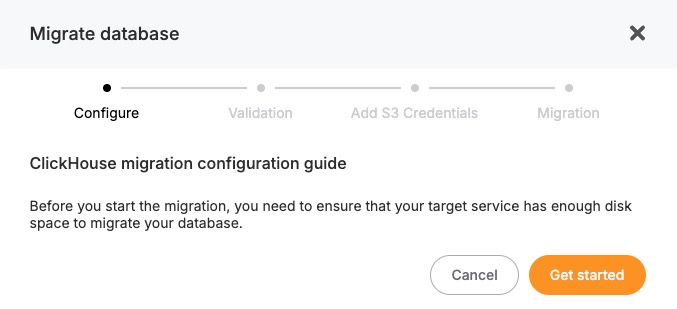
Once configuration prerequisites are met, you can proceed to the Validation step. Elestio will check the secondary database details you have provided for the migration.
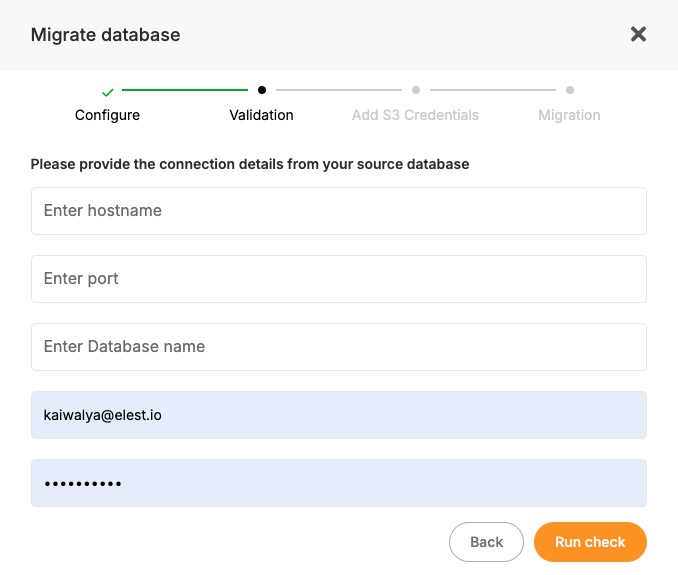
If the validation passes, the final Migration step will become active. You can then initiate the migration process. Elestio will handle the actual data transfer, schema replication, and state synchronization internally. The progress is tracked, and once completed, the migrated database will be fully operational on the target service.
Considerations Before Running Migrations
- Before running any migration, it’s important to validate the script or changes in a staging environment. Since migrations may involve irreversible changes such as dropping columns, altering constraints, or modifying data careful review and version control are essential.
- In production environments, plan migrations during maintenance windows or low-traffic periods to minimize the impact of any schema locks or temporary unavailability. If you’re using replication or high-availability setups, confirm that the migration is compatible with your architecture and will not disrupt synchronization between primary and secondary nodes.
- You should also ensure that proper backups are in place before applying structural changes. In Elestio, the backup feature can be used to create a restore point that allows rollback in case the migration introduces issues.
Delete a Cluster
When a cluster is no longer needed whether it was created for testing, staging, or an obsolete workload deleting it helps free up resources and maintain a clean infrastructure footprint. Elestio provides a straightforward and secure way to delete entire clusters directly from the dashboard. This action permanently removes the associated services, data, and compute resources tied to the cluster.
When to Delete a Cluster
Deleting a cluster is a final step often performed when decommissioning an environment. This could include shutting down a test setup, replacing infrastructure during migration, or retiring an unused production instance. In some cases, users also delete and recreate clusters as part of major version upgrades or architectural changes. It is essential to confirm that all data and services tied to the cluster are no longer required or have been backed up or migrated before proceeding. Since cluster deletion is irreversible, any services, volumes, and backups associated with the cluster will be permanently removed.
Delete a Cluster
To delete a cluster, log in to the Elestio dashboard and navigate to the Clusters section. From the list of clusters, select the one you want to remove. Inside the selected cluster, you’ll find a navigation bar at the top of the page. One of the available options in this navigation bar is “Delete Cluster.”
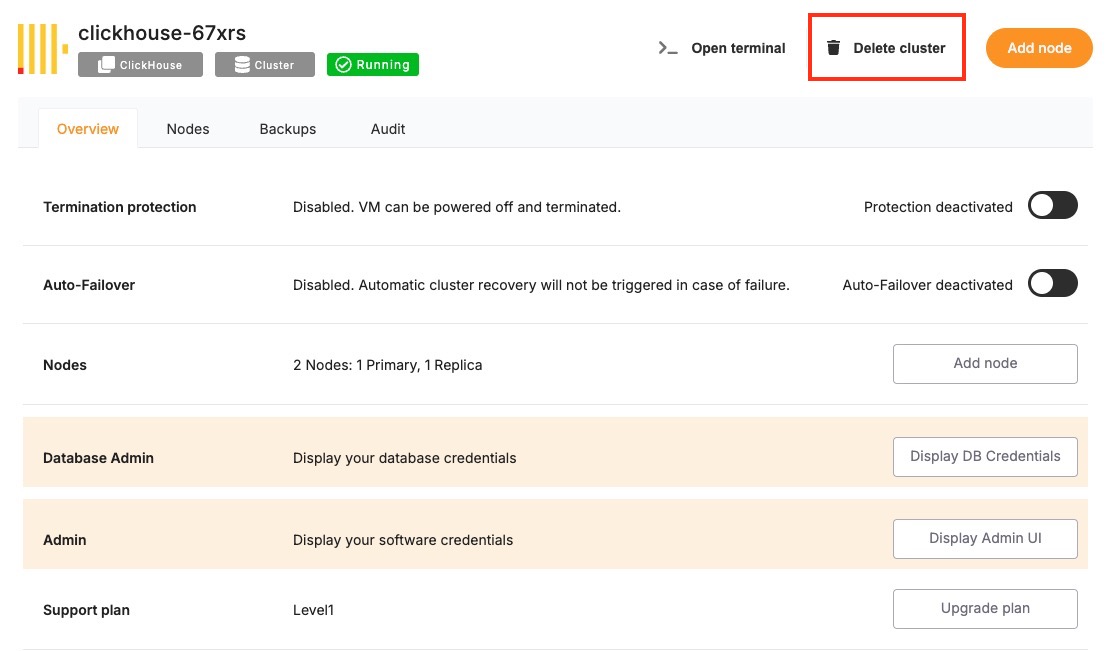
Clicking this opens a confirmation dialog that outlines the impact of deletion. It will clearly state that deleting the cluster will permanently remove all associated services, storage, and configurations. By acknowledging a warning or typing in the cluster name, depending on the service type. Once confirmed, Elestio will initiate the deletion process, which includes tearing down all resources associated with the cluster. This typically completes within a few minutes, after which the cluster will no longer appear in your dashboard.
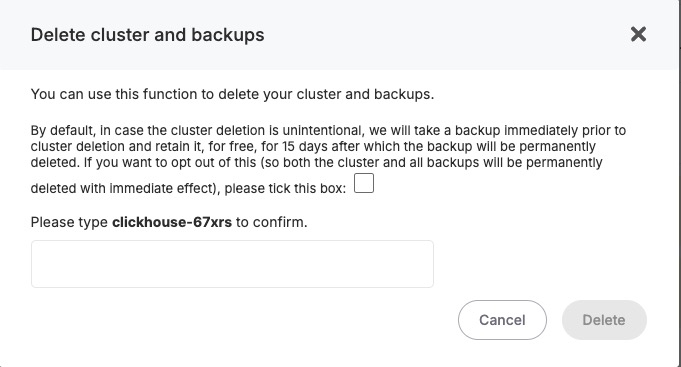
Considerations Before Deleting
Deleting a cluster also terminates any linked domains, volumes, monitoring configurations, and scheduled backups. These cannot be recovered once deletion is complete, so plan accordingly before confirming the action. If the cluster was used for production workloads, consider archiving data to external storage (e.g., S3) or exporting final snapshots for compliance and recovery purposes.
Before deleting a cluster, verify that:
- All required data has been backed up externally (e.g., downloaded dumps or exports).
- Any active services or dependencies tied to the cluster have been reconfigured or shut down.
- Access credentials, logs, or stored configuration settings have been retrieved if needed for auditing or migration.
Restricting Access by IP
Securing access to services is a fundamental part of managing cloud infrastructure. One of the most effective ways to reduce unauthorized access is by restricting connectivity to a defined set of IP addresses. Elestio supports IP-based access control through its dashboard, allowing you to explicitly define which IPs or IP ranges are allowed to interact with your services. This is particularly useful when exposing databases, APIs, or web services over public endpoints.
Need to Restrict Access by IP
Restricting access by IP provides a first layer of network-level protection. Instead of relying solely on application-layer authentication, you can control who is allowed to even initiate a connection to your service. This approach reduces the surface area for attacks such as brute-force login attempts, automated scanning, or unauthorized probing.
Common use cases include:
- Limiting access to production databases from known office networks or VPNs.
- Allowing only CI/CD pipelines or monitoring tools with static IPs to connect.
- Restricting admin dashboards or internal tools to internal teams.
By defining access rules at the infrastructure level, you gain more control over who can reach your services, regardless of their authentication or API access status.
Restrict Access by IP
To restrict access by IP in Elestio, start by logging into the Elestio dashboard and navigating to the Clusters section. Select the cluster that hosts the service you want to protect. Once inside the Cluster Overview page, locate the Security section.
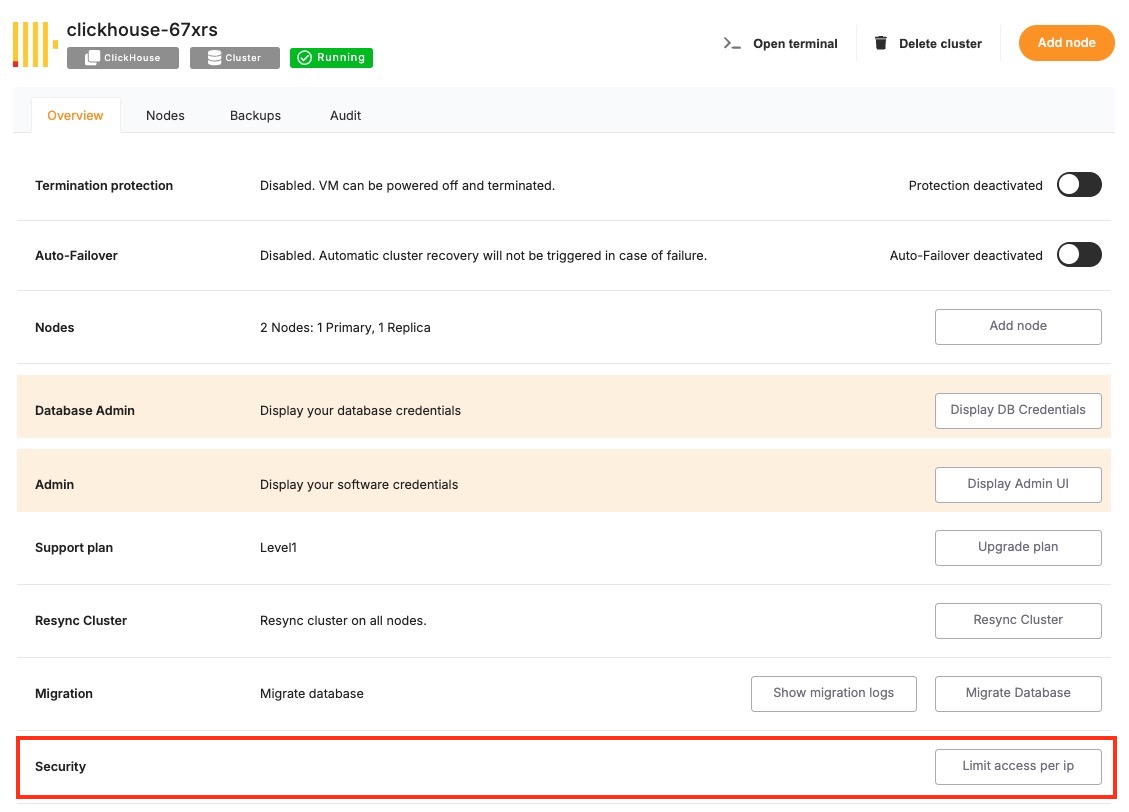
Within this section, you’ll find a setting labelled “Limit access per IP”. This is where you can define which IP addresses or CIDR ranges are permitted to access the services running in the cluster. You can add a specific IPv4 or IPv6 address (e.g., 203.0.113.5) or a subnet in CIDR notation (e.g., 203.0.113.0/24) to allow access from a range of IPs.
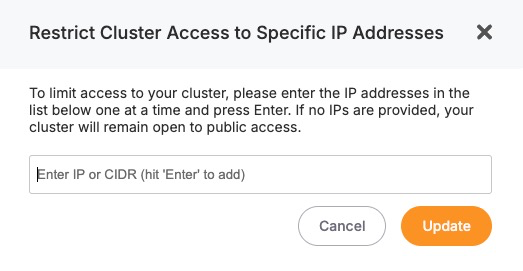
After entering the necessary IP addresses, save the configuration. The changes will apply to all services running inside the cluster, and only the defined IPs will be allowed to establish network connections. All other incoming requests from unlisted IPs will be blocked at the infrastructure level.
Considerations When Using IP Restrictions
- When applying IP restrictions, it’s important to avoid locking yourself out. Always double-check that your own IP address is included in the allowlist before applying rules, especially when working on remote infrastructure.
- For users on dynamic IPs (e.g., home broadband connections), consider using a VPN or a static jump host that you can reliably allowlist. Similarly, if your services are accessed through cloud-based tools, make sure to verify their IP ranges and update your rules accordingly when those IPs change.
- In multi-team environments, document and review IP access policies regularly to avoid stale rules or overly permissive configurations. Combine IP restrictions with secure authentication and encrypted connections (such as HTTPS or SSL for databases) for layered security.