# Databases
We currently support cluster mode for MySQL & KeyDB (Redis compatible). We are working hard on adding cluster mode support for more databases.
# DB Migration service
# MySQL Database Migration to Elestio
Elestio provides a robust and user-friendly platform for managing your database migrations seamlessly. Whether you are migrating from an on-premises MySQL database or from another cloud provider, Elestio's migration tool simplifies the process. By following a few straightforward steps, you can securely and efficiently move your MySQL databases to Elestio, ensuring minimal downtime and disruption to your operations.
This guide will walk you through the process of migrating your MySQL database from an external source to Elestio. We will cover everything from configuring your migration settings, validating the connection to your source database, and finally starting the migration process while monitoring its progress.
### Step 1 - Configure
1. Go to the overview of your MySQL service on Elestio. [](https://docs.elest.io/uploads/images/gallery/2024-07/screenshot-2024-07-18-at-16-32-08.png)
2. Click on the **Migrate Database** button.
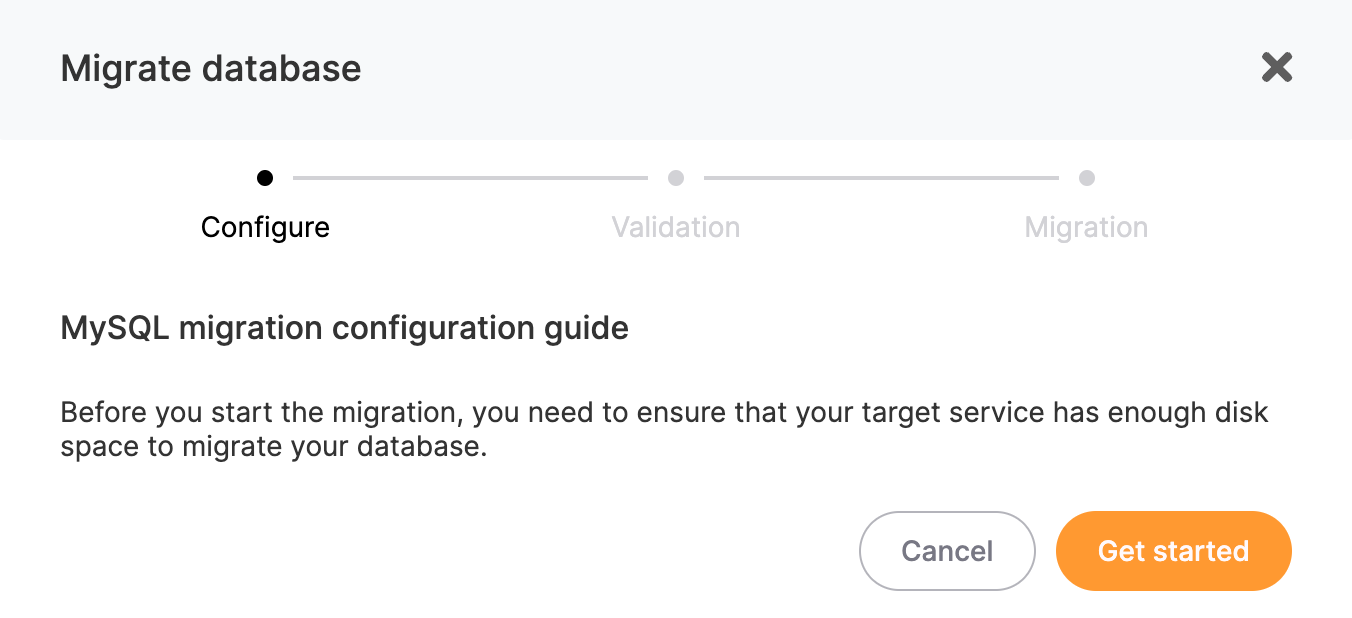
3. A modal window will open, ensure that your target service has enough disk space to accommodate your database
4. Click on **Get started** button**.**
[](https://docs.elest.io/uploads/images/gallery/2024-07/urUscreenshot-2024-07-18-at-16-32-25.png)
### Step 2 - Validation
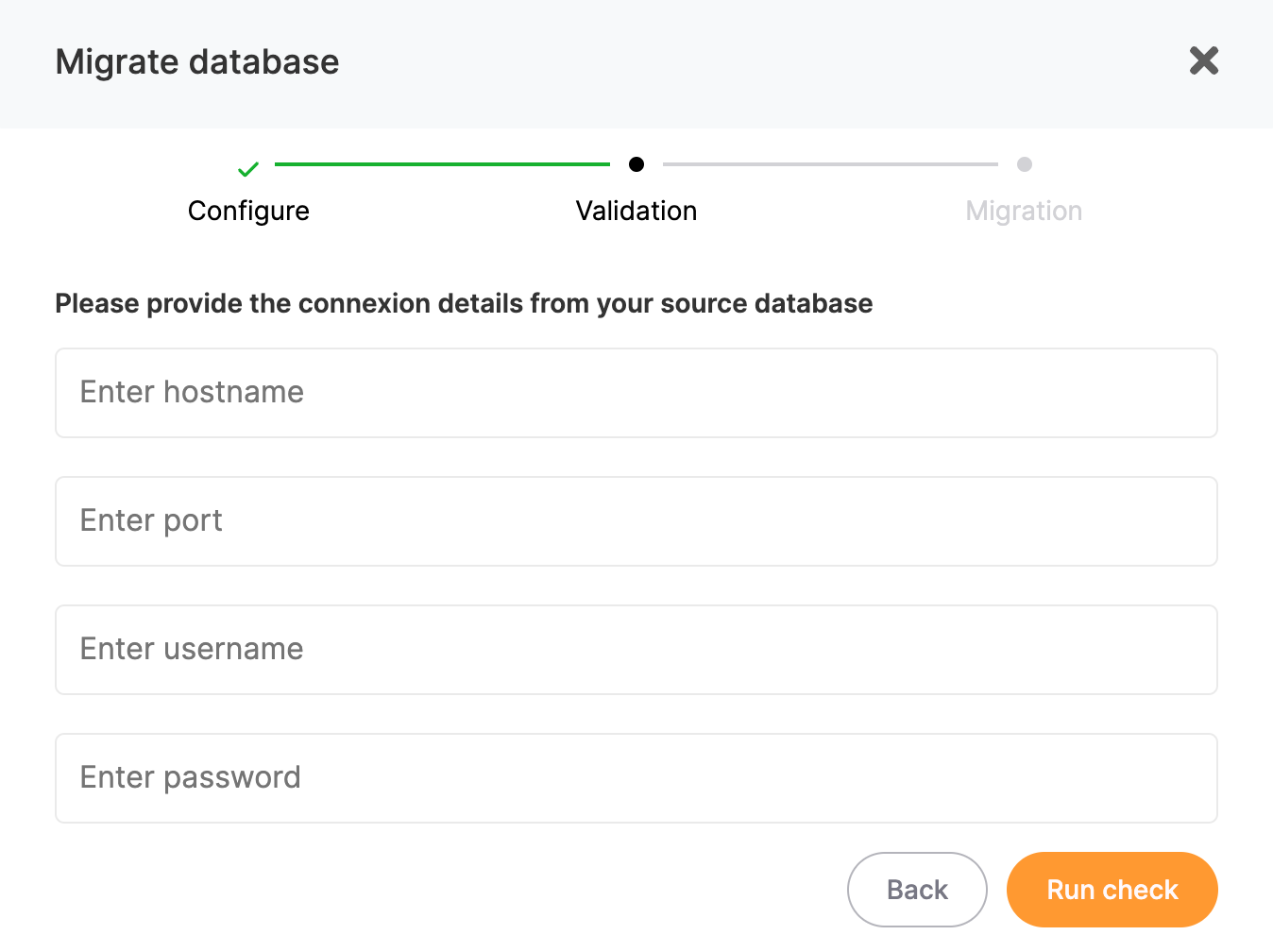
1. You need to provide the connection details to establish a connection to your source database, enter the required details:
- **Hostname**
- **Port**
- **Username**
- **Password**
2. Click on **Run Check** to validate the connection.
[](https://docs.elest.io/uploads/images/gallery/2024-07/screenshot-2024-07-18-at-16-32-37.png)
### Step 3 - Migration
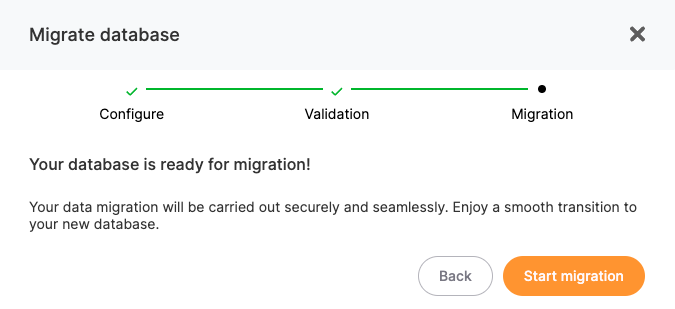
1. If all checks pass with no errors, you can trigger the migration by selecting **Start migration**.
2. Once the migration starts, you can monitor the progress through the migration logs displayed in real-time.
[](https://docs.elest.io/uploads/images/gallery/2024-07/screenshot-2024-07-21-at-12-22-36.png)
# PostgreSQL Database Migration to Elestio
Elestio provides a robust and user-friendly platform for managing your database migrations seamlessly. Whether you are migrating from an on-premises PostgreSQL database or from another cloud provider, Elestio's migration tool simplifies the process. By following a few straightforward steps, you can securely and efficiently move your PostgreSQL databases to Elestio, ensuring minimal downtime and disruption to your operations.
This guide will walk you through the process of migrating your PostgreSQL database from an external source to Elestio. We will cover everything from configuring your migration settings, validating the connection to your source database, and finally starting the migration process while monitoring its progress.
### Step 1 - Configure
1. Go to the overview of your PostgreSQL service on Elestio. [](https://docs.elest.io/uploads/images/gallery/2024-07/screenshot-2024-07-18-at-16-32-08.png)
2. Click on the **Migrate Database** button.
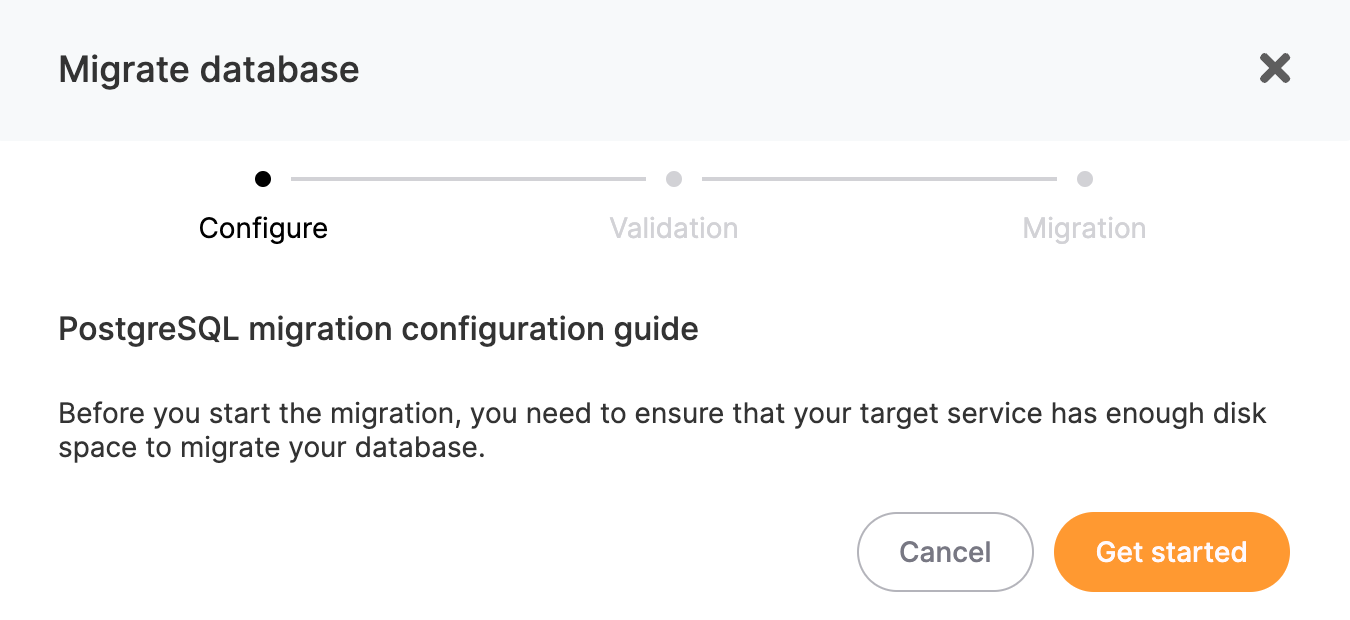
3. A modal window will open, ensure that your target service has enough disk space to accommodate your database
4. Click on **Get started** button**.**
[](https://docs.elest.io/uploads/images/gallery/2024-07/screenshot-2024-07-21-at-15-50-27.png)
### Step 2 - Validation
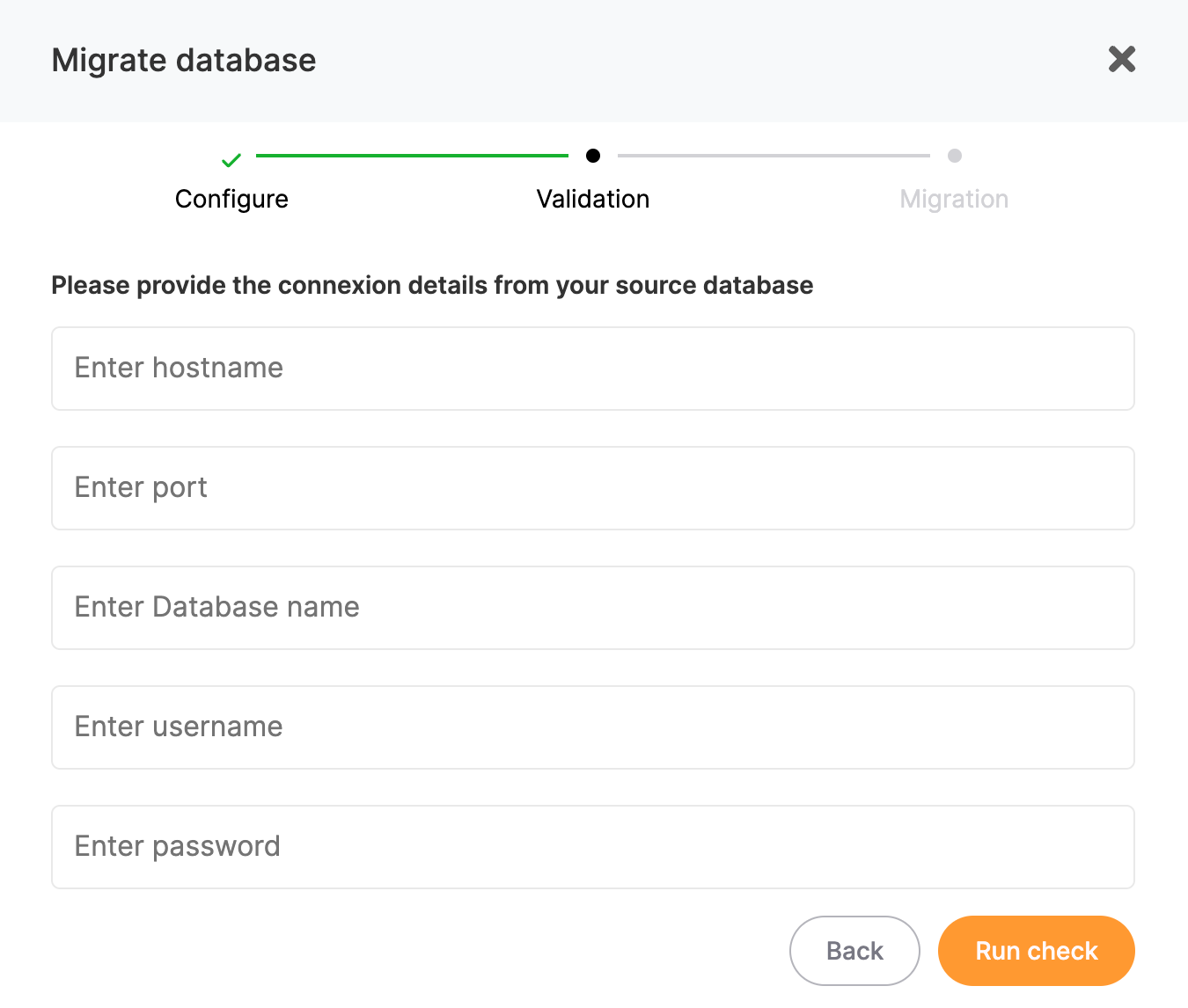
1. You need to provide the connection details to establish a connection to your source database, enter the required details:
- **Hostname**
- **Port**
- **Database Name**
- **Username**
- **Password**
2. Click on **Run Check** to validate the connection.
[](https://docs.elest.io/uploads/images/gallery/2024-07/screenshot-2024-07-21-at-15-31-43.png)
### Step 3 - Migration
1. If all checks pass with no errors, you can trigger the migration by selecting **Start migration**.
2. Once the migration starts, you can monitor the progress through the migration logs displayed in real-time.
[](https://docs.elest.io/uploads/images/gallery/2024-07/screenshot-2024-07-21-at-12-22-36.png)
# MariaDB Database Migration to Elestio
Elestio provides a robust and user-friendly platform for managing your database migrations seamlessly. Whether you are migrating from an on-premises MariaDB database or from another cloud provider, Elestio's migration tool simplifies the process. By following a few straightforward steps, you can securely and efficiently move your MariaDB databases to Elestio, ensuring minimal downtime and disruption to your operations.
This guide will walk you through the process of migrating your MariaDB database from an external source to Elestio. We will cover everything from configuring your migration settings, validating the connection to your source database, and finally starting the migration process while monitoring its progress.
### Step 1 - Configure
1. Go to the overview of your MariaDB service on Elestio. [](https://docs.elest.io/uploads/images/gallery/2024-07/screenshot-2024-07-18-at-16-32-08.png)
2. Click on the **Migrate Database** button.
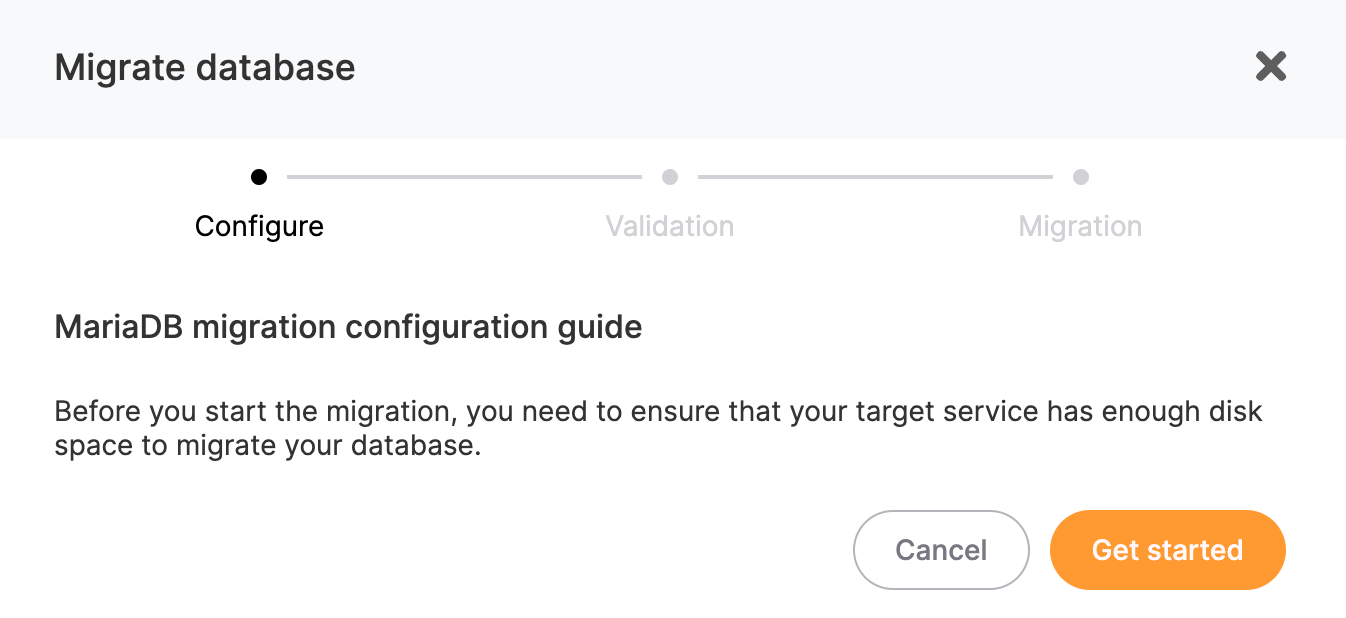
3. A modal window will open, ensure that your target service has enough disk space to accommodate your database
4. Click on **Get started** button**.**
[](https://docs.elest.io/uploads/images/gallery/2024-07/screenshot-2024-07-21-at-16-52-31.png)
### Step 2 - Validation
1. You need to provide the connection details to establish a connection to your source database, enter the required details:
- **Hostname**
- **Port**
- **Username**
- **Password**
2. Click on **Run Check** to validate the connection.
[](https://docs.elest.io/uploads/images/gallery/2024-07/screenshot-2024-07-18-at-16-32-37.png)
### Step 3 - Migration
1. If all checks pass with no errors, you can trigger the migration by selecting **Start migration**.
2. Once the migration starts, you can monitor the progress through the migration logs displayed in real-time.
[](https://docs.elest.io/uploads/images/gallery/2024-07/screenshot-2024-07-21-at-12-22-36.png)
# ColumnStore Database Migration to Elestio
Elestio provides a robust and user-friendly platform for managing your database migrations seamlessly. Whether you are migrating from an on-premises ColumnStore database or from another cloud provider, Elestio's migration tool simplifies the process. By following a few straightforward steps, you can securely and efficiently move your ColumnStore databases to Elestio, ensuring minimal downtime and disruption to your operations.
This guide will walk you through the process of migrating your ColumnStore database from an external source to Elestio. We will cover everything from configuring your migration settings, validating the connection to your source database, and finally starting the migration process while monitoring its progress.
### Step 1 - Configure
1. Go to the overview of your ColumnStore service on Elestio. [](https://docs.elest.io/uploads/images/gallery/2024-07/screenshot-2024-07-18-at-16-32-08.png)
2. Click on the **Migrate Database** button.
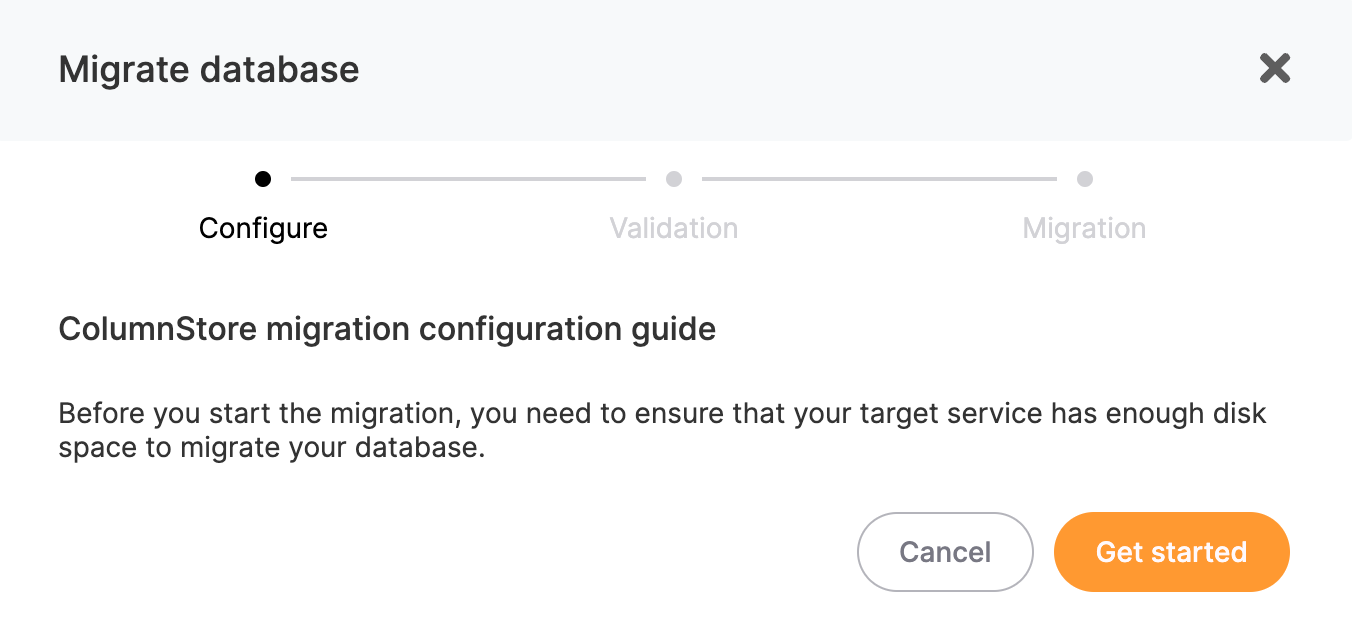
3. A modal window will open, ensure that your target service has enough disk space to accommodate your database
4. Click on **Get started** button**.**
[](https://docs.elest.io/uploads/images/gallery/2024-07/screenshot-2024-07-21-at-16-58-35.png)
### Step 2 - Validation
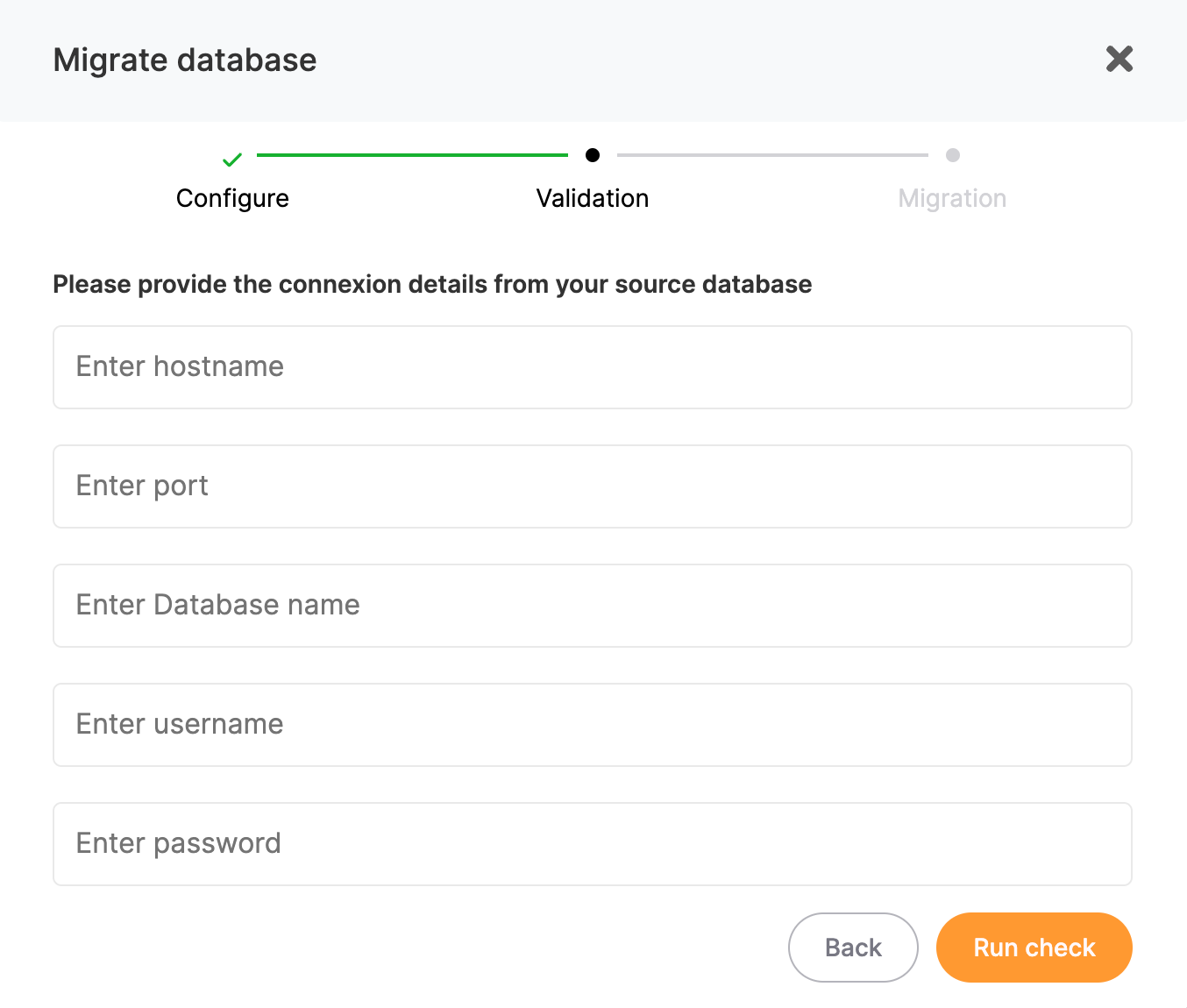
1. You need to provide the connection details to establish a connection to your source database, enter the required details:
- **Hostname**
- **Port**
- **Database name**
- **Username**
- **Password**
2. Click on **Run Check** to validate the connection.
[](https://docs.elest.io/uploads/images/gallery/2024-07/screenshot-2024-07-21-at-16-52-55.png)
### Step 3 - Migration
1. If all checks pass with no errors, you can trigger the migration by selecting **Start migration**.
2. Once the migration starts, you can monitor the progress through the migration logs displayed in real-time.
[](https://docs.elest.io/uploads/images/gallery/2024-07/screenshot-2024-07-21-at-12-22-36.png)
# Redis Database Migration to Elestio
Elestio provides a robust and user-friendly platform for managing your database migrations seamlessly. Whether you are migrating from an on-premises Redis database or from another cloud provider, Elestio's migration tool simplifies the process. By following a few straightforward steps, you can securely and efficiently move your Redis databases to Elestio, ensuring minimal downtime and disruption to your operations.
This guide will walk you through the process of migrating your Redis database from an external source to Elestio. We will cover everything from configuring your migration settings, validating the connection to your source database, and finally starting the migration process while monitoring its progress.
### Step 1 - Configure
1. Go to the overview of your Redis service on Elestio. [](https://docs.elest.io/uploads/images/gallery/2024-07/screenshot-2024-07-18-at-16-32-08.png)
2. Click on the **Migrate Database** button.
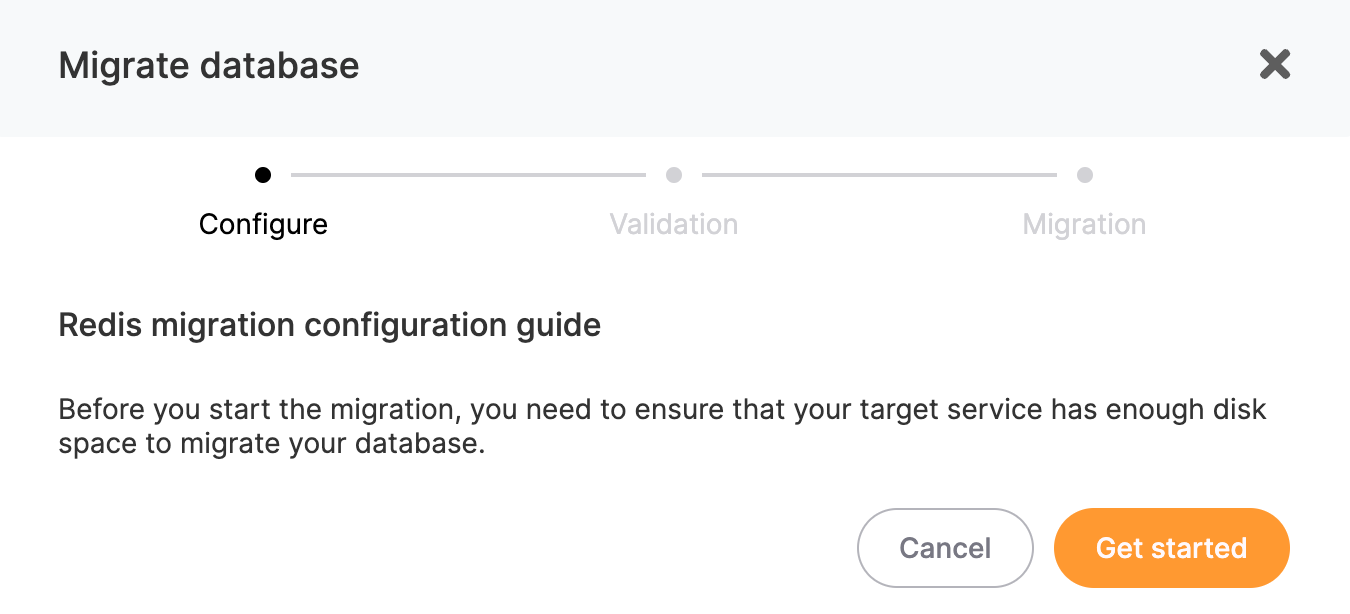
3. A modal window will open, ensure that your target service has enough disk space to accommodate your database
4. Click on **Get started** button**.**
[](https://docs.elest.io/uploads/images/gallery/2024-07/screenshot-2024-07-21-at-17-13-23.png)
### Step 2 - Validation
1. You need to provide the connection details to establish a connection to your source database, enter the required details:
- **Hostname**
- **Port**
- **Username**
- **Password**
2. Click on **Run Check** to validate the connection.
[](https://docs.elest.io/uploads/images/gallery/2024-07/screenshot-2024-07-18-at-16-32-37.png)
### Step 3 - Migration
1. If all checks pass with no errors, you can trigger the migration by selecting **Start migration**.
2. Once the migration starts, you can monitor the progress through the migration logs displayed in real-time.
[](https://docs.elest.io/uploads/images/gallery/2024-07/screenshot-2024-07-21-at-12-22-36.png)
# KeyDB Database Migration to Elestio
Elestio provides a robust and user-friendly platform for managing your database migrations seamlessly. Whether you are migrating from an on-premises KeyDB database or from another cloud provider, Elestio's migration tool simplifies the process. By following a few straightforward steps, you can securely and efficiently move your KeyDB databases to Elestio, ensuring minimal downtime and disruption to your operations.
This guide will walk you through the process of migrating your KeyDB database from an external source to Elestio. We will cover everything from configuring your migration settings, validating the connection to your source database, and finally starting the migration process while monitoring its progress.
### Step 1 - Configure
1. Go to the overview of your KeyDB service on Elestio. [](https://docs.elest.io/uploads/images/gallery/2024-07/screenshot-2024-07-18-at-16-32-08.png)
2. Click on the **Migrate Database** button.
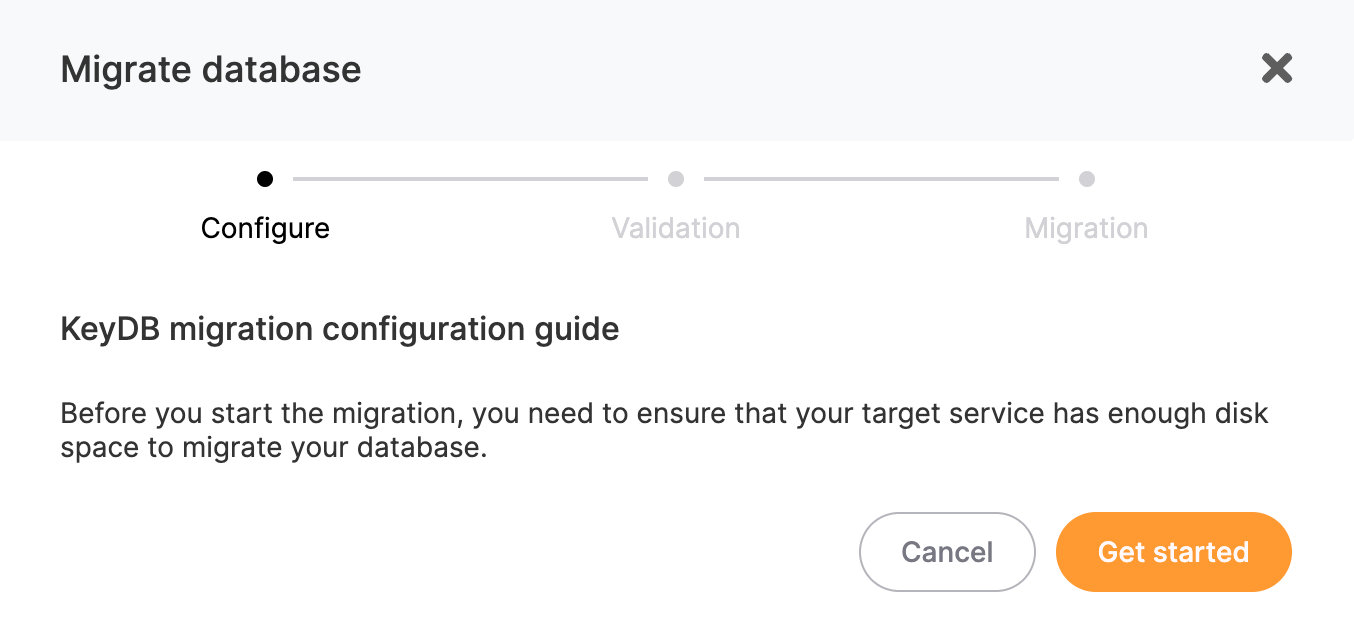
3. A modal window will open, ensure that your target service has enough disk space to accommodate your database
4. Click on **Get started** button**.**
[](https://docs.elest.io/uploads/images/gallery/2024-07/screenshot-2024-07-21-at-17-13-59.png)
### Step 2 - Validation
1. You need to provide the connection details to establish a connection to your source database, enter the required details:
- **Hostname**
- **Port**
- **Username**
- **Password**
2. Click on **Run Check** to validate the connection.
[](https://docs.elest.io/uploads/images/gallery/2024-07/screenshot-2024-07-18-at-16-32-37.png)
### Step 3 - Migration
1. If all checks pass with no errors, you can trigger the migration by selecting **Start migration**.
2. Once the migration starts, you can monitor the progress through the migration logs displayed in real-time.
[](https://docs.elest.io/uploads/images/gallery/2024-07/screenshot-2024-07-21-at-12-22-36.png)
# Valkey Database Migration to Elestio
Elestio provides a robust and user-friendly platform for managing your database migrations seamlessly. Whether you are migrating from an on-premises Valkey database or from another cloud provider, Elestio's migration tool simplifies the process. By following a few straightforward steps, you can securely and efficiently move your Valkey databases to Elestio, ensuring minimal downtime and disruption to your operations.
This guide will walk you through the process of migrating your Valkey database from an external source to Elestio. We will cover everything from configuring your migration settings, validating the connection to your source database, and finally starting the migration process while monitoring its progress.
### Step 1 - Configure
1. Go to the overview of your Valkey service on Elestio. [](https://docs.elest.io/uploads/images/gallery/2024-07/screenshot-2024-07-18-at-16-32-08.png)
2. Click on the **Migrate Database** button.
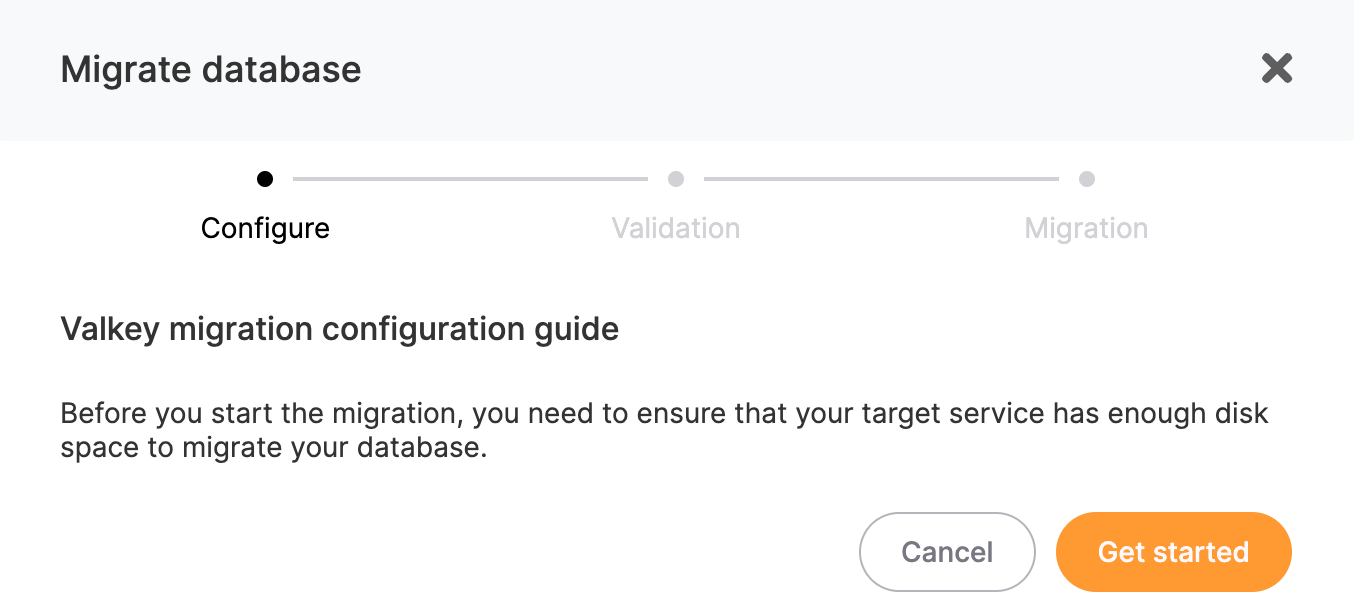
3. A modal window will open, ensure that your target service has enough disk space to accommodate your database
4. Click on **Get started** button**.**
[](https://docs.elest.io/uploads/images/gallery/2024-07/screenshot-2024-07-21-at-17-16-44.png)
### Step 2 - Validation
1. You need to provide the connection details to establish a connection to your source database, enter the required details:
- **Hostname**
- **Port**
- **Username**
- **Password**
2. Click on **Run Check** to validate the connection.
[](https://docs.elest.io/uploads/images/gallery/2024-07/screenshot-2024-07-18-at-16-32-37.png)
### Step 3 - Migration
1. If all checks pass with no errors, you can trigger the migration by selecting **Start migration**.
2. Once the migration starts, you can monitor the progress through the migration logs displayed in real-time.
[](https://docs.elest.io/uploads/images/gallery/2024-07/screenshot-2024-07-21-at-12-22-36.png)
# MongoDB Database Migration to Elestio
Elestio provides a robust and user-friendly platform for managing your database migrations seamlessly. Whether you are migrating from an on-premises MongoDB database or from another cloud provider, Elestio's migration tool simplifies the process. By following a few straightforward steps, you can securely and efficiently move your MongoDB databases to Elestio, ensuring minimal downtime and disruption to your operations.
This guide will walk you through the process of migrating your MongoDB database from an external source to Elestio. We will cover everything from configuring your migration settings, validating the connection to your source database, and finally starting the migration process while monitoring its progress.
### Step 1 - Configure
1. Go to the overview of your MongoDB service on Elestio. [](https://docs.elest.io/uploads/images/gallery/2024-07/screenshot-2024-07-18-at-16-32-08.png)
2. Click on the **Migrate Database** button.
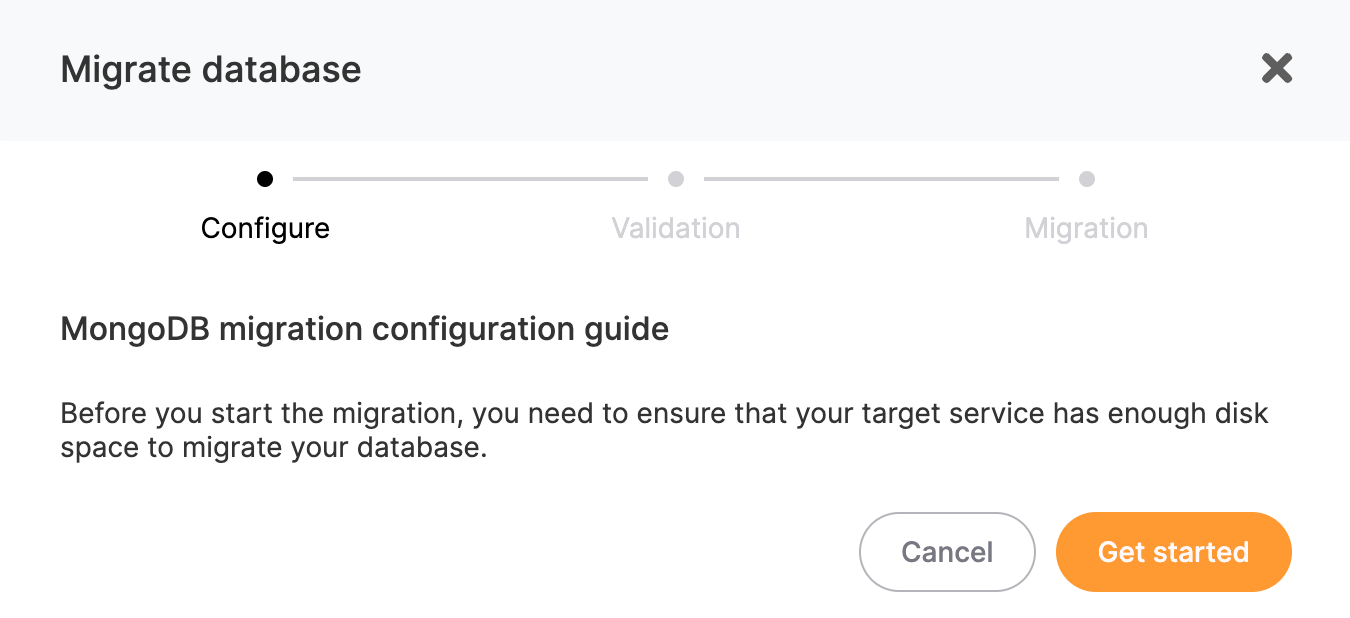
3. A modal window will open, ensure that your target service has enough disk space to accommodate your database
4. Click on **Get started** button**.**
[](https://docs.elest.io/uploads/images/gallery/2024-07/screenshot-2024-07-21-at-17-18-57.png)
### Step 2 - Validation
1. You need to provide the connection details to establish a connection to your source database, enter the required details:
- **Hostname**
- **Port**
- **Username**
- **Password**
2. Click on **Run Check** to validate the connection.
[](https://docs.elest.io/uploads/images/gallery/2024-07/screenshot-2024-07-18-at-16-32-37.png)
### Step 3 - Migration
1. If all checks pass with no errors, you can trigger the migration by selecting **Start migration**.
2. Once the migration starts, you can monitor the progress through the migration logs displayed in real-time.
[](https://docs.elest.io/uploads/images/gallery/2024-07/screenshot-2024-07-21-at-12-22-36.png)
# TimescaleDB Database Migration to Elestio
Elestio provides a robust and user-friendly platform for managing your database migrations seamlessly. Whether you are migrating from an on-premises TimescaleDB database or from another cloud provider, Elestio's migration tool simplifies the process. By following a few straightforward steps, you can securely and efficiently move your TimescaleDB databases to Elestio, ensuring minimal downtime and disruption to your operations.
This guide will walk you through the process of migrating your TimescaleDB database from an external source to Elestio. We will cover everything from configuring your migration settings, validating the connection to your source database, and finally starting the migration process while monitoring its progress.
### Step 1 - Configure
1. Go to the overview of your TimescaleDB service on Elestio. [](https://docs.elest.io/uploads/images/gallery/2024-07/screenshot-2024-07-18-at-16-32-08.png)
2. Click on the **Migrate Database** button.
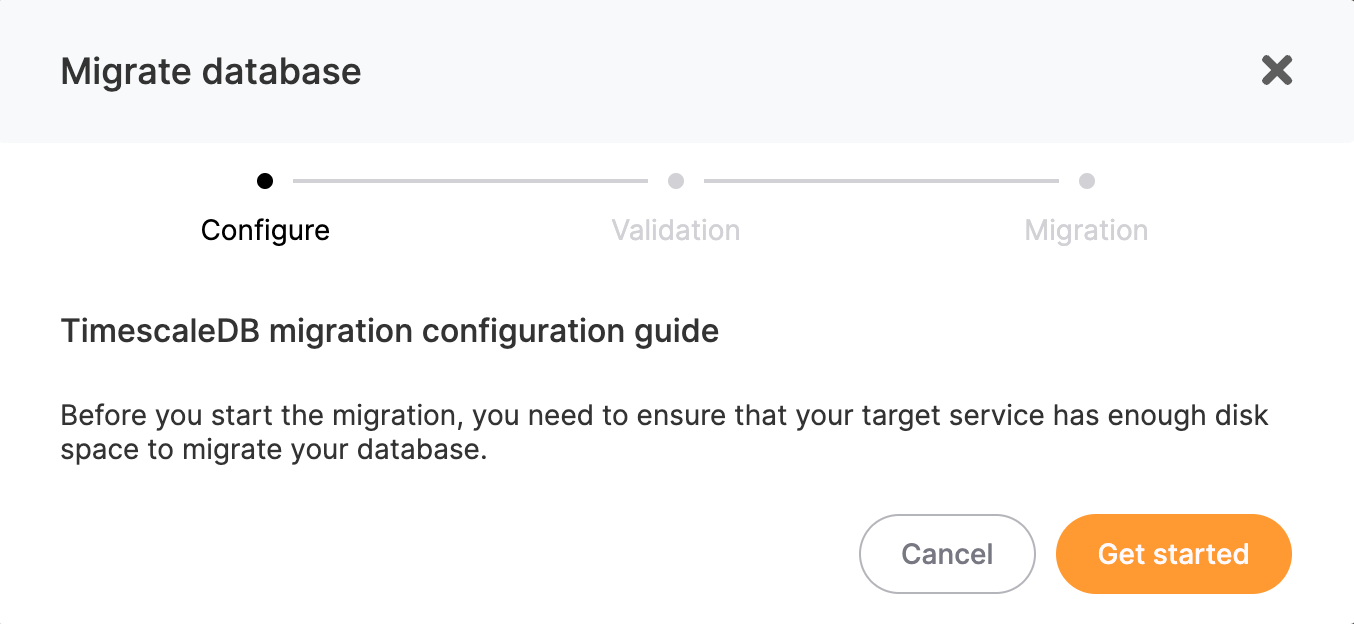
3. A modal window will open, ensure that your target service has enough disk space to accommodate your database
4. Click on **Get started** button**.**
[](https://docs.elest.io/uploads/images/gallery/2024-07/screenshot-2024-07-21-at-17-21-30.png)
### Step 2 - Validation
1. You need to provide the connection details to establish a connection to your source database, enter the required details:
- **Hostname**
- **Port**
- **Database Name**
- **Username**
- **Password**
2. Click on **Run Check** to validate the connection.
[](https://docs.elest.io/uploads/images/gallery/2024-07/screenshot-2024-07-21-at-15-31-43.png)
### Step 3 - Migration
1. If all checks pass with no errors, you can trigger the migration by selecting **Start migration**.
2. Once the migration starts, you can monitor the progress through the migration logs displayed in real-time.
[](https://docs.elest.io/uploads/images/gallery/2024-07/screenshot-2024-07-21-at-12-22-36.png)
# Hydra Database Migration to Elestio
Elestio provides a robust and user-friendly platform for managing your database migrations seamlessly. Whether you are migrating from an on-premises Hydra database or from another cloud provider, Elestio's migration tool simplifies the process. By following a few straightforward steps, you can securely and efficiently move your Hydra databases to Elestio, ensuring minimal downtime and disruption to your operations.
This guide will walk you through the process of migrating your Hydra database from an external source to Elestio. We will cover everything from configuring your migration settings, validating the connection to your source database, and finally starting the migration process while monitoring its progress.
### Step 1 - Configure
1. Go to the overview of your Hydra service on Elestio. [](https://docs.elest.io/uploads/images/gallery/2024-07/screenshot-2024-07-18-at-16-32-08.png)
2. Click on the **Migrate Database** button.
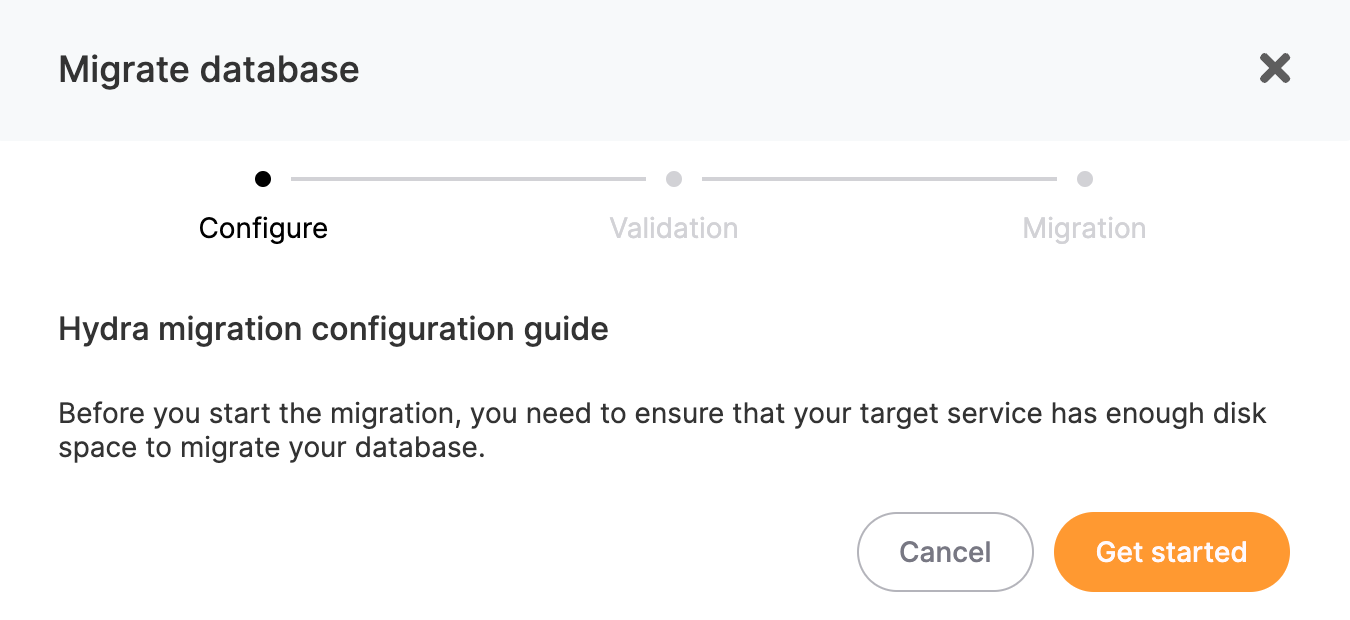
3. A modal window will open, ensure that your target service has enough disk space to accommodate your database
4. Click on **Get started** button**.**
[](https://docs.elest.io/uploads/images/gallery/2024-07/screenshot-2024-07-21-at-17-22-59.png)
### Step 2 - Validation
1. You need to provide the connection details to establish a connection to your source database, enter the required details:
- **Hostname**
- **Port**
- **Database Name**
- **Username**
- **Password**
2. Click on **Run Check** to validate the connection.
[](https://docs.elest.io/uploads/images/gallery/2024-07/screenshot-2024-07-21-at-15-31-43.png)
### Step 3 - Migration
1. If all checks pass with no errors, you can trigger the migration by selecting **Start migration**.
2. Once the migration starts, you can monitor the progress through the migration logs displayed in real-time.
[](https://docs.elest.io/uploads/images/gallery/2024-07/screenshot-2024-07-21-at-12-22-36.png)
# DB Clusters
# Introduction
Clustered databases are essential for ensuring **high availability**, **scalability**, and **fault tolerance** in modern systems.
By distributing data across multiple nodes, they can handle larger workloads, prevent single points of failure, and ensure that services remain accessible even during hardware or network issues. Clusters are critical for businesses that need reliable, fast, and scalable database solutions to support growing demands.
[](https://docs.elest.io/uploads/images/gallery/2025-01/FYp001.png)**Supported Software**
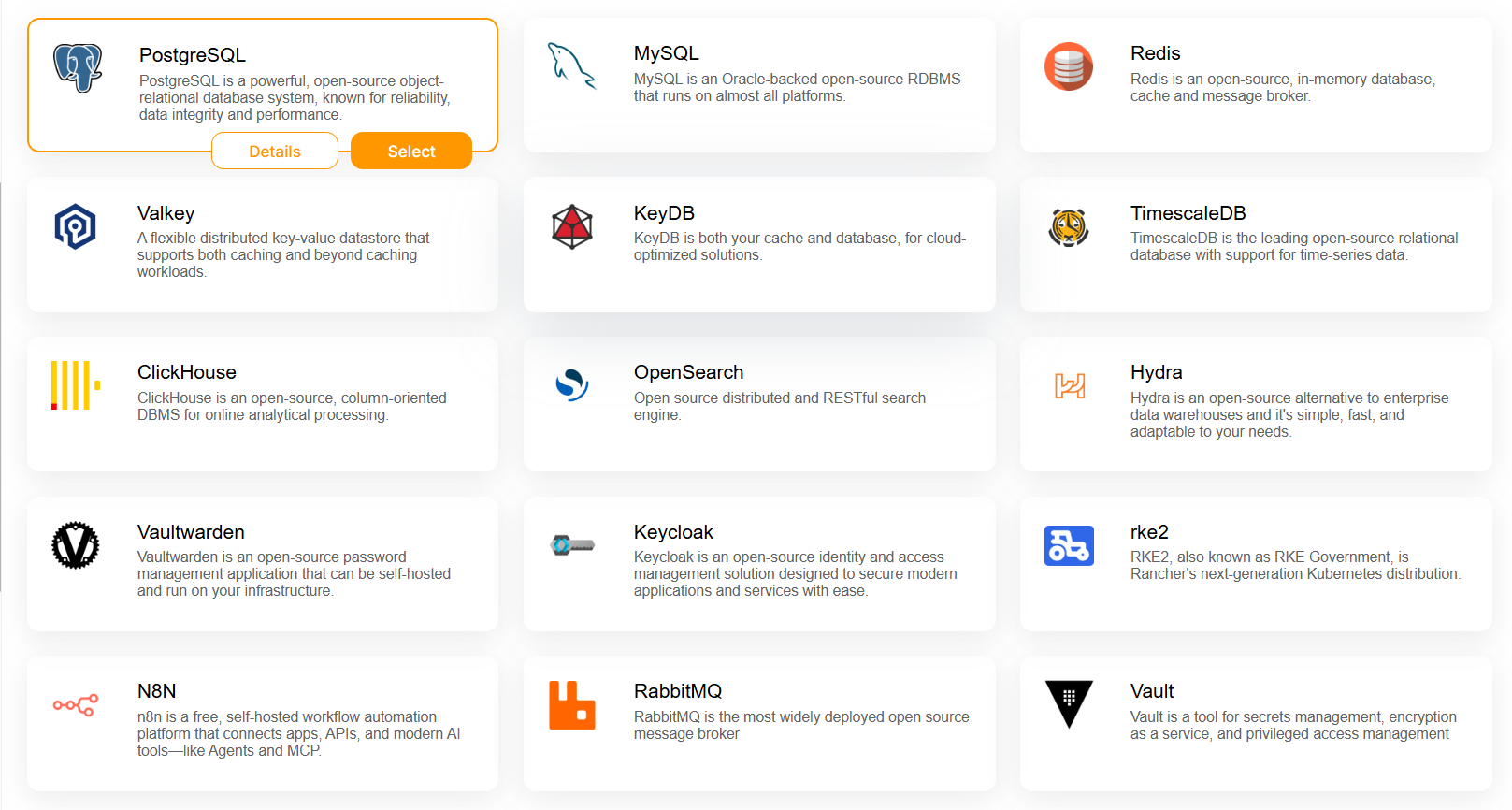
Elestio supports clustering for a wide range of software, making it adaptable to various use cases:
- **MySQL**
- **PostgreSQL**
- **Hydra**
- **TimescaleDB**
- **Redis**
- **KeyDB**
- **Valkey**
- **ClickHouse**
- **OpenSearch**
- **Vaultwarden**
- **Keycloak**
- **rke2**
- **N8N**
- **RabbitMQ**
- **Vault**
More DB clusters will be added soon;
# Deploy a new cluster
#### **How to deploy a new cluster**
1\) Go to the **Elestio Clusters** tab.
[](https://docs.elest.io/uploads/images/gallery/2025-01/001.png)
2\) Click on **Deploy My First Cluster**.
[](https://docs.elest.io/uploads/images/gallery/2025-01/002.png)
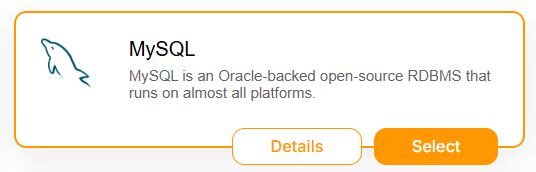
3\) Select your **Software**, for example, **MySQL**.
[](https://docs.elest.io/uploads/images/gallery/2025-01/003.png)
4\) Choose your **Provider** and **Service Plan**, then click **Next**.
5\) Choose a name for your cluster, for example **mysql-cluster**
6\) On Select Support & advanced setting part, scroll down until Cluster configuration(Optional) part.
Here, you’ll have three configuration options:
- Single Node
- Primary/Replica
- Multi-Master
**Single node**
**[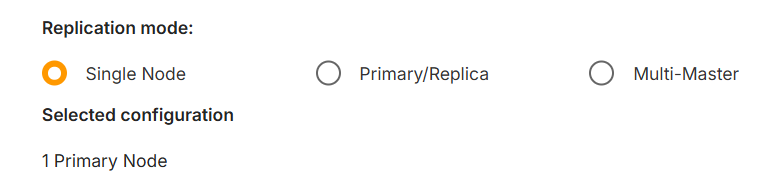](https://docs.elest.io/uploads/images/gallery/2025-01/004.png)**
When choosing the **Single Node** option, you’ll deploy a standalone node for **MySQL**. This means only one node will be set up, but it will already be configured as a **Primary** node. This setup ensures that, in the future, if you want to scale by adding one or more nodes, it will be seamlessly possible without requiring reconfiguration.
**Primary/Replica**
**[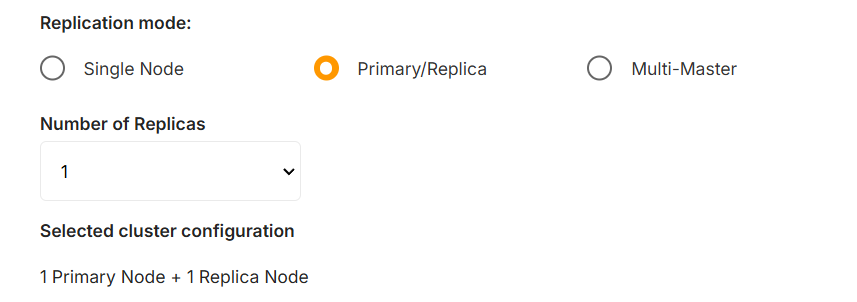](https://docs.elest.io/uploads/images/gallery/2025-01/005.png)**
When choosing the **Primary/Replica** option, you will deploy at least one **Primary** node, and you can specify the number of replicas to include in the cluster.
By default, the number of replicas will be determined by the minimum required for the selected software. However, you can increase the number of replicas as long as it fits within your **Service Quota**.
For example, if you select **3 replicas** from the dropdown, your cluster will consist of **4 nodes**: 1 **Primary** and 3 **Replicas**.
**Multi-Master**
**[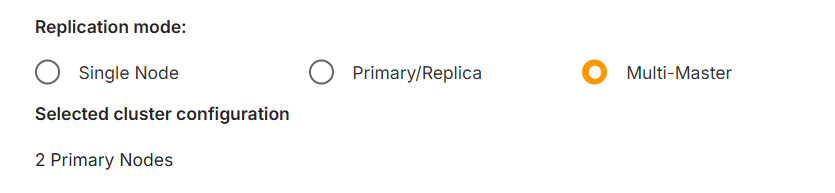](https://docs.elest.io/uploads/images/gallery/2025-01/006.png)**
When choosing the **Multi-Master** option, you will deploy **2 Primary nodes** that are connected to each other, ensuring mutual synchronization and redundancy.
It’s important to note that not all software supports this option. Make sure to verify compatibility with your selected software before proceeding.
7\) Click on **Create Service**.
Now your cluster will be configured. Depending on the selected software, this process may take a little time.
**CNAME**
When deploying a new cluster, you will choose a **CNAME**. In our example, we used **mysql-cluster.**
Each node in the cluster will inherit the base name and receive a number incrementally.
For example, if you deploy a **Primary/Replica** cluster with 3 nodes, the nodes will be named:
- **mysql-cluster1**
- **mysql-cluster2**
- **mysql-cluster3**
These names will also be used for their individual CNAMEs, automatically created by **Elestio**.
In addition, you will have a **CNAME** for the base name itself, such as **mysql-cluster.**
This base CNAME will always point to the **Primary Node**. If you promote a new node to Primary, the base CNAME will automatically update to reflect the change, ensuring seamless continuity without requiring reconfiguration across your services.
# Nodes management
[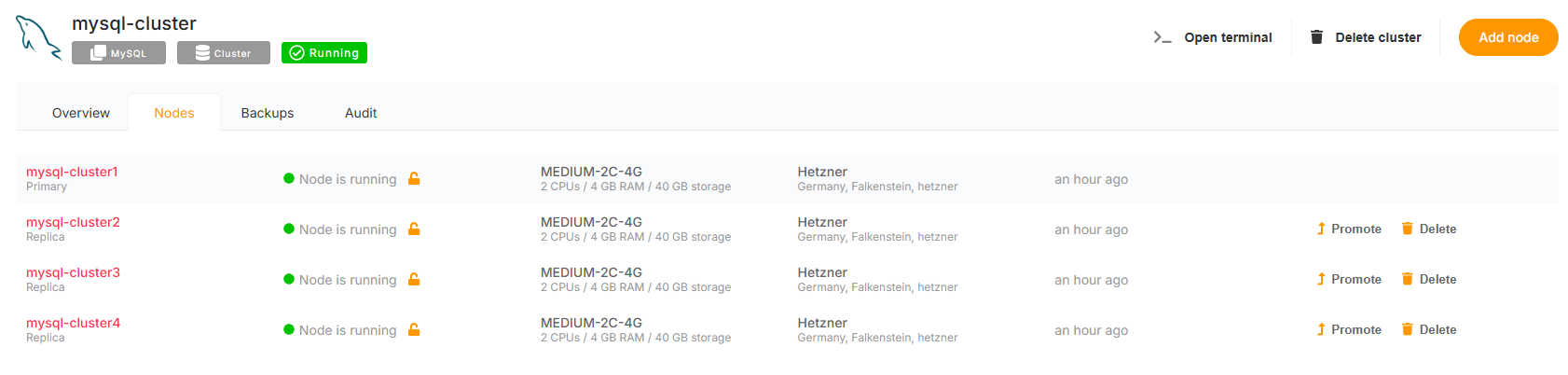](https://docs.elest.io/uploads/images/gallery/2025-01/Qw1001.png)
If you click on the **Nodes** tab, you will see a list of all your nodes with detailed information, such as:
- **Node Role**: Indicates whether the node is a **Primary** or a **Replica**.
- **Status**: Displays whether the node is running or not.
- **Specifications**: Includes details about CPU, RAM, and storage.
- **Location**: Shows the data center and provider hosting the node.
- **Actions**:
- **Promote**: Allows you to promote a **Replica** node to a **Primary** node.
- **Delete**: Provides the option to remove a node from the cluster.
This interface makes it easy to monitor and manage your nodes efficiently.
# Add a node
If you want to add a new node to your cluster, you can:
1. Click on the **Add Node** button in the top-right corner of your cluster page.
2. Alternatively, in the **Overview** tab, click on **Add Node**.
A prompt will appear, asking for confirmation to add a new node.
[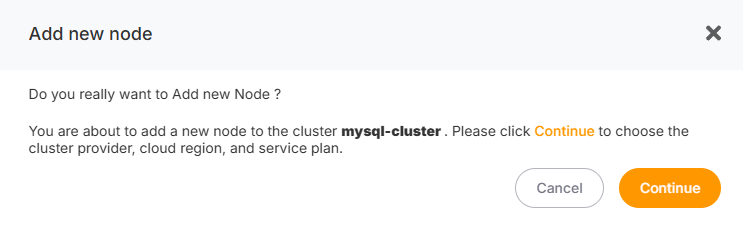](https://docs.elest.io/uploads/images/gallery/2025-01/m2Y003.png)
If you confirm, you will be redirected to a new page to choose your **Cloud Provider** and **Service Plan**. Once selected, click the **Create Node** button to proceed.
Since this node is part of an existing cluster, you cannot choose a custom name. The node's name will automatically follow the naming convention, incrementing the node number, even if a previous node has been deleted. For example:
- `mysql-cluster1`
- `mysql-cluster2`
- `mysql-cluster4` (if `mysql-cluster3` was deleted previously).
Once the new node is deployed, it will be automatically synchronized with the primary node and will receive all the data from it.
# Overview
Once your cluster is deployed, you can access it through the **Clusters** tab on the left. Here, you will see a new entry with the name of your cluster. In our example, it will appear as `mysql-cluster`.
[](https://docs.elest.io/uploads/images/gallery/2025-01/vBi001.png)
By clicking on the cluster name, you will access the **Overview** of your cluster.
The **Overview** is divided into two parts:
- Cluster Management Options
- General informations
**Cluster Management Options**
**[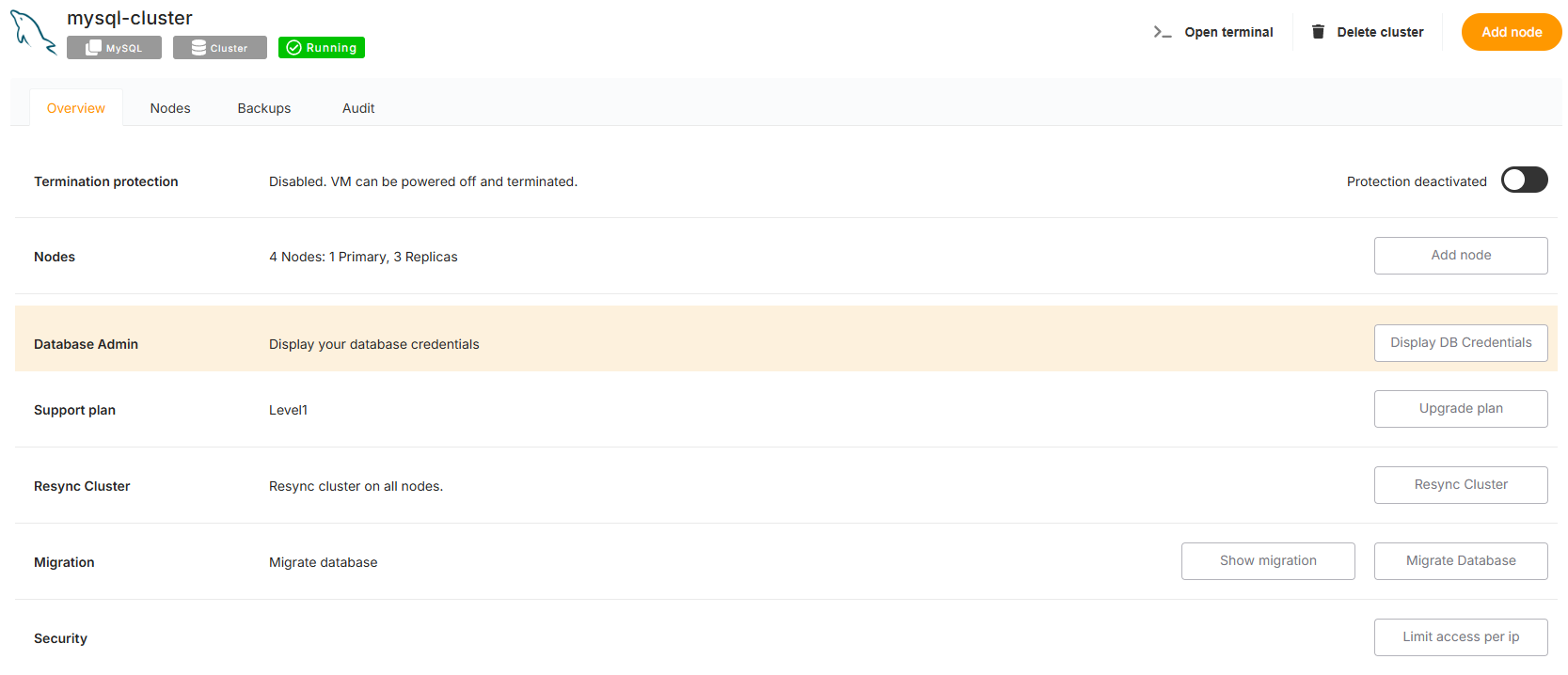](https://docs.elest.io/uploads/images/gallery/2025-01/1OY002.png)**
This section provides tools to manage and control your cluster:
- **Protection**: Prevent accidental deletion of your cluster by enabling the lock option.
- **Add Node**: Add a new node to your cluster. Any added node will automatically function as a replica.
- **Upgrade Plan**: Update the **support plan** for your cluster to higher levels, such as **Level 2** or **Level 3**.
- **Resync Cluster**: If one or more replicas go down, use this option to resynchronize them with the primary node.
- **Migration**: Seamlessly migrate a database to your cluster.
- **Limit Access per IP**: Restrict access to your cluster to specific IP addresses for improved security.
**General Information**
**[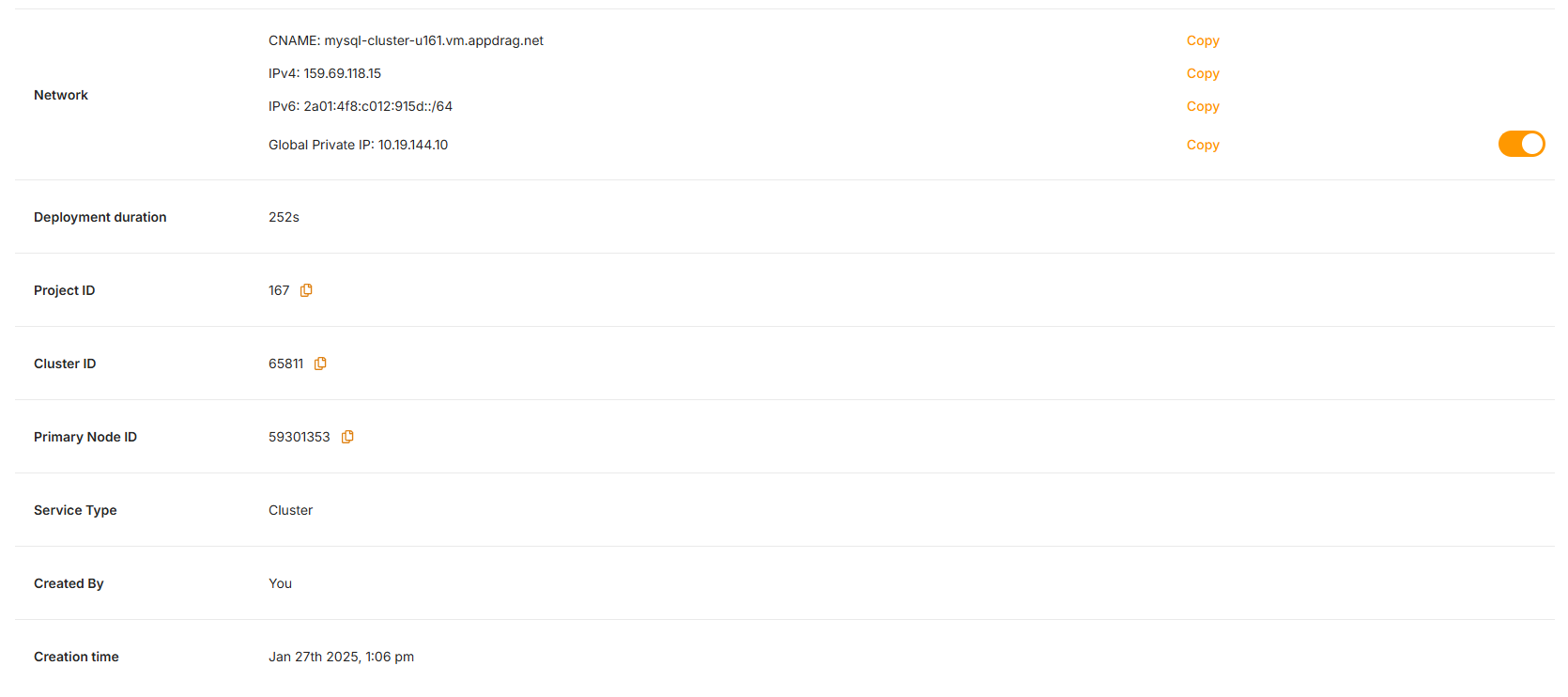](https://docs.elest.io/uploads/images/gallery/2025-01/Hn9003.png)**
This section provides key details about your cluster, including:
- **CNAME**: The fully qualified domain name for your cluster. In our example: `mysql-cluster-u161.vm.appdrag.net`.
- Displays the IP addresses associated with the cluster:
- **IPv4**: `x.x.x.x`
- **IPv6**: `x:x:x:x::/xx`
- **Global Private IP**: `x.x.x.x`
- **Deployment Duration**: The time taken to deploy the cluster.
- **Project ID**: The unique identifier for the project.
- **Cluster ID**: The unique identifier for the cluster.
- **Primary Node ID**: The ID of the primary node.
- **Service Type**: Specifies the type of service.
- **Created By**: The creator of the cluster.
- **Creation Time**: The date and time the cluster was created.
# Remove a node
If you want to remove a node from your cluster, you can:
1. Click on the **Delete** button with the trash icon in the **Nodes** tab.
2. Alternatively, click on a node to view its details, then click **Delete Node** in the top-left corner.
A confirmation popup will appear, asking you to enter the name of the node to confirm the deletion.
[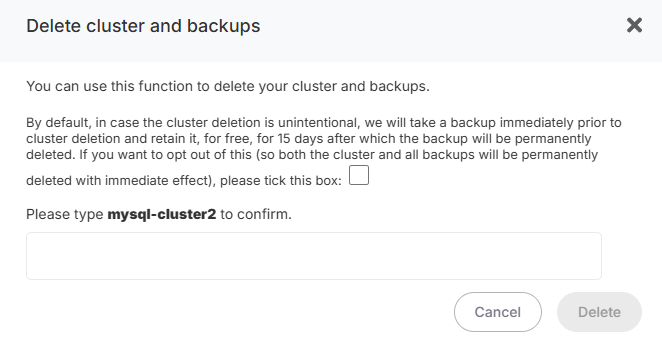](https://docs.elest.io/uploads/images/gallery/2025-01/F5F002.png)
Once you enter the correct node name and click **Delete**, the node will be removed from your cluster.
# Promote a node
If you want to promote a node to **Primary** in your cluster, follow these steps:
1. Go to the **Nodes** tab.
2. Click on the **Promote** button with the arrow icon next to the node you wish to promote.
A confirmation popup will appear, asking if you really want to promote this node.
[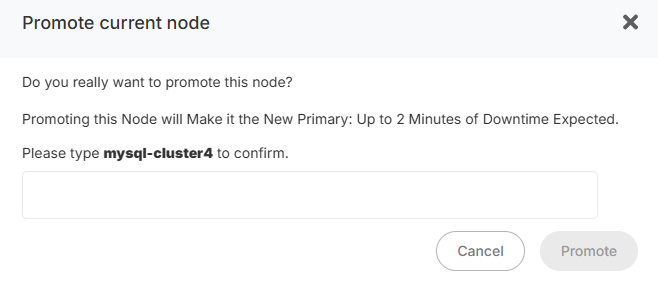](https://docs.elest.io/uploads/images/gallery/2025-01/m5z002.png)
If you confirm, a **health check** will be processed before the promotion process begins:
- **If the node is not healthy**, another popup will appear, warning you that the node cannot be promoted.
- **If the node is healthy**, the following steps will occur:
1. The selected node will be reconfigured as the **Primary** node.
2. All other nodes will be reconfigured as **Replicas**, pointing to the new Primary.
3. Once the process is complete, a **backup** will be automatically created with the new Primary.
⚠ **WARNING:** During the promotion process, your cluster will be **temporarily unavailable**.
Once the process is complete, you will receive an **email notification** confirming that your cluster is **active and operational** again.
# Delete a cluster
If you want to delete your cluster, follow these steps:
1. Go to the **Overview** tab of your cluster.
2. Click on the **Delete Cluster** button located in the top-right corner.
A confirmation popup will appear to ensure you want to proceed.
3. Enter the name of your cluster in the text field to confirm the deletion.
4. Click on the **Delete** button.
Once confirmed, your entire cluster will be deleted.
# Backups and restores
**Elestio** offers a **Backup** section specifically for managing backups.
For clusters, only the backups of the **Primary** node are supported.
If you promote a new node to Primary, a new backup will automatically be created for security purposes, ensuring a healthy backup of your cluster. From that point, new backups will target the new Primary.
**Backups**
Backups are created automatically once per day, but you can also create them manually.
To create a manual backup:
[](https://docs.elest.io/uploads/images/gallery/2025-01/kWF001.png)
1. Go to the **Backups** tab of your cluster.
2. In the **Automated Remote Backups** section, click the **+** button to expand the section.
3. Click the **Back Up Now** button to create a newbackup.
**Restores**
To restore a backup:
1. Go to the **Backups** tab of your cluster.
2. Click the **+** button to display the list of your backups.
3. Find the backup you wish to restore and click the **Restore** button (with a rounded arrow icon).
[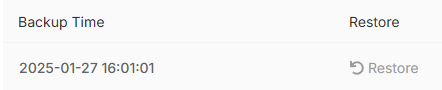](https://docs.elest.io/uploads/images/gallery/2025-01/Lqb002.png)
A popup will appear to confirm that the restore process is in progress.
⚠ **WARNING:** During the restoration process, your cluster will experience **temporary downtime** in two phases:
1. **Primary Node Downtime:** The **Primary** node will be **offline** until the restoration process is complete.
2. **Replica Downtime:** Once the **Primary** is fully restored and running, all **Replicas** will be taken **offline** to be reset and synchronized:
- Each Replica will be **reset from scratch**.
- After being cleared and reconfigured to point to the **Primary**, each Replica will be restored using a backup directly from the **Primary node** to ensure full synchronization.
Once the process is complete, you will receive an email notifying you that your cluster is active and operational again.
# Limit access per IP
If you want to restrict your cluster to specific IPs for enhanced security, follow these steps:
1. Go to the **Overview** tab.
2. Click on the **Limit Access per IP** button.
A popup will appear where you can configure IP restrictions:
[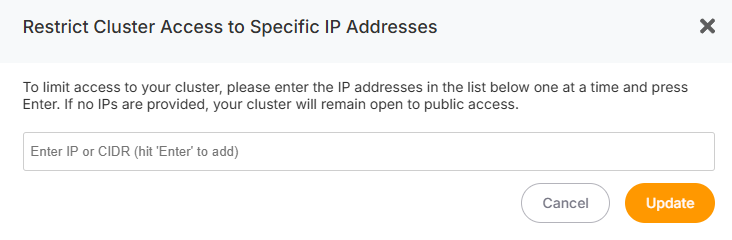](https://docs.elest.io/uploads/images/gallery/2025-01/64l001.png)
- In the text field, add the IPv4 or IPv6 address you want to allow access to your cluster.
- Add one IP at a time. After entering an IP, press the **Enter** key. The IP will appear at the top of the text field.
- Repeat this process to add more IPs as needed.
[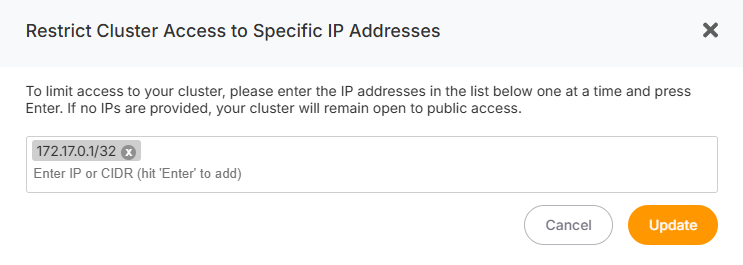](https://docs.elest.io/uploads/images/gallery/2025-01/Rxe002.png)
Once you’ve added all the IPs, click the **Update** button. All nodes in your cluster will automatically adopt these IP restrictions—no need to configure each node individually.
---
#### Removing IPs
If you want to remove an IP:
- Click the **cross (X)** button next to the IP you want to delete.
- Click **Update** to apply the changes.
If no IPs are listed in this section, your cluster will be open to all IPs.
---
#### Adding New Nodes
If you’ve configured IP restrictions and later add a new node, the new node will automatically inherit the existing IP restrictions.
# Cluster resynchronization
If one or more **Replica** nodes are unhealthy or desynchronized, you can resynchronize them with the **Primary** node by following these steps:
1. Go to the **Overview** tab of your cluster.
2. Click on the **Resync Cluster** button.
A confirmation popup will appear to ensure you want to resync your cluster.
[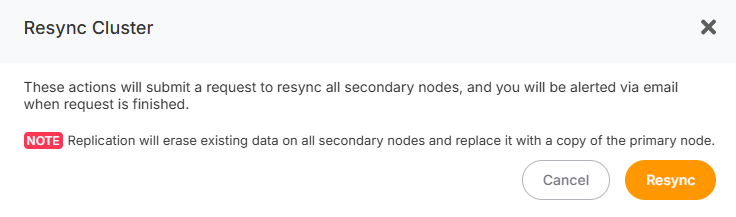](https://docs.elest.io/uploads/images/gallery/2025-01/lRD001.png)
**Resynchronization Process**
1. **Health Check of the Primary**:
- Before the resynchronization begins, a health check is performed on the Primary node to ensure the process can proceed successfully.
- **If the Primary is unhealthy**, a warning popup will appear, and the process will stop.
- **If the Primary is healthy**, the resynchronization process will continue.
2. **Replica Reconfiguration**:
- All Replica nodes will be reset from scratch.
- Once cleared, each Replica will be reconfigured to point to the Primary.
- A backup from the Primary node will then be restored to each Replica to ensure full synchronization.
⚠ **WARNING:** During the resynchronization process, **only the Replicas** will be temporarily unavailable. The Primary node will remain operational.
Once the process is complete, you will receive an email notifying you that your cluster is active and operational again.
# Database migrations
If you want to migrate an existing database to your cluster, you can do so easily by following these steps:
1. Go to the **Overview** tab of your cluster.
2. Click on the **Migrate Database** button.
**Migration Process**
1. **Start the Migration**:
- A popup will appear.
- Click on the **Get Started** button.
- [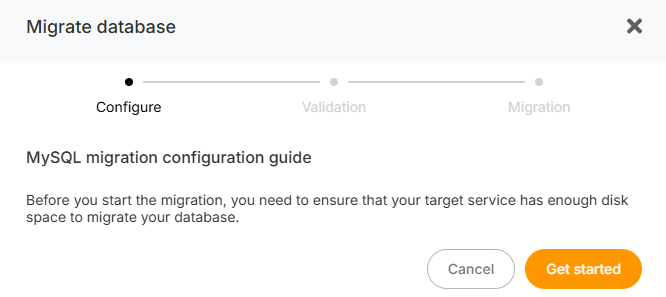](https://docs.elest.io/uploads/images/gallery/2025-01/nMY001.png)
- A second page will appear where you’ll need to enter the credentials of your **source database**.
- Once entered, click the **Run Check** button to validate the credentials and connection.
- [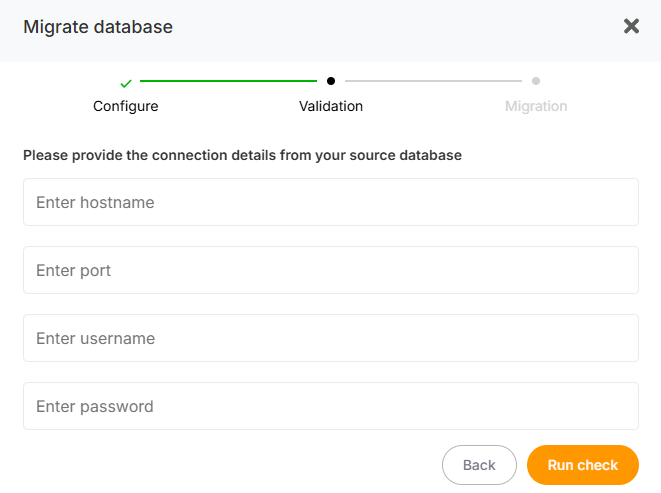](https://docs.elest.io/uploads/images/gallery/2025-01/pwF002.png)
2. **Begin the Migration**:
- If the check is successful, a third page will appear.
- Click the **Start Migration** button to begin the migration process.
- [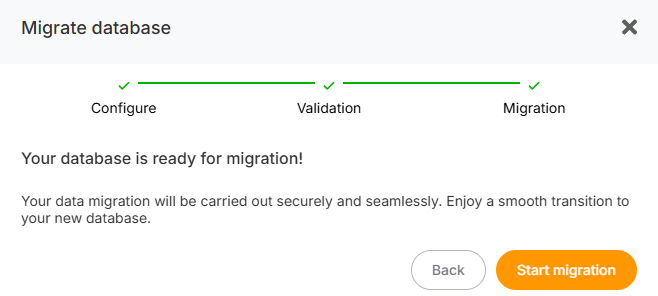](https://docs.elest.io/uploads/images/gallery/2025-01/7Op003.png)
3. **Primary and Replica Synchronization**:
- The migration will be performed on the **Primary Node**.
- Once completed, all **Replicas** will be reconfigured as follows:
- Replicas will be reset from scratch.
- After being cleared and reconfigured to point to the Primary, each Replica will be restored with a backup directly from the Primary node to ensure full synchronization
**During the migration process, your cluster will be temporarily unavailable.**
Once the process is complete, you will receive an email notifying you that your cluster is active and operational again.
# MySQL cluster with Multi-master or Replica mode
If you can’t afford for your database to be down for even a few minutes, a Multi-Master cluster is a great option to ensure high availability.
A multi-master scenario means that one node can be taken offline (e.g. for maintenance or upgrade purposes) without impacting availability, as the other node will continue to serve production traffic. Further, it doubles your capacity to read or write to the database and provides an additional layer of protection against data loss.
MySQL includes a Multi-Master replication, and Elestio enables you to set up your MySQL Multi-Master cluster in just a few clicks.
**To begin, you will need to have deployed two MySQL instances**
1\) Go to elestio Dashboard > Deploy new service> Databases > select MySQL, scroll down and name it for example **mysql-1** then click on the "Create service button"
[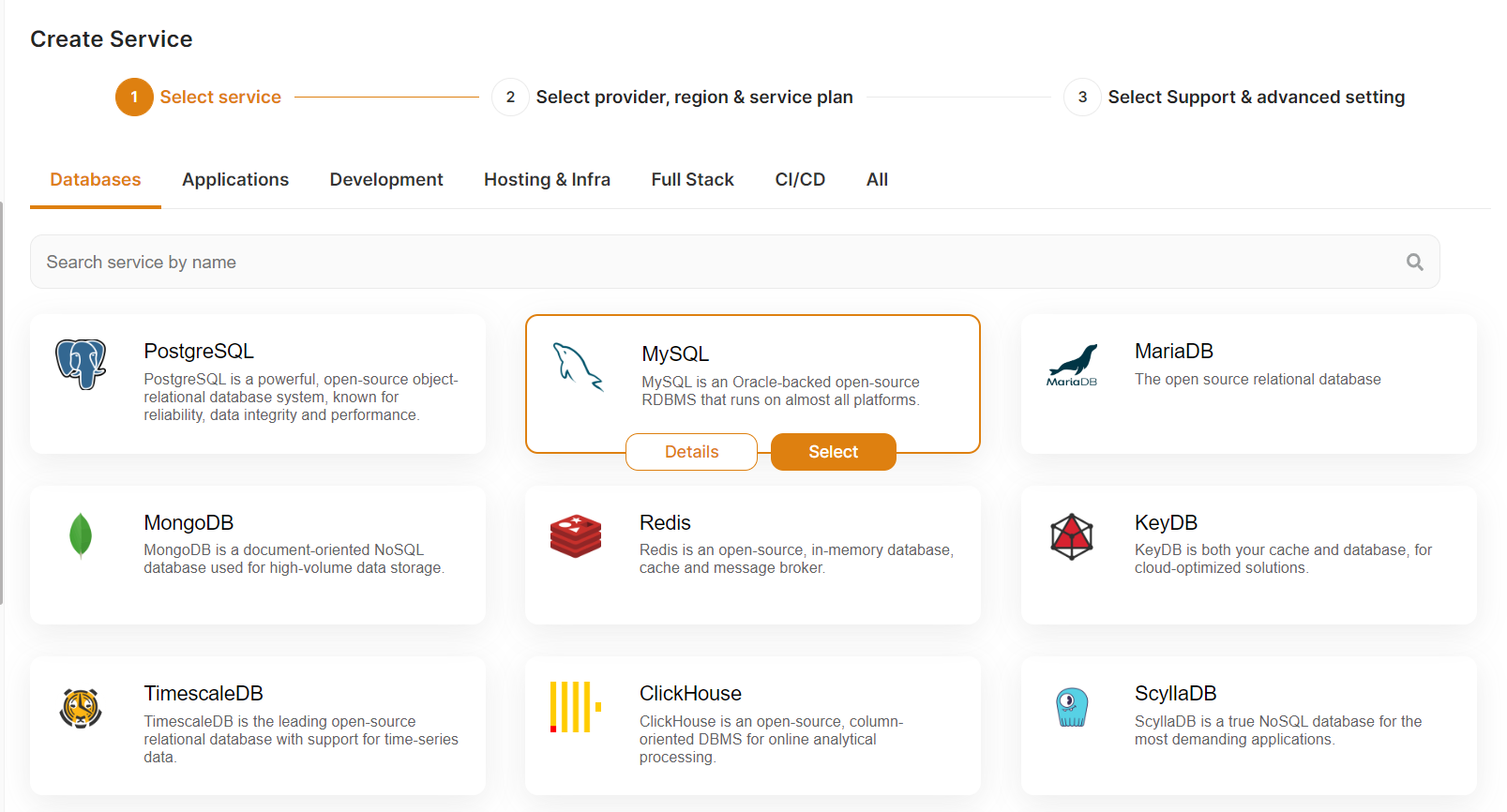](https://docs.elest.io/uploads/images/gallery/2022-06/image-1655214385735.png)
2\) Again, go to elestio Dashboard > Deploy new service> Databases > select MySQL, scroll down and name it for example **mysql-2** then click on the "Create service button"
3\) Wait for the 2 instances to be ready
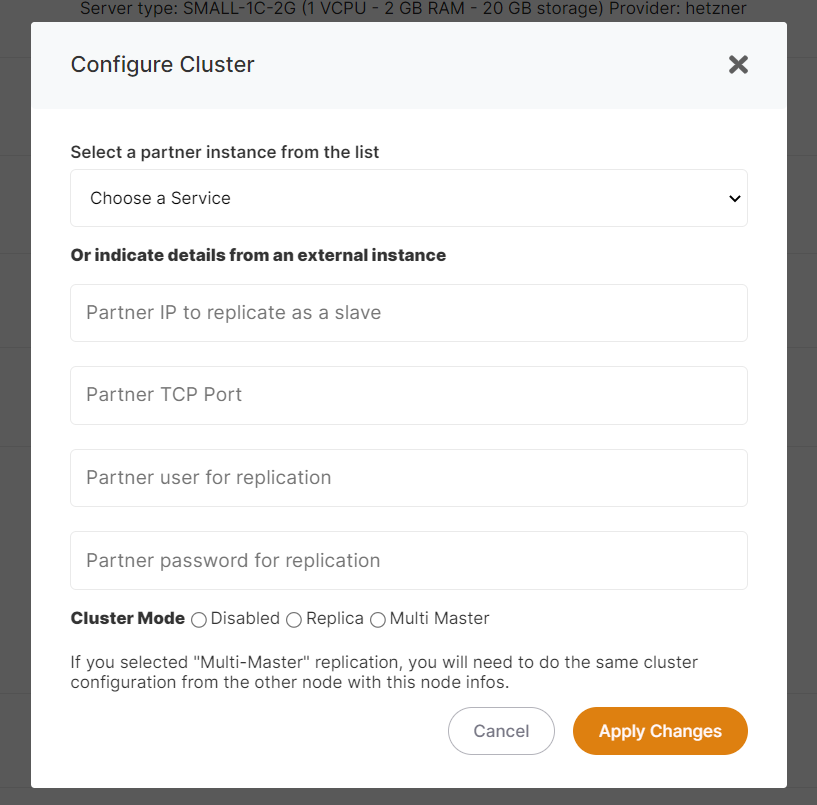
4\) In the elestio dashboard open the service details of **mysql-1** and click on the "Configure cluster" button
5\) Select in the partner instance dropdown "**mysql-2**" as the partner, then select "Multi Master" in Cluster mode, then click on "Apply changes" button
[](https://docs.elest.io/uploads/images/gallery/2022-02/image-1645291883247.png)
6\) In the elestio dashboard open the service details of **mysql-2** and click on the "Configure cluster" button
7\) Select in the partner instance dropdown "**mysql-1**" as the partner, then select "Multi-Master" in Cluster mode, then click on "Apply changes" button
**All done. You now have a multi-master MySQL cluster.**
You can now read and write on both instances. If instance A is down you will still be able to use instance B and vice versa. Also, if you restore a backup on one instance it will be automatically replicated to the other instance.
#### How to use Multi-Master cluster from Node.js
If you can configure your two master clusters in Round Robin in your MySQL driver, a load balancer is not needed. The client-side will split the traffic between your instances and avoid a dead node. This helps to greatly simplify the high-availability system.
The regular MySQL driver for node.js supports this: [https://www.npmjs.com/package/mysql#poolcluster](https://www.npmjs.com/package/mysql#poolcluster)
#### How to test your High Availability Cluster
1. Shut down one of the VMs (instance A). You should still be able to connect, read and write on your cluster.
2. Restart instance A, wait 30 seconds, then shut down instance B.
3. Test your connectivity and read/write access to the cluster again.
4. Finally, restart instance B.
####
How to use PHPMyAdmin to test your cluster
1. Open the service details and click on Admin UI to get url and credentials of PHPMyAdmin.
2. Open a browser tab with the Admin UI for instance B.
3. Open another browser tab for instance A.
4. Create a new database in instance A, add a table, and insert a line with sample data.
5. Check if the database created from A is correctly replicated to instance B.
6. Open the database in instance B.
7. Add or edit some rows in the database on instance B and check if correctly replicated to instance A.
# KeyDB (Redis compatible) with Multi-master or Replica mode
If you can’t afford for your database to be down for even a few minutes, you need a Multi-Master cluster to ensure high availability. This means that one node can be taken offline (e.g. for maintenance or upgrade purposes) without impacting availability, as the other node will continue to serve production traffic. Further, it doubles your capacity to read or write to the database and provides an additional layer of protection against data loss.
KeyDB is a fork of Redis that brings multithreading and Multi-Master replication, so you can have a highly available cluster of Redis in-memory DB. Usually setting up a cluster is a non-trivial task but in OpenVM you can do this in a few clicks.
To begin, you will need to have deployed two KeyDB instances
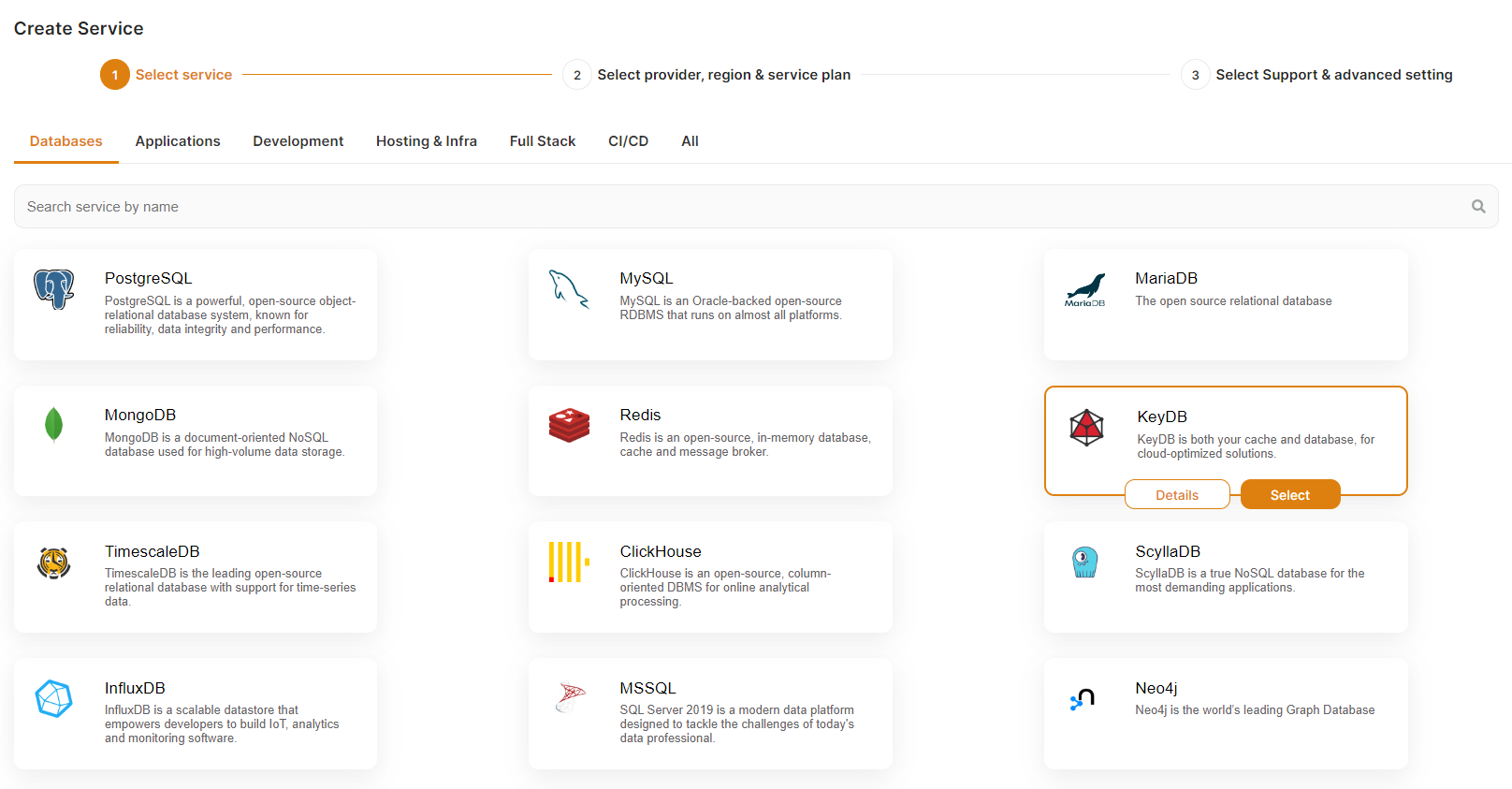
1\) Go to elestio Dashboard > Deploy new service> Databases > select KeyDB, scroll down and name it for example **keydb-1** then click on the "Create service button"
[](https://docs.elest.io/uploads/images/gallery/2022-02/image-1645292963463.png)
2\) Again, go to elestio Dashboard > Deploy new service> Databases > select KeyDB, scroll down and name it for example **keydb-2** then click on the "Create service button"
3\) Wait for the 2 instances to be ready
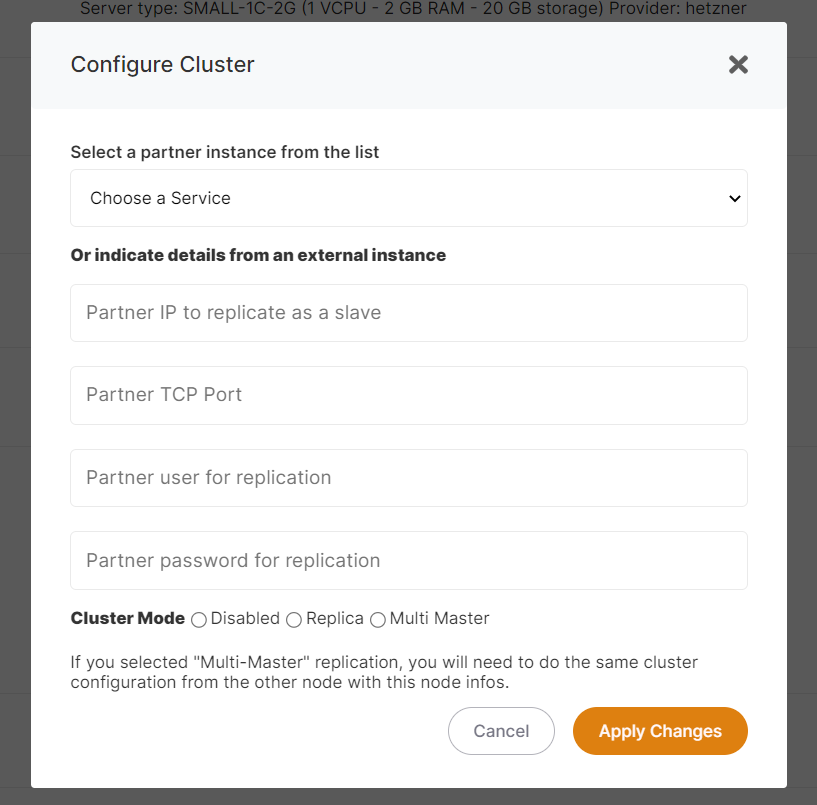
4\) In the elestio dashboard open the service details of **keydb-1** and click on the "Configure cluster" button
[](https://docs.elest.io/uploads/images/gallery/2022-09/screenshot-2022-09-29-180350.png)
5\) Select in the partner instance dropdown "**keydb-2**" as the partner, then select "Multi-Master" in Cluster mode, then click on "Apply changes" button
6\) In the elestio dashboard open the service details of **keydb-2** and click on the "Configure cluster" button
7\) Select in the partner instance dropdown "**keydb-1**" as the partner, then select "Multi-Master" in Cluster mode, then click on "Apply changes" button
**All done. You now have a multi-master KeyDB cluster.**
You can now read and write on both instances. If instance A is down you will still be able to use instance B and vice versa. Also, if you restore a backup on one instance it will be automatically replicated to the other instance.
#### How to use Multi-Master cluster from Node.js
////////////// NodeJS sample //////////////
const Redis = require("ioredis");
const cluster = new Redis.Cluster(\[
{ port: 23647, password:'FIRST\_INSTANCE\_PASSWORD\_HERE', host: "Type\_your\_first\_node\_ip\_here" },
{ port: 23647, password:'FIRST\_INSTANCE\_PASSWORD\_HERE', host: "Type\_your\_second\_node\_ip\_here" }
\]);
cluster.set("foo", "bar");
cluster.get("foo", (err, res) => {
// res === 'bar'
});
////////////// ////////////// ////////////// //////////////
#### How to test your High Availability Cluster
1. Shut down one of the VMs (instance A). You should still be able to connect, read and write on your cluster.
2. Restart instance A, wait 30 seconds, then shut down instance B.
3. Test your connectivity and read/write access to the cluster again.
4. Finally, restart instance B.
####
Use Redis Insight to test your cluster
1. Open the service details and click on Admin UI to get url and credentials of Redis Insight.
2. Open a browser tab with the Admin UI for instance B.
3. Open another browser tab for instance A.
4. Go to Local Redis > Browser > Add Key.
5. Create a key, of type String, named ‘A’, with value 100, then click on Add.
6. Go to the other browser tab for instance A and select Local Redis > Browser > and check if you see key A with the correct value.
7. You can also test it by modifying the A key - e.g. set another value, or by creating a new key and checking in your first tab if the change has been correctly replicated.