# How can project ownership or service billing be transferred to another user's account?
This guide explains how to transfer a project ownership from one Elestio account to another.
## Prerequisites
Before starting the transfer:
- The new owner must have an active Elestio account
- The new owner must be added as a member in the project with **Admin** or **Billing Admin** role
- The new owner must have sufficient credit for at least 1 month of service
- Each project can only have one owner
## Transfer Steps
### Step 1: Access Project Settings
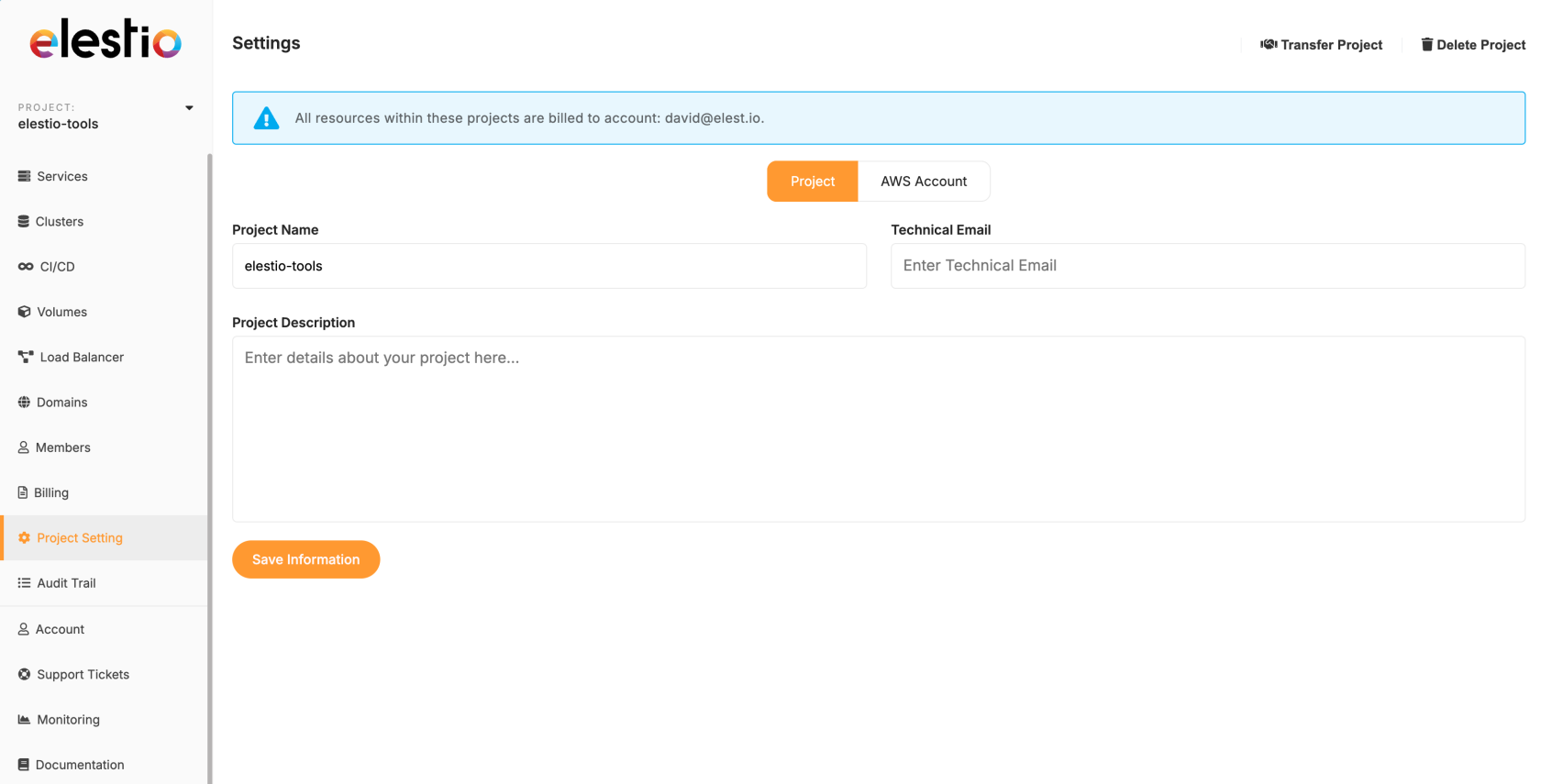
Log in to your Elestio account and select the project you want to transfer. Click on the **Project Settings** tab.
[](https://docs.elest.io/uploads/images/gallery/2025-09/screenshot-2025-09-07-at-13-28-00.png)
### Step 2: Start the Transfer
In the top right corner of the Project Settings page, click the **Transfer project** button.
[](https://docs.elest.io/uploads/images/gallery/2025-09/screenshot-2025-09-07-at-15-21-02.png)
### Step 3: Enter New Owner Email
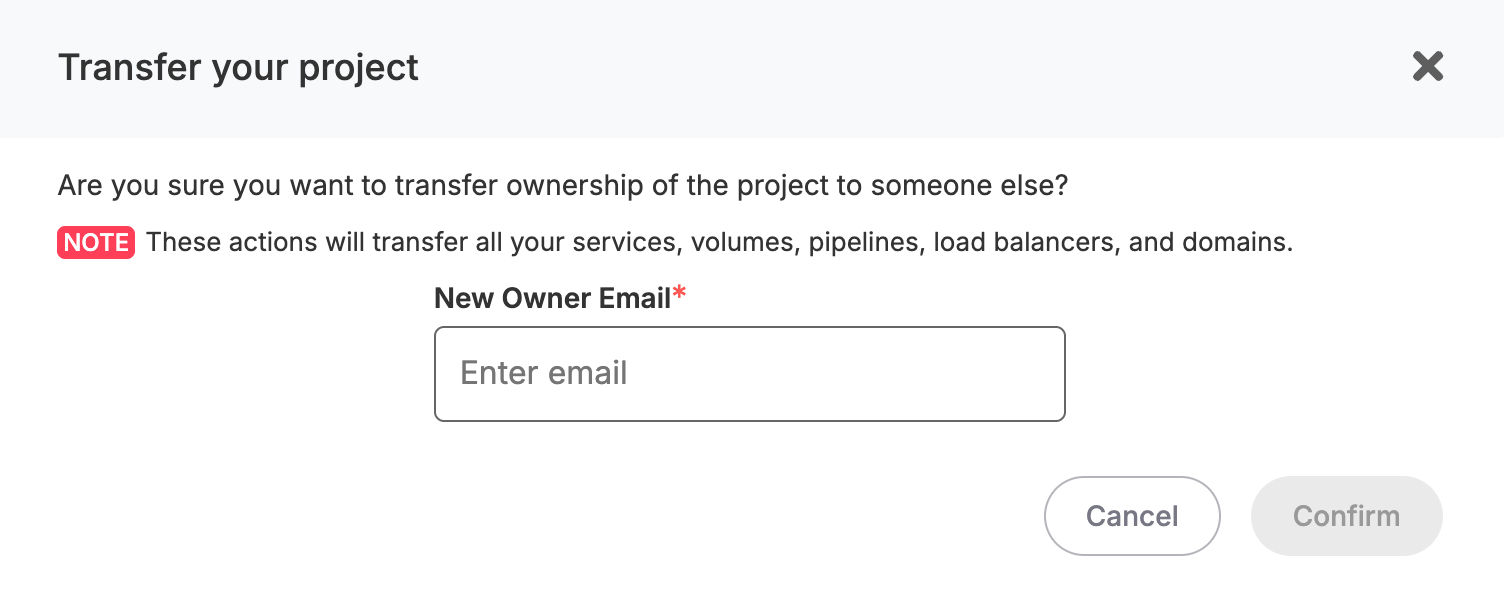
A popup window will appear. Enter the email address of the new owner in the **New Owner Email** field.
[](https://docs.elest.io/uploads/images/gallery/2025-09/screenshot-2025-09-07-at-15-21-45.png)
### Step 4: Confirm Your Identity
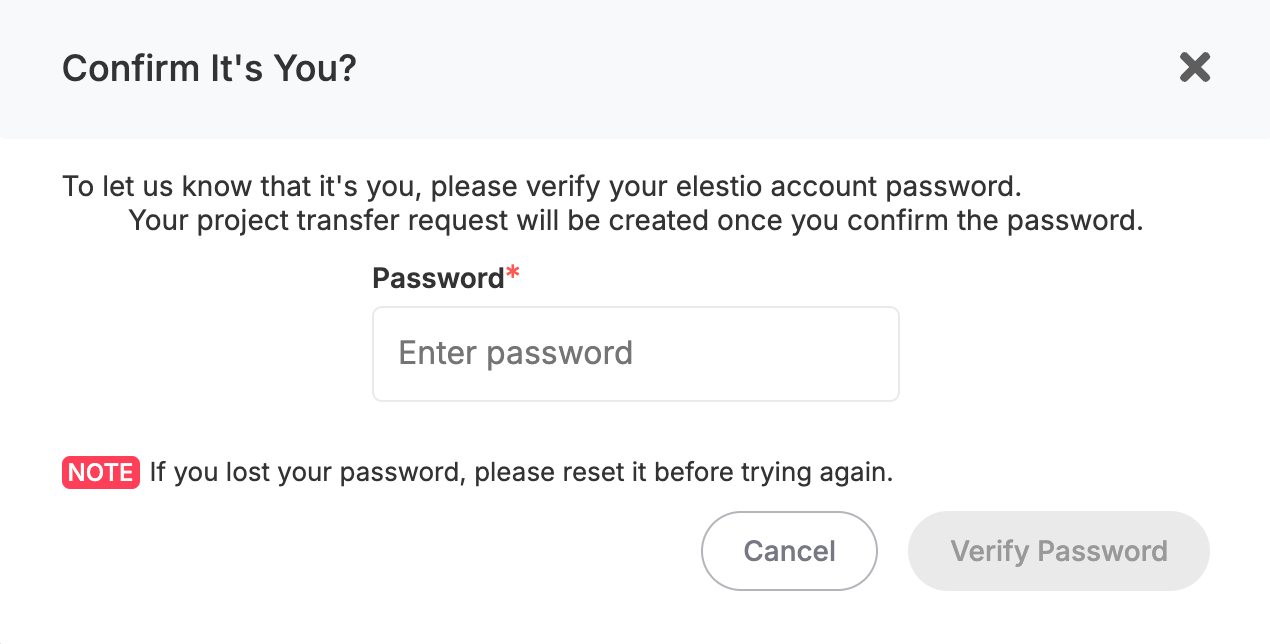
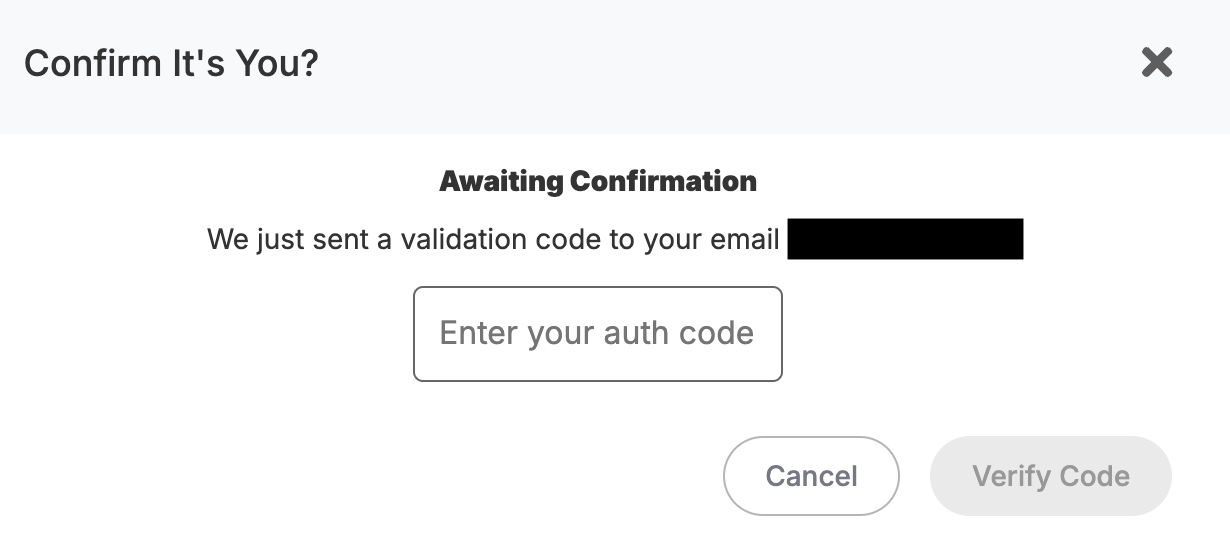
For security, you'll need to:
1. Enter your current account password
2. Enter the verification code sent to your email
[](https://docs.elest.io/uploads/images/gallery/2025-09/71yscreenshot-2025-09-07-at-13-32-25.png)
### [](https://docs.elest.io/uploads/images/gallery/2025-09/screenshot-2025-09-07-at-13-38-04.png)
### Step 5: New Owner Confirmation
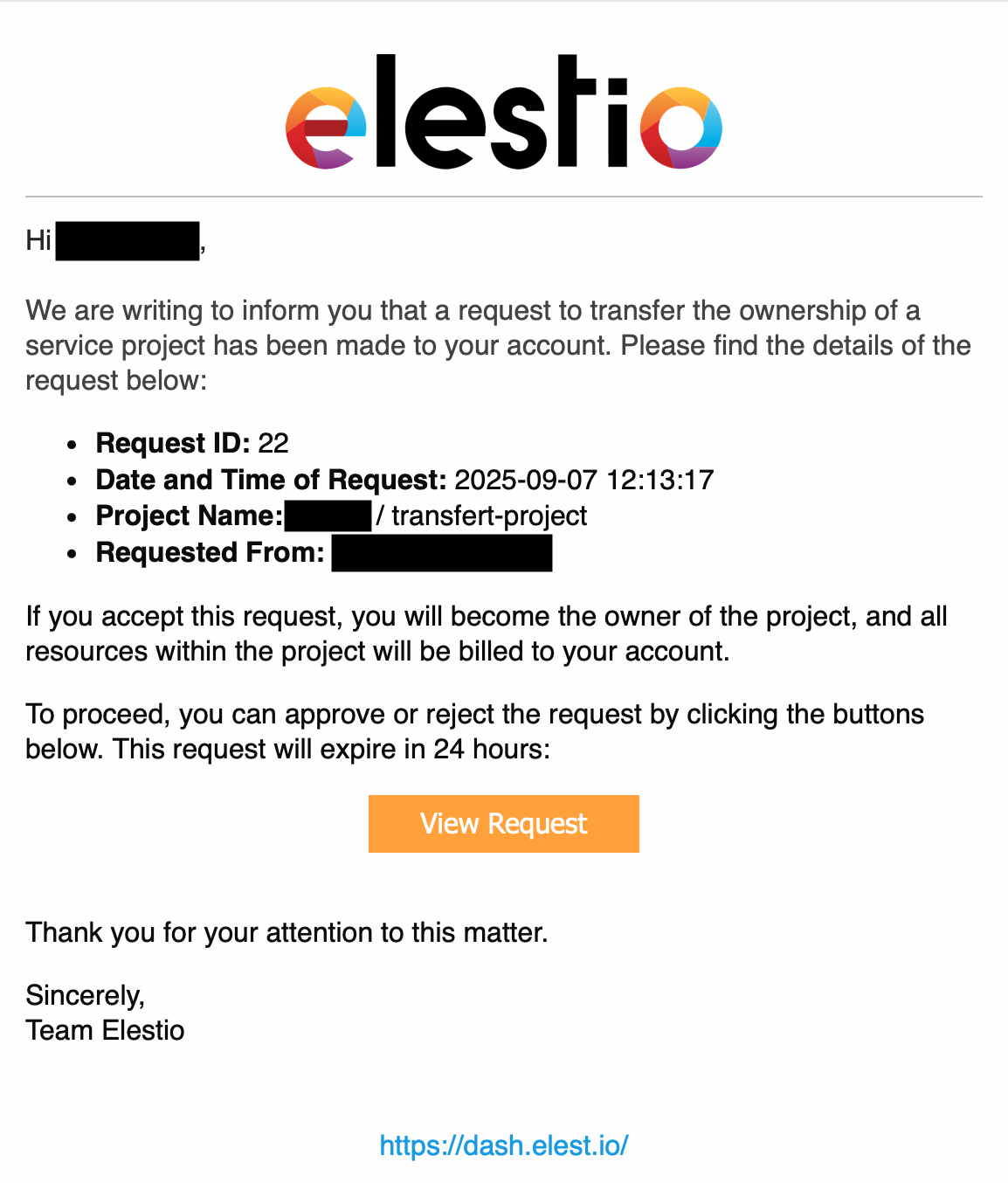
The new owner will receive an email notification. They must accept the transfer to complete the process.
[](https://docs.elest.io/uploads/images/gallery/2025-09/screenshot-2025-09-07-at-15-13-37.png)
## Important Notes
- The transfer is not complete until the new owner accepts it via email
- Once transferred, all billing responsibilities move to the new owner
- Make sure the new owner has enough credit before initiating the transfer