# I added fund to my elestio account, but my service is still not running
##### If your service was suspended due to lack of credits and now it is still inactive even after adding the funds to your elestio account then please follow the below steps to active the inactive services.
> If termination protection is enabled on your service, kindly disable it first before proceeding with the action. You can find instructions on how to disable termination protection ***[here](https://docs.elest.io/books/services-dashboard/page/service-protection)***
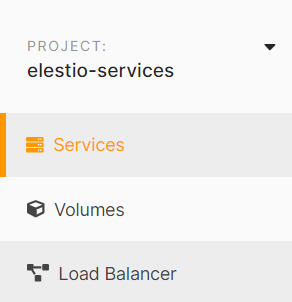
**Step 1:** Navigate to the **[elest.io](https://dash.elest.io/)** dashboard and access the "***Services***" option in the left sidebar.
[](https://docs.elest.io/uploads/images/gallery/2023-10/screenshot-2023-10-05-204817.png)
**Step 2:** Choose the specific service you wish to activate from the list, and within your service details overview, locate the "***Power***" tab.
[](https://docs.elest.io/uploads/images/gallery/2023-10/image.png)
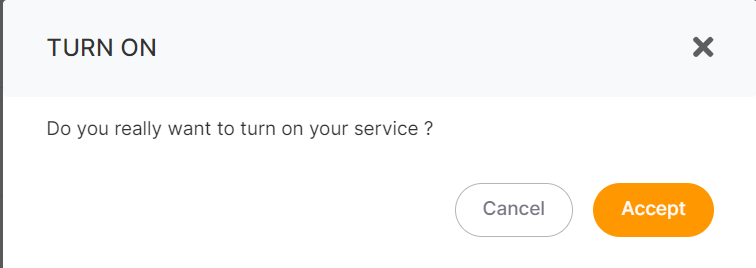
**Step 3:** Activate the service by clicking the "***Power On***" button. A confirmation prompt will appear; proceed by clicking the "***Accept***" button to confirm the action.
[](https://docs.elest.io/uploads/images/gallery/2023-10/7n4image.png)
After completing these steps, your service will become active within a matter of seconds.
To prevent service suspension due to insufficient credits, consider enabling the auto-refill setting. For detailed instructions on how to set up auto-refill, ***[please refer to this guide](https://docs.elest.io/books/billing/page/payment-options)***.