Elestio guarantees your backups are up to date and that you can restore your OS or data from a backup at any time to get back up and running in a worst-case scenario.
This "Get Started" video series is the best method to learn how to Deploy Open-Source Software on Elestio:
# Create an account To create a new account, first, go to [elestio signup](https://dash.elest.io/signup "Create an account on Elestio") page Securely connect elestio to your existing GitHub, GitLab, or Google accounts using OAuth2. [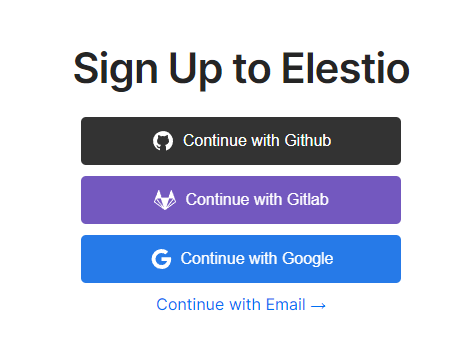](https://dash.elest.io/signup "Signup on Elestio") Or sign-up using any valid email address: [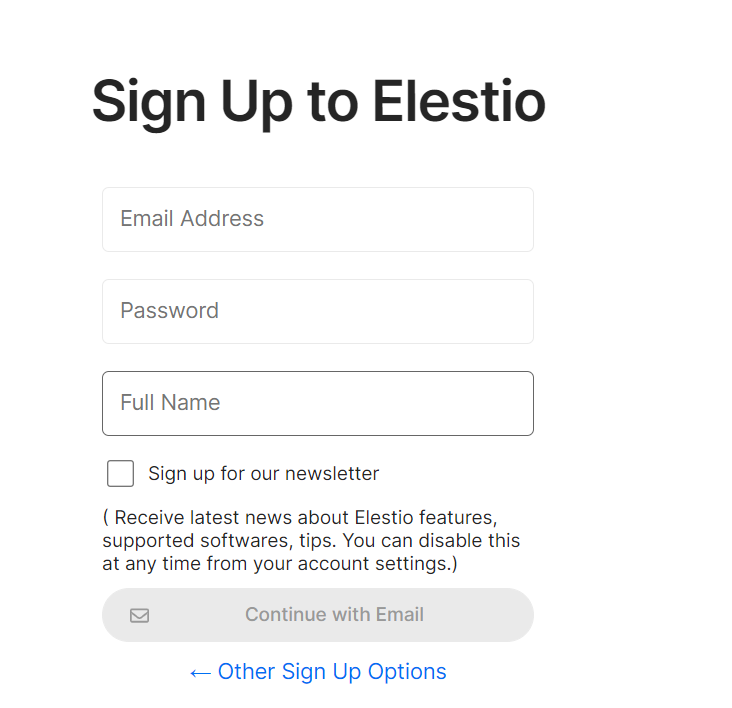](https://docs.elest.io/uploads/images/gallery/2022-01/image-1641812037749.png)MFA is enabled by default for new accounts created with an email address, and a new code is sent to your email address each time you log in. If you use OAuth, the security of your elestio account is determined by the security of the login provider you choose (Google, GitHub, GitLab), so make sure MFA is enabled!
TOTP-based MFA from Authy, Google, and Microsoft authenticator is also supported by Elestio. You can manage these after signup inside the account setting. [Click](https://docs.elest.io/books/security/page/multi-factor-authentication "Click") here to know more!
# Create a new service ##### 1. To create a new service, first open **[Elestio Dashboard](https://dash.elest.io/ "Elestio Dashboard")** [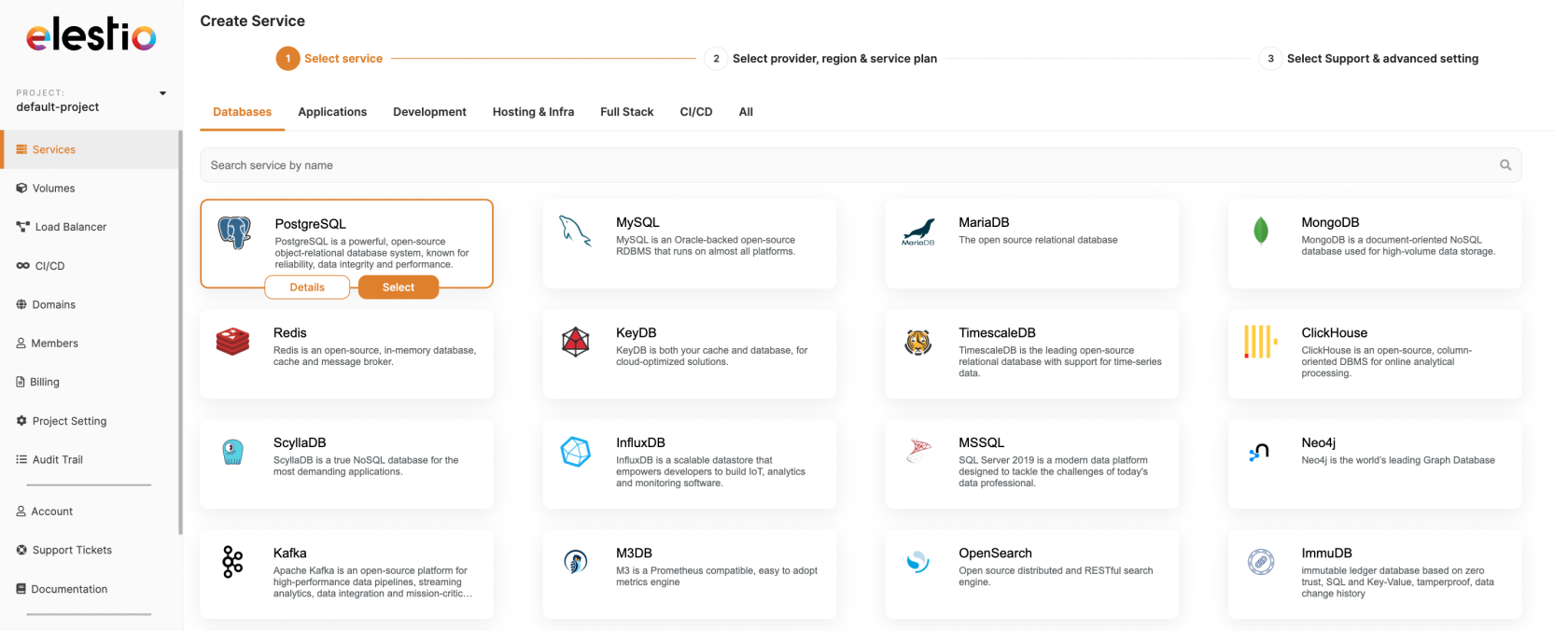](https://docs.elest.io/uploads/images/gallery/2022-09/tO0dashboard-full2.png)**Use the category tabs to filter the selection of software.** [](https://docs.elest.io/uploads/images/gallery/2022-09/screenshot-2022-09-25-at-11-37-39.png)
##### Choose the template you want to deploy and click the *select* button for the next step. If you want to learn more about that template, click the *details* button. ##### 2. Select a provider, region, and data center in which to deploy your serviceIf you want to deploy the service on AWS, please see our [***documentation*** ](https://docs.elest.io/books/getting-started/page/create-a-new-service-with-bring-your-own-aws-account-byoaws "https://docs.elest.io/books/getting-started/page/create-a-new-service-with-bring-your-own-aws-account-byoaws")on how to do so.
[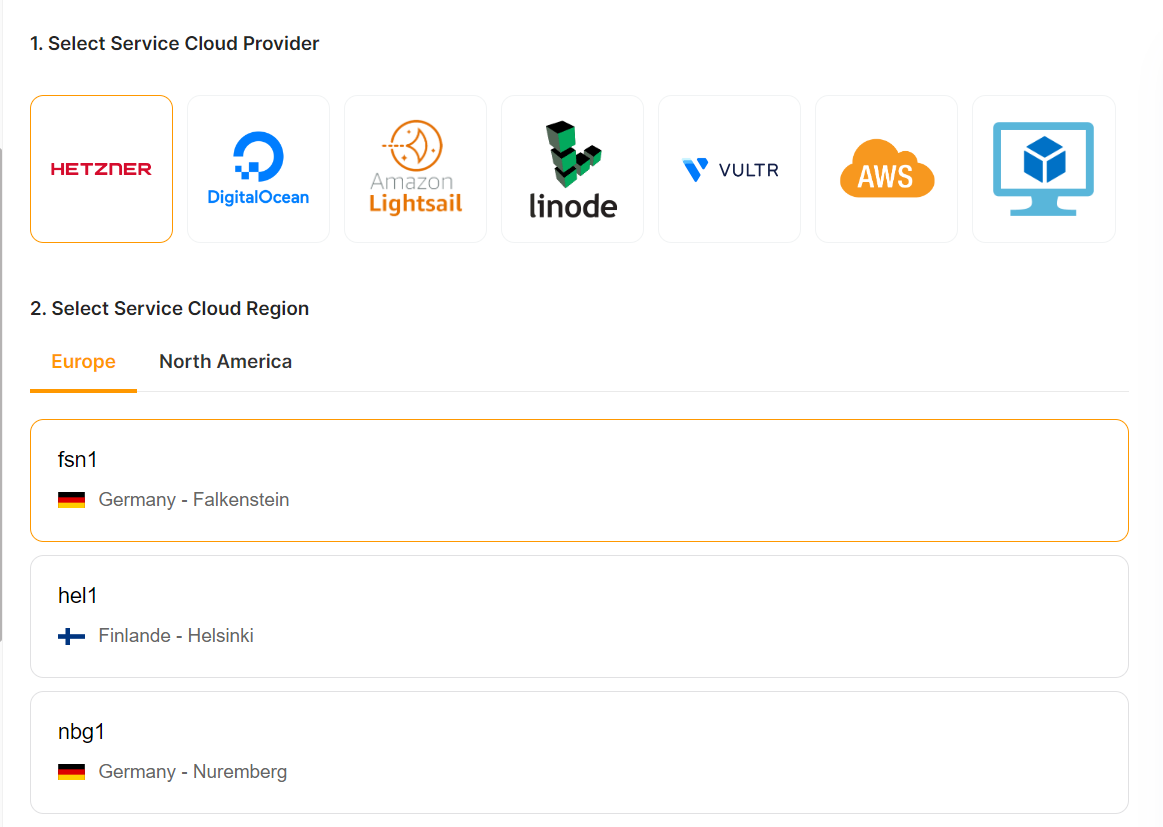](https://docs.elest.io/uploads/images/gallery/2023-02/screenshot-2023-02-20-180020.png) ##### 3. Select the instance size that works for you [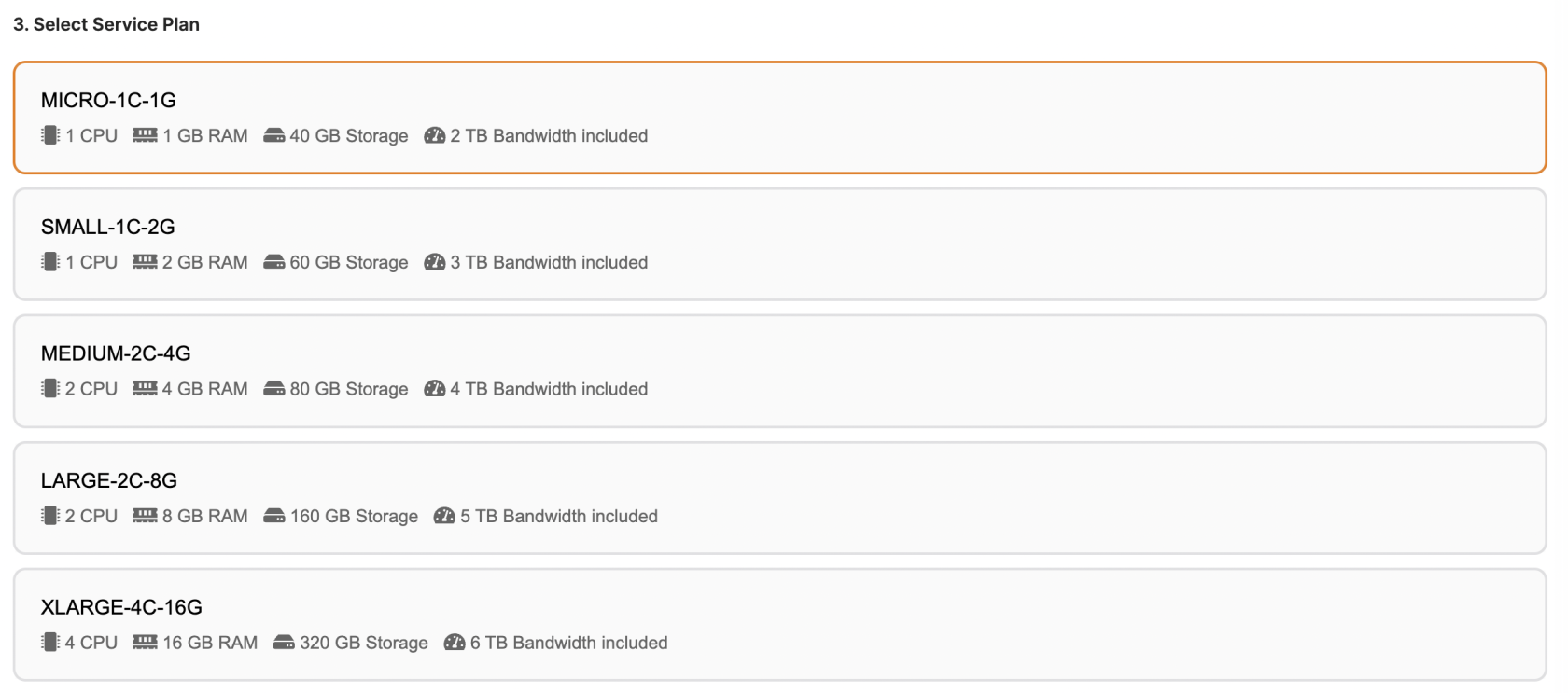](https://docs.elest.io/uploads/images/gallery/2022-09/screenshot-2022-09-25-at-11-45-10.png) ##### 5. Set the support plans, and maintenance windows for OS & software updates and give a name to your new serviceOS updates include updates to the Linux kernel, security patches, and other important maintenance to keep your instance running smoothly.
Software updates update the code of the open-source application itself. We respect semantic versioning, so we will only implement minor and patch updates, in order to avoid non-breaking changes.
Maintenance windows are specified in UTC
[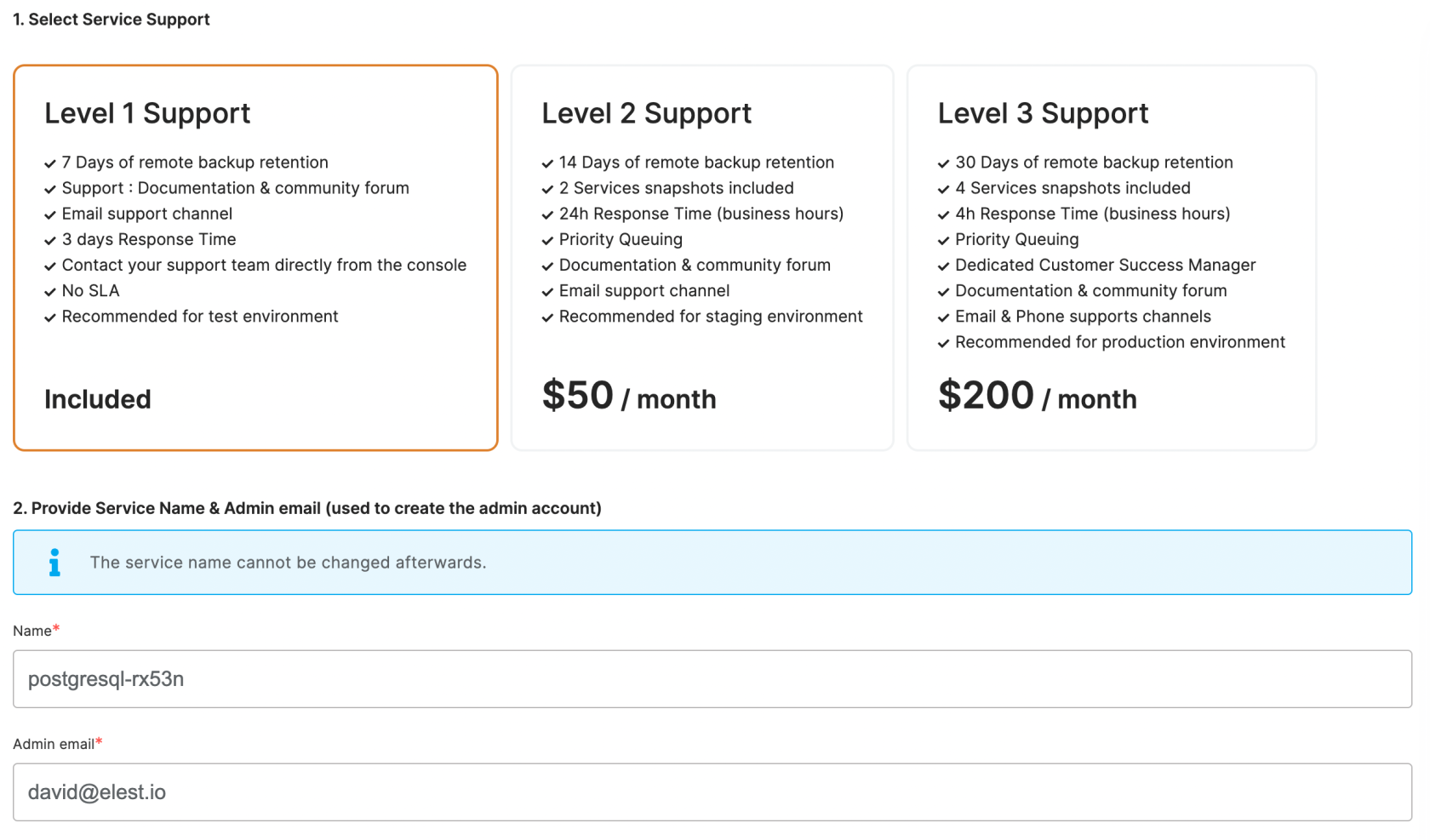](https://docs.elest.io/uploads/images/gallery/2022-09/screenshot-2022-09-25-at-11-46-45.png) ##### 6. Click the "Create Service" button on the right when you are ready to deploy [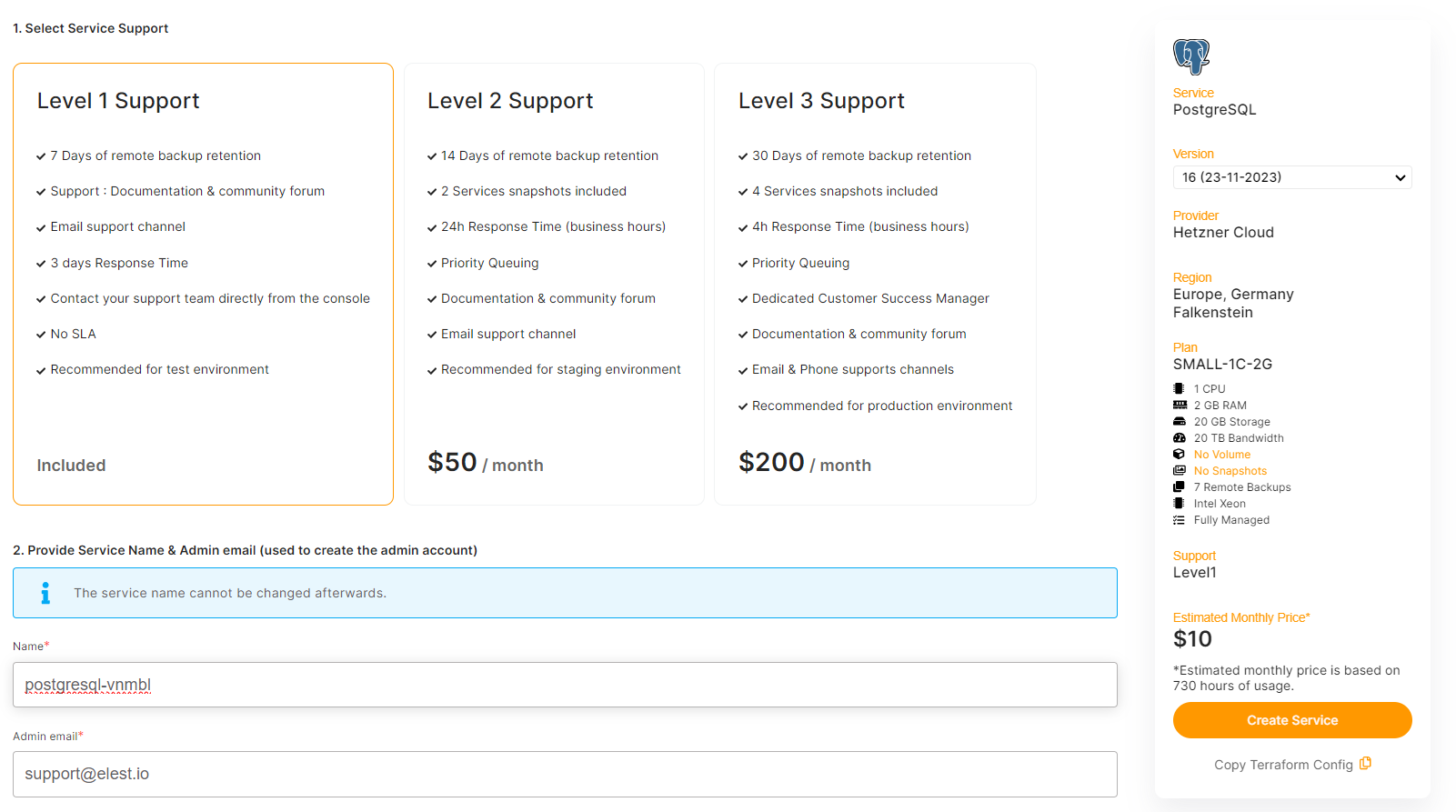](https://docs.elest.io/uploads/images/gallery/2023-11/screenshot-2023-11-28-235134.png) [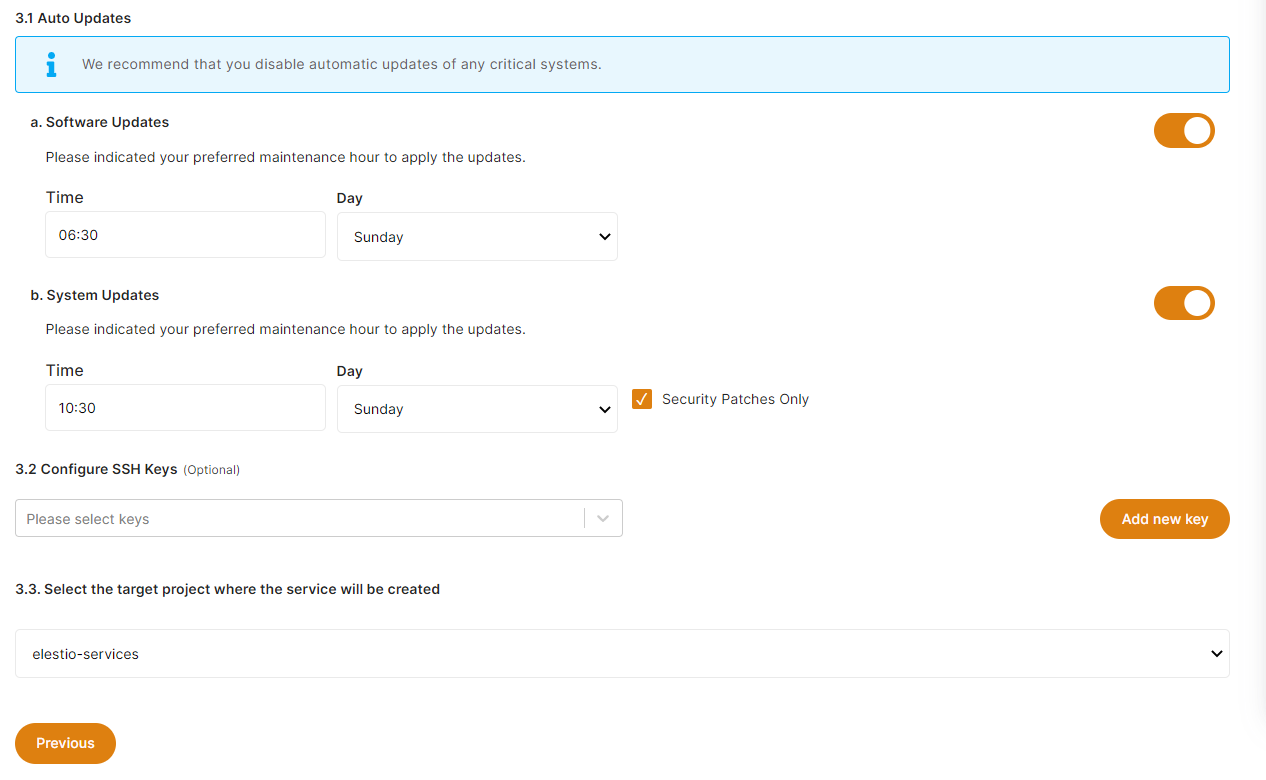](https://docs.elest.io/uploads/images/gallery/2022-09/screenshot-2022-09-25-at-11-47-56.png) ##### 7. After a few seconds your new service will appear in the list with a status: "Service is in deployment". It should only take 2-3 minutes before your service will be ready to use. [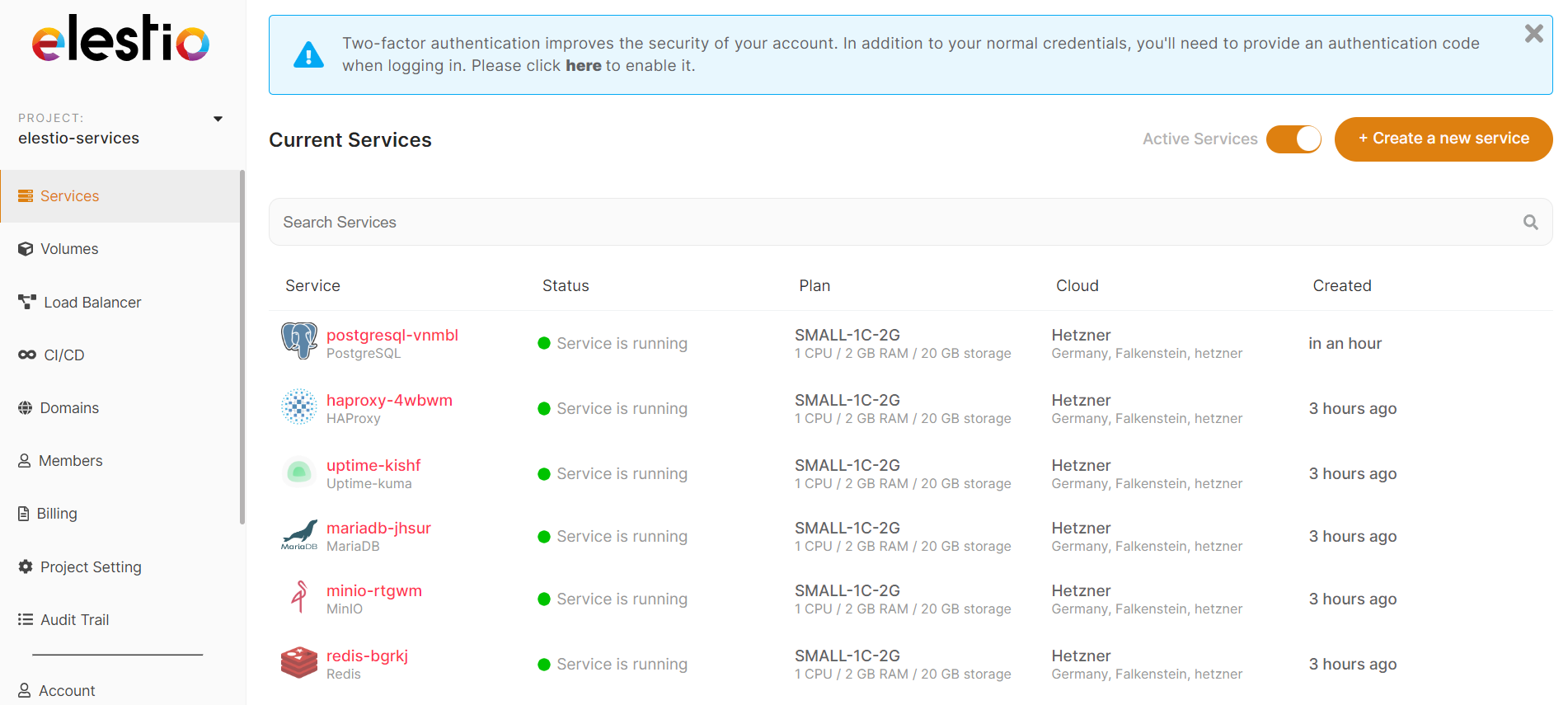](https://docs.elest.io/uploads/images/gallery/2022-01/image-1641899401774.png) ##### Once your service is ready you will get an email with details about the deployment of your software. ##### The URL and credentials to access the web UI or database application are also available in the **[Service Overview](https://docs.elest.io/books/service-dashboard/chapter/overview "Overview")** ##### **[Get started on the elestio dashboard,](https://dash.elest.io/) or [read more about it in our documentation.](https://docs.elest.io/shelves/getting-started)** # Newsletter You can get the most recent information about Elestio features, supported software, and tips by subscribing to the elestio newsletter. [ ](https://docs.elest.io/uploads/images/gallery/2022-11/newsletter.png) You can subscribe to the elestio newsletter during sign-up by checking the box (Sign up for our newsletter) and later manage subscribed unsubscribes from your elestio account settings. #### How to Subscribe to the Newsletter: - Navigate to your account setting from the left sidebar or simply [*click* ](https://dash.elest.io/account/user)here to directly go. - In the user information, check the Newsletter checkbox. - Click the submit button to save your information for the newsletter subscription. #### To unsubscribe from the newsletter, follow these steps: - Navigate to your account setting from the left sidebar or simply *[click ](https://dash.elest.io/account/user)*here to directly go. - Uncheck the Newsletter checkbox in the user information. - Click the submit button to save your information for the newsletter unsubscription. # Create a new service with Bring your own AWS Account (BYOAWS) ##### To create a new service, first, open [Elestio Dashboard](https://dash.elest.io/ "https://dash.elest.io/"), then go to *services* from the left sidebar and click the button to *create a new service*. - ##### The first step is to choose a template or service to deploy, then click Deploy to proceed to the next step.We offer more than 400 supported software templates, so you can pick the one you want to use. If you want to learn more about a specific template before using it, click the *Details* button. All of the templates and their details are also available on our *[managed services](https://elest.io/fully-managed-services "https://elest.io/fully-managed-services")* page.
[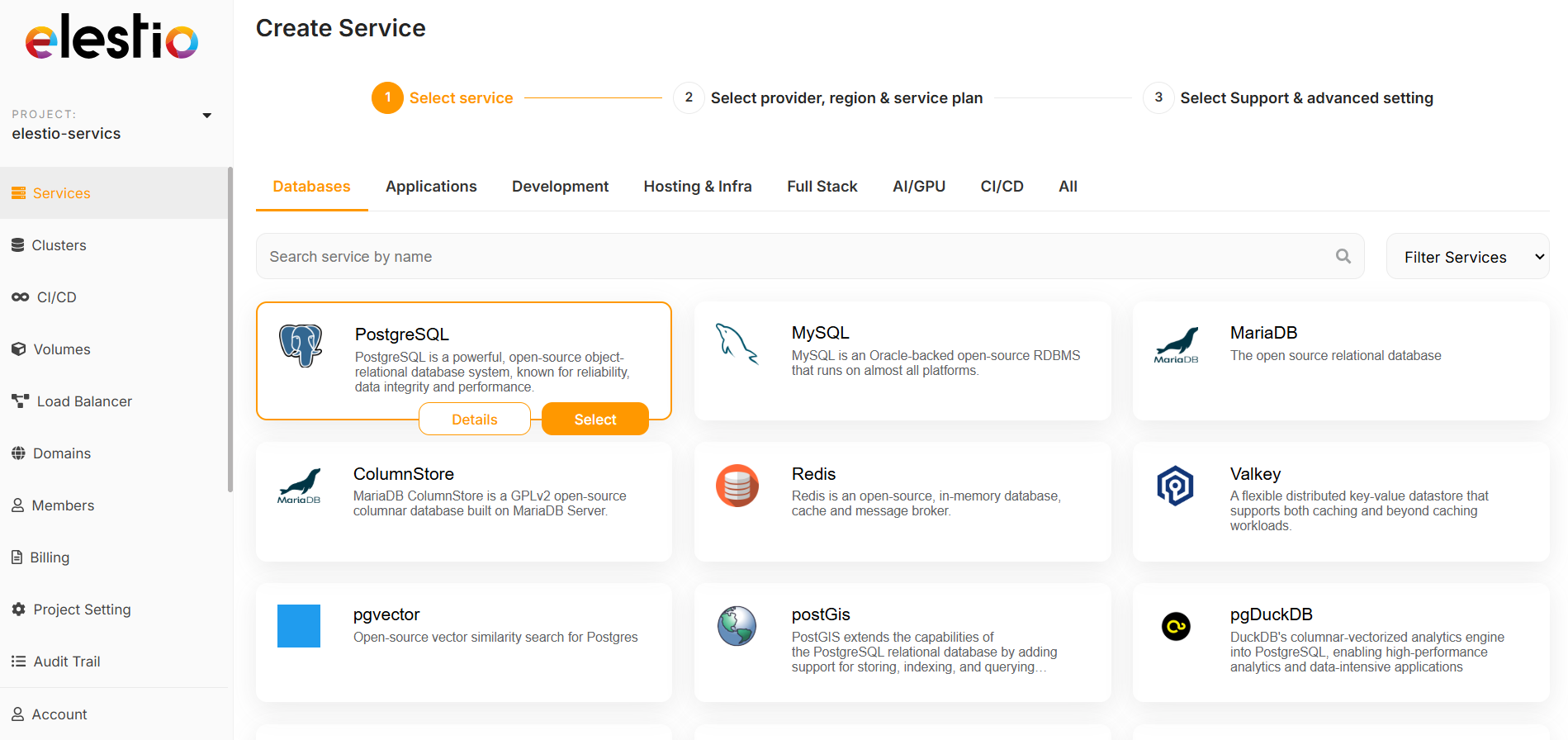](https://docs.elest.io/uploads/images/gallery/2026-02/NRgimage.png)**Use the category tabs to filter the selection of software.** [](https://docs.elest.io/uploads/images/gallery/2022-09/screenshot-2022-09-25-at-11-37-39.png)
##### - ##### Select Service Cloud Provider > ##### We provide 9 cloud service providers as well as *[Bring Your Own VM](https://docs.elest.io/books/cloud-providers/page/byovm-bring-your-own-vm "https://docs.elest.io/books/cloud-providers/page/byovm-bring-your-own-vm")*. You can choose AWS from this list.Hetzner, Digital Ocean, LightSail, Linode, and Vultr providers' services are deployed on Elestio accounts, whereas AWS is Bring Your Own AWS account, so all of the services are deployed in your own AWS account.
[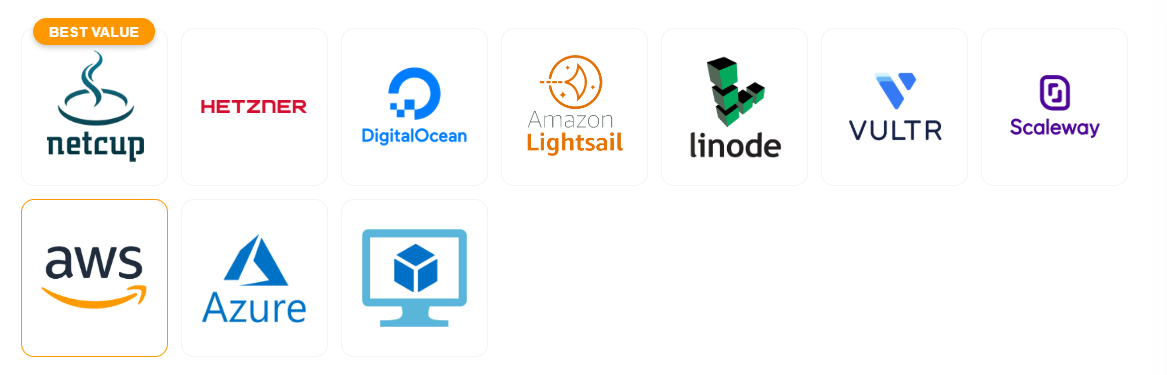](https://docs.elest.io/uploads/images/gallery/2026-02/image.png) - ##### Now configure your AWS account with Elestio. We offer two types of connections: simple and access/secret keys. Choose the Access/Secret key way to connect your AWS account. [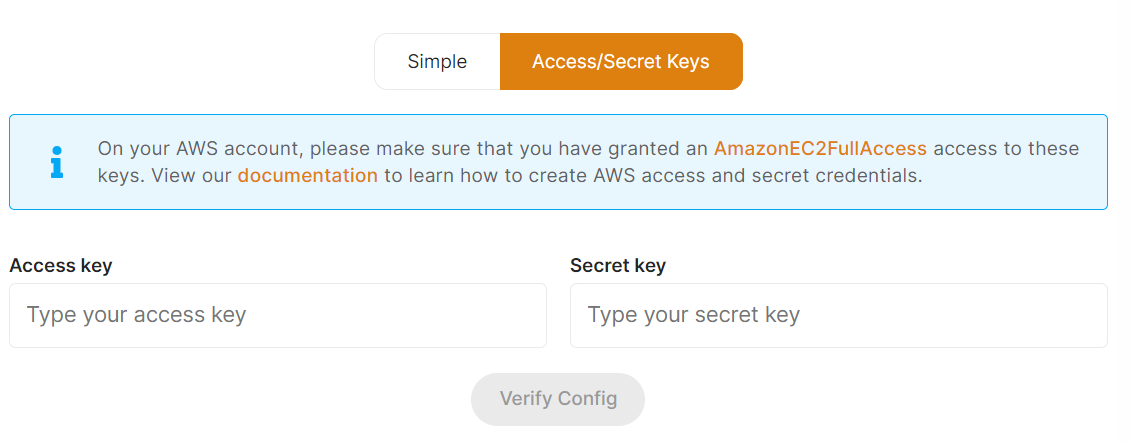](https://docs.elest.io/uploads/images/gallery/2023-02/screenshot-2023-02-20-204850.png)View our ***[documentation ](https://docs.elest.io/books/getting-started/page/how-to-create-aws-access-and-secret-key-for-byoaws "https://docs.elest.io/books/getting-started/page/how-to-create-aws-access-and-secret-key-for-byoaws")***to learn how to create AWS access and secret credentials.
Refer to the AWS [**documentation **](https://docs.aws.amazon.com/systems-manager/latest/userguide/managed-instances-default-host-management.html)for guidance if you'd like to attach the IAM Instance Profile Role with SSM permissions to your EC2 instance.
Enter your AWS Account *AmazonEC2FullAccess access key* and secret key here, then click the *Verify* button to validate your AWS access credentials.Anytime you've configured your AWS account in the project settings, you can update your AWS Account Access and Secret credentials by choosing the *Project Settings* option from the left sidebar. Visit our [*documentation* ](https://docs.elest.io/books/projects-teams/page/update-aws-account-access-and-secret-credentials "https://docs.elest.io/books/projects-teams/page/update-aws-account-access-and-secret-credentials")for more information.
- ##### Select Service Cloud Region [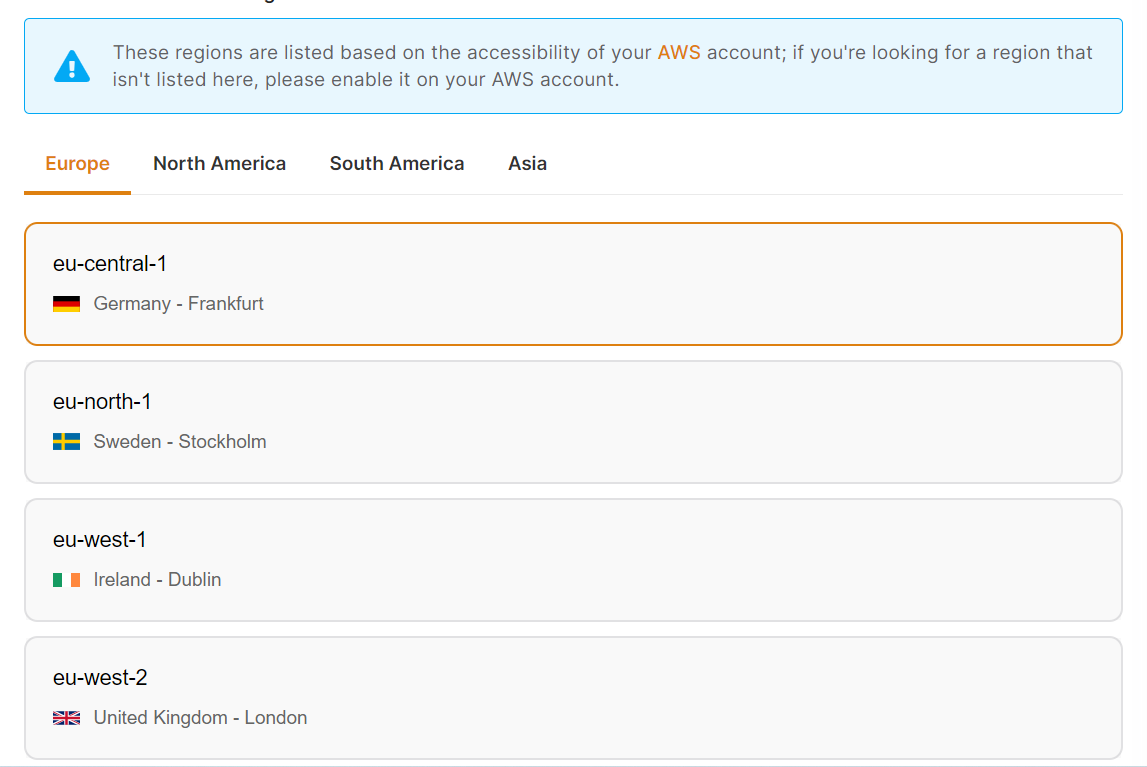](https://docs.elest.io/uploads/images/gallery/2023-02/screenshot-2023-02-15-144448.png) - ##### Select Service PlanYou can [*view* ](https://docs.elest.io/books/cloud-providers/page/aws-ec2-or-byoaws-bring-your-own-aws-account "https://docs.elest.io/books/cloud-providers/page/aws-ec2")a detailed list of all the AWS EC2 plans we offer.
[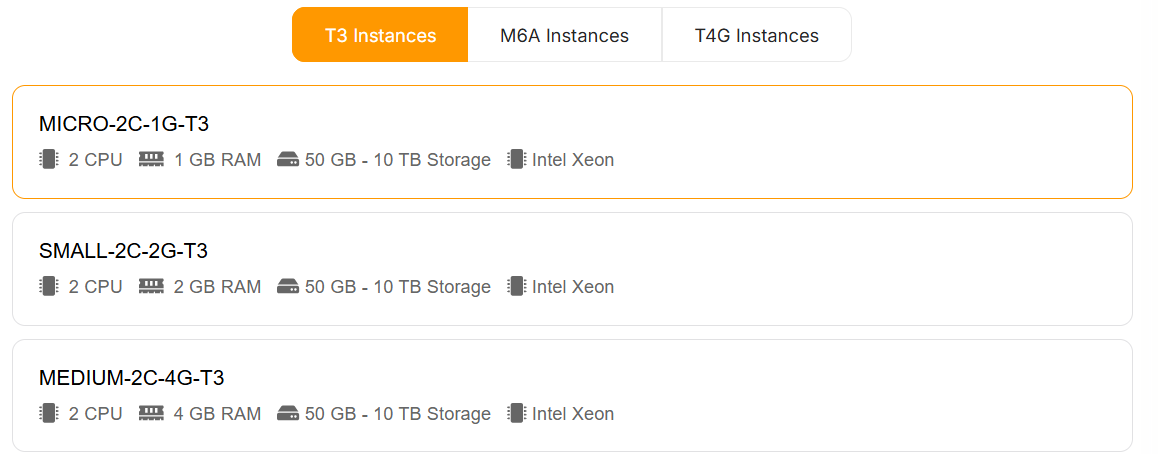](https://docs.elest.io/uploads/images/gallery/2026-02/miHimage.png) - ##### Choose the Disk Storage SizeBy default, we configure it with 50 GB, but you can change it as needed between 50 GB and 10 TB.
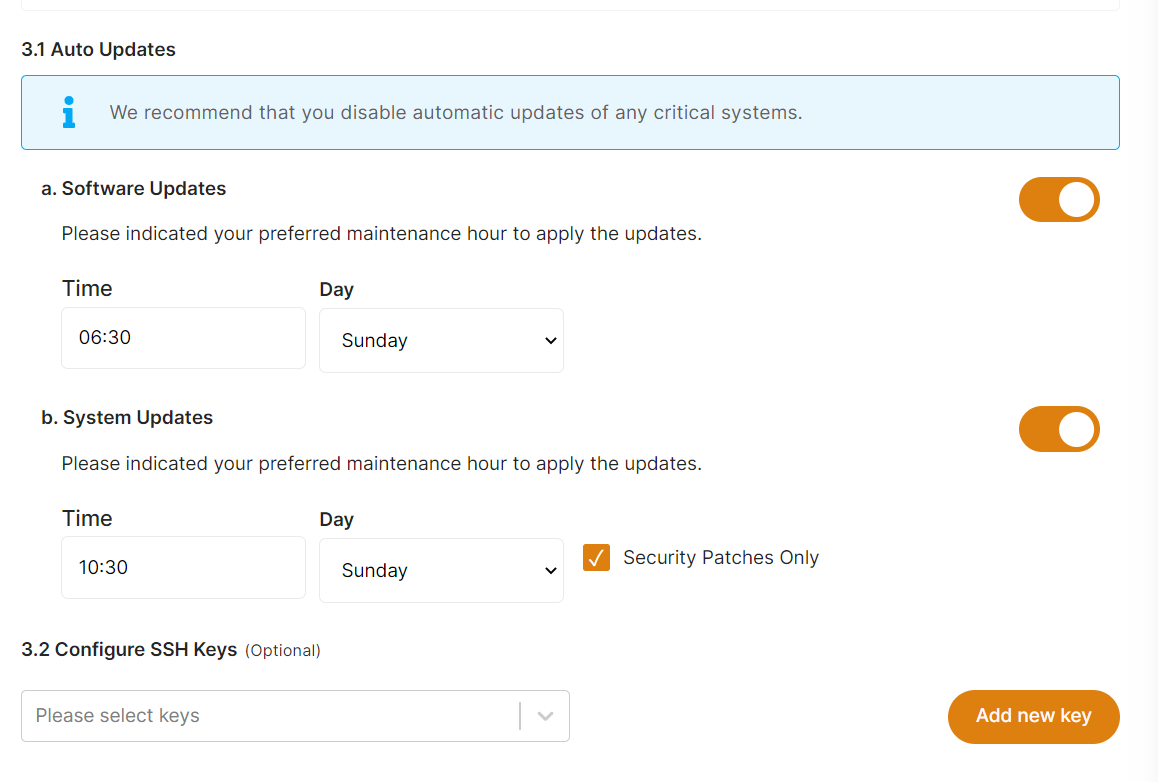
[](https://docs.elest.io/uploads/images/gallery/2026-02/8Zmimage.png) > You can resize your disc size after deployment at any time by clicking the Update Volume button in the *Main volume* section of the services overview. Visit our [*documentation* ](https://docs.elest.io/books/services-dashboard/page/increase-aws-main-disk-or-volume-size "https://docs.elest.io/books/services-dashboard/page/increase-aws-disk-size")for more information. - ##### Select Service Support [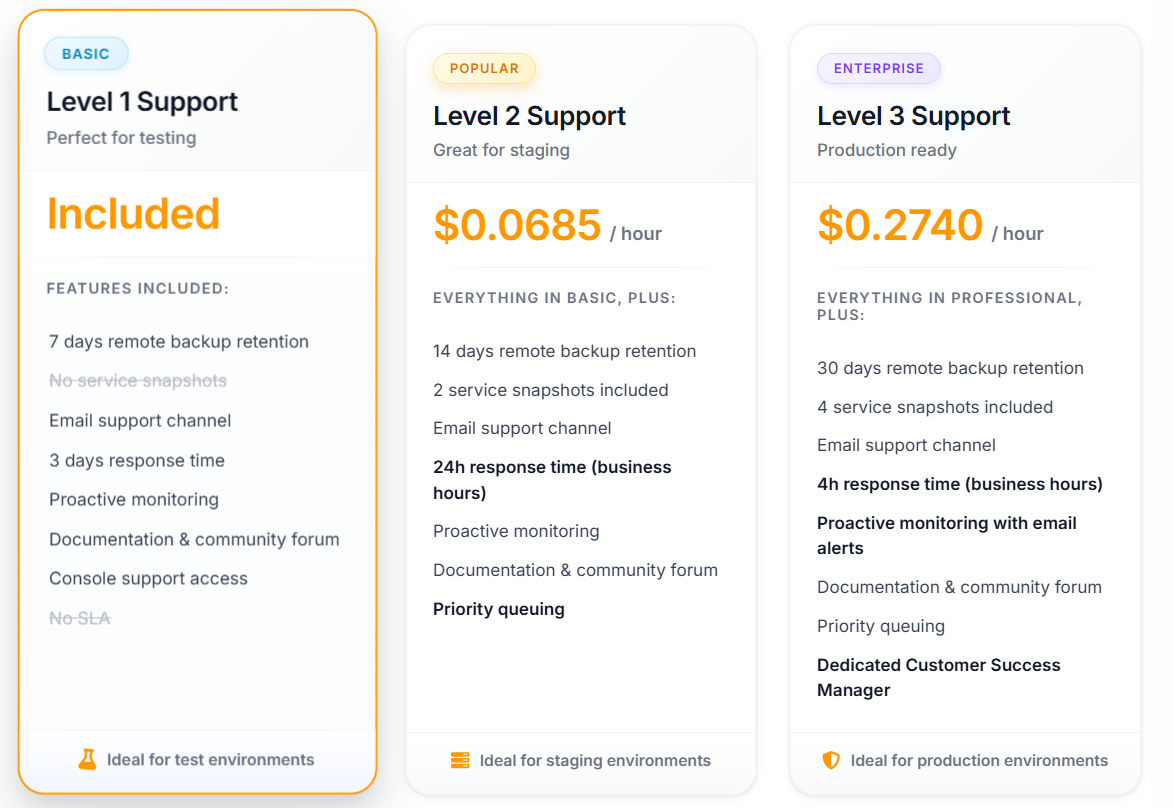](https://docs.elest.io/uploads/images/gallery/2026-02/csGimage.png) - ##### Provide the service name & Admin email (used to create the admin account) By default, the name was prefilled with the template name, and the email was prefilled with the project owner's email, but you can change this. [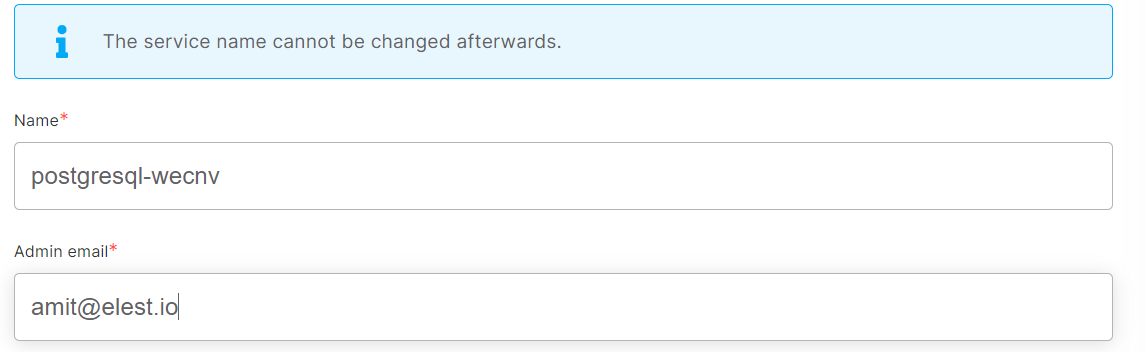](https://docs.elest.io/uploads/images/gallery/2023-02/screenshot-2023-02-15-150855.png) - ##### Advanced Configuration By default, all settings are already filled out, but you can alter them to suit your preferences.OS updates include updates to the Linux kernel, security patches, and other important maintenance to keep your instance running smoothly.
Software updates update the code of the open-source application itself. We respect semantic versioning, so we will only implement minor and patch updates in order to avoid non-breaking changes.
Maintenance windows are specified in UTC
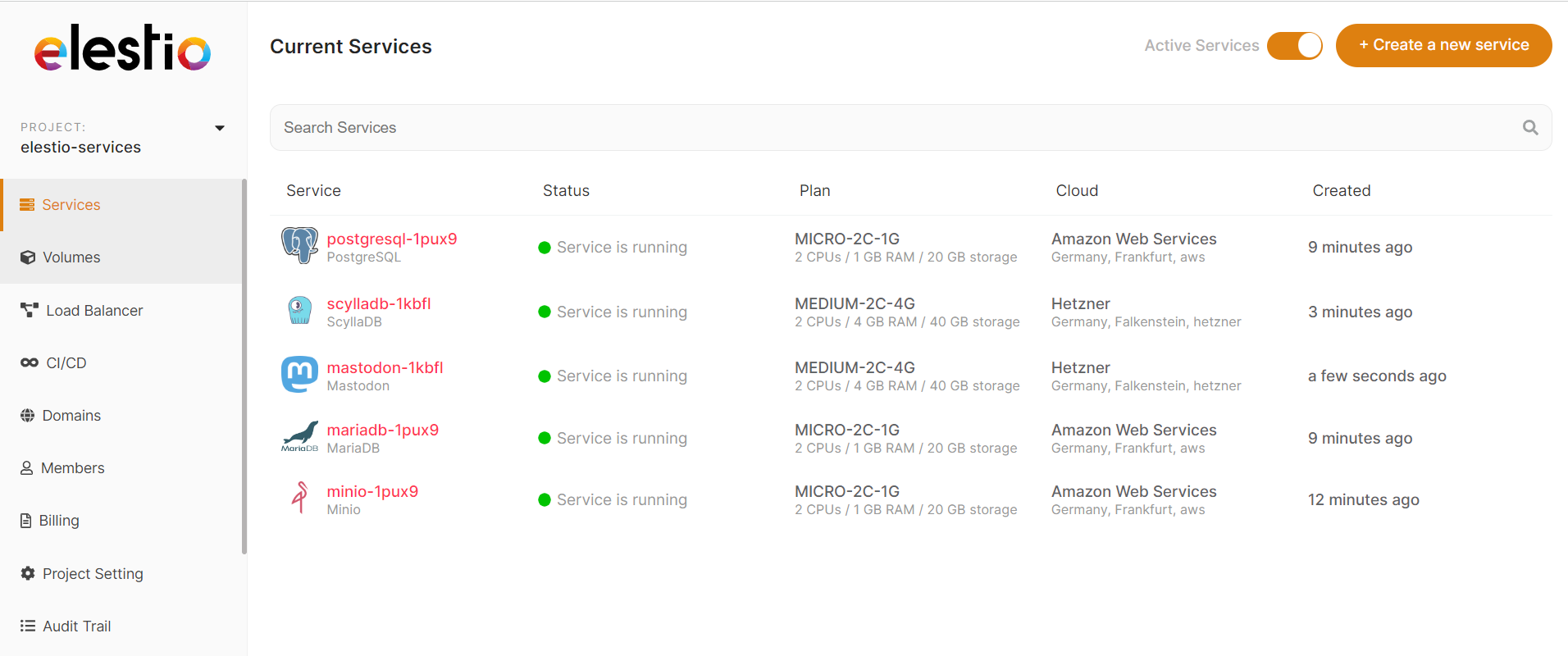
[](https://docs.elest.io/uploads/images/gallery/2023-02/screenshot-2023-02-15-151648.png) - ##### Now, click the *Create Service* button to deploy your service. [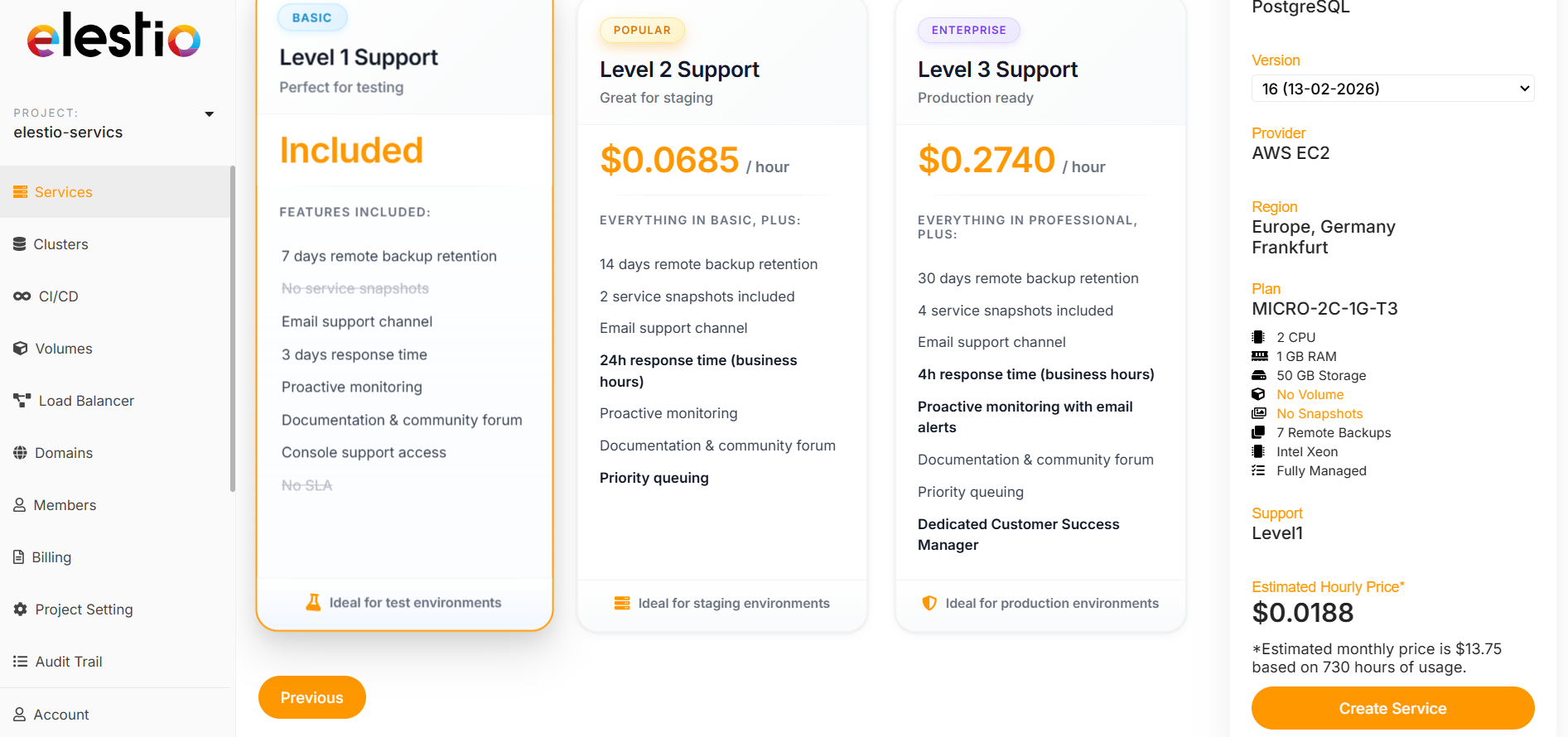](https://docs.elest.io/uploads/images/gallery/2026-02/ctYimage.png)After a few seconds, your new service will appear in the list with the status "Service is in deployment." It should only take 2-3 minutes for your service to be ready to use.
[](https://docs.elest.io/uploads/images/gallery/2023-02/screenshot-2023-02-15-195543.png) ##### You will receive an email with information about the deployment of your software once your service is ready. ##### The URL and credentials for accessing the web UI or database application are sent via email and are also available in the *Service Overview.* ##### Visit our [*documentation* ](https://docs.elest.io/books/services-dashboard "https://docs.elest.io/books/services-dashboard")to learn more about service management. ##### **[Get started on the elestio dashboard,](https://dash.elest.io/) or [read more about it in our documentation](https://docs.elest.io/ "https://docs.elest.io/")** # How to Create AWS Access and Secret Key for BYOAWS ##### To create your AWS Access and Secret Key, follow these steps. - **Step 1**:- Use your AWS account ID or account alias, your IAM user name, and your password to sign in to the *[IAM console](https://console.aws.amazon.com/iam)* - **Step 2**:- In the navigation bar on the upper right, choose your user name, and then choose **Security credentials**. [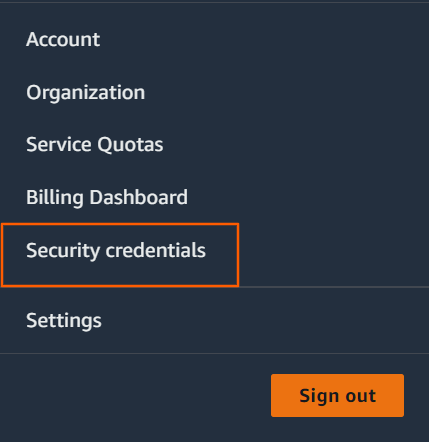](https://docs.elest.io/uploads/images/gallery/2023-02/instances-ec2-management-console-1.png) - **Step 3**:- If you want to create the AWS Access and Secret credentials with the root user, skip to **step 4**; otherwise, click ***Users*** on the left side of access management and then ***Add users***. [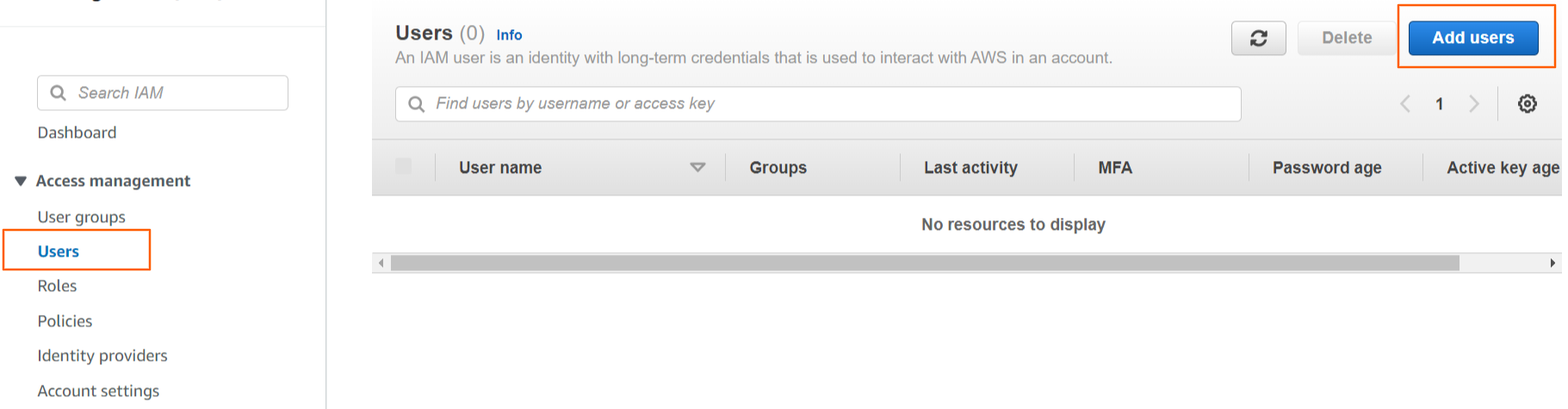](https://docs.elest.io/uploads/images/gallery/2023-02/jGZimage.png) Enter your AWS Account access user name and click Next, Next, Next and Create User to proceed. [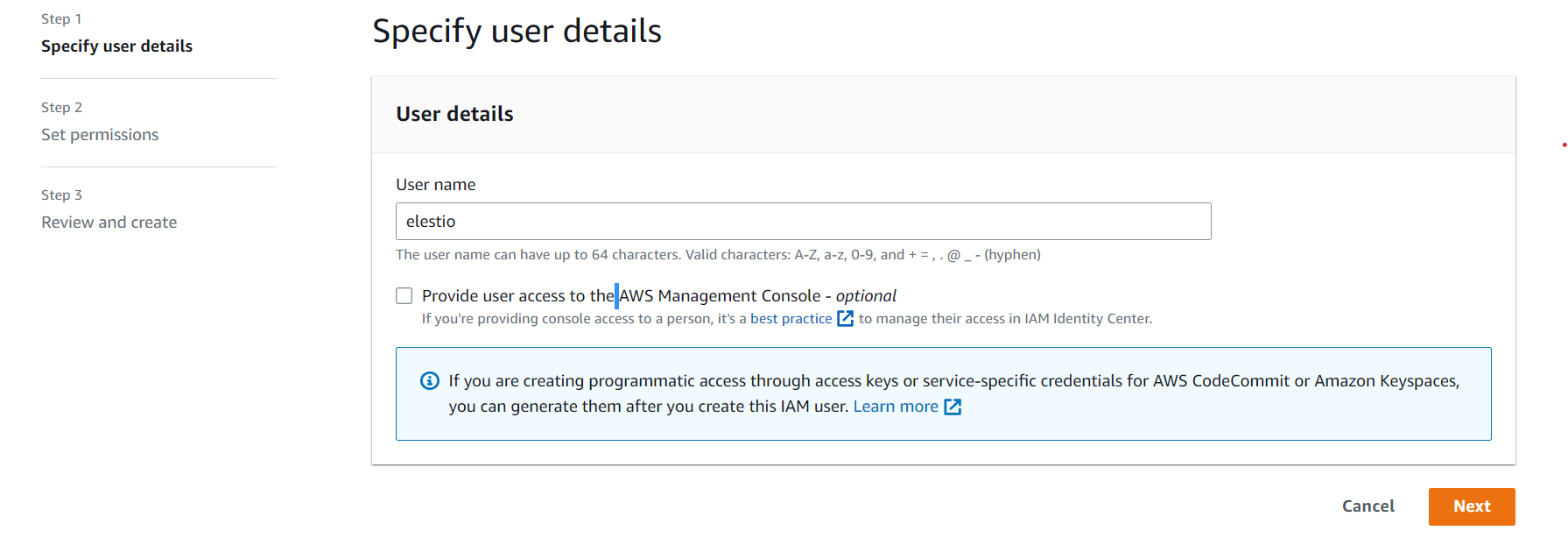](https://docs.elest.io/uploads/images/gallery/2023-02/jkHimage.png) After clicking the Create User button, you will be taken to the user list. Choose your created user name from the user list and click on it. [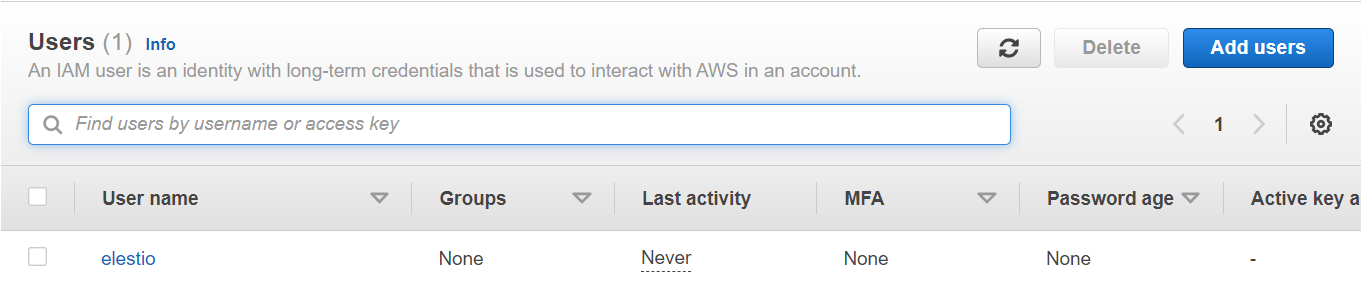](https://docs.elest.io/uploads/images/gallery/2023-02/Llnimage.png) Navigate to **Security Credentials** under User Details. [](https://docs.elest.io/uploads/images/gallery/2023-02/zSTimage.png) - **Step 4**:- Select **Create access key** from the **Access keys section**. If you already have two access keys, this button is disabled, and you must delete one before creating a new one. [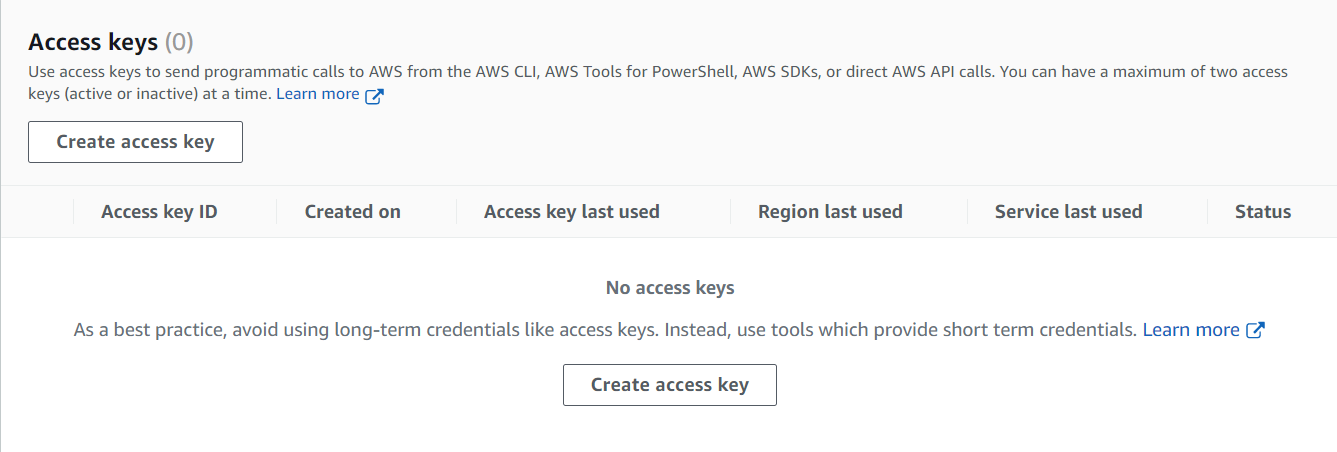](https://docs.elest.io/uploads/images/gallery/2023-02/image.png) - - On the **Access key best practices & alternatives** page, choose your use case to learn about additional options which can help you avoid creating a long-term access key. If you determine that your use case still requires an access key, choose **Other** and then choose **Next**. - (Optional) Set a description tag value for the access key. This adds a tag key-value pair to your IAM user. This can help you identify and rotate access keys later. The tag key is set to the access key id. The tag value is set to the access key description that you specify. When you are finished, choose to **Create access key**. **For Non-Root Users:-** Choose **Command Line Interface** as an alternative and check the box, then click Next and **Create Access Key.** [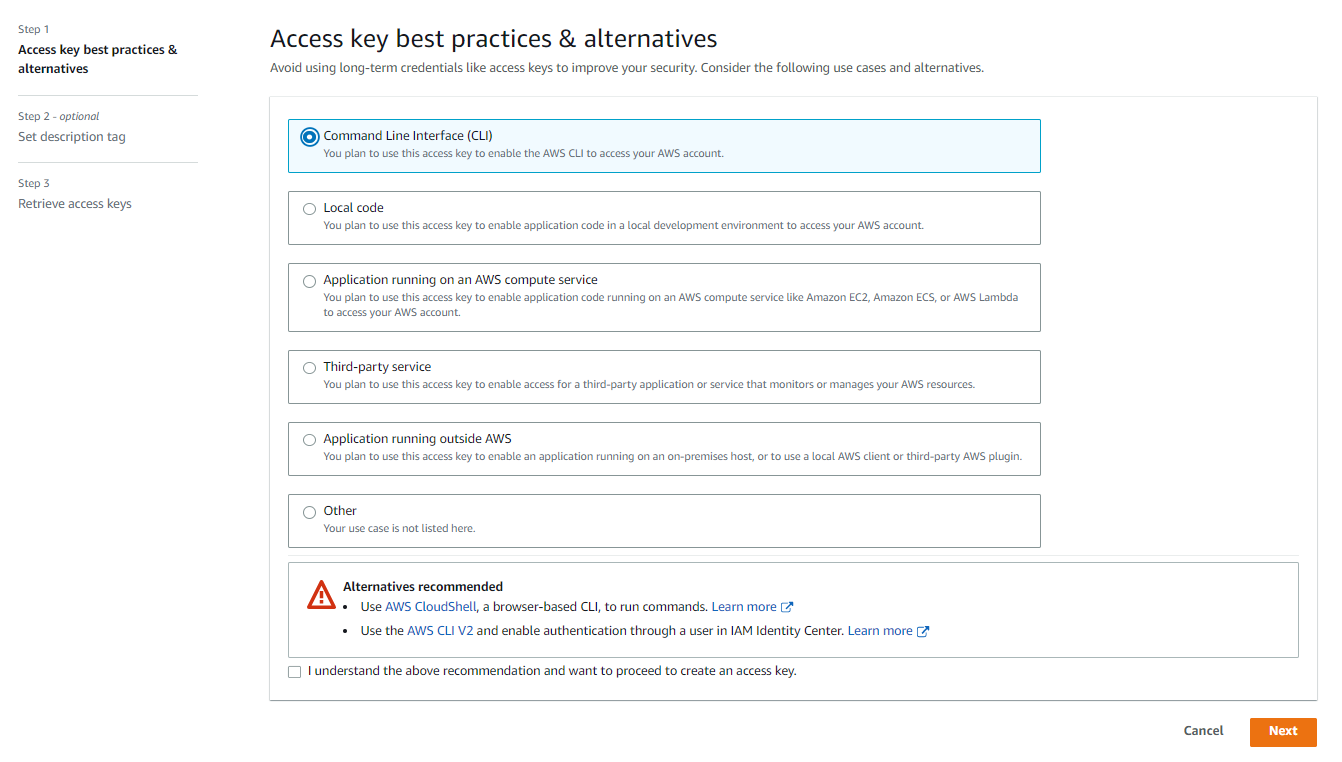](https://docs.elest.io/uploads/images/gallery/2023-02/8Fhimage.png) **For Root User:-** Check the box and click **Create Access Key**. [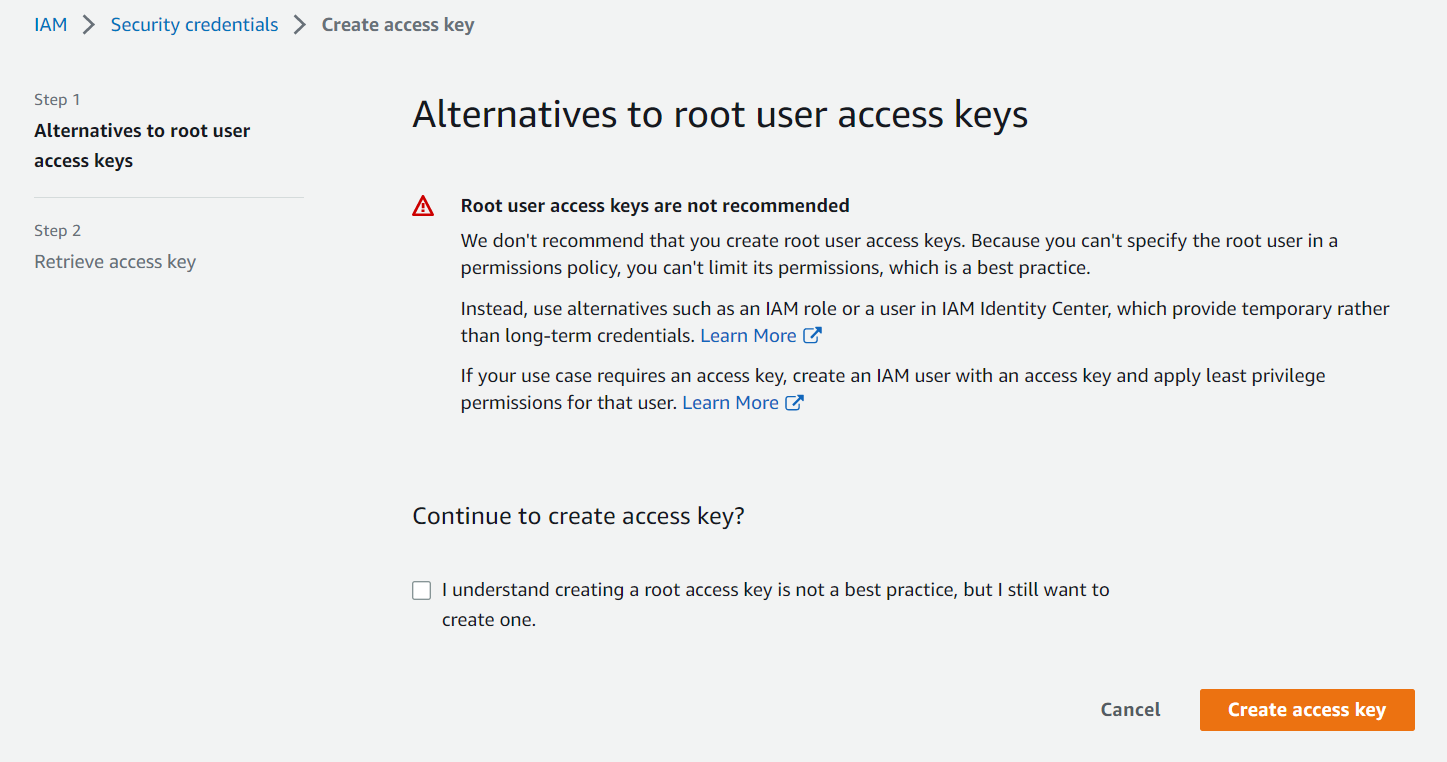](https://docs.elest.io/uploads/images/gallery/2023-02/screenshot-2023-02-20-122937.png) - **Step 5**:- On the **Retrieve access keys** page, choose either **Show** to reveal the value of your user's secret access key, or **Download .csv file**. This is your only opportunity to save your secret access key. After you've saved your secret access key in a secure location, choose **Done**. [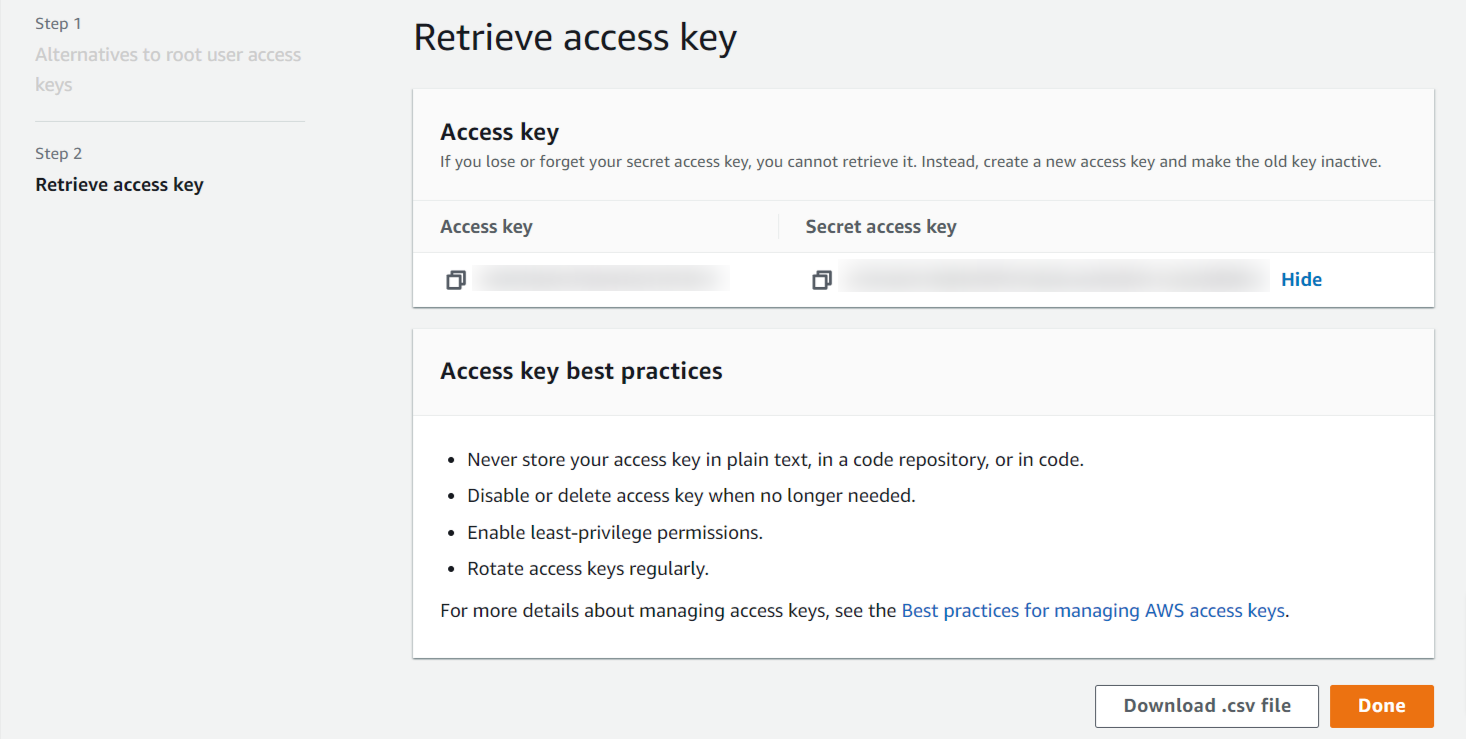](https://docs.elest.io/uploads/images/gallery/2023-02/iam-management-console.png) - **Step 6**:- Now grant **Administration** access to the newly created keys. > Elestio requires a *AmazonEC2FullAccess *permission to manage your Ec2 services Navigate to permission in the user details to add the permission and select **Add Permission** [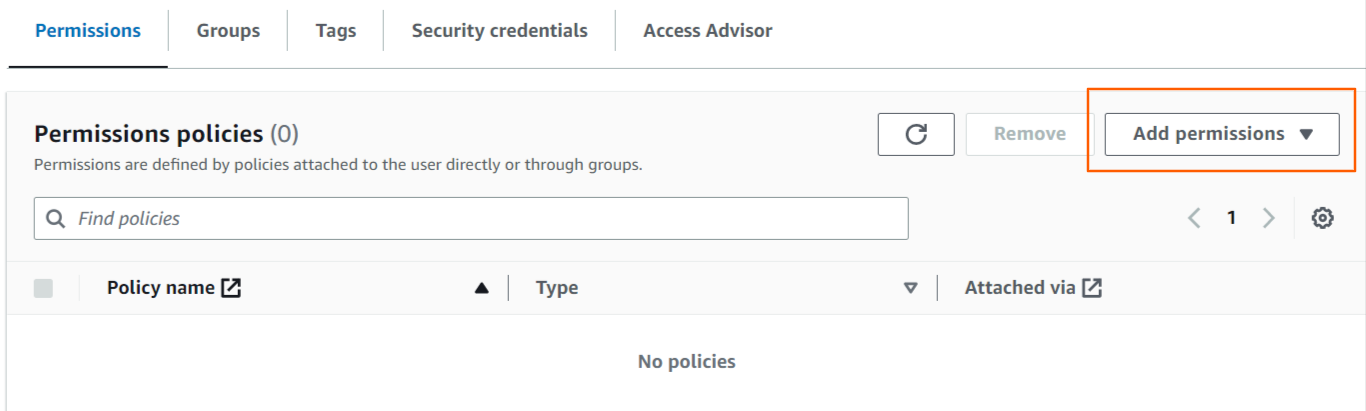](https://docs.elest.io/uploads/images/gallery/2023-02/sLoimage.png) Select the **Attach policies directly** Tab to attach permission. [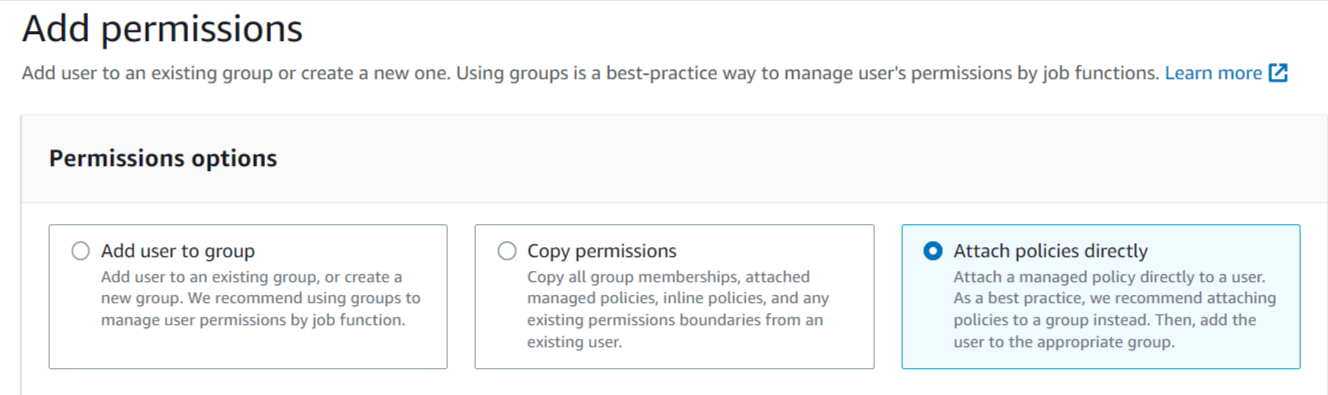](https://docs.elest.io/uploads/images/gallery/2023-02/NgQimage.png) Now Enter *AmazonEC2FullAccess *into the search box and then select the *AmazonEC2FullAccess *permission from the results. [](https://docs.elest.io/uploads/images/gallery/2023-02/F8fimage.png) After Selecting both Click **Next** and then click **Add permission** to proceed. [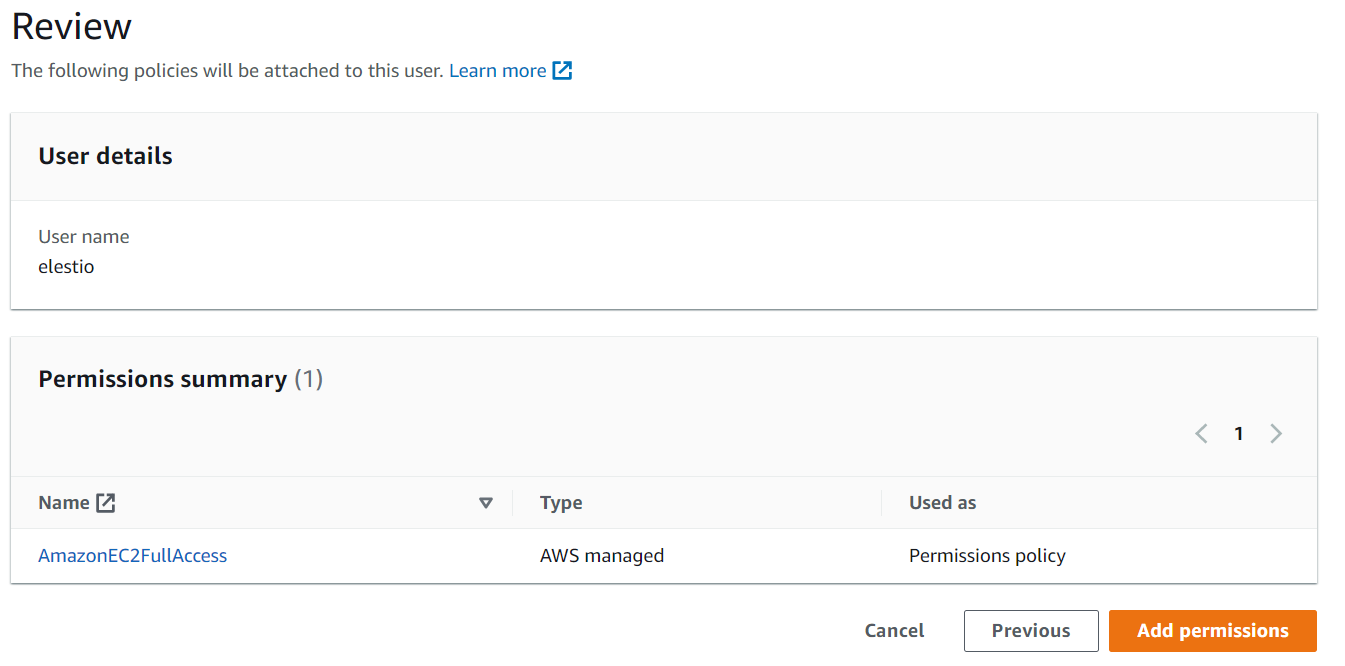](https://docs.elest.io/uploads/images/gallery/2023-02/screenshot-2023-02-20-204006.png) ##### Follow these steps if you already have an access key and want to activate it instead of creating a new one. - In the **Access keys** section, find the key to activate. [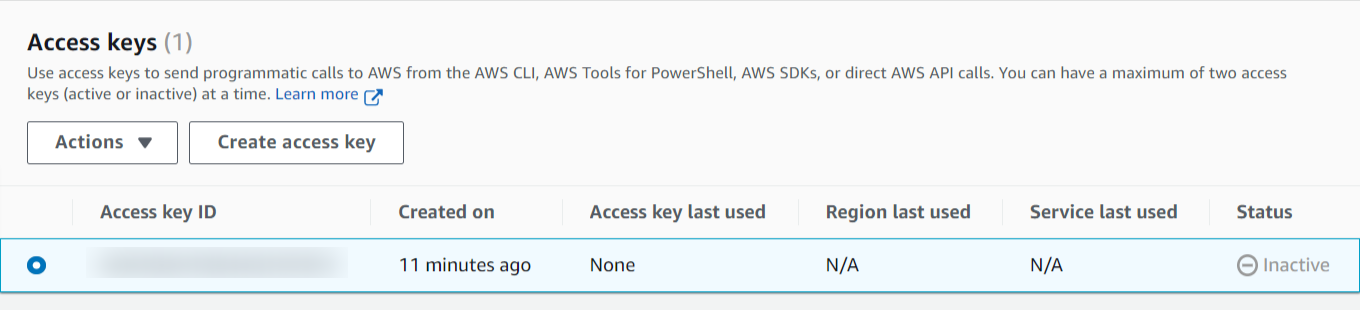](https://docs.elest.io/uploads/images/gallery/2023-02/z5Limage.png) - To activate the key, go to **Actions** and select **Activate**. [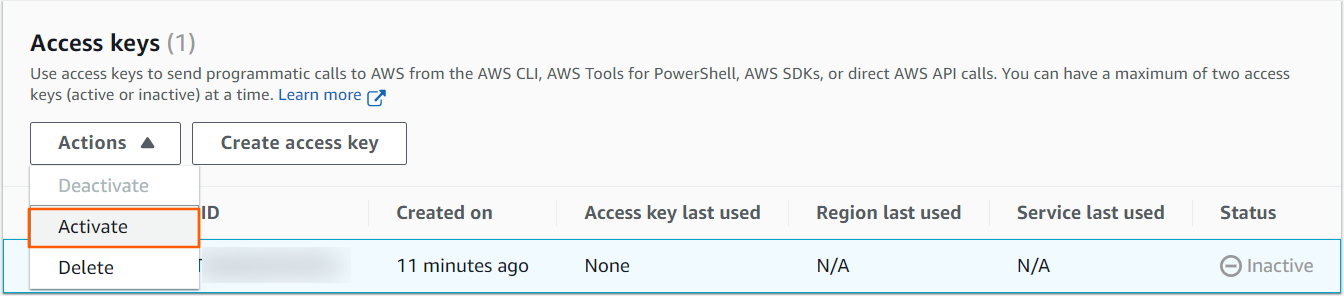](https://docs.elest.io/uploads/images/gallery/2023-02/9pzimage.png)Before adding keys to elestio, you must grant Administration access to them.
# How to Deploy or Integrate a Service with Tor Onion on Elestio To make your services accessible over Tor, you can configure a Tor service within your service Docker Compose setup. This will allow your service to function as an onion site, providing enhanced privacy and limiting access to Tor-compatible browsers. Here’s a guide to setting up your service with Tor on Elestio. ##### **Step 1: Set Up Your Service** First, deploy a new service on Elestio or select an existing one you’ve already deployed. ##### **Step 2: Open the Editor** Navigate to the **Tools** tab within your service and open the provided VS Code editor. ##### **Step 3: Stop the Current Container** To stop the current container, run the following command: ```bash docker-compose down -v; ``` ##### **Step 4: Configure Docker Compose with Tor** You’ll need to add a Tor service to your Docker Compose file. Below is an example Docker Compose configuration to run a nextcloud server accessible through a Tor onion address. ```yaml version: "3.9" services: app: image: elestio/nextcloud:${SOFTWARE_VERSION_TAG} restart: always # ports: # - 172.17.0.1:22000:80 volumes: - ./nextcloud:/var/www/html - ./apps:/var/www/html/custom_apps - ./config:/var/www/html/config - ./data:/var/www/html/data tor: image: jakejarvis/tor:latest restart: unless-stopped volumes: - ./tor-data:/var/lib/tor/ - ./torrc:/etc/tor/torrc:ro depends_on: - app volumes: tor-data: ```In the Docker Compose example, we used the `jakejarvis/tor` image to demonstrate the setup, but you can substitute it with any other official or custom Tor image that suits your needs. This allows for flexibility in using a Tor configuration that aligns with specific requirements or preferences.
##### **Step 5: Create the `torrc` File** In the root directory of your project, create a file named `torrc`. This file configures Tor to run as a hidden service and specifies the settings for connecting to the web service. Add the following content to `torrc`: ```bash # This folder contains the public and private keys of the hidden # service, probably provided by the host but can also be generated # by Tor if it's missing. HiddenServiceDir /var/lib/tor/hidden_service # Point the hidden service to a web server (in this case, the web # server container listening on port 80). HiddenServicePort 80 app:80 # SOCKS proxy is only used for the container's internal healthcheck. SocksPort 127.0.0.1:9050 ``` ##### **Step 6: Start the service.** To start your services, use the following commands: ```bash docker-compose up -d; ``` This will bring up both the app and Tor services, allowing Tor to generate the necessary onion address. ##### **Step 7: Obtain Your Onion URL** Once your services are running, Tor will create an onion address for your service. You can find this address by accessing the `hostname` file in the `tor-data/hidden_service` directory. Use the following command to view your onion URL: ```bash cat tor-data/hidden_service/hostname ``` This will output an onion address (like `abcdefghijklmno.onion`) that you can use to access your web service in a Tor-compatible browser like Tor Browser or Brave. ##### **Step 8: Update Service URL with Onion URL** If your application has domain or URL settings in its environment variables or configurations, replace the current URL with your Tor onion URL. This ensures that your application will direct users to the onion address. ##### **Optional: Disable Access to the Public Internet** To restrict access exclusively to the Tor network and block regular web traffic, you can disable external access by blocking port 443 in your security firewall settings. This can be configured through the firewall settings within the Security tab of your service, or via your cloud provider's firewall if using a BYOVM (Bring Your Own Virtual Machine). ##### **Summary** With these steps, you’ve configured your Elestio-deployed service to be accessible through a Tor onion address. This setup allows for private, anonymous access via Tor, enhancing your service's privacy and security.