# KeyDB

# Overview

<span class="s1">**KeyDB**</span> is an open-source, high-performance in-memory database solution designed for real-time applications. Fully compatible with Redis, it offers advanced features such as multithreading, active-active replication, and forkless background saving. Engineered for speed and efficiency, KeyDB empowers developers to build responsive, low-latency systems while maintaining compatibility with existing Redis-based tools and workflows. It integrates easily into cloud-native environments with robust support for Docker and Kubernetes.

**Key Features of KeyDB:**

- **Multithreaded Performance:** Utilizes a multithreaded architecture that enables KeyDB to process multiple requests in parallel, significantly improving throughput and CPU utilization on multi-core machines.
- **Redis Compatibility:** Maintains full compatibility with Redis commands, clients, and data structures, making it easy to switch from Redis or use KeyDB alongside existing Redis deployments without code changes.
- **Active-Active (Multi-Master) Replication:** Supports true multi-master replication where each node can handle writes and stay synchronized, providing high availability, reduced latency, and simplified failover across geographically distributed environments.
- **Forkless Background Operations:** Implements forkless mechanisms for RDB and AOF persistence, eliminating memory spikes and latency caused by background process forking, which is common in traditional Redis setups.
- **Built-in TLS and Authentication:** Provides native support for encrypted communication via TLS and robust authentication mechanisms, improving security without relying on external proxies or tools.
- **Access Control Lists (ACLs):** Includes fine-grained access control through ACLs, allowing you to define permissions per user or client type to enhance data security in shared or multi-tenant deployments.
- **Pub/Sub and Streams Support:** Supports publish/subscribe messaging and Redis streams (<span class="s3">XADD</span>, <span class="s3">XREAD</span>, etc.), enabling scalable event-driven architectures and real-time data processing pipelines.
- **Multiple Databases:** Offers support for multiple logical databases per instance (default is 512), allowing better separation of data and easier multi-tenant management.
- **High Availability and Scalability:** Combines active-active replication with support for high-performance clustering, ensuring data resiliency, failover capabilities, and horizontal scaling for mission-critical workloads.
- **Advanced Memory Management:** Optimized memory allocator and eviction strategies reduce memory usage and improve efficiency, making KeyDB ideal for high-density or memory-sensitive environments.
- **Cross-Platform and Container Support:** Runs on all major operating systems and provides official Docker images and Kubernetes Helm charts, ensuring seamless deployment in cloud-native and containerized infrastructures.
- **Monitoring and Observability:** Exposes metrics and logs that integrate with observability tools like Prometheus, Grafana, and ELK stack, enabling real-time monitoring and performance tracking.

These features make KeyDB a powerful choice for developers and organizations looking for a high-performance, Redis-compatible, open-source solution to manage real-time data caching, messaging, and persistence securely and efficiently.

# How to Connect

# Connecting with Node.js

This guide explains how to establish a connection between a Node.js application and a KeyDB database using the [<span class="s2">redis</span>](https://www.npmjs.com/package/redis) package. It walks through the necessary setup, configuration, and execution of a simple KeyDB command.

## **Variables**

To successfully connect to a KeyDB instance, you’ll need to provide the following parameters. These can typically be found on the Elestio service overview page.

<table border="1" id="bkmrk-variable-description" style="width: 100%; border-collapse: collapse; border-color: rgb(0, 0, 0);"><thead><tr><th style="width: 12.2747%; border-color: rgb(0, 0, 0);">**Variable**

</th><th style="width: 34.5668%; border-color: rgb(0, 0, 0);">**Description**

</th><th style="width: 53.1585%; border-color: rgb(0, 0, 0);">**Purpose**

</th></tr></thead><tbody><tr><td style="width: 12.2747%; border-color: rgb(0, 0, 0);">`HOST`

</td><td style="width: 34.5668%; border-color: rgb(0, 0, 0);">KeyDB hostname (from Elestio service overview)

</td><td style="width: 53.1585%; border-color: rgb(0, 0, 0);">The address of the server hosting your KeyDB instance.

</td></tr><tr><td style="width: 12.2747%; border-color: rgb(0, 0, 0);">`PORT`

</td><td style="width: 34.5668%; border-color: rgb(0, 0, 0);">KeyDB port (from Elestio service overview)

</td><td style="width: 53.1585%; border-color: rgb(0, 0, 0);">The port used for the KeyDB connection. The default KeyDB port is 6379.

</td></tr><tr><td style="width: 12.2747%; border-color: rgb(0, 0, 0);">`PASSWORD`

</td><td style="width: 34.5668%; border-color: rgb(0, 0, 0);">KeyDB password (from Elestio service overview)

</td><td style="width: 53.1585%; border-color: rgb(0, 0, 0);">Authentication key used to connect securely to the KeyDB instance.

</td></tr></tbody></table>

These values can usually be found in the Elestio service overview details as shown in the image below, make sure to take a copy of these details and add it to the code moving ahead.

[![Screenshot 2025-06-26 at 1.13.23 PM.jpg](https://docs.elest.io/uploads/images/gallery/2025-06/scaled-1680-/screenshot-2025-06-26-at-1-13-23-pm.jpg)](https://docs.elest.io/uploads/images/gallery/2025-06/screenshot-2025-06-26-at-1-13-23-pm.jpg)

## **Prerequisites**

**Install Node.js and NPM**

- Check if Node.js is installed by running:

```
node -v
```

- If not installed, download and install it from [nodejs.org](https://nodejs.org).
- Confirm <span class="s1">npm</span> is installed by running:

```
npm -v
```

**Install the redis Package**

The <span class="s2">redis</span> package enables communication between Node.js applications and KeyDB.

```
npm install redis --save
```

## **Code**

Create a new file named `<span class="s2">keydb.js</span>` and add the following code:

```javascript
const keydb = require("redis");

// KeyDB connection configuration
const config = {
  socket: {
    host: "HOST",
    port: PORT,
  },
  password: "PASSWORD",
};

// Create a Redis client
const client = keydb.createClient(config);

// Handle connection errors
client.on("error", (err) => {
  console.error("KeyDB connection error:", err);
});

// Connect and run a test command
(async () => {
  try {
    await client.connect();
    console.log("Connected to KeyDB");

    // Set and retrieve a test key
    await client.set("testKey", "Hello KeyDB");
    const value = await client.get("testKey");
    console.log("Retrieved value:", value);

    // Disconnect from KeyDB
    await client.disconnect();
  } catch (err) {
    console.error("KeyDB operation failed:", err);
  }
})();
```

To execute the script, open the terminal or command prompt and navigate to the directory where `<span class="s1">keydb.js</span>` is located. Once in the correct directory, run the script with the command:

```
node keydb.js
```

If the connection is successful, the output should resemble:

```
Connected to KeyDB  
Retrieved value: Hello KeyDB
```

# Connecting with Python

This guide explains how to connect a Python application to a KeyDB database using the [<span class="s3">redis</span>](https://pypi.org/project/redis/) library. It walks through the required setup, configuration, and execution of a simple KeyDB command.

## **Variables**

To connect to KeyDB, the following parameters are needed. You can find these values in the Elestio KeyDB service overview.

<table border="1" id="bkmrk-variable-description" style="width: 90.8333%; height: 152.781px; border-collapse: collapse; border-width: 1px; border-color: rgb(0, 0, 0);"><thead><tr style="height: 29.7969px;"><th style="width: 12.4672%; height: 29.7969px; border-color: rgb(0, 0, 0);">**Variable**

</th><th style="width: 42.3885%; height: 29.7969px; border-color: rgb(0, 0, 0);">**Description**

</th><th style="width: 45.2756%; height: 29.7969px; border-color: rgb(0, 0, 0);">**Purpose**

</th></tr></thead><tbody><tr style="height: 46.5938px;"><td style="width: 12.4672%; height: 46.5938px; border-color: rgb(0, 0, 0);">`HOST`

</td><td style="width: 42.3885%; height: 46.5938px; border-color: rgb(0, 0, 0);">KeyDB hostname (from Elestio service overview)

</td><td style="width: 45.2756%; height: 46.5938px; border-color: rgb(0, 0, 0);">Address of the KeyDB server.

</td></tr><tr style="height: 46.5938px;"><td style="width: 12.4672%; height: 46.5938px; border-color: rgb(0, 0, 0);">`PORT`

</td><td style="width: 42.3885%; height: 46.5938px; border-color: rgb(0, 0, 0);">KeyDB port (from Elestio service overview)

</td><td style="width: 45.2756%; height: 46.5938px; border-color: rgb(0, 0, 0);">Port used to connect to KeyDB. The default is <span class="s1">6379</span>.

</td></tr><tr style="height: 29.7969px;"><td style="width: 12.4672%; height: 29.7969px; border-color: rgb(0, 0, 0);">`PASSWORD`

</td><td style="width: 42.3885%; height: 29.7969px; border-color: rgb(0, 0, 0);">KeyDB password (from Elestio service overview)

</td><td style="width: 45.2756%; height: 29.7969px; border-color: rgb(0, 0, 0);">Authentication credential for the KeyDB connection.

</td></tr></tbody></table>

These values can usually be found in the Elestio service overview details as shown in the image below, make sure to take a copy of these details and add it to the code moving ahead.

## [![Screenshot 2025-06-26 at 1.13.23 PM.jpg](https://docs.elest.io/uploads/images/gallery/2025-06/scaled-1680-/eeqscreenshot-2025-06-26-at-1-13-23-pm.jpg)](https://docs.elest.io/uploads/images/gallery/2025-06/eeqscreenshot-2025-06-26-at-1-13-23-pm.jpg)**Prerequisites**

**Install Python and pip**

- Check if Python is installed by running:

```
python3 --version
```

- If not installed, download and install it from [python.org](https://www.python.org).
- Check pip (Python package installer):

```
pip --version
```

**Install the redis Package**

Install the official <span class="s2">redis</span> library using pip:

```
pip install redis
```

## **Code**

Create a file named `<span class="s2">keydb.py</span>` and paste the following code:

```python
import redis

config = {
    "host": "HOST",
    "port": PORT,  # Example: 6379
    "password": "PASSWORD",
    "decode_responses": True
}

try:
    client = redis.Redis(**config)
    client.set("testKey", "Hello KeyDB")
    value = client.get("testKey")
    print("Connected to KeyDB")
    print("Retrieved value:", value)

except redis.RedisError as err:
    print("KeyDB connection or operation failed:", err)
```

To execute the script, open the terminal or command prompt and navigate to the directory where `<span class="s1">keydb.py</span>` is located. Once in the correct directory, run the script with the command:

```
python3 redis.py
```

If everything is set up correctly, the output will be:

```
Connected to KeyDB  
Retrieved value: Hello KeyDB
```

# Connecting with PHP

This guide explains how to establish a connection between a PHP application and a KeyDB database using the <span class="s3">phpredis</span> extension. It walks through the necessary setup, configuration, and execution of a simple KeyDB command.

## **Variables**

Certain parameters must be provided to establish a successful connection to a KeyDB database. Below is a breakdown of each required variable, its purpose, and where to find it. Here’s what each variable represents:

<table border="1" id="bkmrk-variable-description" style="width: 100%; border-collapse: collapse; border-color: rgb(0, 0, 0);"><thead><tr><th style="width: 11.3214%; border-color: rgb(0, 0, 0);">**Variable**

</th><th style="width: 42.6714%; border-color: rgb(0, 0, 0);">**Description**

</th><th style="width: 46.1263%; border-color: rgb(0, 0, 0);">**Purpose**

</th></tr></thead><tbody><tr><td style="width: 11.3214%; border-color: rgb(0, 0, 0);">`HOST`

</td><td style="width: 42.6714%; border-color: rgb(0, 0, 0);">KeyDB hostname, from the Elestio service overview page

</td><td style="width: 46.1263%; border-color: rgb(0, 0, 0);">The address of the server hosting your KeyDB instance.

</td></tr><tr><td style="width: 11.3214%; border-color: rgb(0, 0, 0);">`PORT`

</td><td style="width: 42.6714%; border-color: rgb(0, 0, 0);">Port for KeyDB connection, from the Elestio service overview page

</td><td style="width: 46.1263%; border-color: rgb(0, 0, 0);">The network port used to connect to KeyDB. The default port is 6379.

</td></tr><tr><td style="width: 11.3214%; border-color: rgb(0, 0, 0);">`PASSWORD`

</td><td style="width: 42.6714%; border-color: rgb(0, 0, 0);">KeyDB password, from the Elestio service overview page

</td><td style="width: 46.1263%; border-color: rgb(0, 0, 0);">The authentication key required to connect securely to KeyDB.

</td></tr></tbody></table>

These values can usually be found in the Elestio service overview details as shown in the image below. Make sure to take a copy of these details and add it to the code moving ahead.

[![Screenshot 2025-06-26 at 1.13.23 PM.jpg](https://docs.elest.io/uploads/images/gallery/2025-06/scaled-1680-/C6oscreenshot-2025-06-26-at-1-13-23-pm.jpg)](https://docs.elest.io/uploads/images/gallery/2025-06/C6oscreenshot-2025-06-26-at-1-13-23-pm.jpg)

## **Prerequisites**

- **Install PHP**
    - Check if PHP is installed by running:

```
php -v
```

- - If not installed, download it from [php.net](https://www.php.net/downloads) and install.
- **Install the phpredis Extension**
    - The <span class="s2">phpredis</span> extension provides a native PHP interface for KeyDB. You can install it using:

```
sudo pecl install redis
```

- - Then enable it in your <span class="s1">php.ini</span>:

```
extension=redis
```

- - To verify it’s installed:

```
php -m | grep redis
```

## **Code**

Once all prerequisites are set up, create a new file named `<span class="s2">keydb.php</span>` and add the following code:

```php
<?php

$host = 'HOST';
$port = PORT;
$password = 'PASSWORD';

$keydb = new Redis();

try {
    $keydb->connect($host, $port);

    if (!$keydb->auth($password)) {
        throw new Exception('Authentication failed');
    }

    echo "Connected to KeyDB\n";

    $keydb->set("testKey", "Hello KeyDB");
    $value = $keydb->get("testKey");
    echo "Retrieved value: $value\n";

    $keydb->close();

} catch (Exception $e) {
    echo "KeyDB connection or operation failed: " . $e->getMessage() . "\n";
}
```

Open the terminal or command prompt and navigate to the directory where `<span class="s2">keydb.php</span>` is located. Once in the correct directory, run the script with the command:

```
php keydb.php
```

If the connection is successful, the terminal will display output similar to:

# Connecting with Go

This guide explains how to establish a connection between a Go application and a KeyDB database using the <span class="s3">go-redis</span> package. It walks through the necessary setup, configuration, and execution of a simple KeyDB command.

## **Variables**

Certain parameters must be provided to establish a successful connection to a KeyDB database. Below is a breakdown of each required variable, its purpose, and where to find it. Here’s what each variable represents:

<table border="1" id="bkmrk-variable-description" style="width: 100%; border-collapse: collapse; border-color: rgb(0, 0, 0);"><thead><tr><th style="width: 10.7246%; border-color: rgb(0, 0, 0);">**Variable**

</th><th style="width: 42.5531%; border-color: rgb(0, 0, 0);">**Description**

</th><th style="width: 46.7223%; border-color: rgb(0, 0, 0);">**Purpose**

</th></tr></thead><tbody><tr><td style="width: 10.7246%; border-color: rgb(0, 0, 0);">`HOST`

</td><td style="width: 42.5531%; border-color: rgb(0, 0, 0);">KeyDB hostname, from the Elestio service overview page

</td><td style="width: 46.7223%; border-color: rgb(0, 0, 0);">The address of the server hosting your KeyDB instance.

</td></tr><tr><td style="width: 10.7246%; border-color: rgb(0, 0, 0);">`PORT`

</td><td style="width: 42.5531%; border-color: rgb(0, 0, 0);">Port for KeyDB connection, from the Elestio service overview page

</td><td style="width: 46.7223%; border-color: rgb(0, 0, 0);">The network port used to connect to KeyDB. The default port is 6379.

</td></tr><tr><td style="width: 10.7246%; border-color: rgb(0, 0, 0);">`PASSWORD`

</td><td style="width: 42.5531%; border-color: rgb(0, 0, 0);">KeyDB password, from the Elestio service overview page

</td><td style="width: 46.7223%; border-color: rgb(0, 0, 0);">The authentication key required to connect securely to KeyDB.

</td></tr></tbody></table>

These values can usually be found in the Elestio service overview details as shown in the image below, make sure to take a copy of these details and add it to the code moving ahead.

[![Screenshot 2025-06-26 at 1.13.23 PM.jpg](https://docs.elest.io/uploads/images/gallery/2025-06/scaled-1680-/fcNscreenshot-2025-06-26-at-1-13-23-pm.jpg)](https://docs.elest.io/uploads/images/gallery/2025-06/fcNscreenshot-2025-06-26-at-1-13-23-pm.jpg)

## **Prerequisites**

**Install Go**

Check if Go is installed by running:

```bash
go version
```

If not installed, download it from golang.org and install.

**Install the go-redis Package**

The <span class="s2">go-redis</span> package enables Go applications to interact with KeyDB. Install it using:

```bash
go get github.com/redis/go-redis/v9
```

## **Code**

Once all prerequisites are set up, create a new file named `<span class="s2">keydb.go</span>` and add the following code:

```go
package main

import (
	"context"
	"fmt"
	"time"

	"github.com/redis/go-redis/v9"
)

func main() {
	opt := &redis.Options{
		Addr:     "HOST:PORT",     
		Password: "PASSWORD",      
		DB:       0,           
	}

	kdbdb := redis.NewClient(opt)
	ctx, cancel := context.WithTimeout(context.Background(), 5*time.Second)
	defer cancel()

	err := kdbdb.Set(ctx, "testKey", "Hello KeyDB", 0).Err()
	if err != nil {
		fmt.Println("KeyDB operation failed:", err)
		return
	}

	val, err := kdbdb.Get(ctx, "testKey").Result()
	if err != nil {
		fmt.Println("KeyDB operation failed:", err)
		return
	}

	fmt.Println("Connected to KeyDB")
	fmt.Println("Retrieved value:", val)

	if err := kdbdb.Close(); err != nil {
		fmt.Println("Error closing connection:", err)
	}
}
```

To execute the script, open the terminal or command prompt and navigate to the directory where `<span class="s1">keydb.go</span>` is located. Once in the correct directory, run the script with the command:

```bash
go run keydb.go
```

If the connection is successful, the terminal will display output similar to:

```
Connected to KeyDB  
Retrieved value: Hello KeyDB
```

# Connecting with Java

This guide explains how to establish a connection between a Java application and a KeyDB database using the <span class="s3">Jedis</span> library. It walks through the necessary setup, configuration, and execution of a simple KeyDB command.

## **Variables**

Certain parameters must be provided to establish a successful connection to a KeyDB database. Below is a breakdown of each required variable, its purpose, and where to find it. Here’s what each variable represents:

<table border="1" id="bkmrk-variable-description" style="width: 100%; border-collapse: collapse; border-color: rgb(0, 0, 0);"><thead><tr><th style="width: 11.5595%; border-color: rgb(0, 0, 0);">**Variable**

</th><th style="width: 42.4333%; border-color: rgb(0, 0, 0);">**Description**

</th><th style="width: 46.1263%; border-color: rgb(0, 0, 0);">**Purpose**

</th></tr></thead><tbody><tr><td style="width: 11.5595%; border-color: rgb(0, 0, 0);">`HOST`

</td><td style="width: 42.4333%; border-color: rgb(0, 0, 0);">KeyDB hostname, from the Elestio service overview page

</td><td style="width: 46.1263%; border-color: rgb(0, 0, 0);">The address of the server hosting your KeyDB instance.

</td></tr><tr><td style="width: 11.5595%; border-color: rgb(0, 0, 0);">`PORT`

</td><td style="width: 42.4333%; border-color: rgb(0, 0, 0);">Port for KeyDB connection, from the Elestio service overview page

</td><td style="width: 46.1263%; border-color: rgb(0, 0, 0);">The network port used to connect to KeyDB. The default port is 6379.

</td></tr><tr><td style="width: 11.5595%; border-color: rgb(0, 0, 0);">`PASSWORD`

</td><td style="width: 42.4333%; border-color: rgb(0, 0, 0);">KeyDB password, from the Elestio service overview page

</td><td style="width: 46.1263%; border-color: rgb(0, 0, 0);">The authentication key required to connect securely to KeyDB.

</td></tr></tbody></table>

These values can usually be found in the Elestio service overview details as shown in the image below, make sure to take a copy of these details and add it to the code moving ahead.

[![Screenshot 2025-06-26 at 1.13.23 PM.jpg](https://docs.elest.io/uploads/images/gallery/2025-06/scaled-1680-/Jd1screenshot-2025-06-26-at-1-13-23-pm.jpg)](https://docs.elest.io/uploads/images/gallery/2025-06/Jd1screenshot-2025-06-26-at-1-13-23-pm.jpg)

## **Prerequisites**

**Install Java**

Check if Java is installed by running:

```
java -version
```

If not installed, download it from oracle.com and install.

**Download Jedis and Dependencies**

The Jedis library enables Java applications to interact with KeyDB. You need to download two JAR files manually:

1. <span class="s1">**Jedis JAR**</span> (Jedis 5.1.0):
    
    [https://repo1.maven.org/maven2/redis/clients/jedis/5.1.0/jedis-5.1.0.jar](https://repo1.maven.org/maven2/redis/clients/jedis/5.1.0/jedis-5.1.0.jar)
2. **Apache Commons Pool2 JAR**<span class="s1"> (Required by Jedis):</span>
    
    [https://repo1.maven.org/maven2/org/apache/commons/commons-pool2/2.11.1/commons-pool2-2.11.1.jar](https://repo1.maven.org/maven2/org/apache/commons/commons-pool2/2.11.1/commons-pool2-2.11.1.jar)

Place both JAR files in the same directory as your Java file.

## **Code**

Once all prerequisites are set up, create a new file named KeyDBTest<span class="s2">.java</span> and add the following code:

```java
import redis.clients.jedis.JedisPooled;

public class KeyDBTest {
    public static void main(String[] args) {
        String host = "HOST";
        int port = PORT; // e.g., 6379
        String password = "PASSWORD";

        JedisPooled jedis = new JedisPooled(host, port, password);

        try {
            jedis.set("testKey", "Hello KeyDB");
            String value = jedis.get("testKey");

            System.out.println("Connected to KeyDB");
            System.out.println("Retrieved value: " + value);

        } catch (Exception e) {
            System.out.println("KeyDB connection or operation failed: " + e.getMessage());
        }
    }
}
```

To execute the script, open the terminal or command prompt and navigate to the directory where KeyDB<span class="s1">Test.java</span> is located. Once in the correct directory, run the following commands:

**On Linux/macOS :**

```bash
javac -cp "jedis-5.1.0.jar:commons-pool2-2.11.1.jar" KeyDBTest.java
java -cp ".:jedis-5.1.0.jar:commons-pool2-2.11.1.jar" KeyDBTest
```

**On Windows :**

```bash
javac -cp "jedis-5.1.0.jar;commons-pool2-2.11.1.jar" KeyDBTest.java
java -cp ".;jedis-5.1.0.jar;commons-pool2-2.11.1.jar" KeyDBTest
```

If the connection is successful, the terminal will display output similar to:

```bash
Connected to KeyDB  
Retrieved value: Hello KeyDB
```

# Connecting with RedisInsight

This guide explains how to establish a connection between RedisInsight and a KeyDB database instance. It walks through the necessary setup, configuration, and connection steps using the official Redis GUI.

## **Variables**

Certain parameters must be provided to establish a successful connection to a KeyDB database. Below is a breakdown of each required variable, its purpose, and where to find it. Here’s what each variable represents:

<table border="1" id="bkmrk-variable-description" style="width: 100%; border-collapse: collapse; border-color: rgb(0, 0, 0);"><thead><tr><th style="width: 11.7976%; border-color: rgb(0, 0, 0);">**Variable**

</th><th style="width: 42.1952%; border-color: rgb(0, 0, 0);">**Description**

</th><th style="width: 46.1263%; border-color: rgb(0, 0, 0);">**Purpose**

</th></tr></thead><tbody><tr><td style="width: 11.7976%; border-color: rgb(0, 0, 0);">`HOST`

</td><td style="width: 42.1952%; border-color: rgb(0, 0, 0);">KeyDB hostname, from the Elestio service overview page

</td><td style="width: 46.1263%; border-color: rgb(0, 0, 0);">The address of the server hosting your KeyDB instance.

</td></tr><tr><td style="width: 11.7976%; border-color: rgb(0, 0, 0);">`PORT`

</td><td style="width: 42.1952%; border-color: rgb(0, 0, 0);">Port for KeyDB connection, from the Elestio service overview page

</td><td style="width: 46.1263%; border-color: rgb(0, 0, 0);">The network port used to connect to KeyDB. The default port is 6379.

</td></tr><tr><td style="width: 11.7976%; border-color: rgb(0, 0, 0);">`PASSWORD`

</td><td style="width: 42.1952%; border-color: rgb(0, 0, 0);">KeyDB password, from the Elestio service overview page

</td><td style="width: 46.1263%; border-color: rgb(0, 0, 0);">The authentication key required to connect securely to KeyDB.

</td></tr></tbody></table>

These values can usually be found in the Elestio service overview details as shown in the image below, make sure to take a copy of these details and add it to the tool moving ahead.

[![Screenshot 2025-06-26 at 1.13.23 PM.jpg](https://docs.elest.io/uploads/images/gallery/2025-06/scaled-1680-/SwMscreenshot-2025-06-26-at-1-13-23-pm.jpg)](https://docs.elest.io/uploads/images/gallery/2025-06/SwMscreenshot-2025-06-26-at-1-13-23-pm.jpg)

## **Prerequisites**

**Install RedisInsight**

RedisInsight is a graphical tool for managing Redis databases. Download and install RedisInsight from:

[https://redis.com/redis-enterprise/redis-insight/](https://redis.com/redis-enterprise/redis-insight/)

RedisInsight is available for Windows, macOS, and Linux.

## **Steps**

Once all prerequisites are set up, follow these steps to connect:

1. **Launch RedisInsight**
    
    Open the RedisInsight application after installation.
2. **Add a New KeyDB Database**
    
    <span class="s1">Click on </span>**“Add KeyDB Database”**<span class="s1">.</span>
3. **Enter Your Connection Details**
    
    Fill in the following fields using your Elestio KeyDB service information:
    
    
    - **Host**<span class="s1">: </span><span class="s2">HOST</span>
    - **Port**<span class="s1">: </span><span class="s2">PORT</span>
    - **Password**<span class="s1">: </span><span class="s2">PASSWORD</span>
    
    [![image.png](https://docs.elest.io/uploads/images/gallery/2025-05/scaled-1680-/0Huimage.png)](https://docs.elest.io/uploads/images/gallery/2025-05/0Huimage.png)
4. **Test and Save the Connection**
    
    Click on <span class="s1">**“Test Connection”**</span> to verify the details. If successful, click <span class="s1">**“Connect”**</span> or <span class="s1">**“Add Database”**</span>.

If the connection is successful, RedisInsight will display a dashboard showing key metrics, data structures, memory usage, and allow you to interact directly with KeyDB using a built-in CLI or visual browser.

# Connecting with keydb-cli

This guide explains how to establish a connection between <span class="s2">keydb-cli</span> and a KeyDB database instance. It walks through the necessary setup, configuration, and execution of a simple KeyDB command from the terminal.

## **Variables**

Certain parameters must be provided to establish a successful connection to a KeyDB database. Below is a breakdown of each required variable, its purpose, and where to find it. Here’s what each variable represents:

<table border="1" id="bkmrk-variable-description" style="border-collapse: collapse; border-color: rgb(0, 0, 0); width: 100%;"><thead><tr><th style="border-color: rgb(0, 0, 0); width: 12.1551%;">**Variable**

</th><th style="border-color: rgb(0, 0, 0); width: 41.957%;">**Description**

</th><th style="border-color: rgb(0, 0, 0); width: 45.888%;">**Purpose**

</th></tr></thead><tbody><tr><td style="border-color: rgb(0, 0, 0); width: 12.1551%;">`HOST`

</td><td style="border-color: rgb(0, 0, 0); width: 41.957%;">KeyDB hostname, from the Elestio service overview page

</td><td style="border-color: rgb(0, 0, 0); width: 45.888%;">The address of the server hosting your KeyDB instance.

</td></tr><tr><td style="border-color: rgb(0, 0, 0); width: 12.1551%;">`PORT`

</td><td style="border-color: rgb(0, 0, 0); width: 41.957%;">Port for KeyDB connection, from the Elestio service overview page

</td><td style="border-color: rgb(0, 0, 0); width: 45.888%;">The network port used to connect to KeyDB. The default port is 6379.

</td></tr><tr><td style="border-color: rgb(0, 0, 0); width: 12.1551%;">`PASSWORD`

</td><td style="border-color: rgb(0, 0, 0); width: 41.957%;">KeyDB password, from the Elestio service overview page

</td><td style="border-color: rgb(0, 0, 0); width: 45.888%;">The authentication key required to connect securely to KeyDB.

</td></tr></tbody></table>

These values can usually be found in the <span class="s1">**Elestio service overview**</span> details as shown in the image below. Make sure to take a copy of these details and use them in the command moving ahead.

[![Screenshot 2025-06-26 at 1.13.23 PM.jpg](https://docs.elest.io/uploads/images/gallery/2025-06/scaled-1680-/z11screenshot-2025-06-26-at-1-13-23-pm.jpg)](https://docs.elest.io/uploads/images/gallery/2025-06/z11screenshot-2025-06-26-at-1-13-23-pm.jpg)

## **Prerequisites**

#### **Install keydb-cli**

Check if <span class="s3">keydb-cli</span> is installed by running:

```bash
keydb-cli --version
```

If not installed, you can install it via:

- **macOS**<span class="s1">:</span>

```bash
brew install keydb
```

- **Ubuntu/Debian**<span class="s1">:</span>

```bash
sudo add-apt-repository ppa:keydb/keydb
sudo apt-get update
sudo apt-get install keydb-tools
```

- **Windows**<span class="s1">:</span>

Use <span class="s2">**Windows Subsystem for Linux (WSL)**</span> or [download the CLI binaries from the KeyDB GitHub releases page](https://github.com/Snapchat/KeyDB/releases).

## **Command**

Once all prerequisites are set up, open the terminal or command prompt and run the following command:

```bash
keydb-cli -h HOST -p PORT -a PASSWORD
```

Replace <span class="s1">HOST</span>, <span class="s1">PORT</span>, and <span class="s1">PASSWORD</span> with the actual values from your Elestio KeyDB service.

If the connection is successful, the terminal will display a KeyDB prompt like this:

```bash
127.0.0.1:6379>
```

**Test the Connection**

You can then run a simple command to test the connection:

```bash
set testkey "Hello KeyDB"
get testkey
```

**Expected output:**

```bash
OK
"Hello KeyDB"
```

If the connection is successful, the terminal will display output similar to the above.

# How-To Guides

# Creating a Database

KeyDB is a high-performance fork of Redis that offers multithreading, active-active replication, and enhanced memory management. Setting up KeyDB correctly is essential for achieving low-latency performance and ensuring durability in modern applications. This guide walks through various methods to run and connect to KeyDB: using the KeyDB CLI, running inside Docker containers, and integrating with scripting workflows. It also outlines best practices to follow during configuration and operation.

### **Creating Using keydb-cli**

KeyDB provides a built-in command-line interface tool called keydb-cli. It allows direct interaction with a KeyDB server and supports both local and remote connections. All standard Redis-compatible commands can be executed through this tool, along with extended functionality supported by KeyDB.

##### **Connect to KeyDB:**

If you have a local KeyDB instance running, either from a package manager or inside Docker, you can start the CLI with no extra arguments:

```bash
keydb-cli
```

To connect to a remote KeyDB instance, provide the host, port, and authentication details if configured:

```bash
keydb-cli -h <host> -p <port> -a <password>
```

After executing the command, you will be placed in the KeyDB shell, where you can interactively issue commands.

### **Running KeyDB Using Docker**

KeyDB can be containerized using Docker to ensure consistent environments across local development, testing, and production systems. This is a convenient way to isolate dependencies and manage deployment configurations.

##### **Access Elestio Terminal**

If you are using Elestio to host your KeyDB service, log in to the Elestio dashboard. Navigate to your KeyDB instance, then open **Tools &gt; Terminal**. This will provide a browser-based shell within the server environment that has access to your containerized services.

[![image.png](https://docs.elest.io/uploads/images/gallery/2025-06/scaled-1680-/z9vimage.png)](https://docs.elest.io/uploads/images/gallery/2025-06/z9vimage.png)

Once inside the terminal, switch to the application directory:

```bash
cd /opt/app/
```

##### **Access the KeyDB Container Shell**

Elestio services use Docker Compose for container orchestration. To enter the KeyDB container and interact with its runtime environment, use the following command:

```bash
docker-compose exec keydb bash
```

This starts a bash session inside the running KeyDB container.

##### **Access KeyDB CLI from Within the Container**

The keydb-cli tool is available within the container and can be used to run commands directly against the KeyDB server. If authentication is required, supply the password using the -a flag:

```bash
keydb-cli -a <password>
```

You’ll now be connected to the KeyDB instance running inside the container.

##### **Test Connectivity**

To confirm the KeyDB instance is functional, run a test by setting and retrieving a key:

```bash
set testkey "Hello KeyDB"
get testkey
```

Expected output:

```bash
"Hello KeyDB"
```

This confirms that read/write operations are working correctly inside the containerized KeyDB environment.

### **Connecting Using keydb-cli in Scripts**

The keydb-cli command can also be used non-interactively, which is useful for shell scripts, cron jobs, or CI/CD workflows that require interaction with the KeyDB server.

To set a key via a script:

```bash
keydb-cli -h <host> -p <port> -a <password> SET example_key "example_value"
```

This will set the specified key in a single command without launching the interactive shell.

### **Best Practices for Setting Up KeyDB**

##### **Use Meaningful Key Naming Conventions**

To ensure readability and manageability, adopt consistent naming conventions. Use namespaces separated by colons to logically group related keys:

```bash
user:1001:profile
session:2025:token
```

This simplifies debugging, metric tracking, and migration efforts.

##### **Follow Consistent Data Structures**

KeyDB supports Redis-compatible data structures including strings, hashes, sets, sorted sets, lists, and streams. Always choose the most efficient type based on access patterns and data lifecycle. For example, hashes are ideal for storing grouped attributes, while sets work well for unique lists.

Inconsistent structure usage can lead to inefficient memory use and unexpected command behavior.

##### **Enable Authentication and TLS**

Security should not be overlooked in production systems. Always configure a strong password using the <span class="s1">requirepass</span> directive in <span class="s1">keydb.conf</span>. Additionally, enable TLS for encrypted traffic if the database is accessible over the internet or across networks.

Example <span class="s1">keydb.conf</span> settings:

```bash
requirepass strong_secure_password
tls-port 6379
tls-cert-file /etc/ssl/certs/cert.pem
tls-key-file /etc/ssl/private/key.pem
```

These settings help secure both access and data transmission.

##### **Configure Persistence Options**

KeyDB supports both Redis-style persistence mechanisms: RDB snapshots and AOF logging. These ensure data durability in the event of process restarts or hardware failure.

Recommended settings in <span class="s1">keydb.conf</span>:

```bash
save 900 1
appendonly yes
appendfsync everysec
```

Use AOF for greater durability, RDB for faster restarts, or both for a balanced setup.

##### **Monitor and Tune Performance**

Monitor performance using built-in KeyDB commands like INFO, MONITOR, and SLOWLOG. These provide insights into memory usage, command execution times, and system health. You can also integrate external monitoring tools like Prometheus, RedisInsight, or Grafana for real-time visualization.

Proper monitoring allows you to proactively tune memory limits, max clients, and replication settings.

### **Common Issues and Their Solutions**

<table border="1" id="bkmrk-issue-cause-solution" style="border-collapse: collapse; border-color: rgb(0, 0, 0);"><thead><tr><th style="border-color: rgb(0, 0, 0);">**Issue**

</th><th style="border-color: rgb(0, 0, 0);">**Cause**

</th><th style="border-color: rgb(0, 0, 0);">**Solution**

</th></tr></thead><tbody><tr><td style="border-color: rgb(0, 0, 0);">NOAUTH Authentication required

</td><td style="border-color: rgb(0, 0, 0);">Connecting to an instance that requires a password without supplying one

</td><td style="border-color: rgb(0, 0, 0);">Use the -a flag or send the AUTH command before other commands

</td></tr><tr><td style="border-color: rgb(0, 0, 0);">ERR Client sent AUTH, but no password is set

</td><td style="border-color: rgb(0, 0, 0);">Authentication is attempted on a server that does not require it

</td><td style="border-color: rgb(0, 0, 0);">Remove the -a option or check the <span class="s1">requirepass</span> directive

</td></tr><tr><td style="border-color: rgb(0, 0, 0);">Cannot connect to KeyDB on ‘localhost’

</td><td style="border-color: rgb(0, 0, 0);">The server is not running or bound to another address/port

</td><td style="border-color: rgb(0, 0, 0);">Check service status and inspect <span class="s1">keydb.conf</span> and Docker port mappings

</td></tr><tr><td style="border-color: rgb(0, 0, 0);">Docker KeyDB container refuses connections

</td><td style="border-color: rgb(0, 0, 0);">Network misconfiguration or the container is still initializing

</td><td style="border-color: rgb(0, 0, 0);">Use <span class="s1">docker-compose logs keydb</span> and verify exposed ports

</td></tr><tr><td style="border-color: rgb(0, 0, 0);">Data not persisted after restart

</td><td style="border-color: rgb(0, 0, 0);">Persistence settings are disabled

</td><td style="border-color: rgb(0, 0, 0);">Enable RDB and/or AOF in the configuration file

</td></tr></tbody></table>

# Upgrading to Major Version

Upgrading a database service on Elestio can be done without creating a new instance or performing a full manual migration. Elestio provides a built-in option to change the database version directly from the dashboard. This is useful for cases where the upgrade does not involve breaking changes or when minimal manual involvement is preferred. The version upgrade process is handled by Elestio internally, including restarting the database service if required. This method reduces the number of steps involved and provides a way to keep services up to date with minimal configuration changes.

### **Log In and Locate Your Service**

To begin the upgrade process, log in to your Elestio dashboard and navigate to the specific database service you want to upgrade. It is important to verify that the correct instance is selected, especially in environments where multiple databases are used for different purposes such as staging, testing, or production. The dashboard interface provides detailed information for each service, including version details, usage metrics, and current configuration. Ensure that you have access rights to perform upgrades on the selected service. Identifying the right instance helps avoid accidental changes to unrelated environments.

### **Back Up Your Data**

Before starting the upgrade, create a backup of your database. A backup stores the current state of your data, schema, indexes, and configuration, which can be restored if something goes wrong during the upgrade. In Elestio, this can be done through the **Backups** tab by selecting **Back up now** under Manual local backups and **Download** the backup file. Scheduled backups may also be used, but it is recommended to create a manual one just before the upgrade. Keeping a recent backup allows quick recovery in case of errors or rollback needs. This is especially important in production environments where data consistency is critical.

[![Screenshot 2025-06-25 at 12.36.21 PM.jpg](https://docs.elest.io/uploads/images/gallery/2025-06/scaled-1680-/screenshot-2025-06-25-at-12-36-21-pm.jpg)](https://docs.elest.io/uploads/images/gallery/2025-06/screenshot-2025-06-25-at-12-36-21-pm.jpg)

### **Select the New Version**

Once your backup is secure, proceed to the **Overview** and then **Software &gt; Update config** tab within your database service page.

[![Screenshot 2025-06-25 at 12.37.22 PM.jpg](https://docs.elest.io/uploads/images/gallery/2025-06/scaled-1680-/screenshot-2025-06-25-at-12-37-22-pm.jpg)](https://docs.elest.io/uploads/images/gallery/2025-06/screenshot-2025-06-25-at-12-37-22-pm.jpg)

Here, you'll find an option labeled **ENV**. In the **ENV** menu, change the desired database version to `SOFTWARE_VERSION`. After confirming the version, Elestio will begin the upgrade process automatically. During this time, the platform takes care of the version change and restarts the database if needed. No manual commands are required, and the system handles most of the operational aspects in the background[![Screenshot 2025-06-25 at 12.38.08 PM.jpg](https://docs.elest.io/uploads/images/gallery/2025-06/scaled-1680-/upmscreenshot-2025-06-25-at-12-38-08-pm.jpg)](https://docs.elest.io/uploads/images/gallery/2025-06/upmscreenshot-2025-06-25-at-12-38-08-pm.jpg)

### **Monitor the Upgrade Process**

The upgrade process may include a short downtime while the database restarts. Once it is completed, it is important to verify that the upgrade was successful and the service is operating as expected. Start by checking the logs available in the Elestio dashboard for any warnings or errors during the process. Then, review performance metrics to ensure the database is running normally and responding to queries. Finally, test the connection from your client applications to confirm that they can interact with the upgraded database without issues.

# Installing and Updating an Extension

KeyDB supports Redis-compatible modules to extend core database functionality with custom data types, specialized algorithms, and advanced operations. These modules are compiled as shared object (<span class="s3">.so</span>) files and must be loaded at server startup. Examples include RedisBloom, RedisJSON, and RedisTimeSeries all of which are supported in KeyDB just as in Redis.

In Elestio-hosted KeyDB instances or any Docker Compose–based setup, modules can be mounted and loaded via configuration in <span class="s3">docker-compose.yml</span>. This guide outlines how to install, load, and manage KeyDB modules using Docker Compose, including verification steps, update methods, and best practices.

## **Installing and Enabling KeyDB Modules**

Modules in KeyDB must be loaded at server startup using the <span class="s3">--loadmodule</span> directive. These are <span class="s3">.so</span> binaries that are typically mounted into the container from the host file system. The process is nearly identical to Redis module integration.

#### **Update docker-compose.yml**

To use a module such as RedisBloom in a KeyDB Docker setup, mount the module file and add the <span class="s3">--loadmodule</span> directive to the container command.

```yaml
services:
  keydb:
    image: eqalpha/keydb:latest
    volumes:
      - ./modules/redisbloom.so:/data/redisbloom.so
    command: ["keydb-server", "--loadmodule", "/data/redisbloom.so"]
    ports:
      - "6379:6379"
```

Here:

- <span class="s1">./modules/redisbloom.so</span> is the local path on your host machine.
- <span class="s1">/data/redisbloom.so</span> is the path where the module will be accessible inside the container.

Ensure that the <span class="s2">.so</span> file exists locally before running the container.

#### **Restart the KeyDB Service**

After updating the Docker Compose configuration, apply changes by restarting the container:

```
docker-compose down
docker-compose up -d
```

This reloads KeyDB and ensures the module is initialized during startup.

#### **Verify the Module is Loaded**

Once KeyDB is running, connect to the containerized service:

```bash
docker-compose exec keydb keydb-cli -a <yourPassword>
```

Run the following command to check for loaded modules:

```bash
MODULE LIST
```

Expected output (for RedisBloom):

```bash
1) 1) "name"
   2) "bf"
   3) "ver"
   4) (integer) 20207
```

This confirms that the module (in this case, <span class="s1">bf</span> for Bloom filters) has been loaded successfully.

## **Checking Module Availability &amp; Compatibility**

KeyDB modules must match the container’s runtime architecture and the KeyDB version. Many Redis modules work out-of-the-box with KeyDB, but always check the official documentation or test in a controlled environment first.

To inspect module metadata and compatibility:

```
INFO MODULES
```

To confirm the current KeyDB version and platform:

```
docker-compose exec keydb keydb-server --version
```

If a module fails to load, check container logs for detailed error output:

```
docker-compose logs keydb
```

Most load failures are caused by missing binaries, unsupported formats, or incorrect file paths.

## **Updating or Unloading Modules**

KeyDB does not support dynamic unloading of modules while the server is running. To update or remove a module, the server must be stopped and restarted with the revised configuration.

Stop the container:

```
docker-compose down
```

<span class="s1">Edit </span>docker-compose.yml<span class="s1"> as needed:</span>

- Update the <span class="s1">.so</span> path to reference the new module version.
- Remove the <span class="s1">--loadmodule</span> line to disable the module entirely.

Start the container again:

```
docker-compose up -d
```

Always test updated modules in staging before deploying to production environments.

## **Troubleshooting Common Module Issues**

<table border="1" id="bkmrk-issue-cause-resoluti" style="border-collapse: collapse; border-color: rgb(0, 0, 0);"><thead><tr><th style="border-color: rgb(0, 0, 0);">**Issue**

</th><th style="border-color: rgb(0, 0, 0);">**Cause**

</th><th style="border-color: rgb(0, 0, 0);">**Resolution**

</th></tr></thead><tbody><tr><td style="border-color: rgb(0, 0, 0);">KeyDB fails to start

</td><td style="border-color: rgb(0, 0, 0);">Invalid module path or incompatible binary

</td><td style="border-color: rgb(0, 0, 0);">Check <span class="s1">docker-compose logs keydb</span> and verify path and architecture

</td></tr><tr><td style="border-color: rgb(0, 0, 0);">MODULE command not recognized

</td><td style="border-color: rgb(0, 0, 0);">Image does not include module support

</td><td style="border-color: rgb(0, 0, 0);"><span class="s1">Use an image like </span>eqalpha/keydb<span class="s1"> or </span>eqalpha/keydb:alpine

</td></tr><tr><td style="border-color: rgb(0, 0, 0);">“Can’t open .so file” error

</td><td style="border-color: rgb(0, 0, 0);">Volume not mounted or file permission denied

</td><td style="border-color: rgb(0, 0, 0);">Confirm that the <span class="s1">.so</span> file exists and has readable permissions

</td></tr><tr><td style="border-color: rgb(0, 0, 0);">Module not listed in MODULE LIST

</td><td style="border-color: rgb(0, 0, 0);">Silent module load failure

</td><td style="border-color: rgb(0, 0, 0);">Review container logs and validate command syntax

</td></tr><tr><td style="border-color: rgb(0, 0, 0);">Module commands not recognized

</td><td style="border-color: rgb(0, 0, 0);">Module did not load correctly

</td><td style="border-color: rgb(0, 0, 0);">Ensure Redis version and module binary compatibility

</td></tr></tbody></table>

## **Security Considerations**

Modules execute native code within the KeyDB process and inherit its permissions. As such, only load trusted <span class="s1">.so</span> files compiled from official or reviewed source code. Avoid uploading or using third-party binaries without auditing. In Elestio-managed or containerized environments, use Docker’s file and user isolation to reduce risk:

- Set read-only permissions on mounted <span class="s1">.so</span> files.
- Use non-root users inside containers when possible.
- Monitor module behavior with SLOWLOG, INFO, and command auditing.

Improperly configured or malicious modules can cause crashes, memory leaks, or worse. Treat modules as privileged extensions and keep them versioned and tested across environments.

# Creating Manual Backups

Regular backups are essential when running a KeyDB deployment, especially if you’re using it for persistent workloads. While Elestio provides automated backups for managed services by default, you may still want to create manual backups before major configuration changes, retain local archives, or test automation workflows. This guide covers several methods for creating KeyDB backups on Elestio via the dashboard, CLI, or Docker Compose. It also explains retention strategies and automated backups using cron jobs.

## **Manual Service Backups on Elestio**

If you’re using Elestio’s managed KeyDB service, the simplest and most reliable way to perform a full backup is through the Elestio dashboard. This creates a snapshot of your current KeyDB dataset and stores it in Elestio’s infrastructure. These snapshots can later be restored directly from the dashboard, which is helpful when testing configuration changes or performing disaster recovery.

**To trigger a manual KeyDB backup on Elestio:**

1. Log in to the [Elestio dashboard](https://dash.elest.io/).
2. Navigate to your KeyDB service or cluster.
3. Click the <span class="s1">**Backups**</span> tab in the service menu.
4. Choose <span class="s1">**Back up now**</span> to generate a manual snapshot.

[![Screenshot 2025-05-20 at 12.27.22 PM.jpg](https://docs.elest.io/uploads/images/gallery/2025-05/scaled-1680-/screenshot-2025-05-20-at-12-27-22-pm.jpg)](https://docs.elest.io/uploads/images/gallery/2025-05/screenshot-2025-05-20-at-12-27-22-pm.jpg)

## **Manual Backups Using Docker Compose**

For KeyDB instances deployed using Docker Compose (e.g., in Elestio self-hosted environments), you can create manual backups by copying the internal persistence files—RDB snapshots and optionally AOF logs.

#### **Access Elestio Terminal**

From the Elestio dashboard:

- Go to your deployed KeyDB service.
- Navigate to <span class="s1">**Tools &gt; Terminal**</span> and authenticate.

#### **Locate the KeyDB Container Directory**

```bash
cd /opt/app/
```

This is the standard project directory on Elestio-managed hosts where your <span class="s1">docker-compose.yml</span> file resides.

#### **Trigger an RDB Snapshot (Optional)**

By default, KeyDB creates periodic snapshots based on configuration. To force an immediate one:

```bash
docker-compose exec keydb keydb-cli SAVE
```

This generates a <span class="s1">dump.rdb</span> file in the container’s <span class="s1">/data</span> directory.

#### **Copy Backup Files from the Container**

Use <span class="s1">docker cp</span> to extract the RDB snapshot file (and AOF if enabled) to your host machine:

```bash
docker cp $(docker-compose ps -q keydb):/data/dump.rdb ./backup_$(date +%F).rdb
```

If AOF persistence is enabled (<span class="s1">appendonly yes</span> in keydb.conf), back it up as well:

```bash
docker cp $(docker-compose ps -q keydb):/data/appendonly.aof ./appendonly_$(date +%F).aof
```

You now have point-in-time backups that can be restored later.

## **Backup Storage &amp; Retention Best Practices**

KeyDB backup files can be small (RDB) or large (AOF), depending on data size and write frequency. It’s important to manage them properly.

**Recommendations:**

- Use clear, timestamped names like <span class="s1">keydb\_backup\_2025\_06\_24.rdb</span>.
- Store backups off-site or in the cloud (e.g., S3, Backblaze, or a secure remote server).
- Retention policy: Keep <span class="s1">**7 daily**</span>, <span class="s1">**4 weekly**</span>, and <span class="s1">**3–6 monthly**</span> backups.
- Automate old backup cleanup with cron or shell scripts.
- Optionally compress with <span class="s1">gzip</span>, <span class="s1">xz</span>, or <span class="s1">zstd</span>.

## **Automating KeyDB Backups (cron)**

To automate KeyDB backups, use <span class="s2">cron</span> to schedule daily backup tasks on Linux servers. This helps maintain consistency and reduces the chance of human error.

##### **Example: Daily Backup at 3 AM**

Edit your crontab:

```bash
crontab -e
```

Add the following entry:

```bash
0 3 * * * docker-compose -f /opt/app/docker-compose.yml exec keydb keydb-cli SAVE && \
docker cp $(docker-compose -f /opt/app/docker-compose.yml ps -q keydb):/data/dump.rdb /backups/keydb_backup_$(date +\%F).rdb
```

Make sure <span class="s1">/backups/</span> exists and has write permissions for the cron user.

##### **Optional Compression + Upload**

You can compress the file and upload it to cloud storage in the same cron job:

```bash
gzip /backups/keydb_backup_$(date +\%F).rdb
rclone copy /backups/ remote:daily-keydb-backups
```

## **Backup Format and Restore Notes**

<table border="1" id="bkmrk-format-description-r" style="border-collapse: collapse; border-color: rgb(0, 0, 0);"><thead><tr><th style="border-color: rgb(0, 0, 0);">**Format**

</th><th style="border-color: rgb(0, 0, 0);">**Description**

</th><th style="border-color: rgb(0, 0, 0);">**Restore Method**

</th></tr></thead><tbody><tr><td style="border-color: rgb(0, 0, 0);">dump.rdb

</td><td style="border-color: rgb(0, 0, 0);">Binary snapshot of full dataset

</td><td style="border-color: rgb(0, 0, 0);">Stop KeyDB, replace <span class="s1">dump.rdb</span>, and restart the container

</td></tr><tr><td style="border-color: rgb(0, 0, 0);">appendonly.aof

</td><td style="border-color: rgb(0, 0, 0);">Command log (if enabled)

</td><td style="border-color: rgb(0, 0, 0);">Stop KeyDB, replace AOF file, and restart the container

</td></tr></tbody></table>

**To Restore a Backup:**

See [Elestio’s Redis restore guide](https://docs.elest.io/link/463#bkmrk-stop-redis-%28docker-c), which applies to KeyDB as well:

1. Stop KeyDB:

```
docker-compose down
```

2. Replace the backup file in your volume mount (e.g., <span class="s1">/data/dump.rdb</span> or <span class="s1">appendonly.aof</span>).
3. Restart the service:

```
docker-compose up -d
```

# Restoring a Backup

Restoring KeyDB backups is critical for disaster recovery, staging environment replication, or rolling back to a known good state. Elestio supports restoration via its web dashboard and manual methods using Docker Compose and command-line tools. This guide covers how to restore KeyDB backups from RDB or AOF files, for both full and partial restore scenarios, and includes fixes for common errors during the process.

## **Restoring from a Backup via Terminal**

This method assumes you already have a backup file such as <span class="s3">dump.rdb</span> or <span class="s3">appendonly.aof</span>. Restoring involves stopping the container, replacing the data file(s), and restarting KeyDB so it can load the new data at boot time.

#### **Stop the KeyDB Container**

Cleanly stop the container to prevent data corruption:

```bash
docker-compose down
```

#### **Replace the Backup File**

Move the desired backup file into the volume directory that maps to the KeyDB container’s <span class="s2">/data</span>.

Example for RDB:

```bash
cp ./backup_2025_06_24.rdb /opt/app/data/dump.rdb
```

> Ensure your <span class="s1">docker-compose.yml</span> contains the correct volume mapping:

```yaml
volumes:
  - ./data:/data
```

For AOF-based persistence:

```bash
cp ./appendonly_2025_06_24.aof /opt/app/data/appendonly.aof
```

#### **Restart KeyDB**

Bring the container back up:

```bash
docker-compose up -d
```

KeyDB will automatically load <span class="s1">dump.rdb</span> or <span class="s1">appendonly.aof</span> depending on its configuration in <span class="s1">keydb.conf</span> or Docker entrypoint.

## **Restoring via Docker Compose Terminal**

If you prefer working inside the container environment, you can directly inject the backup file into the KeyDB container using Docker commands.

#### **Copy the Backup File into the Container**

For RDB:

```bash
docker cp ./backup_2025_06_24.rdb $(docker-compose ps -q keydb):/data/dump.rdb
```

For AOF:

```bash
docker cp ./appendonly_2025_06_24.aof $(docker-compose ps -q keydb):/data/appendonly.aof
```

#### **Restart the KeyDB Container**

```bash
docker-compose restart keydb
```

KeyDB will now reload the updated data file(s) during startup.

## **Partial Restores in KeyDB**

KeyDB, like Redis, does not support partial data restoration out of the box. However, workarounds exist to selectively restore key-value pairs or subsets of data.

#### **Restore Selected Keys via CLI**

If you’ve exported a list of keys and their values, you can restore them using a script with <span class="s2">keydb-cli</span>:

```bash
cat keys_to_restore.txt | while read key; do
  value=$(cat dump.json | jq -r ".\"$key\"")
  keydb-cli SET "$key" "$value"
done
```

This method is useful when working with pre-filtered exports in JSON, CSV, or key dumps

#### **Restore from a Partial AOF**

If your backup is a trimmed-down AOF file (e.g., created by filtering certain operations), KeyDB will replay it entirely at startup:

1. Replace the existing <span class="s1">appendonly.aof</span> file.
2. Restart the container.
3. KeyDB will process only the included operations, effectively performing a partial restore.

## **Common Errors &amp; How to Fix Them**

Restoring KeyDB may occasionally fail due to configuration mismatches, permission issues, or corrupted backup files. Below are common errors and their solutions.

##### **1. NOAUTH Authentication Required**

**Error:**

```
(error) NOAUTH Authentication required.
```

<span class="s1">**Cause:**</span> The KeyDB instance requires authentication for any CLI interaction.

**Fix:**

```
keydb-cli -a yourpassword
```

In scripts:

```
keydb-cli -a "$KEYDB_PASSWORD" < restore_script.txt
```

##### **2. KeyDB Fails to Start After Restore**

**Error:**

```
Fatal error loading the DB: Invalid RDB format
```

<span class="s1">**Cause:**</span> The backup file is corrupted or incompatible with the KeyDB version.

**Fix:**

- Make sure the backup was created with the same or compatible KeyDB version.
- If necessary, downgrade or upgrade the container image to match the backup version.

##### **3. Data Not Restored**

<span class="s1">**Cause:**</span> KeyDB is configured to use a different persistence method than the one you restored.

**Fix:**

Check your persistence mode in <span class="s3">keydb.conf</span> or Docker entry:

```
appendonly yes    # for AOF
appendonly no     # for RDB
```

Ensure the right file (<span class="s1">dump.rdb</span> or <span class="s1">appendonly.aof</span>) exists at <span class="s1">/data</span>.

##### **4. Permission Denied When Copying Files**

**Error:**

```
cp: cannot create regular file ‘/opt/app/data/dump.rdb’: Permission denied
```

**Fix:**

Use <span class="s1">sudo</span> if your shell user doesn’t have write access:

```
sudo cp ./backup_2025_06_24.rdb /opt/app/data/dump.rdb
```

Or adjust directory permissions:

```
sudo chown $USER:$USER /opt/app/data
```

# Identifying Slow Queries

Slow commands can impact KeyDB performance, especially under high concurrency or when inefficient data access patterns are used. Whether you’re running KeyDB on Elestio via the dashboard, inside a Docker Compose setup, or accessing it through the CLI, KeyDB includes powerful introspection tools like the slow log and latency tracking.

This guide shows how to detect slow operations using KeyDB’s built-in slowlog, analyze latency issues, and optimize performance through configuration tuning and query best practices.

## **Inspecting Slow Commands from the Terminal**

KeyDB supports the Redis-compatible <span class="s3">SLOWLOG</span> feature to record commands that exceed a configured execution time threshold. These logs are useful to spot expensive operations and server stalls.

#### **Connect to Your KeyDB Instance via Terminal**

Use <span class="s3">keydb-cli</span> or <span class="s3">redis-cli</span> to connect to your KeyDB instance:

```bash
keydb-cli -h <host> -p <port> -a <password>
```

Replace <span class="s1">&lt;host&gt;</span>, <span class="s1">&lt;port&gt;</span>, and <span class="s1">&lt;password&gt;</span> with the credentials available in your Elestio dashboard.

#### **View the Slowlog Threshold**

Check what execution time (in microseconds) is considered “slow”:

```bash
CONFIG GET slowlog-log-slower-than
```

The default is <span class="s1">10000</span> (10 milliseconds). Commands slower than this will be logged.

#### **View the Slow Query Log**

To retrieve recent slow operations:

```bash
SLOWLOG GET 10
```

This shows the 10 most recent slowlog entries, each with:

- The command that was executed
- The timestamp
- Execution duration in microseconds
- Any arguments passed to the command

## **Analyzing Inside Docker Compose**

If you’re running KeyDB via Docker Compose, you can inspect slow queries from within the container environment.

#### **Access the KeyDB Container**

Launch a shell in your container:

```bash
docker-compose exec keydb bash
```

Connect to KeyDB using:

```bash
keydb-cli -a $KEYDB_PASSWORD
```

Ensure that <span class="s1">REDIS\_PASSWORD</span> (or <span class="s1">KEYDB\_PASSWORD</span>) is defined in your <span class="s1">.env</span> file or Compose environment variables.

#### **Adjust Slowlog Settings**

You can view or modify the slowlog threshold dynamically:

```bash
CONFIG SET slowlog-log-slower-than 5000
```

This temporarily changes the threshold to 5 milliseconds, which is useful for debugging under lower latency conditions.

#### **Increase the Number of Stored Entries**

Check how many slowlog entries are retained:

```bash
CONFIG GET slowlog-max-len
```

To store more slowlog entries:

```bash
CONFIG SET slowlog-max-len 256
```

This helps in long-running investigations or during load testing.

## **Using the Latency Monitoring Feature**

KeyDB inherits Redis’s latency monitoring tools, providing additional insights beyond command duration as fork stalls, I/O blocks, or memory pressure.

#### **Enable Latency Monitoring**

Latency tracking is often enabled by default. Run:

```bash
LATENCY DOCTOR
```

This provides a high-level diagnostic report of system latency spikes and potential root causes, including slow commands, AOF rewrites, and blocking operations.

#### **View Latency History for Specific Events**

Track the latency of specific operations like:

```bash
LATENCY HISTORY command
```

Other event categories include:

- <span class="s1">fork</span> – Background save or AOF rewrite delays
- <span class="s1">aof-write</span> – Append-only file sync lag
- <span class="s1">command</span> – General command execution delays

## **Understanding and Resolving Common Bottlenecks**

KeyDB performance can degrade due to specific patterns of usage, large keys, blocking commands, or non-optimized pipelines.

#### **Common Causes of Slowness**

- <span class="s1">**Large keys**</span>: Commands like <span class="s2">LRANGE</span>, <span class="s2">SMEMBERS</span>, or <span class="s2">HGETALL</span> on large datasets.
- <span class="s1">**Blocking commands**</span>: Such as <span class="s2">BLPOP</span>, <span class="s2">BRPOP</span>, or long-running Lua scripts.
- <span class="s1">**Forking delays**</span>: Caused by <span class="s2">SAVE</span> or AOF background rewriting.

#### **Best Practices for Performance**

- <span class="s1">**Use SCAN**</span> instead of <span class="s2">KEYS</span> to iterate large keyspaces safely.
- <span class="s1">**Limit range queries**</span>: Use <span class="s2">LRANGE 0 99</span> instead of fetching full lists.
- <span class="s1">**Enable pipelining**</span>: Reduce round trips by batching commands.
- <span class="s1">**Avoid multi-key ops**</span>: Especially in clustered deployments, where they can cause performance issues or fail.

## **Optimizing with Configuration Changes**

KeyDB performance can be significantly tuned by adjusting memory and persistence-related settings.

#### **Common Tuning Examples**

```bash
CONFIG SET maxmemory-policy allkeys-lru
CONFIG SET save ""
```

These adjust eviction and persistence behaviours. Use these with caution:

- Disabling RDB/AOF improves speed but removes durability.
- LRU/TTL policies control memory usage under load.

# Detect and terminate long-running queries

Optimizing memory usage in KeyDB is essential for maintaining performance, especially in production environments like Elestio. Without proper memory control, large datasets, long-lived keys, or inefficient operations can lead to high memory pressure, slowdowns, or even server crashes. This guide explains how to optimize memory usage, monitor for memory-related issues, and configure automatic cleanup using Docker Compose environments.

### **Understanding KeyDB Memory Behavior**

KeyDB allocates memory based on data structure usage and background operations like persistence or replication. It is important to monitor key memory indicators such as used memory, memory fragmentation, peak memory, and memory policy to understand how your instance behaves under load.

### **Monitoring KeyDB Memory in Real Time**

To inspect memory statistics from the command line, use the `INFO MEMORY` command:

```bash
keydb-cli -a <password> INFO MEMORY
```

This command returns a detailed report including `used_memory`, `used_memory_rss`, `mem_fragmentation_ratio`, and `maxmemory`. A high fragmentation ratio may indicate inefficient memory usage or a need to tune your allocator.

If you are running KeyDB in a Docker Compose environment, connect to the container first:

```bash
docker-compose exec keydb bash
```

Once inside, run:

```bash
keydb-cli -a $KEYDB_PASSWORD
```

This gives you full access to execute monitoring and configuration commands.

### **Setting Maximum Memory and Eviction Policy**

To avoid out-of-memory errors, it is crucial to set a memory cap and enable eviction. Edit your `keydb.conf` or set these at runtime:

```bash
CONFIG SET maxmemory 512mb
CONFIG SET maxmemory-policy allkeys-lru
```

The `maxmemory` setting defines the upper limit of memory usage. The `maxmemory-policy` determines how keys are evicted when that limit is reached. Recommended policies include:

- `allkeys-lru`: Evicts the least recently used keys across all keys
- `volatile-lru`: Evicts LRU keys with expiration set
- `noeviction`: Rejects writes when memory is full (not recommended in production)

### **Analyzing Memory Usage with MEMORY STATS**

Use the built-in `MEMORY STATS` command for a high-level breakdown of memory usage by component:

```bash
MEMORY STATS
```

This provides statistics on memory overhead, allocator efficiency, and usage by data structure types.

### **Cleaning Up Expired or Unused Keys**

Expired keys in KeyDB are removed passively upon access or through background expiration cycles. To force cleanup manually or test expiration behavior:

```bash
MEMORY PURGE
```

This clears internal allocator caches and triggers background memory cleanup without deleting live keys. Use this cautiously in production environments.

### **Listing Keys Consuming the Most Memory**

You can use the `MEMORY USAGE` command to inspect which keys consume the most memory. For example:

```bash
MEMORY USAGE mykey
```

To automate finding the top memory-consuming keys, use a loop with `SCAN` and `MEMORY USAGE`:

```bash
SCAN 0 COUNT 100
```

Then evaluate `MEMORY USAGE` per key manually or using a script.

### **Best Practices for KeyDB Memory Management**

Minimize memory pressure by following these recommendations:

- **Avoid large keys:** Break large values into smaller hashes or lists to reduce memory footprint and allow efficient partial retrieval.
- **Expire non-essential keys:** Always set TTLs on cache data or temporary states using `EXPIRE` or `SETEX`.
- **Avoid full dataset scans:** Replace commands like `KEYS *` with `SCAN` to prevent memory spikes.
- **Limit big lists or sets:** Use commands like `LRANGE mylist 0 99` instead of fetching entire datasets with `LRANGE mylist 0 -1`.
- **Use lazy data loading:** Design applications to load only required data in batches.

### **Monitoring Memory Growth Over Time**

Track historical memory usage using the `INFO MEMORY` and `LATENCY DOCTOR` commands periodically, and export metrics to Prometheus or another monitoring system if needed.

Consider integrating KeyDB with monitoring tools like:

- Grafana with Prometheus Exporter
- Elestio’s built-in monitoring agent

These help you visualize and react to memory growth trends in real time.

Optimizing KeyDB’s memory usage is essential to running reliable, responsive services. By configuring `maxmemory`, choosing an appropriate eviction policy, monitoring key memory metrics, and cleaning up expired data, you can ensure predictable performance under load. Combine these strategies with external monitoring for long-term stability in Docker Compose environments like Elestio.

# Preventing Full Disk

Running out of disk space in a KeyDB environment can result in failed writes, background save errors, and degraded availability. KeyDB, like Redis, uses disk storage for persistence (RDB and AOF), temporary files, and logs especially when persistence is enabled. On managed hosting platforms like Elestio, while infrastructure maintenance is handled, it is up to the user to monitor disk space, configure retention settings, and perform regular cleanups. This guide walks through how to monitor disk usage, configure alerts, remove unnecessary data, and apply best practices for avoiding full disk issues in a KeyDB setup under Docker Compose.

## **Monitoring Disk Usage**

Disk usage monitoring helps identify abnormal growth patterns and prevents outages due to insufficient storage. In Docker Compose environments, both host-level and container-level monitoring are essential.

#### **Inspect the host system storage**

Run the following command on the host to check overall disk usage and determine which mount point is filling up:

```bash
df -h
```

This displays disk usage statistics across volumes. Locate the mount point corresponding to your KeyDB data volume—typically something like <span class="s1">/var/lib/docker/volumes/keydb\_data/\_data</span>.

#### **Check disk usage from inside the container**

To get insight into the container’s internal disk usage, first enter the container shell:

```bash
docker-compose exec keydb sh
```

Once inside the container, assess the size of the data directory with:

```bash
du -sh /data
```

This reveals the total size used by KeyDB data files, such as <span class="s1">appendonly.aof</span>, <span class="s1">dump.rdb</span>, and temporary files. You can also list file-level details with:

```bash
ls -lh /data
```

This helps identify which files are occupying the most space.

## **Configuring Alerts and Cleaning Up Storage**

Monitoring disk usage is not enough; you must also set up alerts and take action to reclaim space. On the host system, analyze Docker resource usage with:

```bash
docker system df
```

This provides insights into how much space is consumed by images, volumes, and containers.

#### **Identify unused Docker volumes**

To list all volumes on the host, run:

```bash
docker volume ls
```

If you find a volume that is unused and safe to delete, remove it with:

```bash
docker volume rm <volume-name>
```

Make sure you do not delete the volume mapped to your KeyDB data directory unless it is backed up and verified to be unused.

#### **Trigger AOF file compaction**

When using AOF persistence, the append-only file may grow large over time. You can reduce its size by triggering a background rewrite:

```bash
docker-compose exec keydb keydb-cli BGREWRITEAOF
```

This creates a compacted version of the AOF file with the same dataset.

#### **Clean up old snapshots**

RDB snapshots accumulate over time if not managed. They are stored in the <span class="s2">/data</span> directory inside the container. To list them, run:

```bash
docker-compose exec keydb ls -lh /data
```

Remove old <span class="s1">.rdb</span> files with:

```bash
docker-compose exec keydb rm /data/dump-<timestamp>.rdb
```

Ensure that any snapshot you remove is not needed for recovery.

## **Managing and Optimizing Temporary Files**

KeyDB creates temporary files during fork operations, such as when saving snapshots or rewriting AOF files. These are typically stored in <span class="s2">/tmp</span> inside the container.

#### **Monitor temporary file usage**

You can inspect the size of the temporary directory with:

```bash
docker-compose exec keydb du -sh /tmp
```

If this directory becomes full, forked operations like <span class="s1">BGSAVE</span> or <span class="s1">BGREWRITEAOF</span> may fail. To mitigate this, you can change the temporary directory path in <span class="s1">keydb.conf</span> to use a volume-backed location like <span class="s1">/data</span>:

```bash
dir /data
```

Restart the container after making this configuration change.

## **Best Practices for Disk Space Management**

Effective disk space management in KeyDB depends on adopting a forward-looking configuration and consistent housekeeping.

Avoid storing large binary blobs directly in KeyDB. Instead, keep files like PDFs, images, and other large media in external object storage and only store metadata or keys in KeyDB.

If persistence is not required, disable it entirely to reduce disk usage. This is useful for cache-only workloads:

```bash
appendonly no
save ""
```

To avoid uncontrolled AOF file growth, configure rewrite thresholds in <span class="s1">keydb.conf</span>:

```bash
auto-aof-rewrite-percentage 100
auto-aof-rewrite-min-size 64mb
```

Set up log rotation if your container logs to files such as <span class="s1">/var/log/keydb/keydb-server.log</span>. This can be managed using <span class="s1">logrotate</span> on the host system, or via Docker logging options in <span class="s1">docker-compose.yml</span>:

```yaml
logging:
  driver: "json-file"
  options:
    max-size: "10m"
    max-file: "3"
```

Always use TTLs for cache or session keys to avoid indefinite storage growth. For example:

```bash
SET session:<id> "data" EX 3600
```

Track memory and persistence statistics with:

```bash
docker-compose exec keydb keydb-cli INFO memory
docker-compose exec keydb keydb-cli INFO persistence
```

Backup files stored in <span class="s1">/data</span> should be offloaded to a remote location. Use Elestio’s built-in backup options or mount a dedicated remote volume using your <span class="s1">docker-compose.yml</span> to ensure backups do not consume host disk space indefinitely.

# Checking Database Size and Related Issues

As your KeyDB data grows especially when using persistence modes like RDB or AOF—it’s essential to monitor how disk and memory resources are consumed. Uncontrolled growth can result in full disks, write failures, longer restarts, and issues with snapshot backups. While Elestio handles infrastructure hosting, managing storage cleanup and optimization is the user’s responsibility. This guide shows how to inspect keyspace usage, analyze persistence files, detect memory bloat, and tune your KeyDB deployment under Docker Compose.

## **Checking Keyspace Usage and Persistence File Size**

Like Redis, KeyDB doesn’t have schemas or tables but provides insights through built-in commands and memory metrics.

#### **Check total memory used by KeyDB**

Connect to the container:

```
docker-compose exec keydb keydb-cli INFO memory
```

Look at <span class="s1">used\_memory\_human</span> and <span class="s1">maxmemory</span> to understand current usage and configured limits.

#### **Inspect key count and TTL stats**

```
docker-compose exec keydb keydb-cli INFO keyspace
```

You’ll see entries like:

```
db0:keys=2400,expires=2100,avg_ttl=36000000
```

This helps identify how many keys are temporary and whether the dataset will grow indefinitely.

#### **View on-disk file sizes**

KeyDB writes persistence files to <span class="s1">/data</span> inside the container:

```
docker-compose exec keydb sh -c "ls -lh /data"
```

Check the size of <span class="s1">dump.rdb</span>, <span class="s1">appendonly.aof</span>, and any temporary files.

## **Detecting Bloat and Unused Space**

KeyDB supports Redis commands and adds multithreading, but it can still suffer from memory inefficiencies if not monitored properly.

#### **Estimate memory usage by key pattern**

```
docker-compose exec keydb keydb-cli --bigkeys
```

This reveals large keys by data type, helping you spot high-memory structures like oversized lists or sets.

#### **Analyze memory per key (manual sample)**

```
docker-compose exec keydb keydb-cli MEMORY USAGE some:key
```

This helps profile storage-heavy keys by prefix or type.

#### **Check memory fragmentation**

```
docker-compose exec keydb keydb-cli INFO memory | grep fragmentation
```

If <span class="s1">mem\_fragmentation\_ratio</span> is over 1.2, it may indicate inefficient memory allocation.

## **Optimizing and Reclaiming KeyDB Storage**

Once you’ve identified bloated memory areas or oversized persistence files, you can apply optimizations.

#### **Compact the AOF file**

```
docker-compose exec keydb keydb-cli BGREWRITEAOF
```

This rewrites and reduces the size of <span class="s1">appendonly.aof</span>.

#### **Delete unused keys or apply TTLs**

```
docker-compose exec keydb keydb-cli DEL obsolete:key
docker-compose exec keydb keydb-cli EXPIRE session:1234 3600
```

To bulk-delete keys by pattern (use with caution):

```
docker-compose exec keydb keydb-cli --scan --pattern "temp:*" | xargs -n 100 keydb-cli DEL
```

#### **Configure eviction policies**

In your mounted <span class="s1">keydb.conf</span>:

```
maxmemory 1gb
maxmemory-policy allkeys-lru
```

Restart the container to apply these changes. This ensures automatic cleanup when memory thresholds are exceeded.

## **Managing and Optimizing KeyDB Files on Disk**

KeyDB stores its persistent data under <span class="s2">/data</span>, which should be volume-mapped on the host system.

#### **Check disk usage**

```
docker system df
```

List all Docker volumes:

```
docker volume ls
```

Check usage for KeyDB volume:

```
sudo du -sh /var/lib/docker/volumes/<volume_name>/_data
```

#### **Clean up RDB snapshots and backups**

If using RDB snapshots, old <span class="s1">.rdb</span> files can be removed:

```bash
docker-compose exec keydb rm /data/dump-<timestamp>.rdb
```

Always offload backups to external storage rather than keeping them on the live host.

## **Best Practices for KeyDB Storage Management**

- **Use TTLs on non-permanent keys:** Set expiration on cache/session data to avoid unbounded key growth.
- **Avoid storing binary files in KeyDB:** Keep large files (images, documents, etc.) in object storage. Use KeyDB only for metadata.
- **Rotate container logs:** <span class="s2">In your </span>docker-compose.yml<span class="s2">:</span>

```yaml
logging:
  driver: "json-file"
  options:
    max-size: "10m"
    max-file: "3"
```

- **Use compact data structures:** Favor <span class="s1">HASH</span>, <span class="s1">SET</span>, or <span class="s1">ZSET</span> over storing entire JSON blobs as <span class="s1">STRING</span>.
- **Monitor and control AOF size:** Configure AOF rewrite frequency in <span class="s1">keydb.conf</span>:

```bash
auto-aof-rewrite-percentage 100
auto-aof-rewrite-min-size 64mb
```

- **Archive old analytical data:** Periodically move old metrics, logs, or time-series entries to cold storage.
- **Externalize backups:** Use Elestio’s backup features or configure external volumes/cloud storage to avoid accumulating snapshots on the same disk used for live data.

# Database Migration

# Database Migration Service for KeyDB

Elestio provides a structured approach for migrating KeyDB databases from various environments, such as self-hosted servers, on-premises infrastructure, or other cloud platforms, to its managed services. This process ensures data integrity and minimizes downtime, facilitating a smooth transition to a high-performance, Redis-compatible environment.

## **Key Steps in Migrating to Elestio**

#### **Pre-Migration Preparation**

Before initiating the migration process, it’s essential to undertake thorough preparation to ensure a smooth transition:

- **Create an Elestio Account:** Register on the Elestio platform to access their suite of managed services. This account will serve as the central hub for managing your KeyDB instance and related infrastructure.
- **Deploy the Target KeyDB Service:**
    
    Set up a new KeyDB instance on Elestio to serve as the destination for your data. Ensure the configuration and Redis protocol version of the target instance match your source to avoid compatibility issues during data transfer. Detailed prerequisites and guidance can be found in Elestio’s migration documentation.

#### **Initiating the Migration Process**

With the preparatory steps completed, you can proceed to migrate your KeyDB database to Elestio:

- **Access the Migration Tool:**
    
    Navigate to the overview of your KeyDB service on the Elestio dashboard. Click on the <span class="s1">**“Migrate Database”**</span> button to initiate the migration process. This tool is designed to streamline the procedure by guiding you through each stage.
- **Configure Migration Settings:**
    
    A modal window will appear, prompting you to verify that your target KeyDB instance has adequate disk space to accommodate your current dataset. Adequate storage helps prevent interruptions or data truncation. Once confirmed, click on the <span class="s1">**“Get started”**</span> button to proceed.
- **Validate Source Database Connection:**
    
    Provide the connection details for your existing KeyDB or Redis-compatible database, including:
    
    
    - <span class="s1">**Hostname:**</span> The address of your current KeyDB or Redis server.
    - <span class="s1">**Port:**</span> The port number used by your KeyDB service (default is <span class="s2">6379</span>).
    - <span class="s1">**Password (if applicable):**</span> The password used for authenticating access to your database.
    - <span class="s1">**Database Number (Optional):**</span> If you are using numbered databases (e.g., <span class="s2">db 0</span>, <span class="s2">db 1</span>, etc.), indicate which one you wish to migrate.
    
    After entering the necessary details, click on <span class="s2">**“Run Check”**</span> to validate the connection. This step ensures that Elestio can securely and accurately connect to the source database. These details can also be found in your existing hosting or container environment settings.
    
    [![image.png](https://docs.elest.io/uploads/images/gallery/2025-06/scaled-1680-/gXTimage.png)](https://docs.elest.io/uploads/images/gallery/2025-06/gXTimage.png)

#### **Execute the Migration**

If all checks pass without errors, initiate the migration by selecting <span class="s1">**“Start migration.”**</span> Monitor the progress via real-time logs displayed on the dashboard. This transparency helps you detect and resolve any issues immediately, ensuring uninterrupted and consistent data transfer.

### **Post-Migration Validation and Optimization**

After completing the migration, it’s essential to perform a series of validation and optimization tasks to ensure the integrity and performance of your database in the new environment:

- **Verify Data Integrity:**
    
    Run data integrity checks to confirm successful migration. This may include comparing key counts, verifying TTLs (time-to-live), or querying sample keys to ensure consistency between the source and target.
- **Test Application Functionality:**
    
    Ensure all applications depending on KeyDB can connect and operate normally with the new Elestio instance. Update any environment variables, DNS records, or connection URIs to reflect the new service endpoint.
- **Optimize Performance:**
    
    Leverage Elestio’s monitoring dashboard to tune performance. Enable slow log tracking, monitor memory usage, and adjust max memory policies or eviction strategies if needed. Elestio’s infrastructure is optimized for high throughput and low latency.
- **Implement Security Measures:**
    
    Review and update security configurations. This includes setting a strong access password, enabling TLS if supported, and managing firewall rules to limit access. Use the Elestio dashboard to rotate credentials and enforce access restrictions.

## **Benefits of Using Elestio for KeyDB**

Migrating your KeyDB database to Elestio offers several advantages:

- **Simplified Management:** Elestio automates essential database maintenance tasks such as service restarts, backups, updates, and uptime monitoring. The platform provides a real-time dashboard for CPU usage, memory utilization, disk I/O, and more. Users can update environment variables, scale services, and view system logs from a unified interface.
- **Security:** Elestio keeps KeyDB instances secure by applying timely security patches and enforcing best practices. All deployments are protected by randomly generated access credentials, and backups are encrypted to safeguard data at rest and in transit. Users can define firewall rules to control inbound traffic and enable TLS-based access where needed.
- **Performance:** KeyDB on Elestio is pre-configured for high performance. The platform takes advantage of KeyDB’s multithreaded architecture, enabling faster throughput than traditional Redis. This setup supports a variety of workloads, from caching layers and session stores to high-speed Pub/Sub systems.
- **Scalability:** Elestio allows dynamic scaling of your KeyDB service to match evolving resource needs. You can upgrade CPU, RAM, and disk space with minimal downtime. Additionally, Elestio supports persistent volume resizing and load-based scaling to meet future growth demands.

# Cloning a Service to Another Provider or Region

Migrating or cloning services across cloud providers or geographic regions is a critical part of modern infrastructure management. Whether you’re optimizing for latency, preparing for disaster recovery, meeting regulatory requirements, or simply switching providers, a well-planned migration ensures continuity, performance, and data integrity. This guide outlines a structured methodology for service migration, applicable to most cloud-native environments.

## **Pre-Migration Preparation**

Before initiating a migration, thorough planning and preparation are essential. This helps avoid unplanned downtime, data loss, or misconfiguration during the move:

- **Evaluate the Current Setup:** Begin by documenting the existing KeyDB instance’s configuration. This includes runtime environments (KeyDB version, memory policies), persistence settings (RDB, AOF, or both), custom configurations (<span class="s3">keydb.conf</span>), authentication credentials, and client connection settings. Make note of the current deployment region, storage volumes, instance sizing, and IP/firewall rules.
- **Define the Migration Target:** Choose the new cloud provider or region you plan to migrate to. Confirm that KeyDB is supported in the target environment with equivalent or better resources. Validate compatibility in terms of KeyDB version, persistence format, and disk I/O performance. Ensure the target region meets your latency and compliance requirements, and verify that TLS, backup policies, and access controls can be replicated in the new environment.
- **Provision the Target Environment:** Set up a new KeyDB service in the desired target region or provider. This involves deploying a new instance with the same resource allocation, runtime version, and configuration as the original. If you’re using Elestio, simply create a new KeyDB service and select the same software version. Configure access credentials, private/public networking, and any required firewall or IP rules at this stage.
- **Backup the Current Service:** Always create a full backup of the current KeyDB data before migration. For RDB-based persistence, this involves triggering a <span class="s3">BGSAVE</span> operation and extracting the <span class="s3">dump.rdb</span> file from the instance. If AOF is enabled, copy the <span class="s3">appendonly.aof</span> file to ensure complete recovery. Use tools like <span class="s3">scp</span> or <span class="s3">rsync</span> over SSH to securely transfer these files to the target environment. If the instance is containerized, use persistent volume snapshots or mounted volume copies to extract backup data. This backup serves as a rollback point and is essential for recovery in case of data corruption or migration failure.

## **Cloning Execution**

The cloning process begins with restoring the backed-up data into the new KeyDB environment. Connect to the target instance and stop the KeyDB process temporarily to allow safe file replacement. Move the <span class="s3">dump.rdb</span> or <span class="s3">appendonly.aof</span> file into the correct storage location, typically <span class="s3">/var/lib/keydb/</span>, ensuring that file permissions match the expected user and group settings. Once the data is in place, restart the KeyDB service and monitor logs to confirm a successful startup and key load.

After restoring data, verify the integrity and structure of the new instance. Use <span class="s3">redis-cli</span> or an equivalent client to query the dataset, confirm key counts, TTLs, and persistence settings. If your service uses custom modules, Lua scripts, or pub/sub channels, ensure they are functioning as expected. Review the configuration files (<span class="s3">keydb.conf</span>) to confirm replication, memory limits, eviction policies, and authentication are all consistent with the original service. For TLS-enabled instances, validate certificate paths, key permissions, and client connection behavior.

Test the service in isolation to validate correctness. This includes read/write operations, key expiration, background tasks, or pub/sub behavior. Simulate application queries and ensure that memory allocation, CPU usage, and persistence behavior match your expectations. Use observability tools to monitor performance and identify discrepancies. This is also the stage to update client configurations or environment variables if the connection endpoint or credentials have changed.

Once validation is complete, route live traffic to the new KeyDB instance. This may involve updating DNS records to point to the new IP address, reconfiguring load balancers, or modifying firewall rules. If you’re using managed DNS with short TTLs, the switchover can be nearly instantaneous. For high-availability environments, consider running both instances in parallel temporarily and shifting client traffic gradually. Monitor logs, metrics, and connected clients throughout the transition to detect and resolve issues early.

## **Post-Migration Validation and Optimization**

Once the new environment is live and receiving traffic, focus on optimizing and securing the setup:

- **Validate Application Functionality:** Ensure that all applications relying on the KeyDB instance function correctly. Check integration with authentication systems, session stores, queues, or caching logic. Review logs for connection failures, timeouts, or permission errors. Confirm that all services have been updated to use the new endpoint and that no application is attempting to write to the old instance.
- **Monitor Performance:** Track memory usage, CPU load, disk I/O, and connection counts on the new instance. KeyDB performance characteristics may vary across cloud providers or instance types, so tune your memory policy, eviction settings, and save intervals accordingly. Enable alerts for key metrics to proactively detect performance degradation. If autoscaling is supported in your environment, configure thresholds to manage traffic spikes.
- **Secure the Environment:** Enforce access controls via IP allowlists, firewall settings, and encrypted transport. Rotate access credentials or ACL tokens post-migration to eliminate any risk associated with exposed keys. If TLS was not previously enabled, consider enabling it on the new instance to improve data-in-transit security. Review KeyDB-specific security hardening such as disabling dangerous commands and isolating the instance from public access.
- **Cleanup and Documentation:** Once the migration is stable, decommission the old KeyDB instance and revoke any associated credentials. Ensure all monitoring, backups, and failover routines are redirected to the new service. Update internal documentation to reflect the new region, access endpoints, and runtime configuration. Log the migration steps and outcomes for future reference and audit trails

## **Benefits of Cloning**

Cloning a KeyDB service enables safer testing, faster failover, and region-based redundancy. Teams can use cloned environments to stage changes, simulate workloads, or test application compatibility with newer KeyDB versions without impacting production. Clones are also useful for development and QA workflows that require access to near-real datasets without write permission to production.

In disaster recovery planning, a cloned instance in a separate region can act as a ready-to-promote failover node. If the primary region becomes unavailable, DNS can be redirected to the backup instance with minimal delay. Additionally, analytics or reporting workloads can run against a cloned read-only copy to isolate them from critical workloads, ensuring consistent performance for real-time applications.

Additionally, rather than building a new environment from scratch, you can clone the database into another provider, validate it, and cut over with minimal disruption. This helps maintain operational continuity and reduces the effort needed for complex migrations.

# Manual Migration Using keydb-cli and Dump Files

Manual migrations using KeyDB’s native tools are ideal for users who prefer full control over data export and import, particularly during provider transitions, environment duplication, or when importing an existing self-managed KeyDB dataset into Elestio’s managed environment. This guide walks through the process of performing a manual migration to and from Elestio KeyDB services using command-line tools, ensuring that your data remains portable, auditable, and consistent.

<p class="callout info">KeyDB is fully compatible with Redis tooling, including <span class="s2">redis-cli</span>, <span class="s2">redis.conf</span>, and snapshot formats (<span class="s2">dump.rdb</span>, <span class="s2">appendonly.aof</span>). For clarity, this guide uses <span class="s2">keydb-cli</span> and <span class="s2">keydb-server</span> where applicable. If you’re using a Redis-compatible CLI installed with your system, the commands remain the same.</p>

## **When to Use Manual Migration**

Manual migration using <span class="s2">keydb-cli</span> is well-suited for scenarios where full control over the data export and import process is required. This method is particularly useful when migrating from an existing KeyDB or Redis-compatible setup, whether self-hosted, on-premises, or on another cloud provider, into Elestio’s managed KeyDB service. It allows for one-time imports without requiring continuous connectivity between source and target systems.

This approach is also ideal when dealing with version upgrades, as KeyDB’s dump-based backups can be restored into newer versions without compatibility issues. In situations where Elestio’s built-in snapshot or replication tools aren’t applicable, such as migrations from isolated environments or selective key imports, manual migration becomes the most practical option. Additionally, this method enables users to retain portable, versioned backups outside of Elestio’s infrastructure, which can be archived, validated offline, or re-imported into future instances.

## **Performing the Migration**

#### **Prepare the Environments**

Before initiating a migration, verify that KeyDB is properly installed and configured on both the source system and your Elestio service. On the source, you need an active KeyDB instance with the ability to persist data using either RDB or AOF files. The user must also be allowed to connect over TCP if the server is remote.

On the Elestio side, provision a KeyDB service from the dashboard. Once deployed, retrieve the connection information from the Database admin tab. This includes the hostname, port, and password. You’ll use these credentials to connect during the restore step. Ensure that your IP is allowed to connect under the Cluster Overview &gt; Security &gt; Limit access per IP section; otherwise, the KeyDB port will be unreachable during the migration.

#### **Create a Backup Dump**

In this step, you generate a snapshot of the source KeyDB database. If persistence is enabled, the file <span class="s2">dump.rdb</span> will be automatically created in the working directory of the KeyDB server. You can trigger a manual save using the CLI to ensure the most recent in-memory state is written to disk.

```bash
keydb-cli -h <source_host> -p <source_port> SAVE
```

Alternatively, to extract the RDB file via CLI, use:

```bash
keydb-cli --rdb dump.rdb
```

This command generates an RDB file compatible with KeyDB versions and saves it to the current directory. The resulting file is portable and version-aware. If the source instance uses AOF instead of RDB, you may want to disable AOF temporarily and force an RDB snapshot before migration.

#### **Transfer the Dump File to the Target**

If your source and target environments are on different hosts, the dump file must be transferred securely. This step ensures the snapshot is available on the system from which you’ll perform the restore. You can use secure copy (scp), rsync, or any remote file transfer method.

```bash
scp dump.rdb your_user@your_workstation:/path/to/local/
```

If restoring from your local machine to Elestio, ensure the dump file is stored in a location readable by your current shell user. Elestio does not require the file to be uploaded to its servers; the restore is performed by connecting over the network or using a compatible Docker container. At this point, your backup is isolated from the source environment and ready for import.

#### **Create the Target Container or Instance**

To perform the restore locally before importing into Elestio, you can start a KeyDB instance using Docker. Mount the directory containing <span class="s2">dump.rdb</span> as a volume so the server automatically loads the snapshot on boot.

```bash
docker run -v /path/to/backup:/data --name keydb-restore -p 6379:6379 eqalpha/keydb
```

This command runs a local KeyDB container with the dump file mounted at <span class="s1">/data</span>. When the container starts, it detects <span class="s1">dump.rdb</span> and loads the dataset into memory. This provides an environment where you can inspect the data or transfer it into Elestio over the network.

If you’re directly importing into Elestio without this intermediate step, skip to the next section and connect using <span class="s1">keydb-cli</span>.

#### **Restore the Data into Elestio**

With the dump file available and the target instance deployed on Elestio, you can restore the data using <span class="s1">keydb-cli</span> and a live copy command. First, connect to the Elestio KeyDB instance using the credentials from the dashboard:

```bash
keydb-cli -h <elestio_host> -p <elestio_port> -a <elestio_password>
```

Once connected, you can either use <span class="s1">redis-cli --pipe</span> to import a key-by-key export, or if restoring from a container, use a sync-based migration. In most cases, however, you’ll want to configure <span class="s1">dump.rdb</span> in a containerized KeyDB instance and then use replication to send data to Elestio:

```bash
keydb-cli -h localhost -p 6379 SLAVEOF <elestio_host> <elestio_port>
```

Then authenticate with:

```bash
keydb-cli -h localhost -p 6379 -a <elestio_password>
```

KeyDB will stream its contents into Elestio. Once the synchronization is complete, you can break replication and make Elestio the new primary.

```bash
keydb-cli -h localhost -p 6379 SLAVEOF NO ONE
```

This method is ideal for large datasets or when no direct dump import is supported.

#### **Validate the Migration**

Once the restore completes, you must validate the accuracy and completeness of the migration. Connect to the Elestio database using <span class="s2">keydb-cli</span> and inspect the dataset:

```bash
keydb-cli -h <elestio_host> -p <elestio_port> -a <elestio_password>
```

Begin by checking the total number of keys:

```
DBSIZE
```

Inspect specific keys or key patterns:

```
KEYS *
GET some_key
TYPE some_key
```

Validate TTLs, data structures, and expected values. Run application-specific health checks and confirm that the application can read and write to the new instance without errors.

If you made any changes to connection strings or credentials, update your environment variables or secret managers accordingly. Elestio also supports automated backups, which you should enable post-migration to protect the restored dataset.

## **Benefits of Manual Migration**

Manual KeyDB migration using native dump files on Elestio provides several key advantages:

- **Compatibility and Portability:** Logical dumps allow you to migrate from any KeyDB- or Redis-compatible source into Elestio, including on-premises systems, Docker containers, or other clouds.
- **Version-Safe Upgrades:** The tools support migrating across KeyDB versions, which is ideal during controlled upgrades.
- **Offline Archiving:** Manual dumps serve as portable archives for cold storage, disaster recovery, or historical snapshots.
- **Platform Independence:** You retain full access to KeyDB native tools without being locked into Elestio-specific formats or interfaces.

This method complements Elestio’s automated backup and migration features by enabling custom workflows and one-off imports with full visibility into each stage.

# Cluster Management

# Overview

Elestio provides a complete solution for setting up and managing software clusters. This helps users deploy, scale, and maintain applications more reliably. Clustering improves performance and ensures that services remain available, even if one part of the system fails. Elestio supports different cluster setups to handle various technical needs like load balancing, failover, and data replication.

#### **Supported Software for Clustering:**

Elestio supports clustering for a wide range of open-source software. Each is designed to support different use cases like databases, caching, and analytics:

- **MySQL**:  
    Supports Single Node, Primary/Replica, and Multi-Master cluster types. These allow users to create simple setups or more advanced ones where reads and writes are distributed across nodes. In a Primary/Replica setup, replicas are updated continuously through replication. These configurations are useful for high-traffic applications that need fast and reliable access to data.
- **PostgreSQL**:  
    PostgreSQL clusters can be configured for read scalability and failover protection. Replication ensures that data written to the primary node is copied to replicas. Clustering PostgreSQL also improves query throughput by offloading read queries to replicas. Elestio handles replication setup and node failover automatically.
- **Redis/KeyDB/Valkey**:  
    These in-memory data stores support clustering to improve speed and fault tolerance. Clustering divides data across multiple nodes (sharding), allowing horizontal scaling. These tools are commonly used for caching and real-time applications, so fast failover and data availability are critical.
- **Hydra and TimescaleDB**:  
    These support distributed and time-series workloads, respectively. Clustering helps manage large datasets spread across many nodes. TimescaleDB, built on PostgreSQL, benefits from clustering by distributing time-based data for fast querying. Hydra uses clustering to process identity and access management workloads more efficiently in high-load environments.

[![image.png](https://docs.elest.io/uploads/images/gallery/2025-06/scaled-1680-/DrPimage.png)](https://docs.elest.io/uploads/images/gallery/2025-06/DrPimage.png)

<p class="callout info">**Note**: Elestio is frequently adding support for more clustered software like OpenSearch, Kafka, and ClickHouse. Always check the Elestio catalogue for the latest supported services.</p>

#### **Cluster Configurations:**

Elestio offers several clustering modes, each designed for a different balance between simplicity, speed, and reliability:

- **Single Node**:  
    This setup has only one node and is easy to manage. It acts as a standalone Primary node. It’s good for testing, development, or low-traffic applications. Later, you can scale to more nodes without rebuilding the entire setup. Elestio lets you expand this node into a full cluster with just a few clicks.
- **Primary/Replica**:  
    One node (Primary) handles all write operations, and one or more Replicas handle read queries. Replication is usually asynchronous and ensures data is copied to all replicas. This improves read performance and provides redundancy if the primary node fails. Elestio manages automatic data syncing and failover setup.

#### **Cluster Management Features:**

Elestio’s cluster dashboard includes tools for managing, monitoring, and securing your clusters. These help ensure stability and ease of use:

- **Node Management**:  
    You can scale your cluster by adding or removing nodes as your app grows. Adding a node increases capacity; removing one helps reduce costs. Elestio handles provisioning and configuring nodes automatically, including replication setup. This makes it easier to scale horizontally without downtime.
- **Backups and Restores**:  
    Elestio provides scheduled and on-demand backups for all nodes. Backups are stored securely and can be restored if something goes wrong. You can also create a snapshot before major changes to your system. This helps protect against data loss due to failures, bugs, or human error.
- **Access Control**:  
    You can limit access to your cluster using IP allowlists, ensuring only trusted sources can connect. Role-based access control (RBAC) can be applied for managing different user permissions. SSH and database passwords are generated securely and can be rotated easily from the dashboard. These access tools help reduce the risk of unauthorized access.
- **Monitoring and Alerts**:  
    Real-time metrics like CPU, memory, disk usage, and network traffic are available through the dashboard. You can also check logs for troubleshooting and set alerts for high resource usage or failure events. Elestio uses built-in observability tools to monitor the health of your cluster and notify you if something needs attention. This allows you to catch problems early and take action.

# Deploying a New Cluster

Creating a cluster is a foundational step when deploying services in Elestio. Clusters provide isolated environments where you can run containerized workloads, databases, and applications. Elestio’s web dashboard helps the process, allowing you to configure compute resources, choose cloud providers, and define deployment regions without writing infrastructure code. This guide walks through the steps required to create a new cluster using the Elestio dashboard.

## **Prerequisites**

To get started, you’ll need an active Elestio account. If you’re planning to use your own infrastructure, make sure you have valid credentials for your preferred cloud provider (like AWS, GCP, Azure, etc.). Alternatively, you can choose to deploy clusters using Elestio-managed infrastructure, which requires no external configuration.

## **Creating a Cluster**

Once you’re logged into the Elestio dashboard, navigate to the <span class="s2">**Clusters**</span> section from the sidebar. You’ll see an option to **Create a new cluster** clicking this will start the configuration process. The cluster creation flow is flexible but simple for defining essential details like provider, region, and resources in one place.

[![Screenshot 2025-04-23 at 2.09.00 PM.jpg](https://docs.elest.io/uploads/images/gallery/2025-04/scaled-1680-/screenshot-2025-04-23-at-2-09-00-pm.jpg)](https://docs.elest.io/uploads/images/gallery/2025-04/screenshot-2025-04-23-at-2-09-00-pm.jpg)
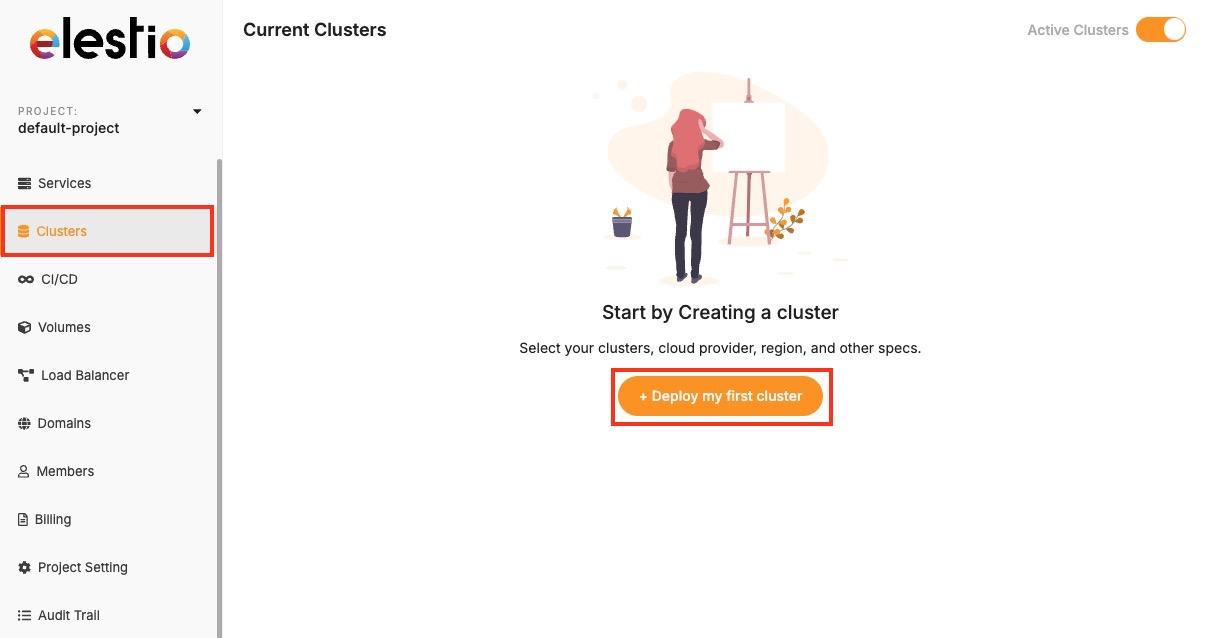
Now, select the database service of your choice that you need to create in a cluster environment. Click on **Select** button as you choose one.

[![Screenshot 2025-06-24 at 12.59.34 PM.jpg](https://docs.elest.io/uploads/images/gallery/2025-06/scaled-1680-/screenshot-2025-06-24-at-12-59-34-pm.jpg)](https://docs.elest.io/uploads/images/gallery/2025-06/screenshot-2025-06-24-at-12-59-34-pm.jpg)
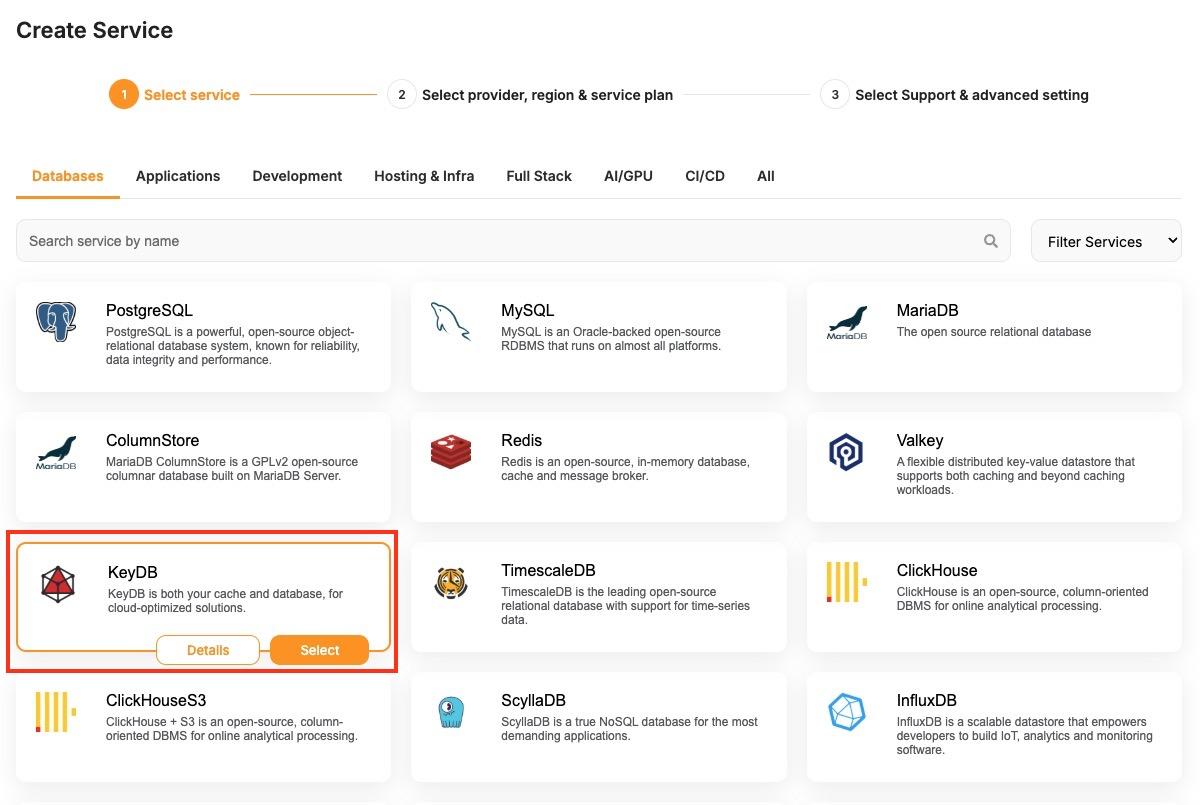
During setup, you’ll be asked to choose a hosting provider. Elestio supports both managed and BYOC (Bring Your Own Cloud) deployments, including AWS, DigitalOcean, Hetzner, and custom configurations. You can then select a region based on latency or compliance needs, and specify the number of nodes along with CPU, RAM, and disk sizes per node.

[![Screenshot 2025-06-24 at 1.00.54 PM.jpg](https://docs.elest.io/uploads/images/gallery/2025-06/scaled-1680-/screenshot-2025-06-24-at-1-00-54-pm.jpg)](https://docs.elest.io/uploads/images/gallery/2025-06/screenshot-2025-06-24-at-1-00-54-pm.jpg)
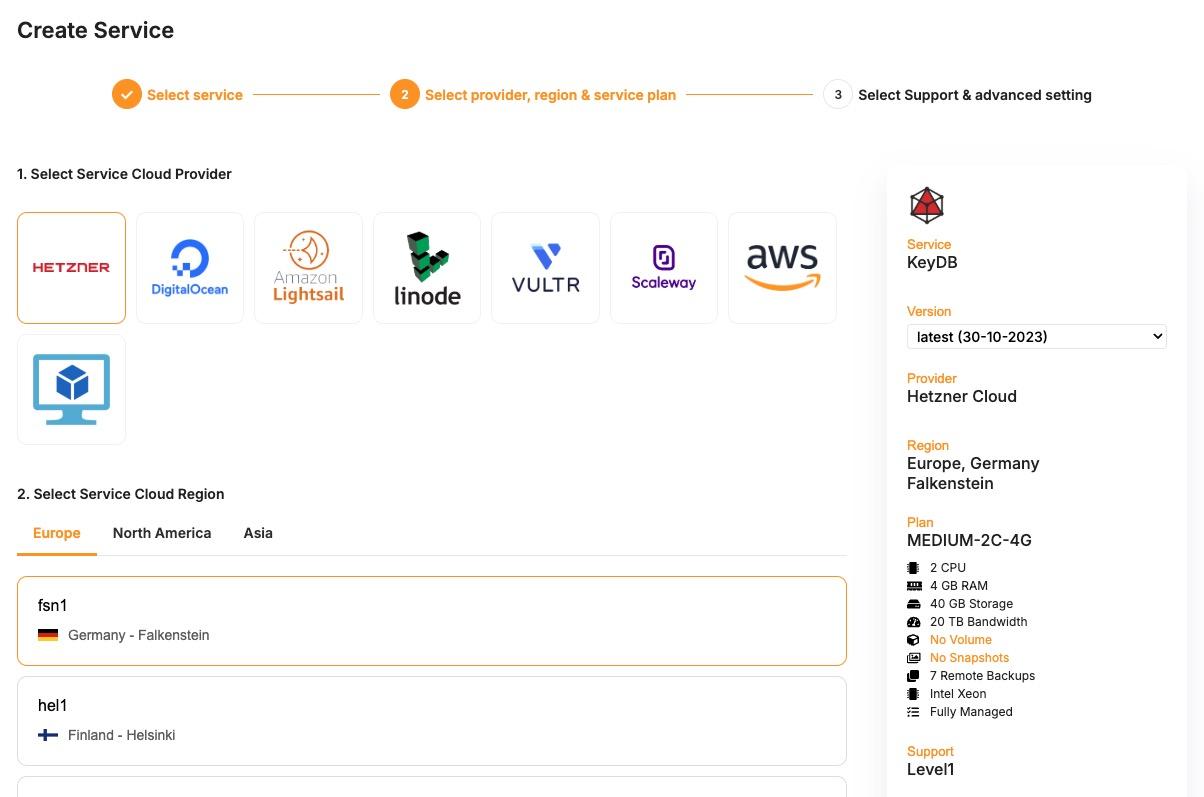
If you’re setting up a high-availability cluster, the dashboard also allows you to configure cluster-related details under **Cluster configuration,** where you get to select things like replication modes, number of replicas, etc. After you’ve configured the cluster, review the summary to ensure all settings are correct. Click the <span class="s2">**Create Cluster**</span> button to begin provisioning.

[![Screenshot 2025-06-24 at 1.01.29 PM.jpg](https://docs.elest.io/uploads/images/gallery/2025-06/scaled-1680-/screenshot-2025-06-24-at-1-01-29-pm.jpg)](https://docs.elest.io/uploads/images/gallery/2025-06/screenshot-2025-06-24-at-1-01-29-pm.jpg)

Elestio will start the deployment process, and within a few minutes, the cluster will appear in your dashboard. Once your cluster is live, it can be used to deploy new nodes and additional configurations. Each cluster supports real-time monitoring, log access, and scaling operations through the dashboard. You can also set up automated backups and access control through built-in features available in the cluster settings.

# Node Management

Node management plays a critical role in operating reliable and scalable infrastructure on Elestio. Whether you’re deploying stateless applications or stateful services like databases, managing the underlying compute units nodes is essential for maintaining stability and performance.

## **Understanding Nodes**

In Elestio, a <span class="s1">**node**</span> is a virtual machine that contributes compute, memory, and storage resources to a cluster. Clusters can be composed of a single node or span multiple nodes, depending on workload demands and availability requirements. Each node runs essential services and containers as defined by your deployed applications or databases.

Nodes in Elestio are provider-agnostic, meaning the same concepts apply whether you’re using Elestio-managed infrastructure or connecting your own cloud provider (AWS, Azure, GCP, etc.). Each node is isolated at the VM level but participates fully in the cluster’s orchestration and networking. This abstraction allows you to manage infrastructure without diving into the complexity of underlying platforms.

## **Node Operations**

The Elestio dashboard allows you to manage the lifecycle of nodes through clearly defined operations. These include:

- <span class="s1">**Creating a node**</span>, which adds capacity to your cluster and helps with horizontal scaling of services. This is commonly used when load increases or when preparing a high-availability deployment.
- <span class="s1">**Deleting a node**</span>, which removes underutilized or problematic nodes. Safe deletion includes draining workloads to ensure service continuity.
- <span class="s1">**Promoting a node**</span>, which changes the role of a node within the cluster typically used in clusters with redundancy, where certain nodes may need to take on primary or leader responsibilities.

Each of these operations is designed to be safely executed through the dashboard and is validated against the current cluster state to avoid unintended service disruption. These actions are supported by Elestio’s backend orchestration, which handles tasks like container rescheduling and load balancing when topology changes.

## **Monitoring and Maintenance**

Monitoring is a key part of effective node management. Elestio provides per-node visibility through the dashboard, allowing you to inspect <span class="s1">**CPU**</span>, <span class="s1">**memory**</span>, and <span class="s1">**disk utilization**</span> in real time. Each node also exposes <span class="s1">**logs**</span>, <span class="s1">**status indicators**</span>, and <span class="s1">**health checks**</span> to help detect anomalies or degradation early.

In addition to passive monitoring, the dashboard supports active maintenance tasks. You can <span class="s1">**reboot a node**</span> when applying system-level changes or troubleshooting, or <span class="s1">**drain a node**</span> to safely migrate workloads away from it before performing disruptive actions. Draining ensures that running containers are rescheduled on other nodes in the cluster, minimizing service impact.

For production setups, combining resource monitoring with automation like scheduled reboots, log collection, and alerting can help catch issues before they affect users. While Elestio handles many aspects of orchestration automatically, having visibility at the node level helps teams make informed decisions about scaling, updates, and incident response.

Cluster-wide resource graphs and node-level metrics are also useful for capacity planning. Identifying trends such as memory saturation or disk pressure allows you to preemptively scale or rebalance workloads, reducing the risk of downtime.

# Adding a Node

As your application usage grows or your infrastructure requirements change, scaling your cluster becomes essential. In Elestio, you can scale horizontally by adding new nodes to an existing cluster. This operation allows you to expand your compute capacity, improve availability, and distribute workloads more effectively.

## **Need to Add a Node**

There are several scenarios where adding a node becomes necessary. One of the most common cases is <span class="s2">**resource saturation** </span>when existing nodes are fully utilized in terms of CPU, memory, or disk. Adding another node helps distribute the workload and maintain performance under load.

In clusters that run <span class="s2">**stateful services**</span> or require <span class="s2">**high availability**</span>, having additional nodes ensures that workloads can fail over without downtime. Even in development environments, nodes can be added to isolate environments or test services under production-like load conditions. Scaling out also gives you flexibility when deploying services with different resource profiles or placement requirements.

## **Add a Node to Cluster**

To begin, log in to the [Elestio dashboard](https://dash.elest.io/) and navigate to the <span class="s2">**Clusters**</span> section from the sidebar. Select the cluster you want to scale. Once inside the cluster view, switch to the <span class="s2">**Nodes**</span> tab. This section provides an overview of all current nodes along with their health status and real-time resource usage.

[![Screenshot 2025-06-24 at 2.25.11 PM.jpg](https://docs.elest.io/uploads/images/gallery/2025-06/scaled-1680-/screenshot-2025-06-24-at-2-25-11-pm.jpg)](https://docs.elest.io/uploads/images/gallery/2025-06/screenshot-2025-06-24-at-2-25-11-pm.jpg)
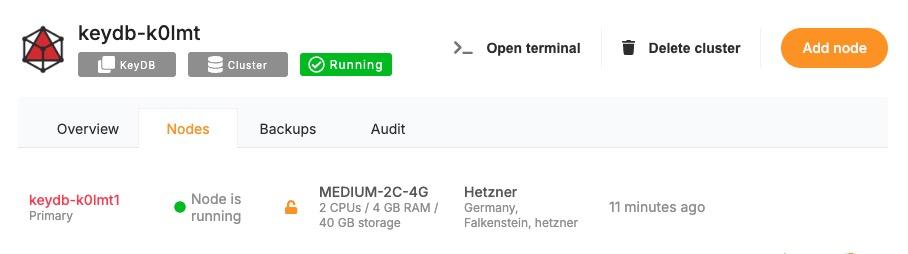
To add a new node, click the <span class="s2">**“Add Node”**</span> button. This opens a configuration panel where you can define the specifications for the new node. You’ll be asked to specify the amount of <span class="s2">**CPU**</span>, <span class="s2">**memory**</span>, and <span class="s2">**disk**</span> you want to allocate. If you’re using a bring-your-own-cloud setup, you may also need to confirm or choose the cloud provider and deployment region.

[![Screenshot 2025-06-24 at 2.25.11 PM copy.jpg](https://docs.elest.io/uploads/images/gallery/2025-06/scaled-1680-/screenshot-2025-06-24-at-2-25-11-pm-copy.jpg)](https://docs.elest.io/uploads/images/gallery/2025-06/screenshot-2025-06-24-at-2-25-11-pm-copy.jpg)
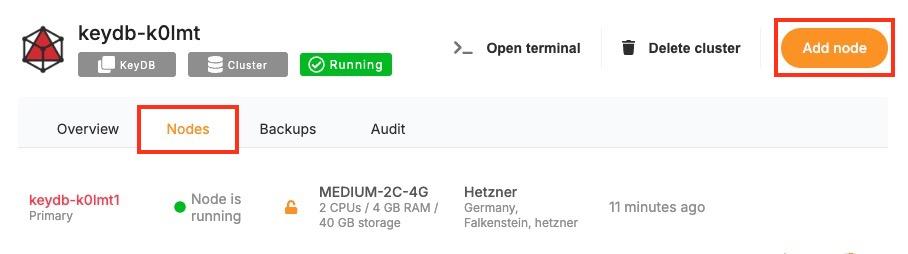
After configuring the node, review the settings to ensure they meet your performance and cost requirements. Click <span class="s2">**“Create”**</span> to initiate provisioning. Elestio will begin setting up the new node, and once it’s ready, it will automatically join your cluster.[![Screenshot 2025-06-24 at 2.26.10 PM.jpg](https://docs.elest.io/uploads/images/gallery/2025-06/scaled-1680-/screenshot-2025-06-24-at-2-26-10-pm.jpg)](https://docs.elest.io/uploads/images/gallery/2025-06/screenshot-2025-06-24-at-2-26-10-pm.jpg)
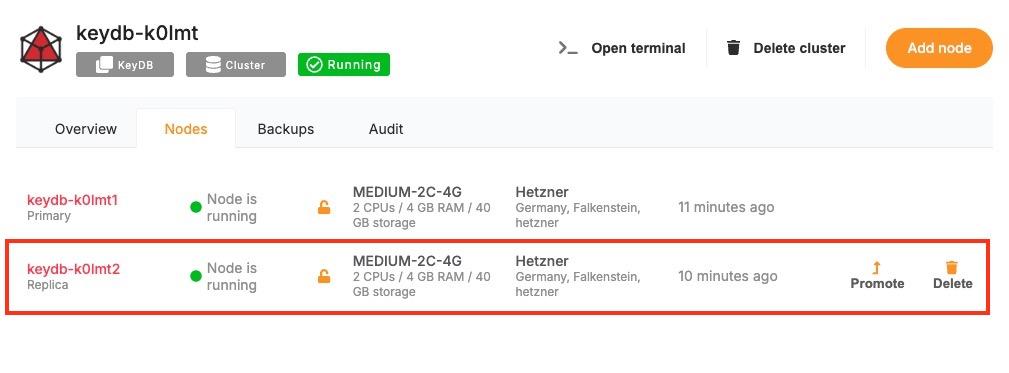
Once provisioned, the new node will appear in the node list with its own metrics and status indicators. You can monitor its activity, verify that workloads are being scheduled to it, and access its logs directly from the dashboard. From this point onward, the node behaves like any other in the cluster and can be managed using the same lifecycle actions such as rebooting or draining.

## **Post-Provisioning Considerations**

After the node has been added, it becomes part of the active cluster and is available for scheduling workloads. Elestio’s orchestration layer will begin using it automatically, but you can further customize service placement through resource constraints or affinity rules if needed.

For performance monitoring, the dashboard provides per-node metrics, including CPU load, memory usage, and disk I/O. This visibility helps you confirm that the new node is functioning correctly and contributing to workload distribution as expected.

Maintenance actions such as draining or rebooting the node are also available from the same interface, making it easy to manage the node lifecycle after provisioning.

# Promoting a Node

Clusters can be designed for high availability or role-based workloads, where certain nodes may take on leadership or coordination responsibilities. In these scenarios, promoting a node is a key administrative task. It allows you to change the role of a node. While not always needed in basic setups, node promotion becomes essential in distributed systems, replicated databases, or services requiring failover control.

## **When to Promote a Node?**

Promoting a node is typically performed in clusters where role-based architecture is used. In high-availability setups, some nodes may act as leaders while others serve as followers or replicas. If a leader node becomes unavailable or needs to be replaced, you can promote another node to take over its responsibilities and maintain continuity of service.

Node promotion is also useful when scaling out and rebalancing responsibilities across a larger cluster. For example, promoting a node to handle scheduling, state tracking, or replication leadership can reduce bottlenecks and improve responsiveness. In cases involving database clusters or consensus-driven systems, promotion ensures a clear and controlled transition of leadership without relying solely on automatic failover mechanisms.

## **Promote a Node in Elestio**

To promote a node, start by accessing the <span class="s1">**Clusters**</span> section in the [Elestio dashboard](https://dash.elest.io/). Choose the cluster containing the node you want to promote. Inside the cluster view, navigate to the <span class="s1">**Nodes**</span> tab to see the full list of nodes, including their current roles, health status, and resource usage. Locate the node that you want to promote and open its action menu. From here, select the <span class="s1">**“Promote Node”**</span> option.

[![Screenshot 2025-06-24 at 2.28.21 PM.jpg](https://docs.elest.io/uploads/images/gallery/2025-06/scaled-1680-/screenshot-2025-06-24-at-2-28-21-pm.jpg)](https://docs.elest.io/uploads/images/gallery/2025-06/screenshot-2025-06-24-at-2-28-21-pm.jpg)

You may be prompted to confirm the action, depending on the configuration and current role of the node. This confirmation helps prevent unintended role changes that could affect cluster behavior.

[![image.png](https://docs.elest.io/uploads/images/gallery/2025-06/scaled-1680-/btgimage.png)](https://docs.elest.io/uploads/images/gallery/2025-06/btgimage.png)
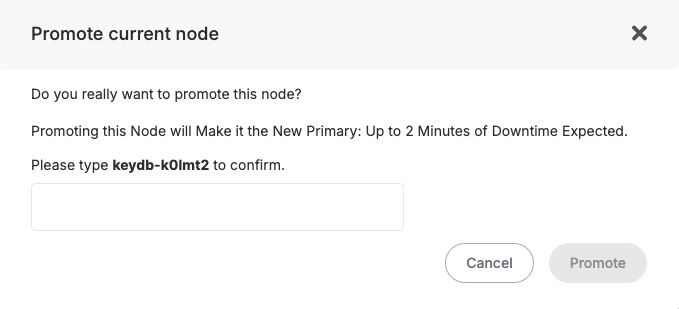
Once confirmed, Elestio will initiate the promotion process. This involves reconfiguring the cluster’s internal coordination state to acknowledge the new role of the promoted node. Depending on the service architecture and the software running on the cluster, this may involve reassigning leadership, updating replication targets, or shifting service orchestration responsibilities.

After promotion is complete, the node’s updated role will be reflected in the dashboard. At this point, it will begin operating with the responsibilities assigned to its new status. You can monitor its activity, inspect logs, and validate that workloads are being handled as expected.

## **Considerations for Promotion**

Before promoting a node, ensure that it meets the necessary resource requirements and is in a stable, healthy state. Promoting a node that is under high load or experiencing performance issues can lead to service degradation. It’s also important to consider replication and data synchronization, especially in clusters where stateful components like databases are in use.

Promotion is a safe and reversible operation, but it should be done with awareness of your workload architecture. If your system relies on specific leader election mechanisms, promoting a node should follow the design patterns supported by those systems.

# Removing a Node

Over time, infrastructure needs change. You may scale down a cluster after peak load, decommission outdated resources, or remove a node that is no longer needed for cost, isolation, or maintenance reasons. Removing a node from a cluster is a safe and structured process designed to avoid disruption. The dashboard provides an accessible interface for performing this task while preserving workload stability.

## **Why Remove a Node?**

Node removal is typically part of resource optimization or cluster reconfiguration. You might remove a node when reducing costs in a staging environment, when redistributing workloads across fewer or more efficient machines, or when phasing out a node for maintenance or retirement.

Another common scenario is infrastructure rebalancing, where workloads are shifted to newer nodes with better specs or different regions. Removing an idle or underutilized node can simplify management and reduce noise in your monitoring stack. It also improves scheduling efficiency by removing unneeded targets from the orchestration engine.

In high-availability clusters, node removal may be preceded by data migration or role reassignment (such as promoting a replica). Proper planning helps maintain system health while reducing reliance on unnecessary compute resources.

## **Remove a Node**

To begin the removal process, open the [Elestio dashboard](https://dash.elest.io/) and navigate to the <span class="s1">**Clusters**</span> section. Select the cluster that contains the node you want to remove. From within the cluster view, open the <span class="s1">**Nodes**</span> tab to access the list of active nodes and their statuses.

Find the node you want to delete from the list. If the node is currently running services, ensure that those workloads can be safely rescheduled to other nodes or are no longer needed. Since Elestio does not have a built-in drain option, any workload redistribution needs to be handled manually, either by adjusting deployments or verifying that redundant nodes are available. Once the node is drained and idle, open the action menu for that node and select <span class="s1">**“Delete Node”**</span>.

[![Screenshot 2025-06-24 at 2.39.31 PM.jpg](https://docs.elest.io/uploads/images/gallery/2025-06/scaled-1680-/screenshot-2025-06-24-at-2-39-31-pm.jpg)](https://docs.elest.io/uploads/images/gallery/2025-06/screenshot-2025-06-24-at-2-39-31-pm.jpg)

The dashboard may prompt you to confirm the operation. After confirmation, Elestio will begin the decommissioning process. This includes detaching the node from the cluster, cleaning up any residual state, and terminating the associated virtual machine.[![image.png](https://docs.elest.io/uploads/images/gallery/2025-06/scaled-1680-/zirimage.png)](https://docs.elest.io/uploads/images/gallery/2025-06/zirimage.png)
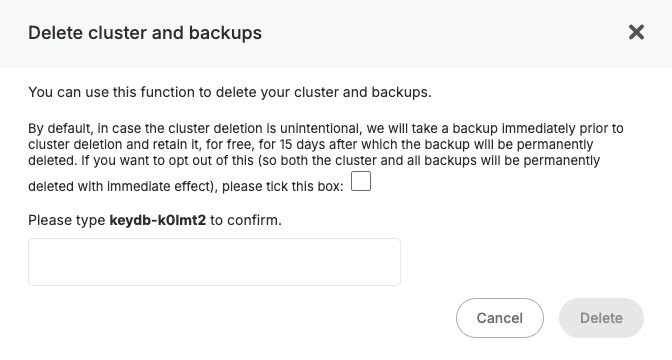
Once the operation completes, the node will no longer appear in the cluster’s node list, and its resources will be released.

## **Considerations for Safe Node Removal**

Before removing a node in Elestio, it’s important to review the services and workloads currently running on that node. Since Elestio does not automatically redistribute or migrate workloads during node removal, you should ensure that critical services are either no longer in use or can be manually rescheduled to other nodes in the cluster. This is particularly important in multi-node environments running stateful applications, databases, or services with specific affinity rules.

You should also verify that your cluster will have sufficient capacity after the node is removed. If the deleted node was handling a significant portion of traffic or compute load, removing it without replacement may lead to performance degradation or service interruption. In high-availability clusters, ensure that quorum-based components or replicas are not depending on the node targeted for deletion. Additionally, confirm that the node is not playing a special role such as holding primary data or acting as a manually promoted leader before removal. If necessary, reconfigure or promote another node prior to deletion to maintain cluster integrity.

# Backups and Restores

Reliable backups are essential for data resilience, recovery, and business continuity. Elestio provides built-in support for managing backups across all supported services, ensuring that your data is protected against accidental loss, corruption, or infrastructure failure. The platform includes an automated backup system with configurable retention policies and a straightforward restore process, all accessible from the dashboard. Whether you’re operating a production database or a test environment, understanding how backups and restores work in Elestio is critical for maintaining service reliability.

## **Cluster Backups**

Elestio provides multiple backup mechanisms designed to support various recovery and compliance needs. Backups are created automatically for most supported services, with consistent intervals and secure storage in managed infrastructure. These backups are performed in the background to ensure minimal performance impact and no downtime during the snapshot process. Each backup is timestamped, versioned, and stored securely with encryption. You can access your full backup history for any given service through the dashboard and select any version for restoration.

You can utilize different backup options depending on your preferences and operational requirements. Elestio supports <span class="s1">**manual local backups**</span> for on-demand recovery points, <span class="s1">**automated snapshots**</span> that capture the state of the service at fixed intervals, and <span class="s1">**automated remote backups using Borg**</span>, which securely stores backups on external storage volumes managed by Elestio. In addition, you can configure <span class="s1">**automated external backups to S3-compatible storage**</span>, allowing you to maintain full control over long-term retention and geographic storage preferences.

[![image.png](https://docs.elest.io/uploads/images/gallery/2025-06/scaled-1680-/iWzimage.png)](https://docs.elest.io/uploads/images/gallery/2025-06/iWzimage.png)
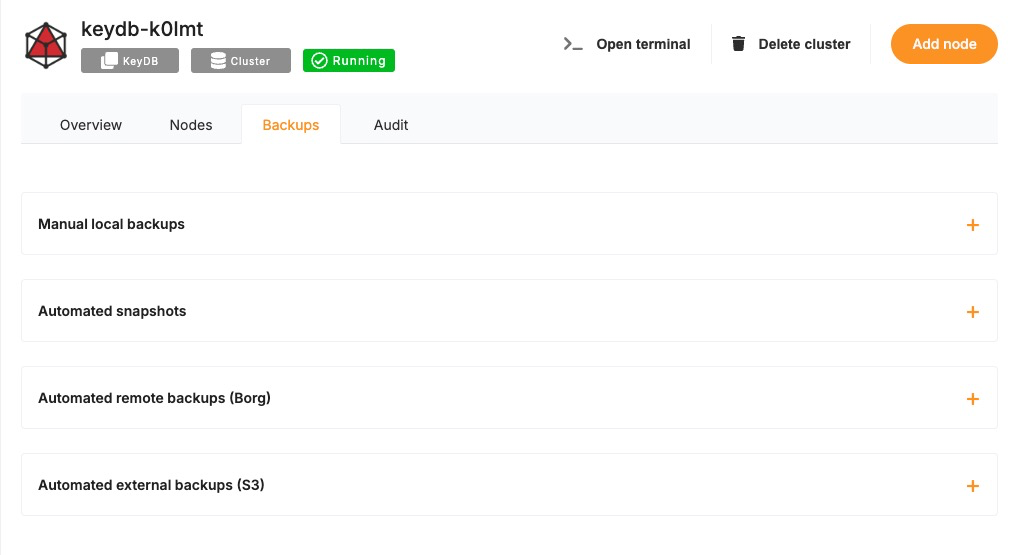
## **Restoring from a Backup**

Restoring a backup in Elestio is a user-initiated operation, available directly from the service dashboard. Once you’re in the dashboard, select the service you’d like to restore. Navigate to the <span class="s1">**Backups**</span> section, where you’ll find a list of all available backups along with their creation timestamps.

To initiate a restore, choose the desired backup version and click on the <span class="s1">**“Restore”**</span> option. You will be prompted to confirm the operation. Depending on the type of service, the restore can either overwrite the current state or recreate the service as a new instance from the selected backup.

[![image.png](https://docs.elest.io/uploads/images/gallery/2025-06/scaled-1680-/ZXiimage.png)](https://docs.elest.io/uploads/images/gallery/2025-06/ZXiimage.png)
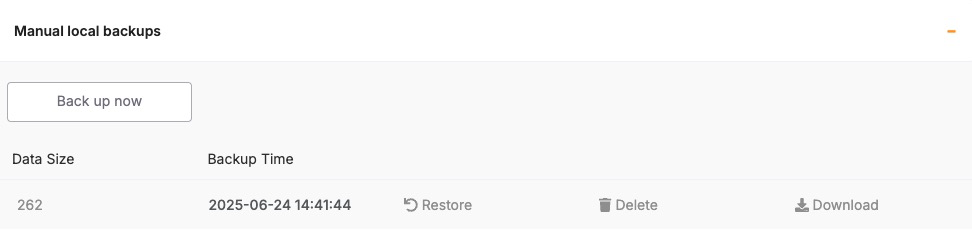
The restore process takes a few minutes, depending on the size of the backup and the service type. Once completed, the restored service is immediately accessible. In the case of databases, you can validate the restore by connecting to the database and inspecting the restored data.

## **Considerations for Backup &amp; Restore**

- Before restoring a backup, it’s important to understand the impact on your current data. Restores may <span class="s1">**overwrite existing service state**</span>, so if you need to preserve the current environment, consider creating a manual backup before initiating the restore. In critical environments, restoring to a new instance and validating the data before replacing the original is a safer approach.
- Keep in mind that restore operations are not instantaneous and may temporarily affect service availability. It’s best to plan restores during maintenance windows or periods of low traffic, especially in production environments.
- For services with high-frequency data changes, be aware of the backup schedule and retention policy. Elestio’s default intervals may not capture every change, so for high-volume databases, consider exporting incremental backups manually or using continuous replication where supported.

## **Monitoring Backup Health**

Elestio provides visibility into your backup history directly through the dashboard. You can monitor the <span class="s1">**status**</span>, <span class="s1">**timestamps**</span>, and <span class="s1">**success/failure**</span> of backup jobs. In case of errors or failed backups, the dashboard will display alerts, allowing you to take corrective actions or contact support if necessary.

It’s good practice to periodically verify that backups are being generated and that restore points are recent and complete. This ensures you’re prepared for unexpected failures and that recovery options remain reliable.

# Restricting Access by IP

Securing access to services is a fundamental part of managing cloud infrastructure. One of the most effective ways to reduce unauthorized access is by restricting connectivity to a defined set of IP addresses. Elestio supports IP-based access control through its dashboard, allowing you to explicitly define which IPs or IP ranges are allowed to interact with your services. This is particularly useful when exposing databases, APIs, or web services over public endpoints.

## **Need to Restrict Access by IP**

Restricting access by IP provides a first layer of network-level protection. Instead of relying solely on application-layer authentication, you can control who is allowed to even initiate a connection to your service. This approach reduces the surface area for attacks such as brute-force login attempts, automated scanning, or unauthorized probing.

Common use cases include:

- Limiting access to production databases from known office networks or VPNs.
- Allowing only CI/CD pipelines or monitoring tools with static IPs to connect.
- Restricting admin dashboards or internal tools to internal teams.

By defining access rules at the infrastructure level, you gain more control over who can reach your services, regardless of their authentication or API access status.

## **Restrict Access by IP**

To restrict access by IP in Elestio, start by logging into the [Elestio dashboard](https://dash.elest.io/) and navigating to the <span class="s1">**Clusters**</span> section. Select the cluster that hosts the service you want to protect. Once inside the <span class="s1">**Cluster Overview**</span> page, locate the <span class="s1">**Security**</span> section.

[![Screenshot 2025-06-24 at 2.44.26 PM.jpg](https://docs.elest.io/uploads/images/gallery/2025-06/scaled-1680-/screenshot-2025-06-24-at-2-44-26-pm.jpg)](https://docs.elest.io/uploads/images/gallery/2025-06/screenshot-2025-06-24-at-2-44-26-pm.jpg)

Within this section, you’ll find a setting labeled <span class="s1">**“Limit access per IP”**</span>. This is where you can define which IP addresses or CIDR ranges are permitted to access the services running in the cluster. You can add a specific IPv4 or IPv6 address (e.g., <span class="s2">203.0.113.5</span>) or a subnet in CIDR notation (e.g., <span class="s2">203.0.113.0/24</span>) to allow access from a range of IPs.

[![image.png](https://docs.elest.io/uploads/images/gallery/2025-06/scaled-1680-/Wjhimage.png)](https://docs.elest.io/uploads/images/gallery/2025-06/Wjhimage.png)
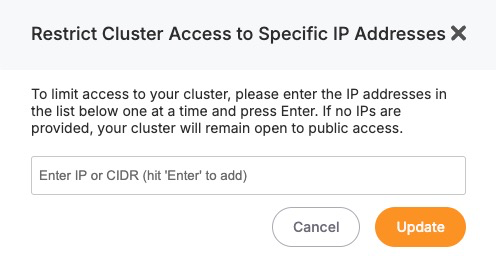
After entering the necessary IP addresses, save the configuration. The changes will apply to all services running inside the cluster, and only the defined IPs will be allowed to establish network connections. All other incoming requests from unlisted IPs will be blocked at the infrastructure level.

## **Considerations When Using IP Restrictions**

- When applying IP restrictions, it’s important to avoid locking yourself out. Always double-check that your own IP address is included in the allowlist before applying rules, especially when working on remote infrastructure.
- For users on dynamic IPs (e.g., home broadband connections), consider using a VPN or a static jump host that you can reliably allowlist. Similarly, if your services are accessed through cloud-based tools, make sure to verify their IP ranges and update your rules accordingly when those IPs change.
- In multi-team environments, document and review IP access policies regularly to avoid stale rules or overly permissive configurations. Combine IP restrictions with secure authentication and encrypted connections (such as HTTPS or SSL for databases) for layered security.

# Cluster Resynchronization

In distributed systems, consistency and synchronization between nodes are critical to ensure that services behave reliably and that data remains accurate across the cluster. Elestio provides built-in mechanisms to detect and resolve inconsistencies across nodes using a feature called <span class="s1">**Cluster Resynchronization**</span>. This functionality ensures that node-level configurations, data replication, and service states are properly aligned, especially after issues like node recovery, temporary network splits, or service restarts.

## **Need for Cluster Resynchronization**

Resynchronization is typically required when secondary nodes in a cluster are no longer consistent with the primary node. This can happen due to temporary network failures, node restarts, replication lag, or partial service interruptions. In such cases, secondary nodes may fall behind or store incomplete datasets, which could lead to incorrect behavior if a failover occurs or if read operations are directed to those nodes. Unresolved inconsistencies can result in data divergence, serving outdated content, or failing health checks in load-balanced environments. Performing a resynchronization ensures that all secondary nodes are forcibly aligned with the current state of the primary node, restoring a clean and unified cluster state.

It may also be necessary to perform a resync after restoring a service from backup, during infrastructure migrations, or after recovering a previously offline node. In each of these cases, resynchronization acts as a corrective mechanism to ensure that every node is operating with the same configuration and dataset, reducing the risk of drift and maintaining data integrity across the cluster.

## **Cluster Resynchronization**

To perform a resynchronization, start by accessing the [Elestio dashboard](https://dash.elest.io/) and navigating to the <span class="s1">**Clusters**</span> section. Select the cluster where synchronization is needed. On the <span class="s1">**Cluster Overview**</span> page, scroll down slightly until you find the <span class="s1">**“Resync Cluster”**</span> option. This option is visible as part of the cluster controls and is available only in clusters with multiple nodes and a defined primary node.

[![Screenshot 2025-06-24 at 2.46.50 PM.jpg](https://docs.elest.io/uploads/images/gallery/2025-06/scaled-1680-/screenshot-2025-06-24-at-2-46-50-pm.jpg)](https://docs.elest.io/uploads/images/gallery/2025-06/screenshot-2025-06-24-at-2-46-50-pm.jpg)
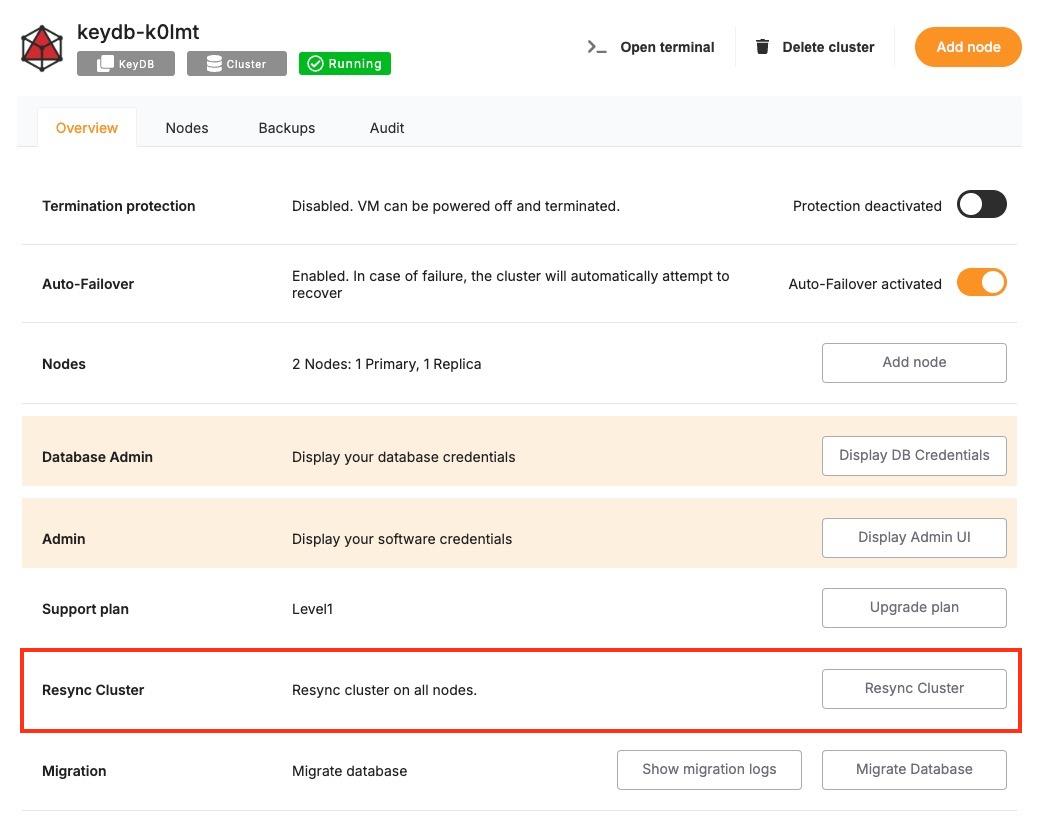
Clicking the <span class="s1">**Resync**</span> button opens a confirmation dialog. The message clearly explains that this action will initiate a request to resynchronize <span class="s1">**all secondary nodes**</span>. During the resync process, <span class="s1">**existing data on all secondary nodes will be erased and replaced with a copy of the data from the primary node**</span>. This operation ensures full consistency across the cluster but should be executed with caution, especially if recent changes exist on any of the secondaries that haven’t yet been replicated.

[![image.png](https://docs.elest.io/uploads/images/gallery/2025-06/scaled-1680-/vLgimage.png)](https://docs.elest.io/uploads/images/gallery/2025-06/vLgimage.png)
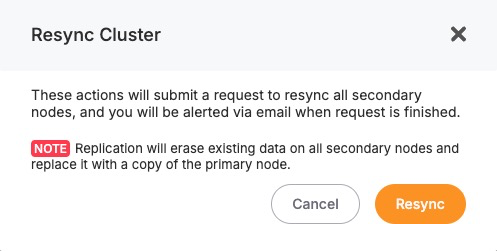
You will receive an email notification once the resynchronization is complete. During this process, Elestio manages the replication safely, but depending on the size of the data, the operation may take a few minutes. It’s advised to avoid making further changes to the cluster while the resync is in progress.

## **Considerations Before Resynchronizing**

- Before triggering a resync, it’s important to verify that the primary node holds the desired state and that the secondary nodes do not contain any critical unsynced data. Since the resync <span class="s1">**overwrites**</span> the secondary nodes completely, any local changes on those nodes will be lost.
- This action is best used when you’re confident that the primary node is healthy, current, and stable. Avoid initiating a resync if the primary has recently experienced errors or data issues. Additionally, consider performing this operation during a low-traffic period, as synchronization may temporarily impact performance depending on the data volume.
- If your application requires high consistency guarantees, it’s recommended to monitor your cluster closely during and after the resync to confirm that services are functioning correctly and that the replication process completed successfully.

# Database Migrations

When managing production-grade services, the ability to perform reliable and repeatable database migrations is critical. Whether you’re applying schema changes, updating seed data, or managing version-controlled transitions, Elestio provides a built-in mechanism to execute migrations safely from the dashboard. This functionality is especially relevant when running containerized database services like PostgreSQL, MySQL, or similar within a managed cluster.

## **Need for Migrations**

Database migrations are commonly required when updating your application’s data model or deploying new features. Schema updates such as adding columns, modifying data types, creating indexes, or introducing new tables need to be synchronized with the deployment lifecycle of your application code.

Migrations may also be needed during version upgrades to introduce structural or configuration changes required by newer database engine versions. In some cases, teams use migrations to apply baseline datasets, adjust permissions, or clean up legacy objects. Running these changes through a controlled migration system ensures consistency across environments and helps avoid untracked manual changes.

## **Running Database Migration**

To run a database migration in Elestio, start by logging into the [Elestio dashboard](https://dash.elest.io/) and navigating to the <span class="s1">**Clusters**</span> section. Select the cluster that contains the target database service. From the <span class="s1">**Cluster Overview**</span> page, scroll down until you find the <span class="s1">**“Migration”**</span> option.

[![Screenshot 2025-06-24 at 2.46.50 PM copy.jpg](https://docs.elest.io/uploads/images/gallery/2025-06/scaled-1680-/screenshot-2025-06-24-at-2-46-50-pm-copy.jpg)](https://docs.elest.io/uploads/images/gallery/2025-06/screenshot-2025-06-24-at-2-46-50-pm-copy.jpg)

Clicking this option will open the migration workflow, which follows a <span class="s1">**three-step process**</span>: <span class="s1">**Configure**</span>, <span class="s1">**Validation**</span>, and <span class="s1">**Migration**</span>. In the <span class="s1">**Configure**</span> step, Elestio provides a migration configuration guide specific to the database type, such as MySQL. At this point, you must ensure that your target service has sufficient <span class="s1">**disk space**</span> to complete the migration. If there is not enough storage available, the migration may fail midway, so it’s strongly recommended to review storage utilization beforehand.

[![image.png](https://docs.elest.io/uploads/images/gallery/2025-06/scaled-1680-/y4iimage.png)](https://docs.elest.io/uploads/images/gallery/2025-06/y4iimage.png)
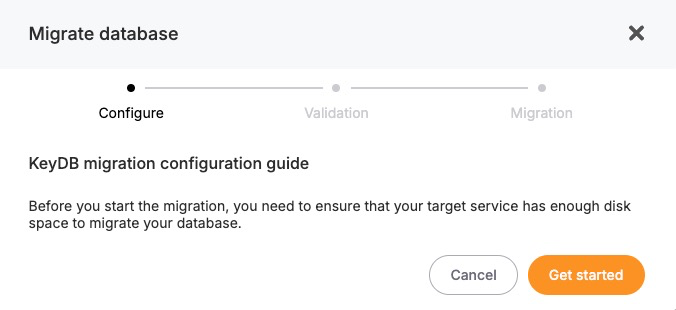
Once configuration prerequisites are met, you can proceed to the <span class="s1">**Validation**</span> step. Elestio will check the secondary database details you have provided for the migration.[![image.png](https://docs.elest.io/uploads/images/gallery/2025-06/scaled-1680-/gokimage.png)](https://docs.elest.io/uploads/images/gallery/2025-06/gokimage.png)
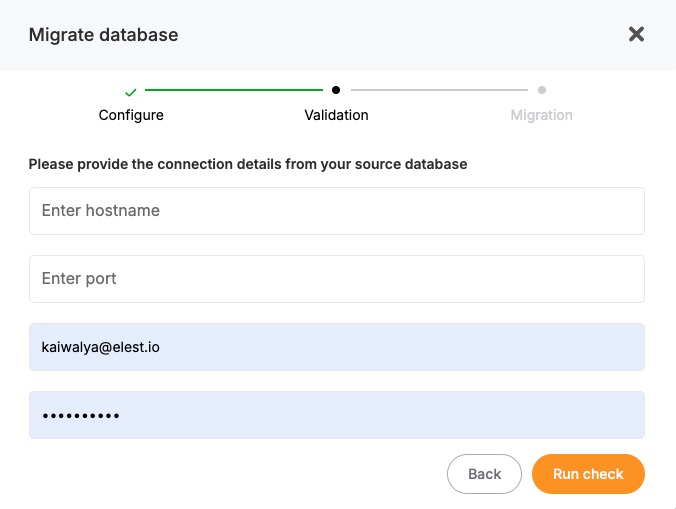
If the validation passes, the final <span class="s1">**Migration**</span> step will become active. You can then initiate the migration process. Elestio will handle the actual data transfer, schema replication, and state synchronization internally. The progress is tracked, and once completed, the migrated database will be fully operational on the target service.

## **Considerations Before Running Migrations**

- Before running any migration, it’s important to validate the script or changes in a staging environment. Since migrations may involve irreversible changes such as dropping columns, altering constraints, or modifying data careful review and version control are essential.
- In production environments, plan migrations during maintenance windows or low-traffic periods to minimize the impact of any schema locks or temporary unavailability. If you’re using replication or high-availability setups, confirm that the migration is compatible with your architecture and will not disrupt synchronization between primary and secondary nodes.
- You should also ensure that proper backups are in place before applying structural changes. In Elestio, the backup feature can be used to create a restore point that allows rollback in case the migration introduces issues.

# Deleting a Cluster

When a cluster is no longer needed whether it was created for testing, staging, or an obsolete workload deleting it helps free up resources and maintain a clean infrastructure footprint. Elestio provides a straightforward and secure way to delete entire clusters directly from the dashboard. This action permanently removes the associated services, data, and compute resources tied to the cluster.

## **When to Delete a Cluster**

Deleting a cluster is a final step often performed when decommissioning an environment. This could include shutting down a test setup, replacing infrastructure during migration, or retiring an unused production instance. In some cases, users also delete and recreate clusters as part of major version upgrades or architectural changes. It is essential to confirm that all data and services tied to the cluster are no longer required or have been backed up or migrated before proceeding. Since cluster deletion is irreversible, any services, volumes, and backups associated with the cluster will be permanently removed.

## **Delete a Cluster**

To delete a cluster, log in to the [Elestio dashboard](https://dash.elest.io/) and navigate to the <span class="s1">**Clusters**</span> section. From the list of clusters, select the one you want to remove. Inside the selected cluster, you’ll find a <span class="s1">**navigation bar**</span> at the top of the page. One of the available options in this navigation bar is <span class="s1">**“Delete Cluster.”**</span>

[![Screenshot 2025-06-24 at 2.55.22 PM.jpg](https://docs.elest.io/uploads/images/gallery/2025-06/scaled-1680-/EeLscreenshot-2025-06-24-at-2-55-22-pm.jpg)](https://docs.elest.io/uploads/images/gallery/2025-06/EeLscreenshot-2025-06-24-at-2-55-22-pm.jpg)

Clicking this opens a confirmation dialog that outlines the impact of deletion. It will clearly state that deleting the cluster will **permanently remove** all associated services, storage, and configurations. By acknowledging a warning or typing in the cluster name, depending on the service type. Once confirmed, Elestio will initiate the deletion process, which includes tearing down all resources associated with the cluster. This typically completes within a few minutes, after which the cluster will no longer appear in your dashboard.[![image.png](https://docs.elest.io/uploads/images/gallery/2025-06/scaled-1680-/KOHimage.png)](https://docs.elest.io/uploads/images/gallery/2025-06/KOHimage.png)
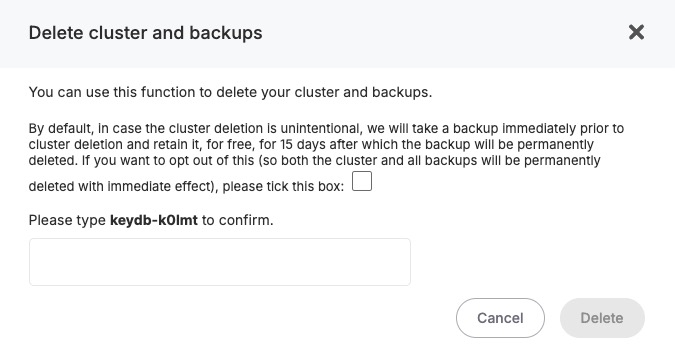
## **Considerations Before Deleting**

Deleting a cluster also terminates any linked domains, volumes, monitoring configurations, and scheduled backups. These cannot be recovered once deletion is complete, so plan accordingly before confirming the action. If the cluster was used for production workloads, consider archiving data to external storage (e.g., S3) or exporting final snapshots for compliance and recovery purposes.

Before deleting a cluster, verify that:

- All required data has been backed up externally (e.g., downloaded dumps or exports).
- Any active services or dependencies tied to the cluster have been reconfigured or shut down.
- Access credentials, logs, or stored configuration settings have been retrieved if needed for auditing or migration.