# Creating Manual Backups
Regular backups are essential when running a KeyDB deployment, especially if you’re using it for persistent workloads. While Elestio provides automated backups for managed services by default, you may still want to create manual backups before major configuration changes, retain local archives, or test automation workflows. This guide covers several methods for creating KeyDB backups on Elestio via the dashboard, CLI, or Docker Compose. It also explains retention strategies and automated backups using cron jobs.
## **Manual Service Backups on Elestio**
If you’re using Elestio’s managed KeyDB service, the simplest and most reliable way to perform a full backup is through the Elestio dashboard. This creates a snapshot of your current KeyDB dataset and stores it in Elestio’s infrastructure. These snapshots can later be restored directly from the dashboard, which is helpful when testing configuration changes or performing disaster recovery.
**To trigger a manual KeyDB backup on Elestio:**
1. Log in to the [Elestio dashboard](https://dash.elest.io/).
2. Navigate to your KeyDB service or cluster.
3. Click the **Backups** tab in the service menu.
4. Choose **Back up now** to generate a manual snapshot.
[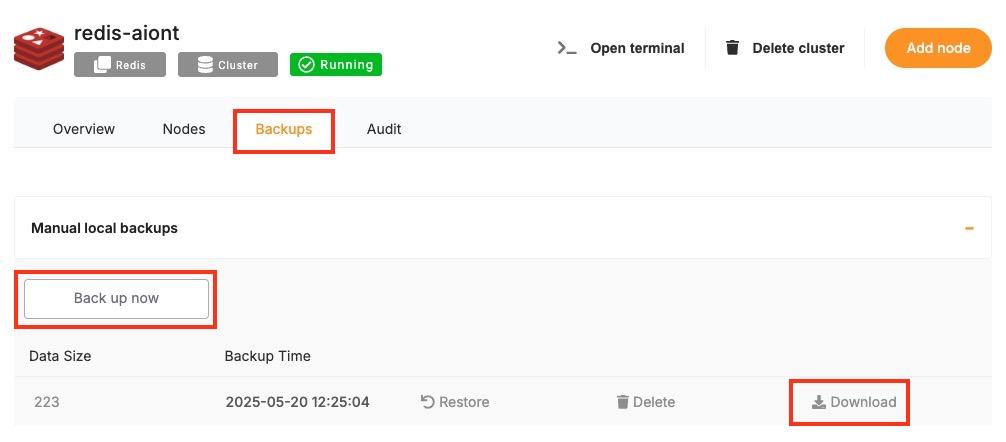](https://docs.elest.io/uploads/images/gallery/2025-05/screenshot-2025-05-20-at-12-27-22-pm.jpg)
## **Manual Backups Using Docker Compose**
For KeyDB instances deployed using Docker Compose (e.g., in Elestio self-hosted environments), you can create manual backups by copying the internal persistence files—RDB snapshots and optionally AOF logs.
#### **Access Elestio Terminal**
From the Elestio dashboard:
- Go to your deployed KeyDB service.
- Navigate to **Tools > Terminal** and authenticate.
#### **Locate the KeyDB Container Directory**
```bash
cd /opt/app/
```
This is the standard project directory on Elestio-managed hosts where your docker-compose.yml file resides.
#### **Trigger an RDB Snapshot (Optional)**
By default, KeyDB creates periodic snapshots based on configuration. To force an immediate one:
```bash
docker-compose exec keydb keydb-cli SAVE
```
This generates a dump.rdb file in the container’s /data directory.
#### **Copy Backup Files from the Container**
Use docker cp to extract the RDB snapshot file (and AOF if enabled) to your host machine:
```bash
docker cp $(docker-compose ps -q keydb):/data/dump.rdb ./backup_$(date +%F).rdb
```
If AOF persistence is enabled (appendonly yes in keydb.conf), back it up as well:
```bash
docker cp $(docker-compose ps -q keydb):/data/appendonly.aof ./appendonly_$(date +%F).aof
```
You now have point-in-time backups that can be restored later.
## **Backup Storage & Retention Best Practices**
KeyDB backup files can be small (RDB) or large (AOF), depending on data size and write frequency. It’s important to manage them properly.
**Recommendations:**
- Use clear, timestamped names like keydb\_backup\_2025\_06\_24.rdb.
- Store backups off-site or in the cloud (e.g., S3, Backblaze, or a secure remote server).
- Retention policy: Keep **7 daily**, **4 weekly**, and **3–6 monthly** backups.
- Automate old backup cleanup with cron or shell scripts.
- Optionally compress with gzip, xz, or zstd.
## **Automating KeyDB Backups (cron)**
To automate KeyDB backups, use cron to schedule daily backup tasks on Linux servers. This helps maintain consistency and reduces the chance of human error.
##### **Example: Daily Backup at 3 AM**
Edit your crontab:
```bash
crontab -e
```
Add the following entry:
```bash
0 3 * * * docker-compose -f /opt/app/docker-compose.yml exec keydb keydb-cli SAVE && \
docker cp $(docker-compose -f /opt/app/docker-compose.yml ps -q keydb):/data/dump.rdb /backups/keydb_backup_$(date +\%F).rdb
```
Make sure /backups/ exists and has write permissions for the cron user.
##### **Optional Compression + Upload**
You can compress the file and upload it to cloud storage in the same cron job:
```bash
gzip /backups/keydb_backup_$(date +\%F).rdb
rclone copy /backups/ remote:daily-keydb-backups
```
## **Backup Format and Restore Notes**
**Format**
**Description**
**Restore Method**
dump.rdb
Binary snapshot of full dataset
Stop KeyDB, replace dump.rdb, and restart the container
appendonly.aof
Command log (if enabled)
Stop KeyDB, replace AOF file, and restart the container
**To Restore a Backup:**
See [Elestio’s Redis restore guide](https://docs.elest.io/link/463#bkmrk-stop-redis-%28docker-c), which applies to KeyDB as well:
1. Stop KeyDB:
```
docker-compose down
```
2. Replace the backup file in your volume mount (e.g., /data/dump.rdb or appendonly.aof).
3. Restart the service:
```
docker-compose up -d
```