# Connecting with psql
This guide explains how to connect to a **PostgreSQL** database using the **`psql`** command-line tool. It walks through the necessary setup, connection process, and execution of a simple SQL query.
### **Variables**
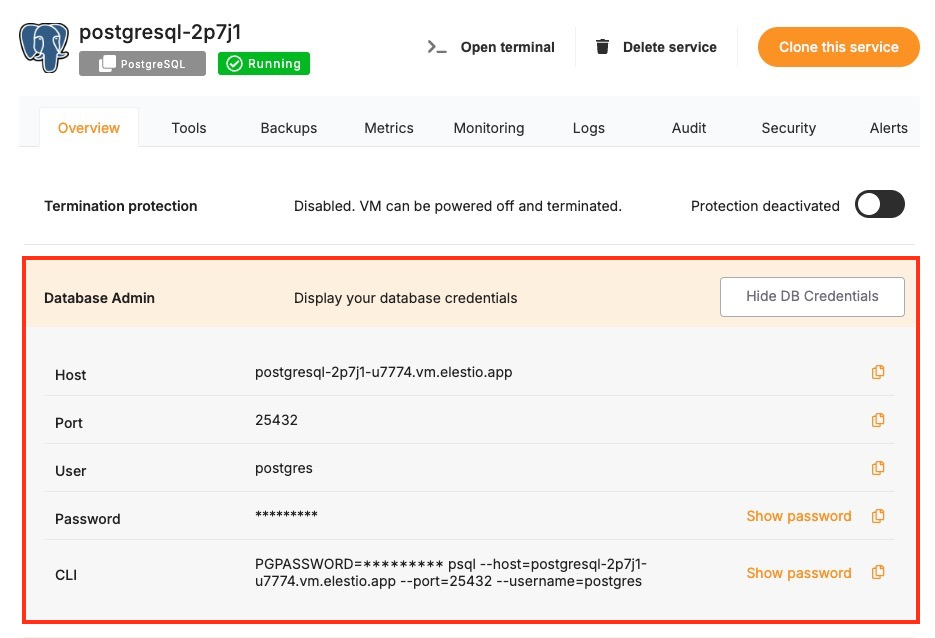
To connect to a PostgreSQL database, you only need one environment variable — the **connection URI**. This URI contains all the necessary information like username, password, host, port, and database name.
Variable
Description
Purpose
**POSTGRESQL\_URI**
Full PostgreSQL connection string (from the Elestio service overview page)
Provides all necessary credentials and endpoint details in a single URI format.
The URI will look like this:
```bash
postgresql://:@:/
```
You can find the details needed in the URI from the **Elestio service overview** details. Copy and replace the variables carefully in the URI example provided above.
### **Prerequisites**
While following this tutorial, you will need to have **`psql`** already installed; if not head over to [https://www.postgresql.org/download/](https://www.postgresql.org/download/) and download it first.
### **Connecting to PostgreSQL**
Open your terminal and run the following command to connect to your PostgreSQL database using the full connection URI:
```bash
psql POSTGRESQL_URI
```
If the connection is successful, you’ll see output similar to this. Here it will show you the database you tried to connect to, which in this case is Elestio:
```
psql (17.4, server 16.8 (Debian 16.8-1.pgdg120+1))
SSL connection (protocol: TLSv1.3, cipher: TLS_AES_256_GCM_SHA384, compression: off, ALPN: none)
Type "help" for help.
Elestio=#
```
To ensure you're connected correctly, run this command inside the `psql` prompt:
```bash
SELECT version();
```
You should receive output like the following:
```
version
---------------------------------------------------------------------------------------------------------------------
PostgreSQL 16.8 (Debian 16.8-1.pgdg120+1) on x86_64-pc-linux-gnu, compiled by gcc (Debian 12.2.0-14) 12.2.0, 64-bit
(1 row)
```