# Creating Manual Backups
Regular backups are a key part of managing a PostgreSQL deployment. While Elestio provides automated backups by default, you may want to perform manual backups for specific reasons, such as preparing for a major change, keeping a local copy, or testing backup automation. This guide walks through how to create PostgreSQL backups on Elestio using multiple approaches. It covers manual backups through the Elestio dashboard, using PostgreSQL CLI tools, and Docker Compose-based setups. It also includes advice for backup storage, retention policies, and automation using scheduled jobs.
## **Manual Service Backups on Elestio**
If you’re using Elestio’s managed PostgreSQL service, the easiest way to create a manual backup is through the dashboard. This built-in method creates a full snapshot of your current database state and stores it within Elestio’s infrastructure. These backups are tied to your service and can be restored through the same interface. This option is recommended when you need a quick, consistent backup without using any terminal commands.
To trigger a manual backup from the Elestio dashboard:
1. Log in to the Elestio dashboard and navigate to your PostgreSQL service/cluster.
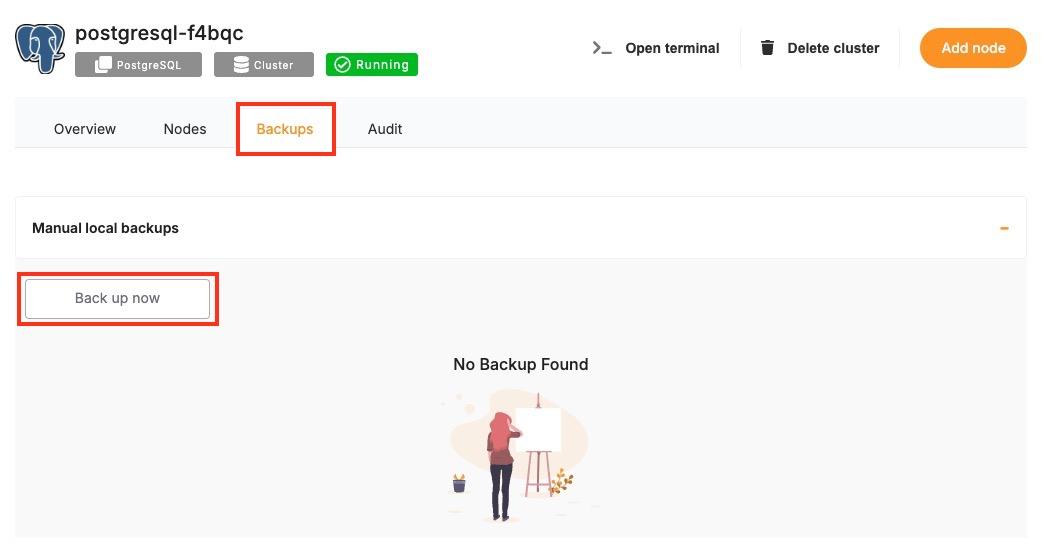
2. Click the **Backups** tab in the service menu.
3. Select **Back up now** to generate a snapshot.
[](https://docs.elest.io/uploads/images/gallery/2025-04/screenshot-2025-04-08-at-1-50-48-pm.jpg)
## **Manual Backups Using PostgreSQL CLI**
PostgreSQL provides a set of command-line tools that are useful when you want to create backups from your terminal. These include `pg_dump` exporting the database, psql for basic connectivity and queries, and `pg_restore` restoring backups. This approach is useful when you need to store backups locally or use them with custom automation workflows. The CLI method gives you full control over the backup format and destination.
#### **Collect Database Connection Info**
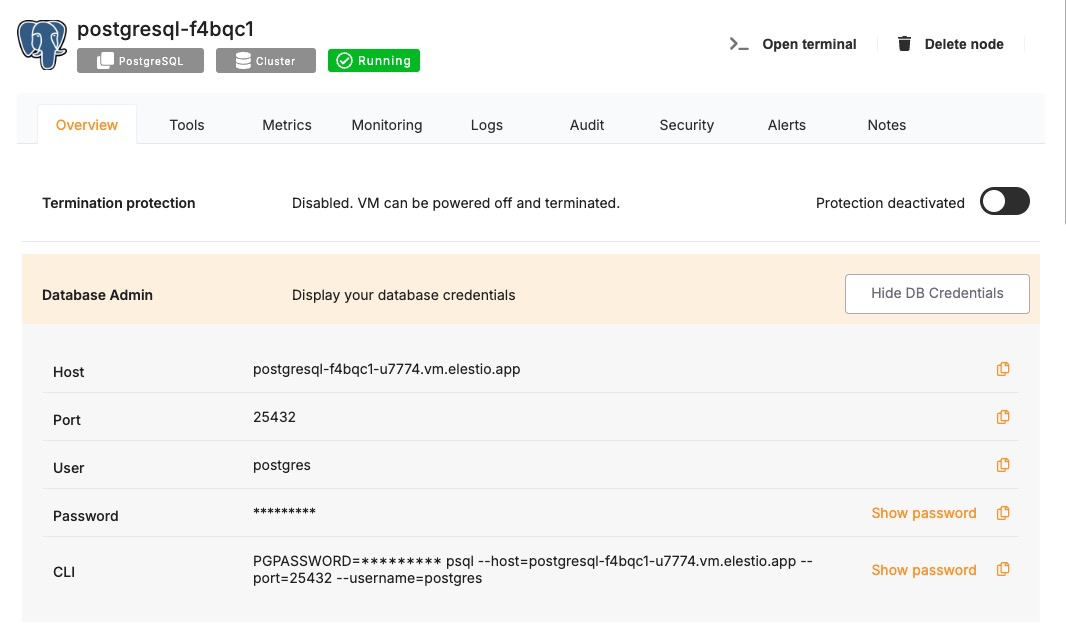
To use the CLI tools, you’ll need the database host, port, name, username, and password. These details can be found in the **Overview** section of your PostgreSQL service in the Elestio dashboard.
[](https://docs.elest.io/uploads/images/gallery/2025-04/DKCimage.png)
#### **Back Up with pg\_dump**
Use `pg_dump` to export the database in a custom format. This format is flexible and preferred for restore operations using `pg_restore`. Replace the values with actual values that you copied from the Elestio overview page.
```
PGPASSWORD='' pg_dump \
-U \
-h \
-p \
-Fc -v \
-f .dump \
```
This command connects to the Elestio database and creates a `.dump` file containing your data. You can use the `-v` flag for verbose output and confirm that the backup completed successfully.
## **Manual Backups Using Docker Compose**
If your PostgreSQL database is deployed through a Docker Compose setup on Elestio, you can run the `pg_dump` command from within the running container. This is useful when the tools are installed inside the container environment and you want to keep everything self-contained. The backup can be created inside the container and then copied to your host system for long-term storage or transfer.
#### **Access Elestio Terminal**
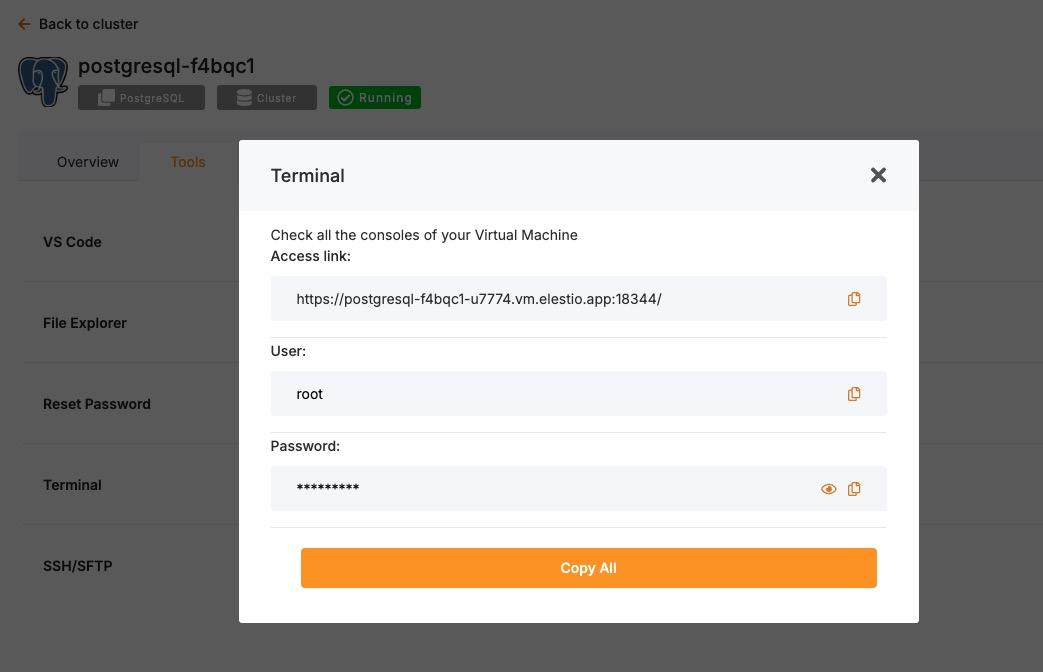
Head over to your deployed PostgreSQL service dashboard and head over to **Tools > Terminal**. Use the credentials provided there to log in to your terminal.
[](https://docs.elest.io/uploads/images/gallery/2025-04/screenshot-2025-04-08-at-12-58-07-pm.jpg)
Once you are in your terminal, run the following command to head over to the correct directory to perform the next steps
```bash
cd /opt/app/
```
#### **Run `pg_dump` Inside the Container**
This command runs `pg_dump` from inside the container and saves the backup to a file in `/tmp`. Make sure you have the following things in command in your env, else replace them with actual values and not the env variables.
```
docker-compose exec postgres \
bash -c "PGPASSWORD='\$POSTGRES_PASSWORD' pg_dump -U \$POSTGRES_USER -Fc -v \$POSTGRES_DB > /tmp/manual_backup.dump"
```
This assumes that environment variables like `POSTGRES_USER`, `POSTGRES_PASSWORD`, and `POSTGRES_DB` are defined in your Compose setup.
#### **Copy Backup to Host**
After creating the backup inside the container, use `docker cp` to copy the file to your host machine.
```
docker cp $(docker-compose ps -q postgres):/tmp/manual_backup.dump ./manual_backup.dump
```
This creates a local copy of the backup file, which you can then upload to external storage or keep for versioned snapshots.
## **Backup Storage & Retention Best Practices**
Once backups are created, they should be stored securely and managed with a clear retention policy. Proper naming, encryption, and rotation reduce the risk of data loss and help during recovery. Use timestamped filenames to identify when the backup was created. External storage services such as AWS S3, Backblaze B2, or an encrypted server volume are recommended for long-term storage.
Here are some guidelines to follow:
- Name your backups clearly: `mydb_backup_2024_04_02.dump`.
- Store in secure, off-site storage if possible.
- Retain 7 daily backups, 4 weekly backups, and 3–6 monthly backups.
- Remove old backups automatically to save space.
By combining storage hygiene with regular scheduling, you can maintain a reliable backup history and reduce manual effort.
## **Automating Manual Backups (cron)**
Manual backup commands can be scheduled using tools like cron on Linux-based systems. This allows you to regularly back up your database without needing to run commands manually. Automating the process also reduces the risk of forgetting backups and ensures more consistent retention.
#### **Example: Daily Backup at 2 AM**
Open your crontab file for editing:
```
crontab -e
```
Then add a job like the following:
```
0 2 * * * PGPASSWORD='mypassword' pg_dump -U elestio -h db-xyz.elestio.app -p 5432 -Fc -f /backups/backup_$(date +\%F).dump mydatabase
```
Make sure the `/backups/` directory exists and is writable by the user running the job. You can also compress the backup and upload it to a remote destination as part of the same script.