Only Project owner Admins are billed for services within a project.
# Add a member Want to invite someone to your team? **To invite a member:** 1\. Select `Members` from the Main menu on the left of the Dashboard 2\. Press the `Add Member` button 3\. Enter the member's email address and select their access level 4\. Press `Send Invitation`**Admins** are authorized to invite more users to a project. Admins have full access to make changes to services. **Read-Only** members are only allowed to view services but are unable to make any changes.
The invited member will receive a confirmation email containing their username (email) and password. They can use this to log in to the elestio dashboard.
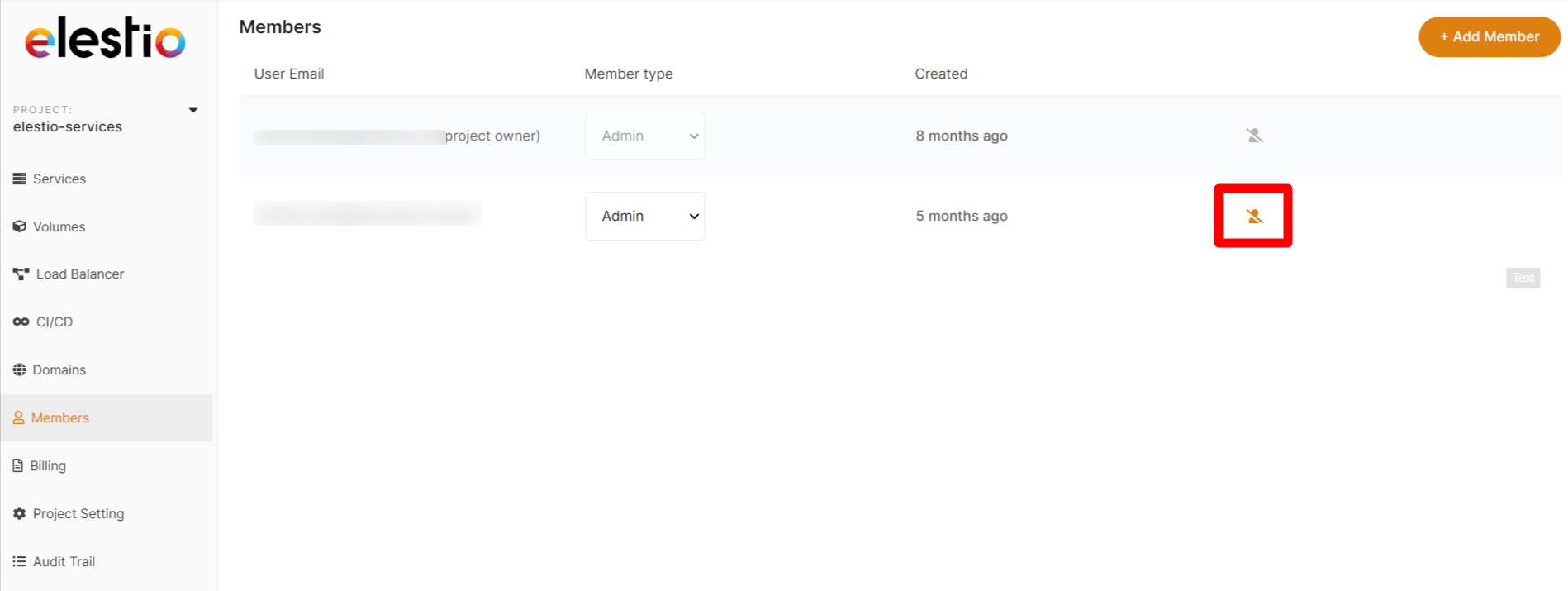
[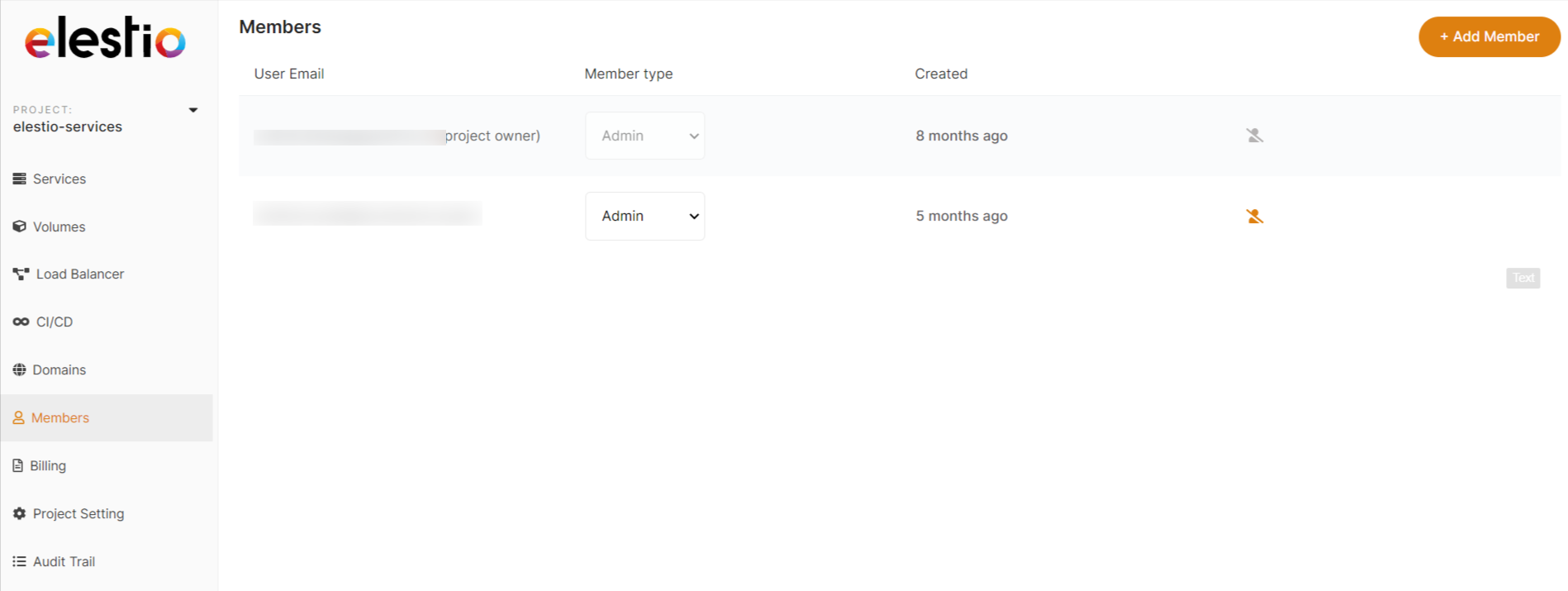](https://docs.elest.io/uploads/images/gallery/2022-01/image-1643490805904-11-30.png) [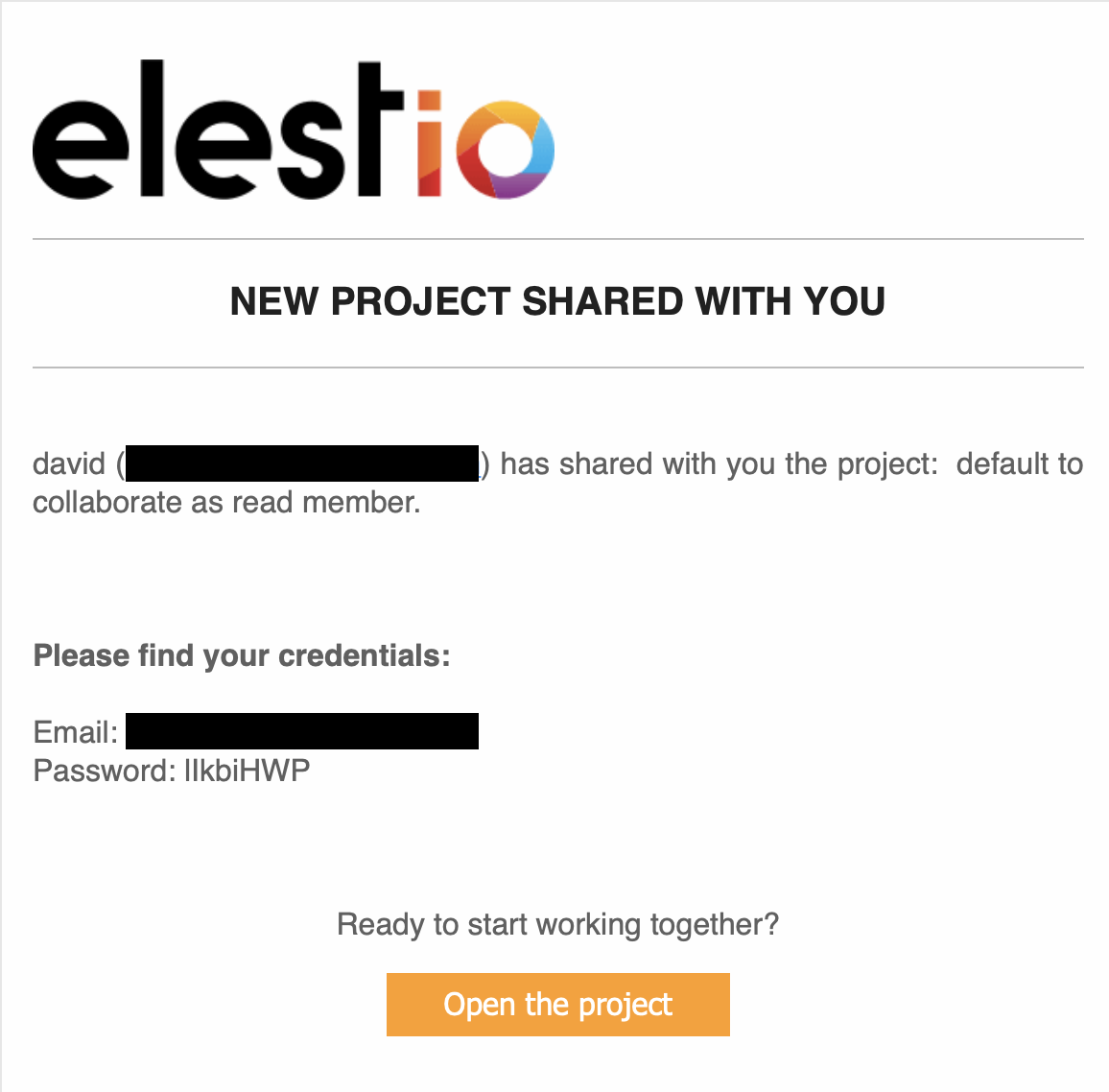](https://docs.elest.io/uploads/images/gallery/2022-01/image-1643496059435-36-08.png) # Delete a member You can easily delete a member from your project when and if you need to. Only admins can delete other members. To delete a member: 1\. Select `Members` from the Main menu tab on the left of the Dashboard. 2\. Click on the user icon to the right of the user you wish to delete. 3\. Confirm you really wish to delete the user before pressing `Remove` 4\. Deleted users will automatically lose access to your elestio project.Deleting a member from the elestio dashboard only removes their access to elestio, not your deployed services. If appropriate, please consider revisiting your service credentials.
The project owner cannot be deleted by other Admins.
[](https://docs.elest.io/uploads/images/gallery/2022-01/image-1643497239284-48-56.png)