# Multi-factor authentication
By default, Elestio uses Email-based MFA, each time you log in to Elestio we will send you an email with a one-time code to enter into our UI to be able to connect. This protection is in place to enforce security and avoid account hacking.
We also have TOTP-based MFA, this is more secure because it's based on an app installed on your phone to generate TOTP codes instead of us sending them by email. So even if your mailbox is compromised your Elestio account will still be safe.
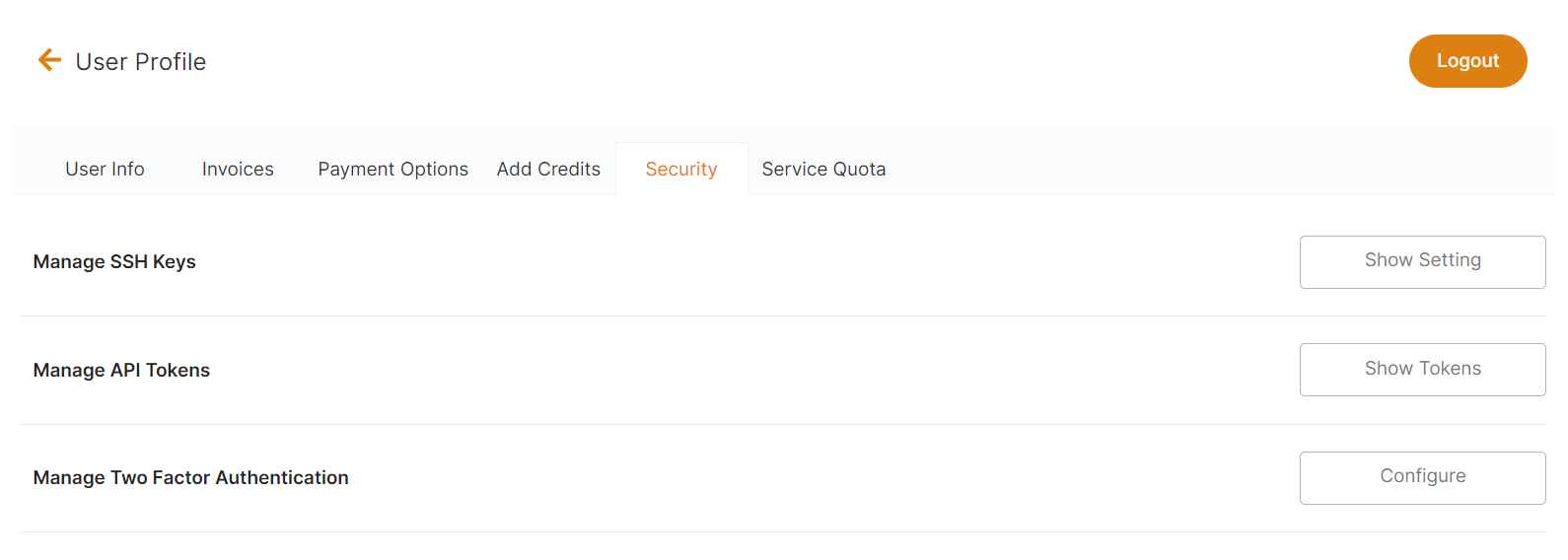
We recommend all users use TOTP Generator, you can activate it in a few clicks from our dashboard > user profile > Security tab.
[](https://docs.elest.io/uploads/images/gallery/2022-11/screenshot-2022-11-10-181459.png)
[](https://docs.elest.io/uploads/images/gallery/2022-11/managed-service-dashboard-16.png)
**The process to activate TOTP MFA on your account**
1. Open the account security tab here: **[https://dash.elest.io/account/security](https://dash.elest.io/account/security)**
2. Click on Configure button in Manage Two-Factor Authentication.
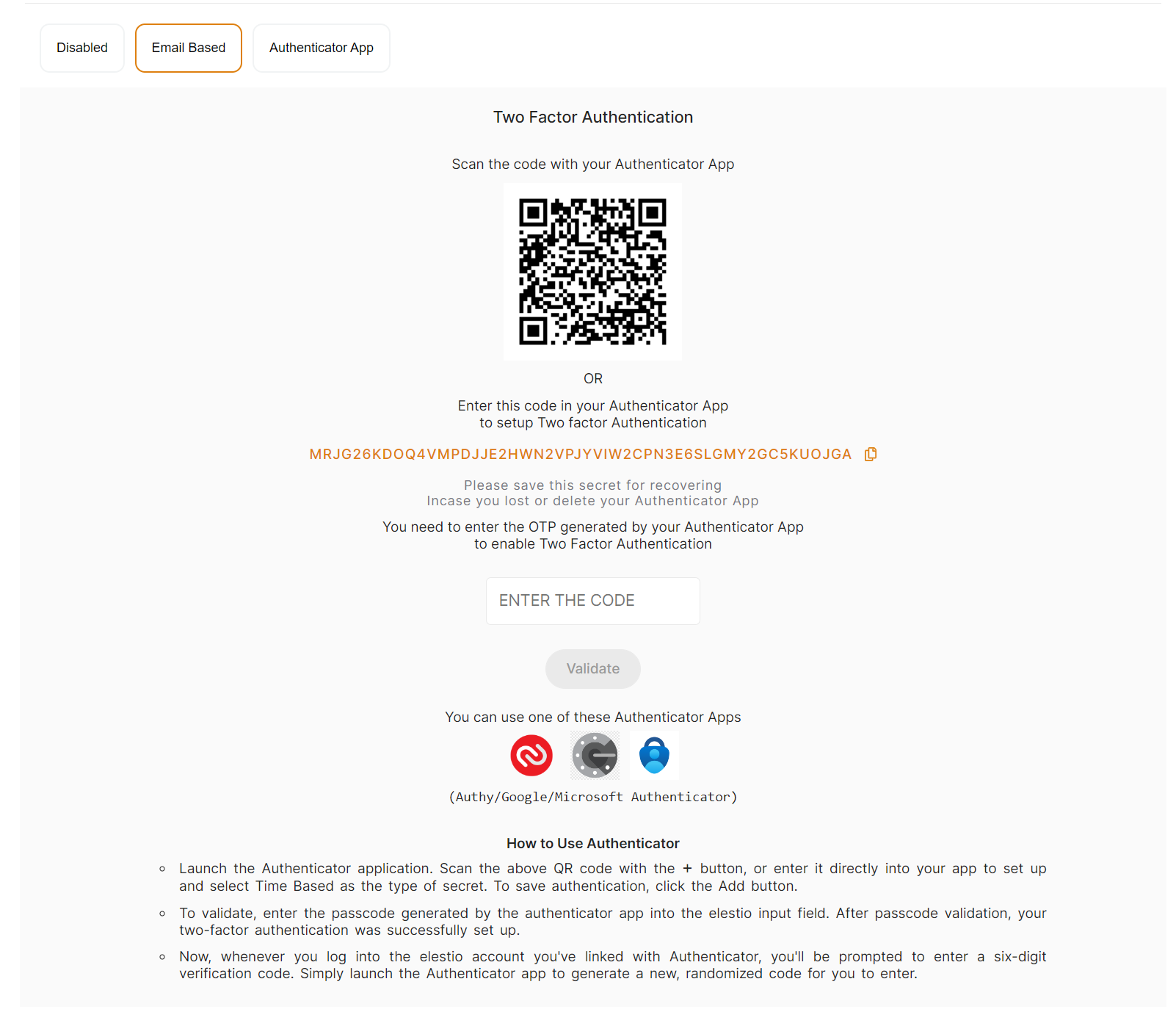
3. Select the **Authenticator App** tab.
4. Download an authenticator app: **[Authy](https://authy.com/download/)** (recommended) or **[Google Authenticator](https://play.google.com/store/apps/details?id=com.google.android.apps.authenticator2)** or **[Microsoft Authenticator](https://www.microsoft.com/en-us/security/mobile-authenticator-app)**
5. Open your authenticator app then scan the QR code on the screen
6. Generate a code with your app and enter it on the Elestio screen
7. Click on Validate
Done, Strong MFA is now enabled on your account, and will be required to login into your Elestio account
You should keep the text version somewhere safe (in orange in the screenshot), this will allow you to recover in case you lose your phone or authenticator app.
If you have lost both your authenticator app and text secret, you can contact our support team via [***email*** ](mailto:support@elest.io)with proof of identity to get MFA removed from your account.
**The process to Activate Email Based MFA on your account**
1. Open the account security tab here: **[https://dash.elest.io/account/security](https://dash.elest.io/account/security)**
2. Click on Configure button in Manage Two-Factor Authentication.
3. Select the **Email Based** tab.
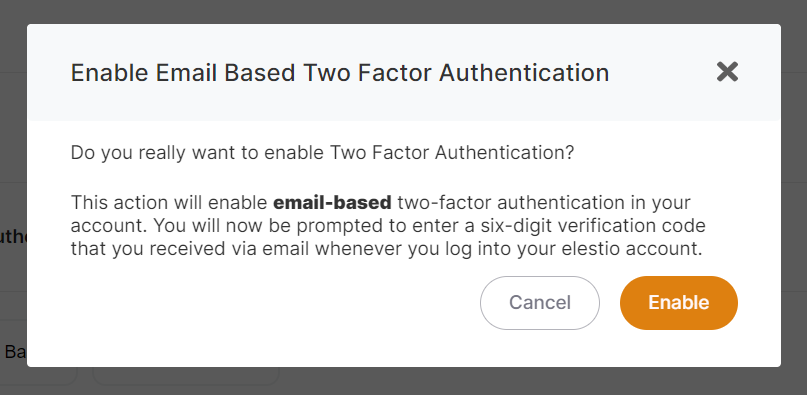
4. Click on Enable button to activate it.
[](https://docs.elest.io/uploads/images/gallery/2022-11/screenshot-2022-11-10-183750.png)
**The process to Deactivate MFA on your account**
1. Open the account security tab here: **[https://dash.elest.io/account/security](https://dash.elest.io/account/security)**
2. Click on Configure button in Manage Two-Factor Authentication.
3. Select the **Disabled** tab.
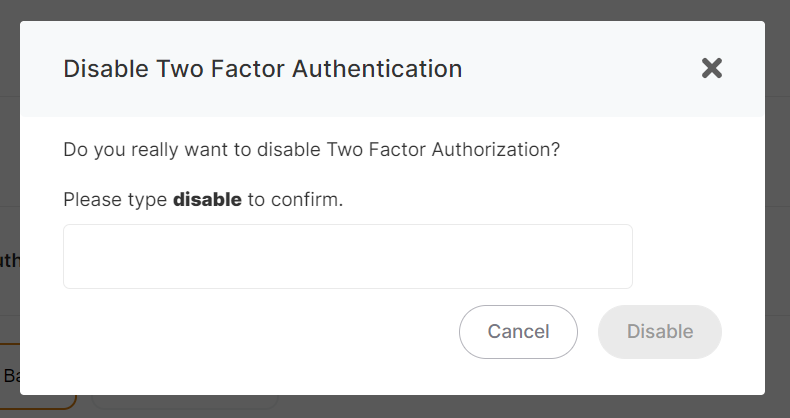
4. To confirm the action, type disable in the confirmation input field on the confirmation modal.
5. Click on Disable button to disable it.
[](https://docs.elest.io/uploads/images/gallery/2022-11/screenshot-2022-11-10-184733.png)