On AWS Disk, you can only increase the disc size, not decrease it.
According to AWS policy, after upgrading a disc size, you must wait at least 6 hours before upgrading it again.
##### To increase the disc size, navigate to your service overview and then to the section's *Main Volume.* [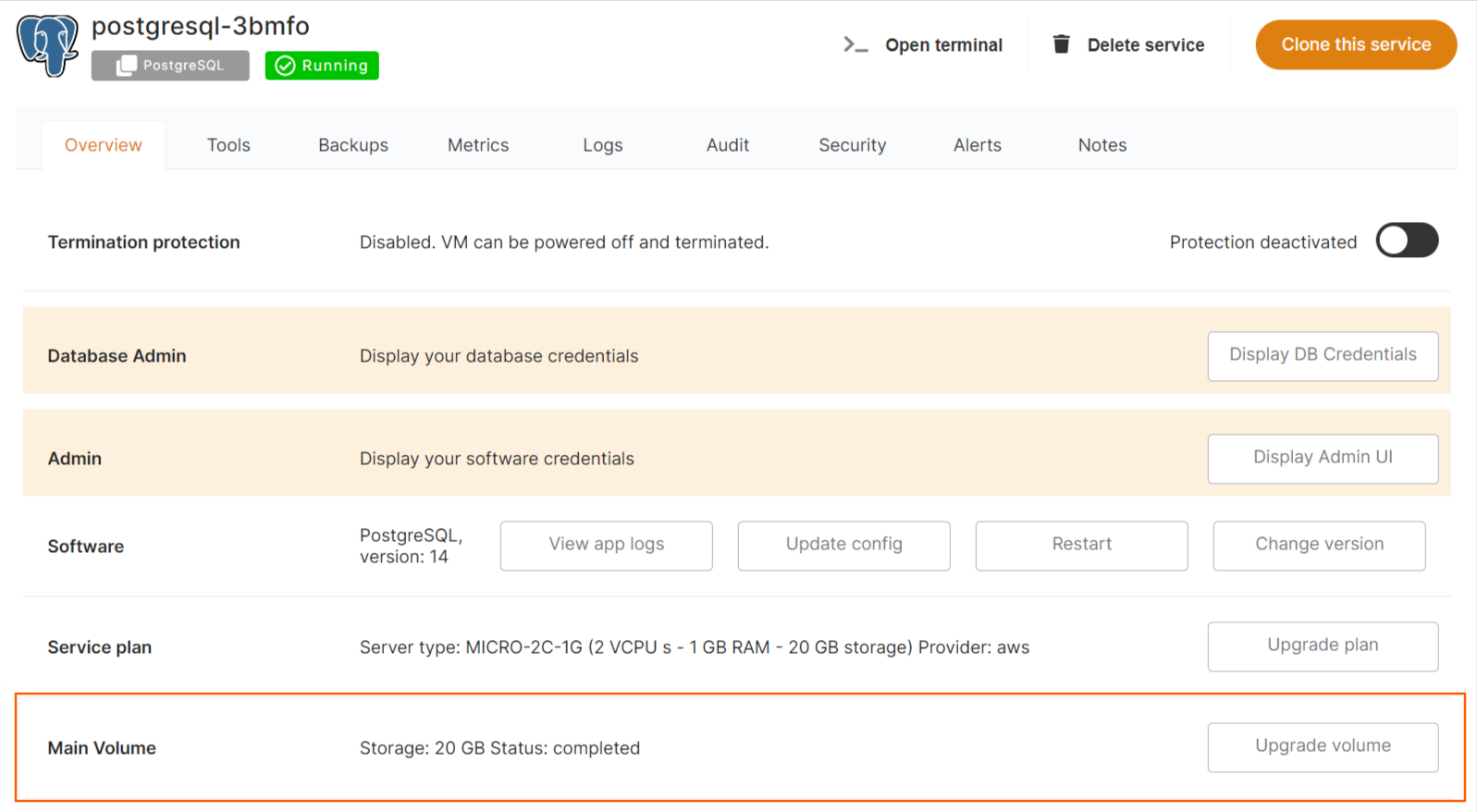](https://docs.elest.io/uploads/images/gallery/2023-02/managed-service-dashboard.png) Here, you will find information about your current disc size, its status, and an *Upgrade volume* button. A prompt modal will appear when you click the Upgrade volume button to increase the disc size. [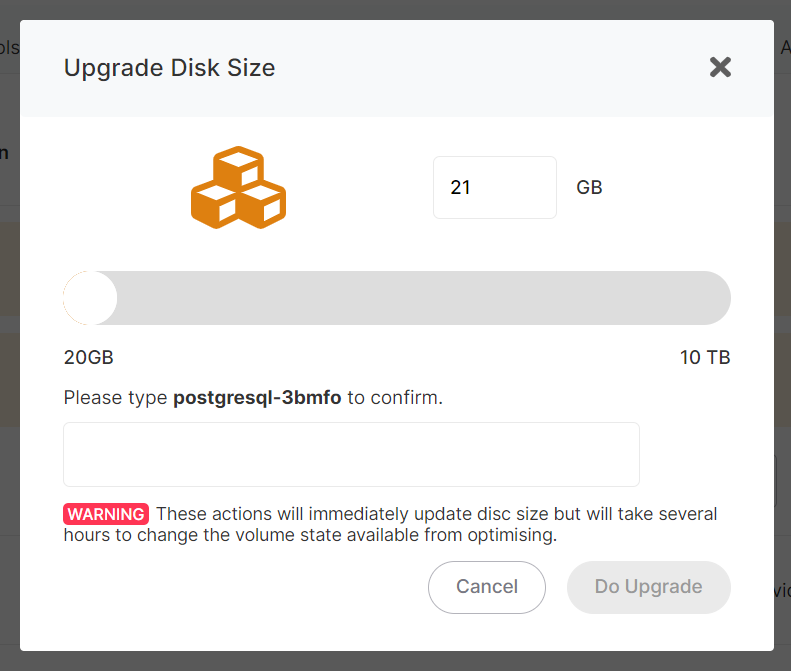](https://docs.elest.io/uploads/images/gallery/2023-02/screenshot-2023-02-16-191208.png) Enter the size of the disc you want to upgrade here, followed by the name of your service in the input field for confirmation. Click the ***Do Upgrade*** button to confirm the upgrade, or **Cancel** to reject it. [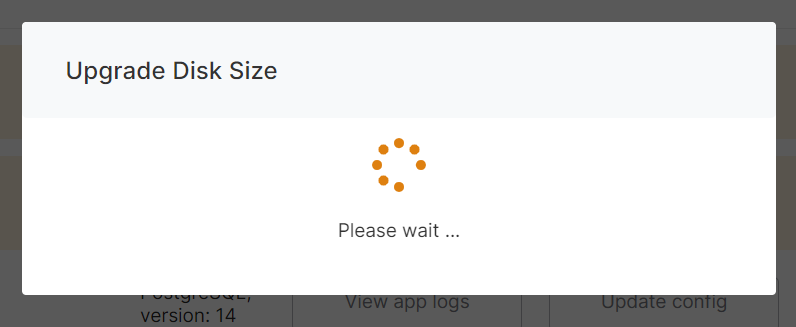](https://docs.elest.io/uploads/images/gallery/2023-02/screenshot-2023-02-16-192135.png) After you confirm, a loader modal will appear, and it will take a few seconds or a minute to upgrade the size of your disc. [](https://docs.elest.io/uploads/images/gallery/2023-02/screenshot-2023-02-16-192320.png) You can get your updated size in the Storage section and Status Optimizing after upgrading a size.Your disk's status will change from optimizing to completed after a short while (or several hours).
When you modify an Amazon EBS volume, the volume goes through a sequence of states. These volume states include the **modifying** state, the **optimizing** state, and finally the **completed** state. If you increase the size of the volume, then the new size is available for use immediately after the modification. However, if the volume is in the **Optimizing** state, then the performance of the volume is in between the source and target configuration specifications. The performance of the volume is measured in terms of I/O operations per second and throughput. Modifying an EBS volume can take from a few minutes to a few hours depending on the configuration changes being applied. An EBS volume of size 1 TiB can typically take up to 6 hours to be modified. However, the same volume might take 24 hours or longer in other situations. The time it takes for volumes to be modified doesn't always scale linearly. Therefore, a larger volume might take less time, and a smaller volume might take more time.