Database Migration
- Database Migration Service for Valkey
- Cloning a Service to Another Provider or Region
- Manual Migration Using valkey-cli and Dump Files
Database Migration Service for Valkey
Elestio provides a structured approach for migrating Valkey databases from various environments, such as self-hosted servers, on-premises infrastructure, or other cloud platforms, to its managed services. This process ensures data integrity and minimizes downtime, facilitating a smooth transition to a high-performance, Redis-compatible environment.
Key Steps in Migrating to Elestio
Pre-Migration Preparation
Before initiating the migration process, it’s essential to undertake thorough preparation to ensure a smooth transition:
- Create an Elestio Account: Register on the Elestio platform to access their suite of managed services. This account will serve as the central hub for managing your Valkey instance and related infrastructure.
- Deploy the Target Valkey Service: Set up a new Valkey instance on Elestio to serve as the destination for your data. Ensure the configuration and Redis protocol version of the target instance match your source to avoid compatibility issues during data transfer. Detailed prerequisites and guidance can be found in Elestio’s migration documentation.
Initiating the Migration Process
With the preparatory steps completed, you can proceed to migrate your Valkey database to Elestio:
- Access the Migration Tool: Navigate to the overview of your Valkey service on the Elestio dashboard. Click on the “Migrate Database” button to initiate the migration process. This tool is designed to streamline the procedure by guiding you through each stage.
- Configure Migration Settings: A modal window will appear, prompting you to verify that your target Valkey instance has adequate disk space to accommodate your current dataset. Adequate storage helps prevent interruptions or data truncation. Once confirmed, click on the “Get started” button to proceed.
- Validate Source Database Connection: Provide the connection details for your existing Valkey or Redis-compatible database, including:
-
Hostname: The address of your current Valkey or Redis server.
-
Port: The port number used by your Valkey service (default is 6379).
-
Password (if applicable): The password used for authenticating access to your database.
-
Database Number (Optional): If you are using numbered databases (e.g., db 0, db 1, etc.), indicate which one you wish to migrate.
-
After entering the necessary details, click on “Run Check” to validate the connection. This step ensures that Elestio can securely and accurately connect to the source database. These details can also be found in your existing hosting or container environment settings.
Execute the Migration
If all checks pass without errors, initiate the migration by selecting “Start migration.” Monitor the progress via real-time logs displayed on the dashboard. This transparency helps you detect and resolve any issues immediately, ensuring uninterrupted and consistent data transfer.
Post-Migration Validation and Optimization
After completing the migration, it’s essential to perform a series of validation and optimization tasks to ensure the integrity and performance of your database in the new environment:
- Verify Data Integrity: Run data integrity checks to confirm successful migration. This may include comparing key counts, verifying TTLs (time-to-live), or querying sample keys to ensure consistency between the source and target.
- Test Application Functionality: Ensure all applications depending on Valkey can connect and operate normally with the new Elestio instance. Update any environment variables, DNS records, or connection URIs to reflect the new service endpoint.
- Optimize Performance: Leverage Elestio’s monitoring dashboard to tune performance. Enable slow log tracking, monitor memory usage, and adjust max memory policies or eviction strategies if needed. Elestio’s infrastructure is optimized for low latency and high throughput.
- Implement Security Measures: Review and update security configurations. This includes setting a strong access password, enabling TLS if supported, and managing firewall rules to limit access. Use the Elestio dashboard to rotate credentials and enforce access restrictions.
Benefits of Using Elestio for Valkey
Migrating your Valkey database to Elestio offers several advantages:
- Simplified Management: Elestio automates essential database maintenance tasks such as service restarts, backups, updates, and uptime monitoring. The platform provides a real-time dashboard for CPU usage, memory utilization, disk I/O, and more. Users can update environment variables, scale services, and view system logs from a unified interface.
- Security: Elestio keeps Valkey instances secure by applying timely security patches and enforcing best practices. All deployments are protected by randomly generated access credentials, and backups are encrypted to safeguard data at rest and in transit. Users can define firewall rules to control inbound traffic and enable TLS-based access where needed.
- Performance: Valkey on Elestio is pre-configured for high performance. The platform leverages Valkey’s Redis-compatible architecture to deliver fast, predictable response times even under heavy load. This setup supports a variety of workloads, from caching layers and session stores to real-time Pub/Sub systems.
- Scalability: Elestio allows dynamic scaling of your Valkey service to match evolving resource needs. You can upgrade CPU, RAM, and disk space with minimal downtime. Additionally, Elestio supports persistent volume resizing and load-based scaling to meet future growth demands.
Cloning a Service to Another Provider or Region
Migrating or cloning services across cloud providers or geographic regions is a critical part of modern infrastructure management. Whether you’re optimizing for latency, preparing for disaster recovery, meeting regulatory requirements, or simply switching providers, a well-planned migration ensures continuity, performance, and data integrity. This guide outlines a structured methodology for service migration, applicable to most cloud-native environments.
Pre-Migration Preparation
Before initiating a migration, thorough planning and preparation are essential. This helps avoid unplanned downtime, data loss, or misconfiguration during the move:
- Evaluate the Current Setup: Begin by documenting the existing Valkey instance’s configuration. This includes runtime environments (Valkey version, memory policies), persistence settings (RDB, AOF, or both), custom configurations (valkey.conf), authentication credentials, and client connection settings. Make note of the current deployment region, storage volumes, instance sizing, and IP/firewall rules.
- Define the Migration Target: Choose the new cloud provider or region you plan to migrate to. Confirm that Valkey is supported in the target environment with equivalent or better resources. Validate compatibility in terms of Valkey version, persistence format, and disk I/O performance. Ensure the target region meets your latency and compliance requirements, and verify that TLS, backup policies, and access controls can be replicated in the new environment.
- Provision the Target Environment: Set up a new Valkey service in the desired target region or provider. This involves deploying a new instance with the same resource allocation, runtime version, and configuration as the original. If you’re using Elestio, simply create a new Valkey service and select the same software version. Configure access credentials, private/public networking, and any required firewall or IP rules at this stage.
- Backup the Current Service: Always create a full backup of the current Valkey data before migration. For RDB-based persistence, this involves triggering a BGSAVE operation and extracting the dump.rdb file from the instance. If AOF is enabled, copy the appendonly.aof file to ensure complete recovery. Use tools like scp or rsync over SSH to securely transfer these files to the target environment. If the instance is containerized, use persistent volume snapshots or mounted volume copies to extract backup data. This backup serves as a rollback point and is essential for recovery in case of data corruption or migration failure.
Cloning Execution
The cloning process begins with restoring the backed-up data into the new Valkey environment. Connect to the target instance and stop the Valkey process temporarily to allow safe file replacement. Move the dump.rdb or appendonly.aof file into the correct storage location, typically /var/lib/valkey/, ensuring that file permissions match the expected user and group settings. Once the data is in place, restart the Valkey service and monitor logs to confirm a successful startup and key load.
After restoring data, verify the integrity and structure of the new instance. Use redis-cli or an equivalent client to query the dataset, confirm key counts, TTLs, and persistence settings. If your service uses custom modules, Lua scripts, or pub/sub channels, ensure they are functioning as expected. Review the configuration files (valkey.conf) to confirm replication, memory limits, eviction policies, and authentication are all consistent with the original service. For TLS-enabled instances, validate certificate paths, key permissions, and client connection behavior.
Test the service in isolation to validate correctness. This includes read/write operations, key expiration, background tasks, or pub/sub behavior. Simulate application queries and ensure that memory allocation, CPU usage, and persistence behavior match your expectations. Use observability tools to monitor performance and identify discrepancies. This is also the stage to update client configurations or environment variables if the connection endpoint or credentials have changed.
Once validation is complete, route live traffic to the new Valkey instance. This may involve updating DNS records to point to the new IP address, reconfiguring load balancers, or modifying firewall rules. If you’re using managed DNS with short TTLs, the switchover can be nearly instantaneous. For high-availability environments, consider running both instances in parallel temporarily and shifting client traffic gradually. Monitor logs, metrics, and connected clients throughout the transition to detect and resolve issues early.
Post-Migration Validation and Optimization
Once the new environment is live and receiving traffic, focus on optimizing and securing the setup:
- Validate Application Functionality: Ensure that all applications relying on the Valkey instance function correctly. Check integration with authentication systems, session stores, queues, or caching logic. Review logs for connection failures, timeouts, or permission errors. Confirm that all services have been updated to use the new endpoint and that no application is attempting to write to the old instance.
- Monitor Performance: Track memory usage, CPU load, disk I/O, and connection counts on the new instance. Valkey performance characteristics may vary across cloud providers or instance types, so tune your memory policy, eviction settings, and save intervals accordingly. Enable alerts for key metrics to proactively detect performance degradation. If autoscaling is supported in your environment, configure thresholds to manage traffic spikes.
- Secure the Environment: Enforce access controls via IP allowlists, firewall settings, and encrypted transport. Rotate access credentials or ACL tokens post-migration to eliminate any risk associated with exposed keys. If TLS was not previously enabled, consider enabling it on the new instance to improve data-in-transit security. Review Valkey-specific security hardening such as disabling dangerous commands and isolating the instance from public access.
- Cleanup and Documentation: Once the migration is stable, decommission the old Valkey instance and revoke any associated credentials. Ensure all monitoring, backups, and failover routines are redirected to the new service. Update internal documentation to reflect the new region, access endpoints, and runtime configuration. Log the migration steps and outcomes for future reference and audit trails.
Benefits of Cloning
Cloning a Valkey service enables safer testing, faster failover, and region-based redundancy. Teams can use cloned environments to stage changes, simulate workloads, or test application compatibility with newer Valkey versions without impacting production. Clones are also useful for development and QA workflows that require access to near-real datasets without write permission to production.
In disaster recovery planning, a cloned instance in a separate region can act as a ready-to-promote failover node. If the primary region becomes unavailable, DNS can be redirected to the backup instance with minimal delay. Additionally, analytics or reporting workloads can run against a cloned read-only copy to isolate them from critical workloads, ensuring consistent performance for real-time applications.
Additionally, rather than building a new environment from scratch, you can clone the database into another provider, validate it, and cut over with minimal disruption. This helps maintain operational continuity and reduces the effort needed for complex migrations.
Manual Migration Using valkey-cli and Dump Files
Manual migrations using Valkey’s native tools are ideal for users who prefer full control over data export and import, particularly during provider transitions, environment duplication, or when importing an existing self‑managed Valkey dataset into Elestio’s managed environment. This guide walks through the process of performing a manual migration to and from Elestio Valkey services using command‑line tools, ensuring that your data remains portable, auditable, and consistent.
Valkey is fully compatible with Redis tooling, including valkey-cli, valkey-server, and snapshot formats (dump.rdb, appendonly.aof). For clarity, this guide uses valkey-cli and valkey-server where applicable. If you’re using a Redis‑compatible CLI, the commands remain the same.
When to Use Manual Migration
Manual migration using valkey-cli is well‑suited for scenarios where full control over the data export and import process is required. This method is particularly useful when migrating from an existing Valkey or Redis‑compatible setup whether self‑hosted, on‑premises, or on another cloud provider into Elestio’s managed Valkey service. It allows for one‑time imports without requiring continuous connectivity between source and target systems.
This approach also supports version upgrades (via snapshot restore into newer versions), selective key imports, and offline backup archiving ideal when Elestio’s built‑in tools aren’t applicable.
Performing the Migration
Prepare the Environments
-
Source: Ensure your Valkey server (valkey-server) is running with RDB or AOF persistence and remote TCP connections permitted.
-
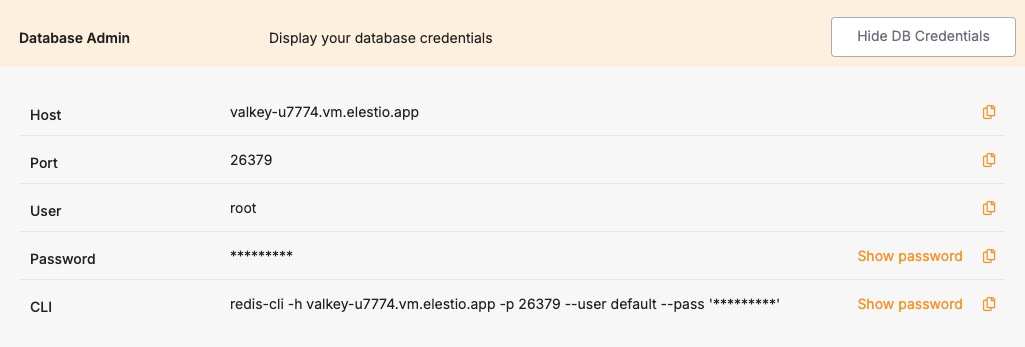
Target (Elestio): Provision a Valkey service. From the Dashboard → Database Admin tab, collect hostname, port, and password. Make sure your IP is allowed via Cluster Overview → Security → Limit access per IP.
Create a Backup Dump
To generate a snapshot file:
valkey-cli -h <source_host> -p <source_port> SAVEAlternatively, to write dump.rdb directly:
valkey-cli --rdb dump.rdbThese commands create a portable, version-aware RDB snapshot (). If the source uses AOF, disable AOF temporarily to force a clean RDB dump.
Transfer the Dump File to the Target
Use secure transfer methods to move the snapshot file:
scp dump.rdb user@your_workstation:/path/to/local/Elestio doesn’t require uploading the file to its servers; restore happens over the network or locally via Docker.
Create the Target Container or Instance
To inspect or stage the dataset locally before final import, run:
docker run -v /path/to/backup:/data --name valkey-restore -p 6379:6379 valkey/valkeyThis container auto-loads the RDB on start for verification or live sync to Elestio.
Restore the Data into Elestio
Connect to Elestio using:
valkey-cli -h <elestio_host> -p <elestio_port> -a <elestio_password>You can import via --pipe or use live replication:
-
Make your local container replicate to Elestio:
valkey-cli -h localhost -p 6379 SLAVEOF <elestio_host> <elestio_port>-
Authenticate as needed (Elestio may require AUTH).
-
When sync completes, stop replication:
valkey-cli -h localhost -p 6379 SLAVEOF NO ONEThis is ideal for large datasets or when direct file upload isn’t available.
Validate the Migration
After syncing, connect to the Elestio instance:
valkey-cli -h <elestio_host> -p <elestio_port> -a <elestio_password>Run these checks:
DBSIZE
KEYS *
GET some_key
TYPE some_key
Validate TTLs and data structures. Ensure your application can read/write without errors. Enable automated backups post-migration to secure the restored dataset.
Benefits of Manual Migration
-
Compatibility and Portability: Snapshot files from any Valkey/Redis source can be imported.
-
Version-Safe Upgrades: RDB restores across Valkey versions seamlessly.
-
Offline Archiving: Store snapshots for disaster recovery or historical analysis.
-
Platform Independence: Uses Valkey-native tools no vendor lock-in.
This method complements Elestio’s automated features by offering a transparent, full-control migration workflow.