Connect to Valkey
Connect to your Elestio Valkey database from your application and CLI tools.
Connecting with Node.js
This guide explains how to establish a connection between a Node.js application and a Valkey database using the redis package. It walks through the necessary setup, configuration, and execution of a simple Valkey command.
Variables
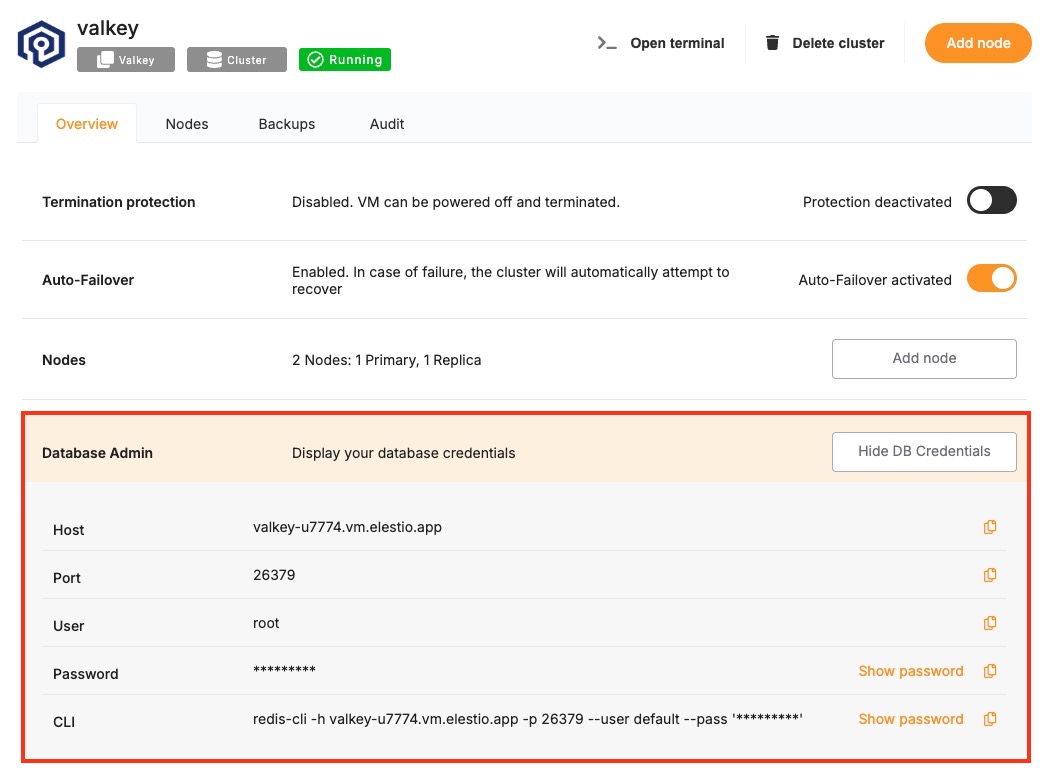
To successfully connect to a Valkey instance, you’ll need to provide the following parameters. These can typically be found on the Elestio service overview page.
| Variable | Description | Purpose |
|---|---|---|
HOST | Valkey hostname (from Elestio service overview) | The address of the server hosting your Valkey instance. |
PORT | Valkey port (from Elestio service overview) | The port used for the Valkey connection. The default Valkey port is 6379. |
PASSWORD | Valkey password (from Elestio service overview) | Authentication key used to connect securely to the Valkey instance. |
These values can usually be found in the Elestio service overview details as shown in the image below, make sure to take a copy of these details and add it to the code moving ahead.
Prerequisites
Install Node.js and NPM
- Check if Node.js is installed by running:
node -v
- If not installed, download and install it from nodejs.org.
- Confirm npm is installed by running:
npm -v
Install the redis Package
The redis package enables communication between Node.js applications and Valkey.
npm install redis --save
Code
Create a new file named valkey.js and add the following code:
const valkey = require("redis");

// Valkey connection configuration
const config = {
  socket: {
    host: "HOST",
    port: PORT,
  },
  password: "PASSWORD",
};

// Create a Redis client
const client = valkey.createClient(config);

// Handle connection errors
client.on("error", (err) => {
  console.error("Valkey connection error:", err);
});

// Connect and run a test command
(async () => {
  try {
    await client.connect();
    console.log("Connected to Valkey");

    // Set and retrieve a test key
    await client.set("testKey", "Hello Valkey");
    const value = await client.get("testKey");
    console.log("Retrieved value:", value);

    // Disconnect from Valkey
    await client.disconnect();
  } catch (err) {
    console.error("Valkey operation failed:", err);
  }
})();
To execute the script, open the terminal or command prompt and navigate to the directory where valkey.js is located. Once in the correct directory, run the script with the command:
node valkey.js
If the connection is successful, the output should resemble:
Connected to Valkey
Retrieved value: Hello Valkey
Connecting with Python
This guide explains how to connect a Python application to a Valkey database using the redis library. It walks through the required setup, configuration, and execution of a simple Valkey command.
Variables
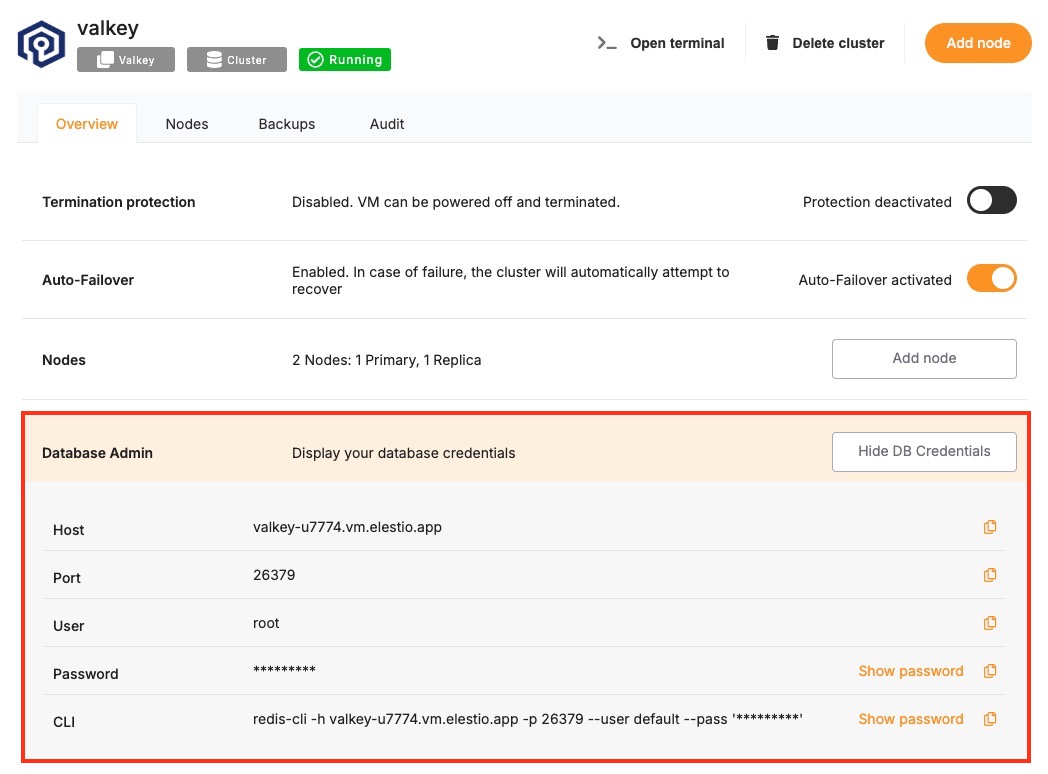
To connect to Valkey, the following parameters are needed. You can find these values in the Elestio Valkey service overview.
| Variable | Description | Purpose |
|---|---|---|
HOST | Valkey hostname (from Elestio service overview) | Address of the Valkey server. |
PORT | Valkey port (from Elestio service overview) | Port used to connect to Valkey. The default is 6379. |
PASSWORD | Valkey password (from Elestio service overview) | Authentication credential for the Valkey connection. |
These values can usually be found in the Elestio service overview details as shown in the image below, make sure to take a copy of these details and add it to the code moving ahead.
Prerequisites
Install Python and pip
- Check if Python is installed by running:
python3 --version
- If not installed, download and install it from python.org.
- Check pip (Python package installer):
pip --version
Install the redis Package
Install the official redis library using pip:
pip install redis
Code
Create a file named valkey.py and paste the following code:
import redis

config = {
    "host": "HOST",
    "port": PORT,  # Example: 6379
    "password": "PASSWORD",
    "decode_responses": True
}

try:
    client = redis.Redis(**config)
    client.set("testKey", "Hello Valkey")
    value = client.get("testKey")
    print("Connected to Valkey")
    print("Retrieved value:", value)

except redis.RedisError as err:
    print("Valkey connection or operation failed:", err)
To execute the script, open the terminal or command prompt and navigate to the directory where valkey.py is located. Once in the correct directory, run the script with the command:
python3 redis.py
If everything is set up correctly, the output will be:
Connected to Valkey
Retrieved value: Hello Valkey
Connecting with PHP
This guide explains how to establish a connection between a PHP application and a Valkey database using the phpredis extension. It walks through the necessary setup, configuration, and execution of a simple Valkey command.
Variables
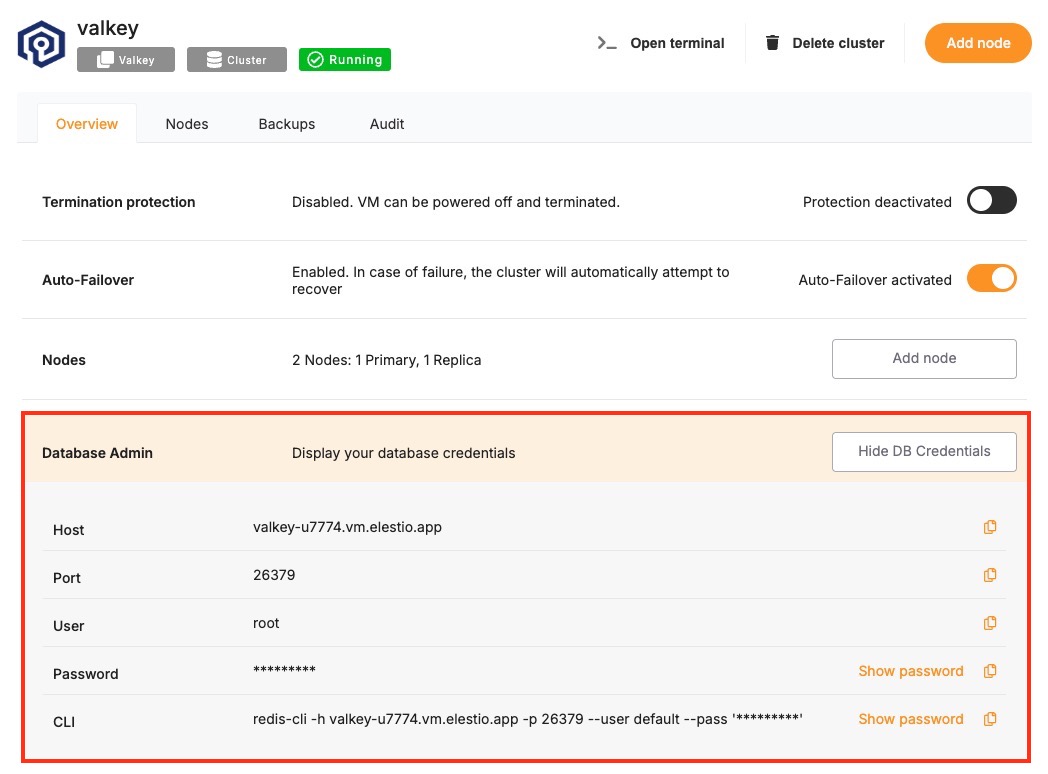
Certain parameters must be provided to establish a successful connection to a Valkey database. Below is a breakdown of each required variable, its purpose, and where to find it. Here’s what each variable represents:
| Variable | Description | Purpose |
|---|---|---|
HOST | Valkey hostname, from the Elestio service overview page | The address of the server hosting your Valkey instance. |
PORT | Port for Valkey connection, from the Elestio service overview page | The network port used to connect to Valkey. The default port is 6379. |
PASSWORD | Valkey password, from the Elestio service overview page | The authentication key required to connect securely to Valkey. |
These values can usually be found in the Elestio service overview details as shown in the image below. Make sure to take a copy of these details and add it to the code moving ahead.
Prerequisites
- Install PHP
- Check if PHP is installed by running:
php -v
-
- If not installed, download it from php.net and install.
- Install the phpredis Extension
- The phpredis extension provides a native PHP interface for Valkey. You can install it using:
sudo pecl install redis
-
- Then enable it in your php.ini:
extension=redis
-
- To verify it’s installed:
php -m | grep redis
Code
Once all prerequisites are set up, create a new file named valkey.php and add the following code:
<?php

$host = 'HOST';
$port = PORT;
$password = 'PASSWORD';

$valkey = new Redis();

try {
    $valkey->connect($host, $port);

    if (!$valkey->auth($password)) {
        throw new Exception('Authentication failed');
    }

    echo "Connected to Valkey\n";

    $valkey->set("testKey", "Hello Valkey");
    $value = $valkey->get("testKey");
    echo "Retrieved value: $value\n";

    $valkey->close();

} catch (Exception $e) {
    echo "Valkey connection or operation failed: " . $e->getMessage() . "\n";
}
Open the terminal or command prompt and navigate to the directory where valkey.php is located. Once in the correct directory, run the script with the command:
php valkey.php
If the connection is successful, the terminal will display output similar to:
Connecting with Go
This guide explains how to establish a connection between a Go application and a Valkey database using the go-redis package. It walks through the necessary setup, configuration, and execution of a simple Valkey command.
Variables
Certain parameters must be provided to establish a successful connection to a Valkey database. Below is a breakdown of each required variable, its purpose, and where to find it. Here’s what each variable represents:
| Variable | Description | Purpose |
|---|---|---|
HOST | Valkey hostname, from the Elestio service overview page | The address of the server hosting your Valkey instance. |
PORT | Port for Valkey connection, from the Elestio service overview page | The network port used to connect to Valkey. The default port is 6379. |
PASSWORD | Valkey password, from the Elestio service overview page | The authentication key required to connect securely to Valkey. |
These values can usually be found in the Elestio service overview details as shown in the image below, make sure to take a copy of these details and add it to the code moving ahead.

Prerequisites
Install Go
Check if Go is installed by running:
go version
If not installed, download it from golang.org and install.
Install the go-redis Package
The go-redis package enables Go applications to interact with Valkey. Install it using:
go get github.com/redis/go-redis/v9
Code
Once all prerequisites are set up, create a new file named valkey.go and add the following code:
package main

import (
	"context"
	"fmt"
	"time"

	"github.com/redis/go-redis/v9"
)

func main() {
	opt := &redis.Options{
		Addr:     "HOST:PORT",
		Password: "PASSWORD",
		DB:       0,
	}

	valkey := redis.NewClient(opt)
	ctx, cancel := context.WithTimeout(context.Background(), 5*time.Second)
	defer cancel()

	err := valkey.Set(ctx, "testKey", "Hello Valkey", 0).Err()
	if err != nil {
		fmt.Println("Valkey operation failed:", err)
		return
	}

	val, err := valkey.Get(ctx, "testKey").Result()
	if err != nil {
		fmt.Println("Valkey operation failed:", err)
		return
	}

	fmt.Println("Connected to Valkey")
	fmt.Println("Retrieved value:", val)

	if err := valkey.Close(); err != nil {
		fmt.Println("Error closing connection:", err)
	}
}
To execute the script, open the terminal or command prompt and navigate to the directory where valkey.go is located. Once in the correct directory, run the script with the command:
go run valkey.go
If the connection is successful, the terminal will display output similar to:
Connected to Valkey
Retrieved value: Hello Valkey
Connecting with Java
This guide explains how to establish a connection between a Java application and a Valkey database using the Jedis library. It walks through the necessary setup, configuration, and execution of a simple Valkey command.
Variables
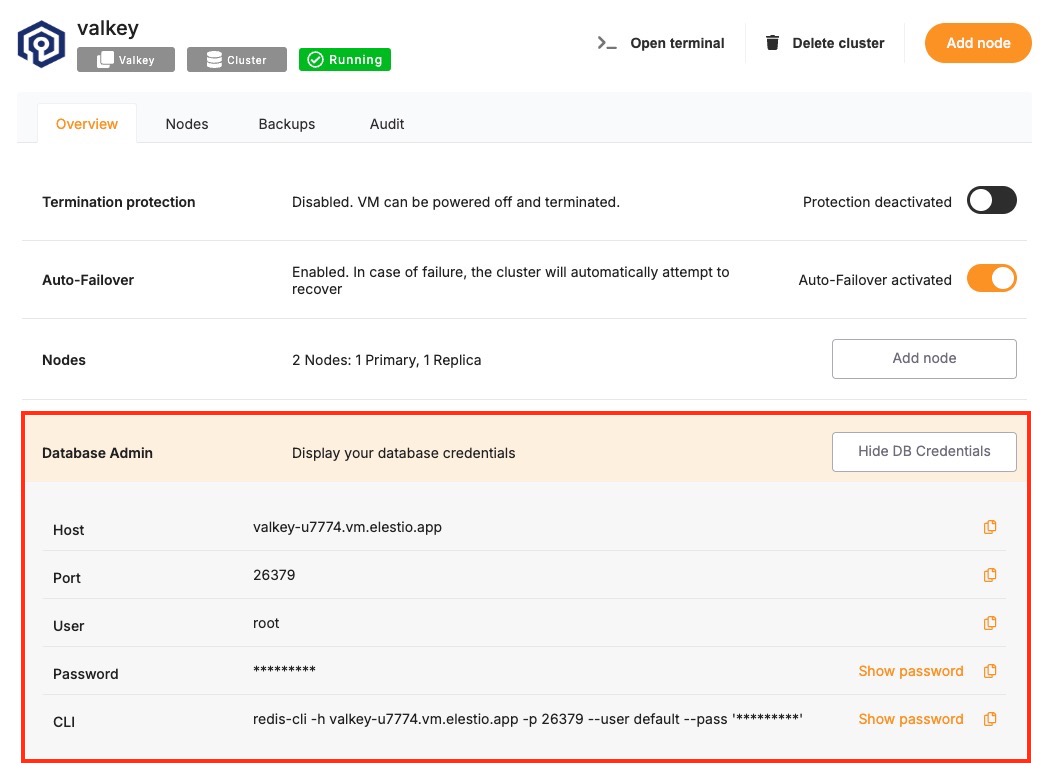
Certain parameters must be provided to establish a successful connection to a Valkey database. Below is a breakdown of each required variable, its purpose, and where to find it. Here’s what each variable represents:
| Variable | Description | Purpose |
|---|---|---|
HOST | Valkey hostname, from the Elestio service overview page | The address of the server hosting your Valkey instance. |
PORT | Port for Valkey connection, from the Elestio service overview page | The network port used to connect to Valkey. The default port is 6379. |
PASSWORD | Valkey password, from the Elestio service overview page | The authentication key required to connect securely to Valkey. |
These values can usually be found in the Elestio service overview details as shown in the image below, make sure to take a copy of these details and add it to the code moving ahead.
Prerequisites
Install Java
Check if Java is installed by running:
java -version
If not installed, download it from oracle.com and install.
Download Jedis and Dependencies
The Jedis library enables Java applications to interact with Valkey. You need to download two JAR files manually:
-
Jedis JAR (Jedis 5.1.0):
https://repo1.maven.org/maven2/redis/clients/jedis/5.1.0/jedis-5.1.0.jar
-
Apache Commons Pool2 JAR (Required by Jedis):
https://repo1.maven.org/maven2/org/apache/commons/commons-pool2/2.11.1/commons-pool2-2.11.1.jar
Place both JAR files in the same directory as your Java file.
Code
Once all prerequisites are set up, create a new file named Valkey.java and add the following code:
import redis.clients.jedis.JedisPooled;

public class Valkey {
    public static void main(String[] args) {
        String host = "HOST";
        int port = PORT; // e.g., 6379
        String password = "PASSWORD";

        JedisPooled jedis = new JedisPooled(host, port, password);

        try {
            jedis.set("testKey", "Hello Valkey");
            String value = jedis.get("testKey");

            System.out.println("Connected to Valkey");
            System.out.println("Retrieved value: " + value);

        } catch (Exception e) {
            System.out.println("Valkey connection or operation failed: " + e.getMessage());
        }
    }
}
To execute the script, open the terminal or command prompt and navigate to the directory where Valkey.java is located. Once in the correct directory, run the following commands:
On Linux/macOS :
javac -cp "jedis-5.1.0.jar:commons-pool2-2.11.1.jar" Valkey.java
java -cp ".:jedis-5.1.0.jar:commons-pool2-2.11.1.jar" Valkey
On Windows :
javac -cp "jedis-5.1.0.jar;commons-pool2-2.11.1.jar" Valkey.java
java -cp ".;jedis-5.1.0.jar;commons-pool2-2.11.1.jar" Valkey
If the connection is successful, the terminal will display output similar to:
Connected to Valkey
Retrieved value: Hello Valkey
Connecting with RedisInsight
This guide explains how to establish a connection between RedisInsight and a Valkey database instance. It walks through the necessary setup, configuration, and connection steps using the official Redis GUI.
Variables
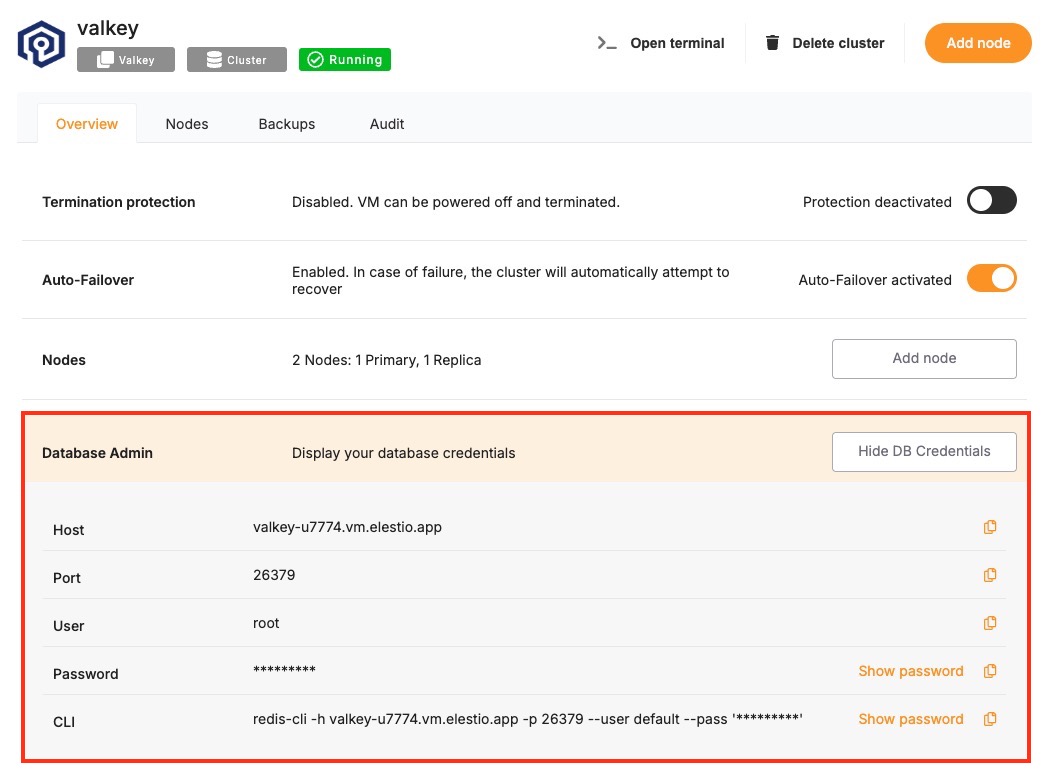
Certain parameters must be provided to establish a successful connection to a Valkey database. Below is a breakdown of each required variable, its purpose, and where to find it. Here’s what each variable represents:
| Variable | Description | Purpose |
|---|---|---|
HOST | Valkey hostname, from the Elestio service overview page | The address of the server hosting your Valkey instance. |
PORT | Port for Valkey connection, from the Elestio service overview page | The network port used to connect to Valkey. The default port is 6379. |
PASSWORD | Valkey password, from the Elestio service overview page | The authentication key required to connect securely to Valkey. |
These values can usually be found in the Elestio service overview details as shown in the image below, make sure to take a copy of these details and add it to the tool moving ahead.
Prerequisites
Install RedisInsight
RedisInsight is a graphical tool for managing Redis databases. Download and install RedisInsight from:
https://redis.com/redis-enterprise/redis-insight/
RedisInsight is available for Windows, macOS, and Linux.
Steps
Once all prerequisites are set up, follow these steps to connect:
-
Launch RedisInsight
Open the RedisInsight application after installation.
-
Add a New Valkey Database
Click on “Add Valkey Database”.
-
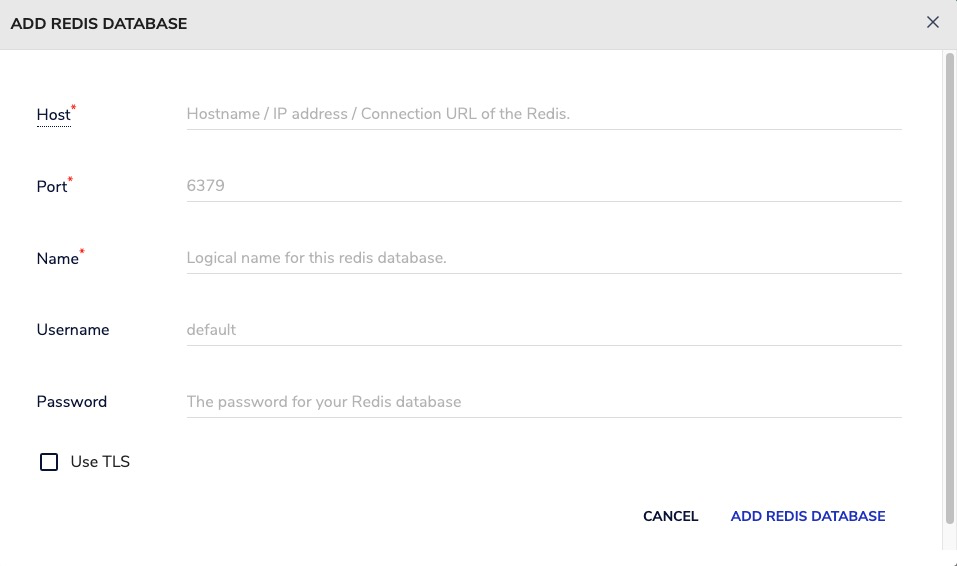
Enter Your Connection Details
Fill in the following fields using your Elestio Valkey service information:
- Host: HOST
- Port: PORT
- Password: PASSWORD
-
Test and Save the Connection
Click on “Test Connection” to verify the details. If successful, click “Connect” or “Add Database”.
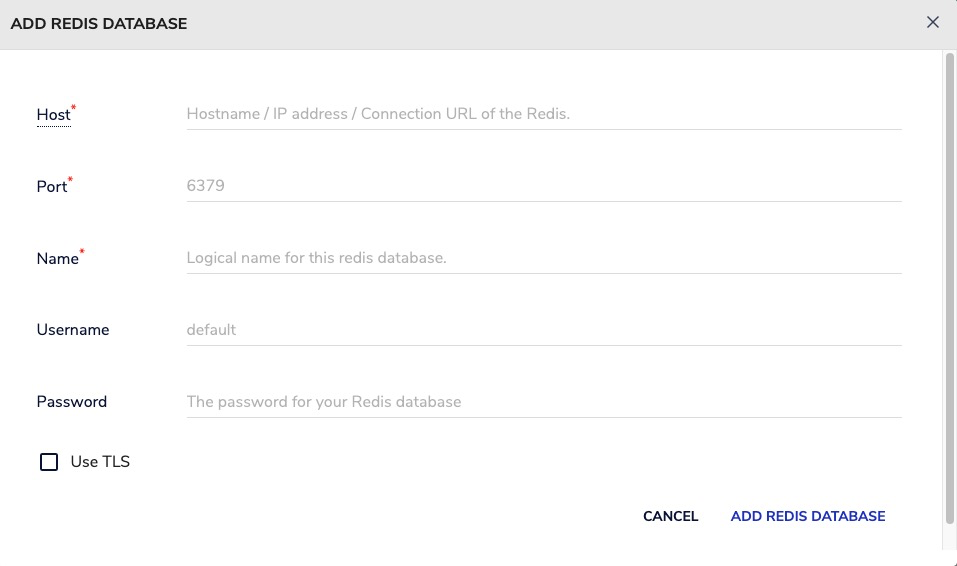
If the connection is successful, RedisInsight will display a dashboard showing key metrics, data structures, memory usage, and allow you to interact directly with Valkey using a built-in CLI or visual browser.
Connecting with keydb-cli
This guide explains how to establish a connection between valkey-cli and a Valkey database instance. It walks through the necessary setup, configuration, and execution of a simple Valkey command from the terminal.
Variables
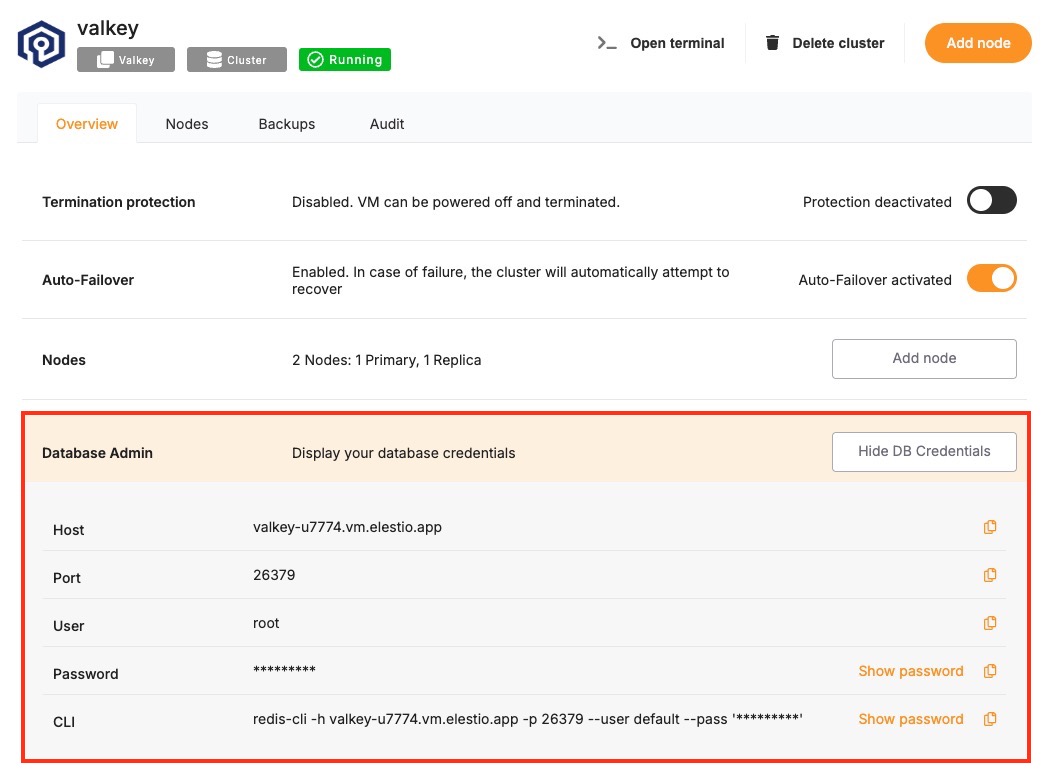
Certain parameters must be provided to establish a successful connection to a Valkey database. Below is a breakdown of each required variable, its purpose, and where to find it. Here’s what each variable represents:
| Variable | Description | Purpose |
|---|---|---|
HOST | Valkey hostname, from the Elestio service overview page | The address of the server hosting your Valkey instance. |
PORT | Port for Valkey connection, from the Elestio service overview page | The network port used to connect to Valkey. The default port is 6379. |
PASSWORD | Valkey password, from the Elestio service overview page | The authentication key required to connect securely to Valkey. |
These values can usually be found in the Elestio service overview details as shown in the image below. Make sure to take a copy of these details and use them in the command moving ahead.
Prerequisites
Install valkey-cli
Check if valkey-cli is installed by running:
valkey-cli --version
If not installed, you can install it via:
- macOS:
brew install valkey
- Ubuntu/Debian:
sudo apt-get install valkey-tools
- Windows:
Use Windows Subsystem for Linux (WSL) or download the CLI binaries from the Valkey GitHub releases page.
Command
Once all prerequisites are set up, open the terminal or command prompt and run the following command:
valkey-cli -h HOST -p PORT -a PASSWORD
Replace HOST, PORT, and PASSWORD with the actual values from your Elestio Valkey service.
If the connection is successful, the terminal will display a Valkey prompt like this:
127.0.0.1:6379>
Test the Connection
You can then run a simple command to test the connection:
set testkey "Hello Valkey"
get testkey
Expected output:
OK
"Hello Valkey"
If the connection is successful, the terminal will display output similar to the above.