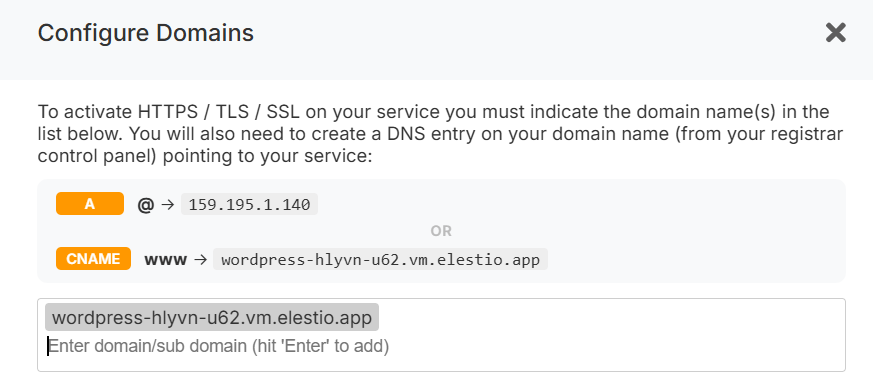
this Thissection, opensyou thewill `ModalConfigureSSL` modal (for services) or `ModalConfigureDomain` modal (for CI/CD pipelines), which provideshave two methodsways forto configuringconfigure custom domains:
domains.
---
##
Method 1: Manual DNS Setup
From
the
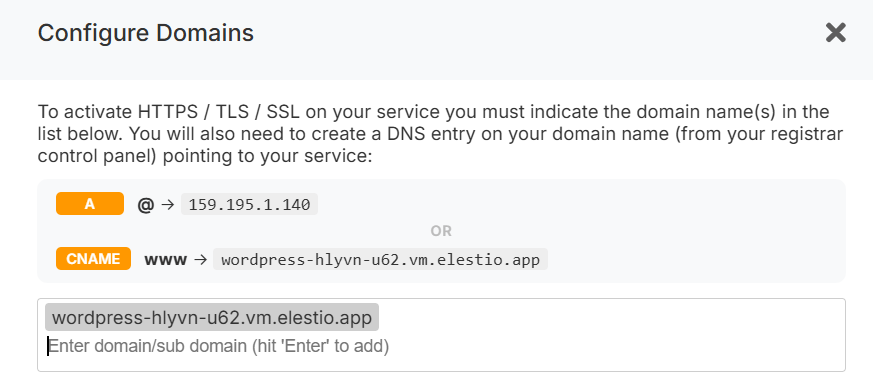
modal,In youthis canstep, manage allowed domains for SSL. Typeenter your domain and press Enter to add it to the list of authorized domains.
You
will also need to create aConfigure DNS entryrecords (fromin your domain registrar controlpanel.
panel)
to
pointRequired yourDNS Records
A record:
@ → <service IPv4>
(Points the root domain to your service.service TheIP)
modal
displays
theCNAME required DNS records:
record:
- **A record**: `@`www → `<service IPv4>` (points your root domain to the service IP)
- **CNAME record**: `www` → `<service CNAME>`
(Recommended (preferred —remains won'tstable changeeven if your IP changes, e.g., after cloning/migratingmigration.)
to
another
provider)
-
Once added, verify yourVerify DNS entrypropagation is propagated withusing a tool likelike: https://dnschecker.org/
Once propagated,propagation is complete, the SSL should work instantly on your service. The certificate will be automatically generated and renewed.
renewed, and ---
HTTPS will ##start working.
Method 2: One-Click DNS Setup via Cloudflare (Domain Connect)
A
> This option is visible only to Elestio admin users (`user.isAdmin`).
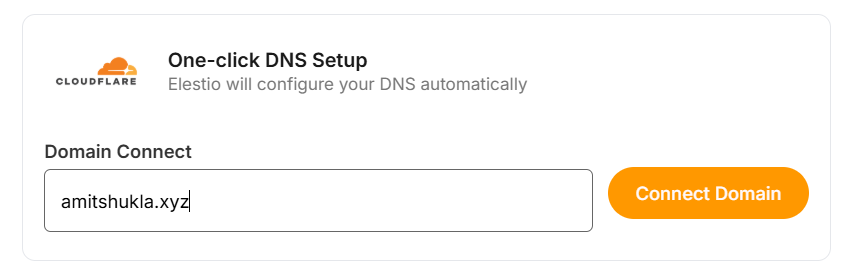
Below the manual domain list, a **"One-click DNS Setup"**Setup section is available
(powered byif the
`DomainConnectButton`domain component).name Thisserver usesor registrar is Cloudflare, allowing automatic DNS configuration via the Domain Connect
protocolprotocol.
to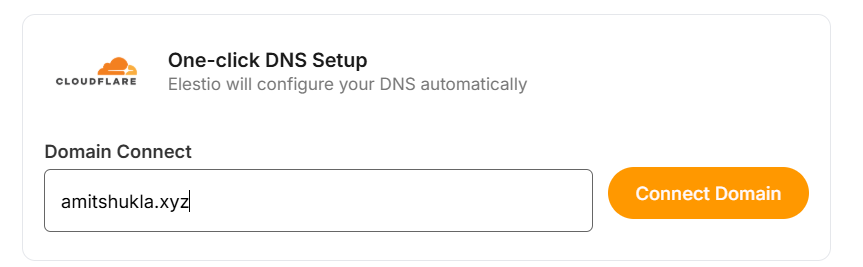
automaticallySteps
configure
DNS
records.
### How it works
1. Enter your domain (e.g. `example.com`com).
in
the
Click Connect Domain.
Connect
input
field.
2. Click **"Connect Domain"**.
3. The system calls the `getDomainConnectUrl` API with the server ID, domain, and host (`@`).
4. Based on the response:
- **`status: "OK"`** — The user is redirected to the DNS provider (e.g. Cloudflare) to authorize and apply DNS records automatically. Before redirecting, the current page path and context (source, pipelineID, projectID) are saved to `localStorage` for return navigation.
- **`status: "NOT_SUPPORTED"`** — Domain Connect is not supported for this domain's DNS provider. The user is shown a message to configure DNS manually instead.
- **Error** — An error message is displayed.
### Domain validation
The domain input validates against the pattern: `^([a-zA-Z0-9-]+\.)+[a-zA-Z]{2,}$`
### localStorage keys used
- `domainConnectReturnUrl` — Stores the current page path to redirect back after DNS provider authorization.
- `domainConnectContext` — Stores JSON with `source` ("pipeline" or "service"), `pipelineID`, and `projectID` for context restoration.
---
## PTR Record Configuration
When the action type is `managePTRrecord`, the modal switches to PTR record mode:
1. Enter your domain in the input field (pre-filled with existing PTR record or CNAME).
2. Create both DNS records:
- **A record** pointing to the service IPv4
- **AAAA record** pointing to the service IPv6
3. Verify propagation via dnschecker.org links provided in the modal.
4. Click **Update** to apply.
### Provider-specific notes
- **DigitalOcean**: This action will rebootredirect you to the system.Cloudflare Duedashboard tofor accepting the DNS cache,record PTRconfiguration.
adjusts
automatically
within
a few hours.
- **Scaleway**: For SMTP servers, you may need to disable IPv6 on the VM.
---
##
Cloudflare Reverse Proxy Users
If you are using method 1 and want Cloudflare reversewith the proxy enabled (orange cloud icon), pleaserefer checkto the detailed instructionsguide:
about Cloudflare & Elestio here:
---
##
Environment Variable Update
Some
Forapplications somerequire software, you must also updateupdating an
envenvironment varvariable to
indicatereflect the
domainconfigured domain.

To update:
Go to bethe used.Overview Topage doof thatyour service.
Click the Update Config tab in the overviewsoftware screenrow.
of
your
service, click onOpen the UPDATEEnv CONFIGtab.
button
>
Env tab > updateUpdate the domaindomain-related envenvironment varvariable.
with
your
domain.
---
## Troubleshooting
Troubleshooting: SSL Not Generated
View
Nginx Logs
You can displayinspect thelogs nginx log with this command inusing a terminal:
terminal command:
cd /opt/elestio/nginx;
docker-compose logs -f;
Press Ctrl+Ctrl + C to stop displaying the live logs.
###
Reset SSL_DATASSL folder
Data Folder
In some cases, the `SSL data directory /opt/elestio/nginx/ssl_data`ssl_data folder canmay become corrupt.corrupted:
IfTo thisfix:
happens,
connect
Connect to ayour terminalservice andvia tryterminal.
this:Run the below command.
cd /opt/elestio/nginx/;
docker-compose down;
mv ./ssl_data/ ./ssl_data_old/;
mkdir ./ssl_data/;
chmod 777 ./ssl_data/;
docker-compose up -d
Once executed, just open your custom website URL again, and your certificate should be generated and your site served over SSL/TLS.
---
## Component Architecture
| Component | File | Purpose |
|---|---|---|
| `ModalConfigureSSL` | `src/components/common/modal/ModalConfigureSSL.jsx` | SSL/domain management for services (includes PTR record mode) |
| `ModalConfigureDomain` | `src/components/common/modal/ModalConfigureDomain.jsx` | Domain management for CI/CD pipelines |
| `DomainConnectButton` | `src/components/serviceDetail/DomainConnectButton.jsx` | One-click DNS setup via Domain Connect protocol |
### API Actions (via `doActionOnServer` / `doActionOnPipeline`)
- `SSLDomainsList` — List current SSL domains
- `SSLDomainsAdd` — Add a domain to the SSL list
- `SSLDomainsRemove` — Remove a domain from the SSL list
- `getDomainConnectUrl` — Get the Domain Connect redirect URL for automatic DNS configuration