
Open Telekom Cloud (OTC) or BYO-TCloud (Bring Your Own TCloud Account)
Elestio supports Open Telekom Cloud (OTC) as a Bring Your Own Cloud (BYO-TCloud) provider. This allows you to deploy and manage services directly on your own OTC infrastructure while Elestio handles automation, provisioning, monitoring, and operations.
This guide explains how to prepare your OTC account and connect it to Elestio.
What You Will Need
Before starting, make sure you have the following credentials:
| Credential | Description | Example |
|---|---|---|
| Access Key (AK) | OTC IAM user access key | JDIXXXXXXXXXXXXXXXXXXX |
| Secret Key (SK) | OTC IAM user secret key | wJalrXUtnFEMI... |
| Domain Name | OTC account domain identifier | OTC00000000001 |
Where to find Domain Name:
Log in to the OTC Console → click your account name (top-right) → open My Account / Account Info. The domain name is listed there and typically starts withOTC00.
Step 1: Create a Dedicated IAM User
We strongly recommend creating a dedicated IAM user for Elestio instead of using root credentials.
-
Log in to the OTC Console: https://console.otc.t-systems.com
-
Go to IAM (Identity and Access Management)
-
Open Users from the sidebar
-
Click Create User
-
Fill in:
-
Username:
elestio-service(or any preferred name) -
Access Type: Programmatic access
-
Password: Not required
-
-
Click Next → Create
-
Copy or download:
-
Access Key (AK)
-
Secret Key (SK)
-
⚠️ The Secret Key is shown only once. Store it securely.
Step 2: Assign Required IAM Permissions
Elestio requires permissions to provision and manage cloud infrastructure.
Go to:
IAM → User Groups → Create Group (or use existing group)
Then assign the following policies with scope:
Scope must be: All resources [Existing and future projects]
Required Policies / Scope
1. ECS Admin
Provides full control over Elastic Cloud Servers.
Used for:
-
Creating and deleting VMs
-
Managing server lifecycle
-
Keypair management for SSH access
2. ECS FullAccess
Extends ECS Admin with deeper instance operations.
Used for:
-
Reboot, power control, and resizing
-
Instance state management APIs
3. EVS FullAccess
Provides full access to Elastic Volume Service (block storage).
Used for:
-
Creating and attaching root volumes
-
Managing backups
-
Expanding and deleting storage volumes
4. VPC Administrator
Provides full network management permissions.
Used for:
-
VPC and subnet creation
-
Security group configuration
-
Elastic IP (EIP) management
-
Firewall rule automation
5. KMS CMKReadOnlyAccess
Read-only access to Key Management Service (KMS).
Used for:
-
Fetching
evs/defaultencryption key -
Encrypting root volumes at creation time
⚠️ Ensure the
evs/defaultkey exists in: OTC Console → DEW → Key Management Service
If missing, create a key with the alias: evs/default
6. DNS Administrator
Provides full control over DNS and reverse DNS (PTR) records.
Used for:
-
Automatic PTR record configuration
-
Email deliverability support
-
SSL validation compatibility
Step 3: Enable Encrypted Disk Support (One-Time Setup per region)
Elestio uses encrypted EVS volumes by default. We do not create encryption keys ourselves; instead, we use the default encryption key that already exists in your OTC account.
For first-time use of encrypted disks, OTC requires a service agency to be created before encrypted volumes can be provisioned.
Create the Required Agency
If this is the first encrypted disk being created in your OTC account:
-
Log in to the OTC Console.
-
Navigate to Elastic Volume Service (EVS).
-
Click Create Disk.
-
Enable the Encryption checkbox.
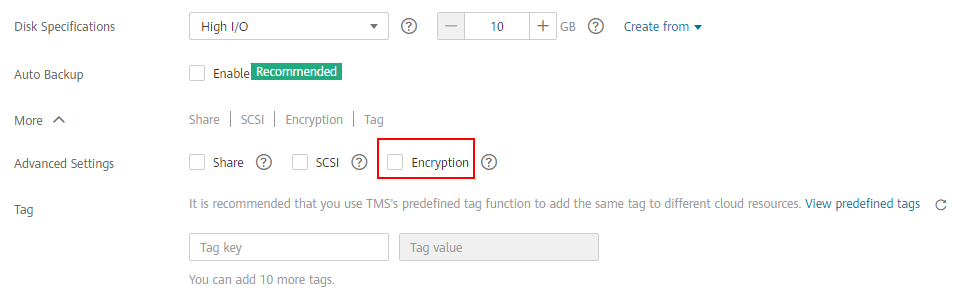
-
When prompted, accept the confirmation dialog to create the required agency by selecting the button "OK."
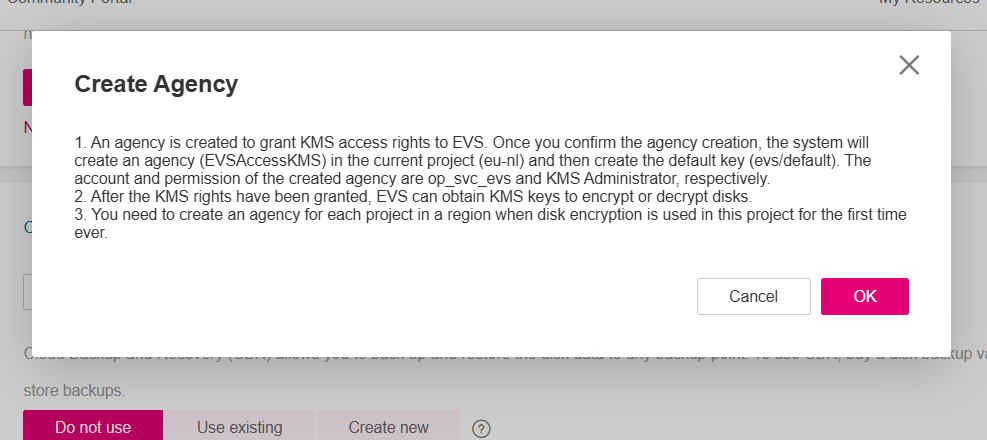
Once the agency has been created, you can close the process, and encrypted EVS volumes can be provisioned successfully by Elestio.
Important: This is a one-time setup per OTC account and per region. After the agency has been created, no further action is required. If you plan to deploy resources in multiple OTC regions, repeat this process once in each region you intend to use.
Reference:
These same instructions are documented in the OTC EVS documentation under Figure 2:
Step 4: Create or Retrieve Access Keys
If you didn’t save credentials during user creation:
-
Go to IAM → Users
-
Select your
elestio-serviceuser -
Open Security Credentials
-
Click Create Access Key
-
Copy:
-
Access Key (AK)
-
Secret Key (SK)
-
⚠️ Secret Key cannot be retrieved again after creation.
Step 5: Find Your OTC Domain Name
-
Log in to OTC Console
-
Click your account name (top-right)
-
Open My Credentials / Account Info
-
Copy the Domain Name
Example:
OTC00000000001Step 6: Connect OTC to Elestio
-
Log in to your Elestio dashboard https://dash.elest.io
- Select the service that you want to deploy.
-
Go to Cloud Provider
-
Select BYO-TCloud Open Telekom Cloud (OTC)
-
Enter:
-
Access Key (AK)
-
Secret Key (SK)
-
Domain Name
-
-
Click Verify Config
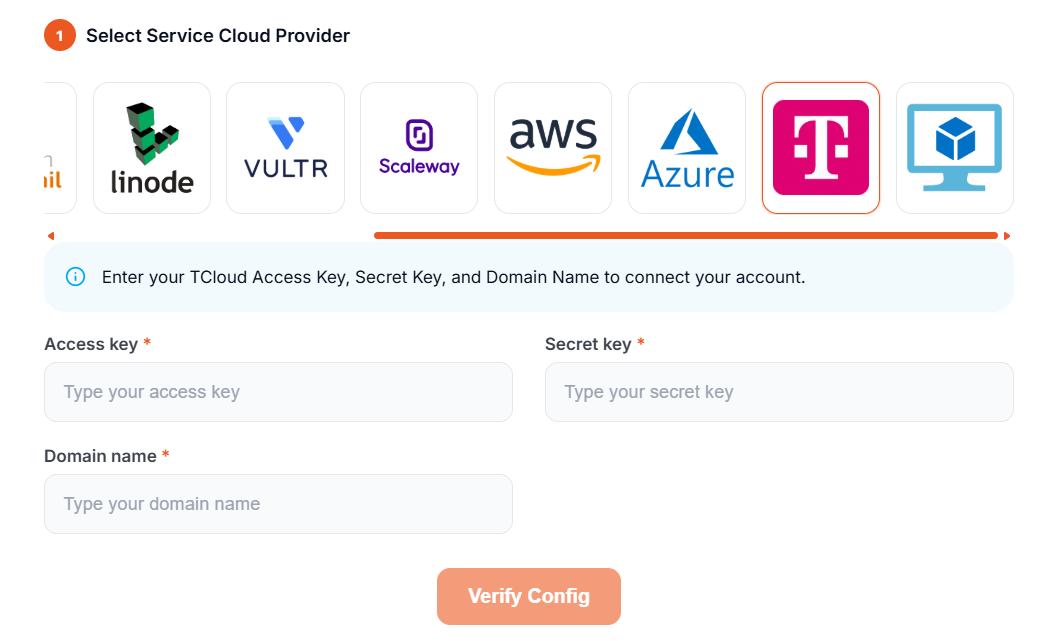
Elestio will validate your credentials and permissions automatically.
Troubleshooting
Invalid credentials
-
Ensure no extra spaces in AK/SK
-
Verify Domain Name matches OTC console
-
Confirm IAM user is active
Missing permissions
-
Ensure all 6 policies are assigned
-
Check scope:
All resources [Existing and future projects]
No OTC projects found
-
Ensure at least one region project is enabled (e.g., eu-de and eu-nl)
-
Contact OTC support if missing
Missing EVS/default key
-
Go to DEW → Key Management Service
-
Create a key with alias:
evs/default
Existing services are inaccessible after the update
-
Ensure IAM user has access to all regions
-
Verify region mapping for existing resources
Summary
| Step | Action |
|---|---|
| 1 | Create an IAM user with programmatic access |
| 2 | Assign required IAM policies |
| 3 | Generate Access Key & Secret Key |
| 4 | Retrieve Domain Name |
| 5 | Connect in Elestio and verify |
Once connected, Elestio will fully manage provisioning, scaling, backups, and lifecycle operations on your OTC infrastructure.