Change Nameservers
Point your domain at Elestio nameservers or your own DNS provider.
Nameservers are the first thing domain names look to when they need to know where the content of a site is located. Nameservers dictate the DNS, which means you have to set up the DNS records with your nameserver provider.
If you use elestio nameservers, then elestio manages and hosts your DNS, and everything DNS-related needs to be set up in your elestio account. If you do not use elestio domain nameservers then we do NOT manage your DNS, and you will need to set up the DNS records with your nameserver provider.
In order to manage DNS records or use URL forwarding through elestio, you will need to use our default nameservers which are:
- ns1.name.com
- ns2.name.com
- ns3.name.com
- ns4.name.com
You can add the default elestio nameservers or point others by following the instructions below:
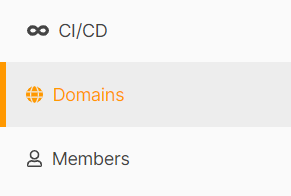
Step 1: Navigate to the Domains page from the left sidebar.
Step 2: Select your domain from the list to change the name server record.
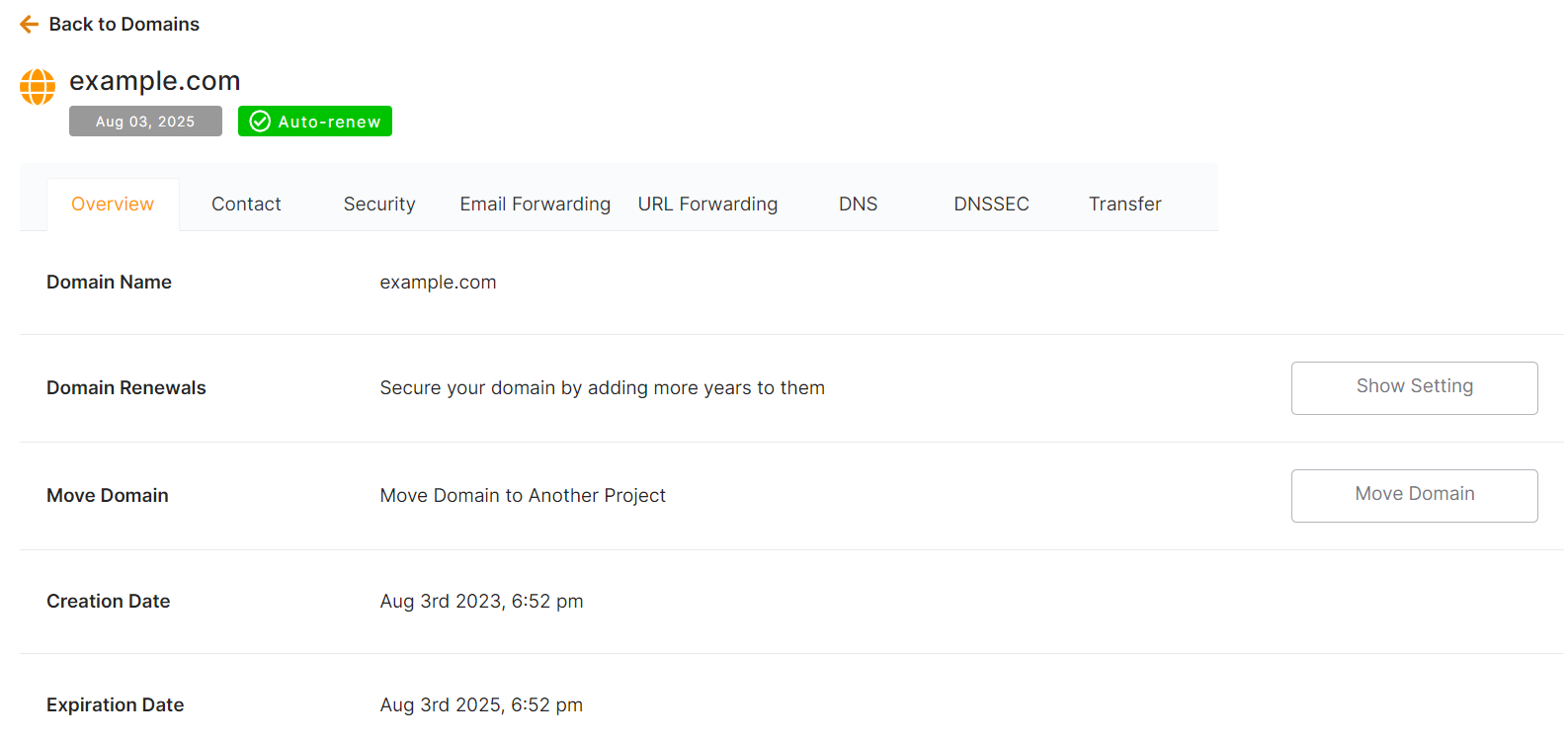
Step 3: In the Domain overview, click the Security tab.
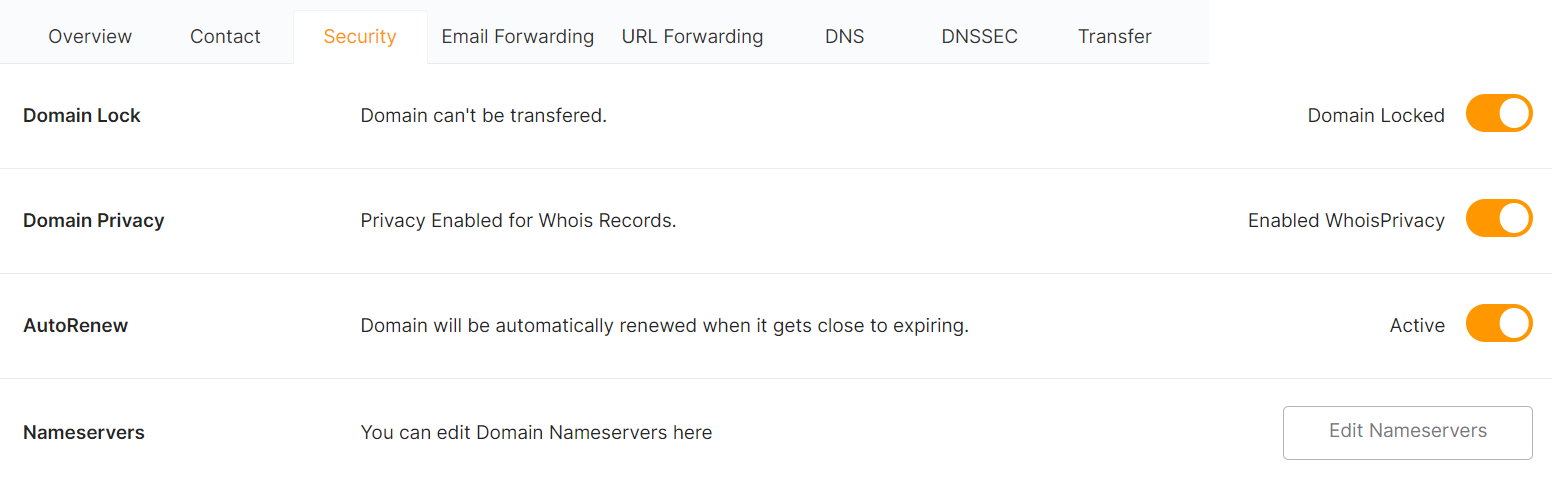
Step 4: Now, In the NameServers row, click the Edit NameServers button.

Step 5: You can add or update your name server record here. To save your changes, click the Update information button.