Projects and Teams
Group your services into projects and share access with your team.
Projects
Overview
Project is a collection of services. It's useful to group your services by project name.
All services are billed to the owner of the project. You can invite coworkers as read-only or admins of your projects, this way they can use the different resources safely.
Only the owner of the project can create a new service.
When creating an account, you will automatically be added to the default-project project as Administrator Project Owner.
You must manually associate Projects and Roles within your Team. A GIF outlining the process is below.
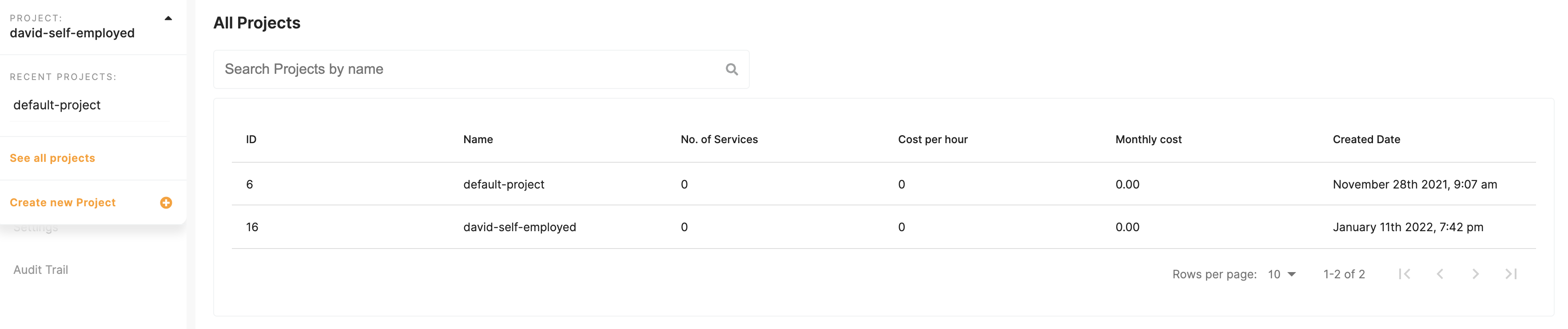
You can see all of your projects by clicking on Project dropdown and See all projects.
Each project has its own global private network based on Nebula.
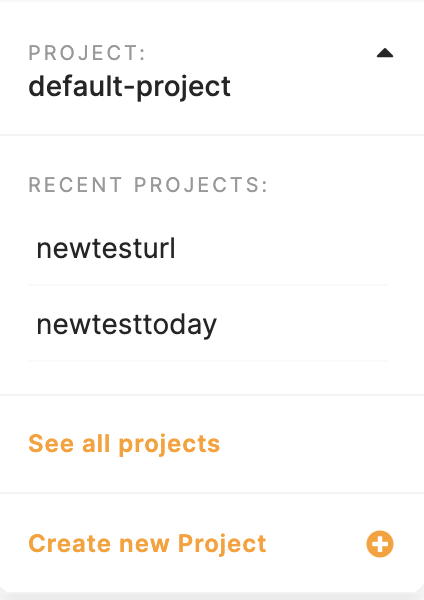
Create a project
Click on Project dropdown and Create new Project
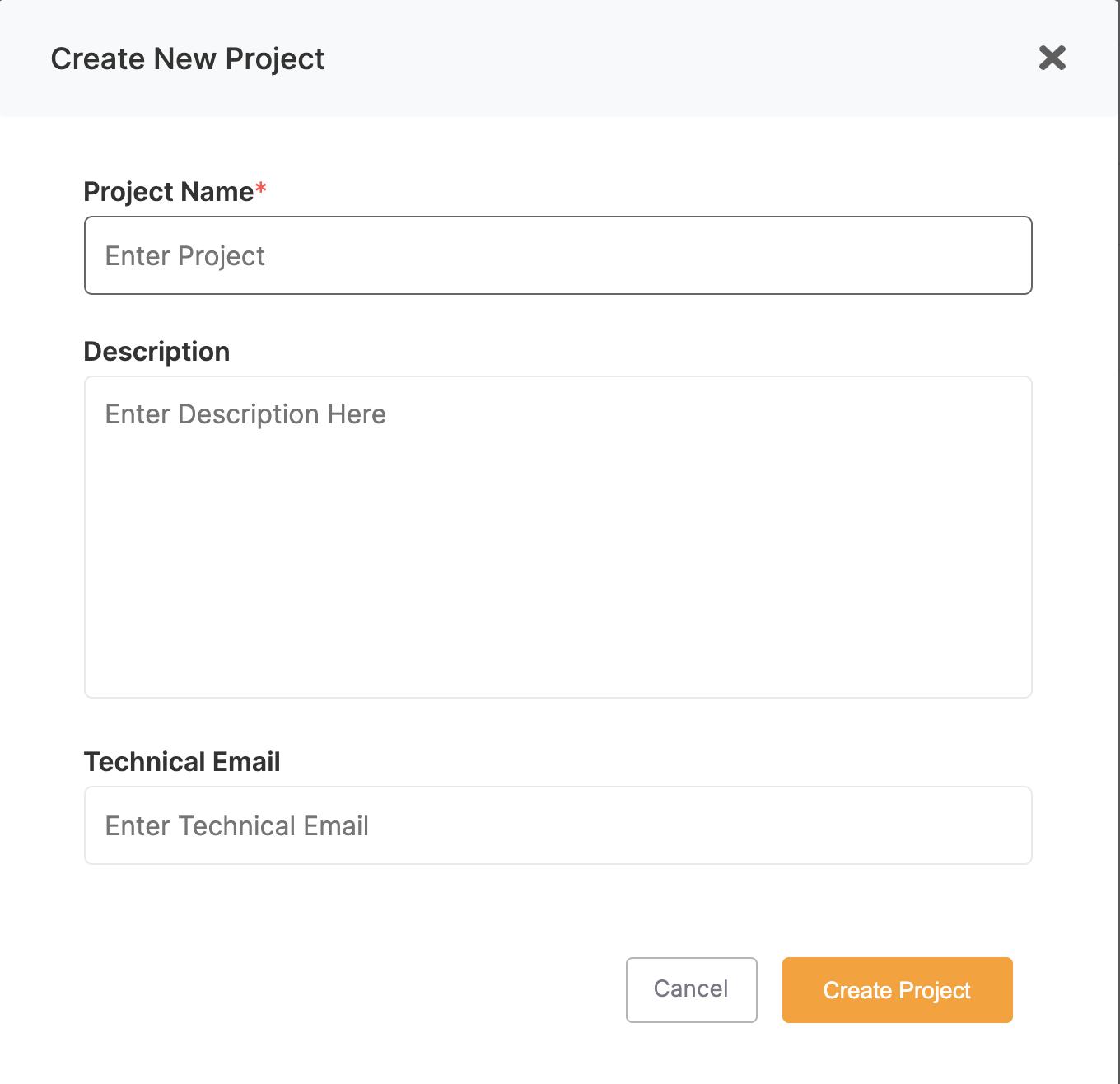
- Project information
- Give a name to your project
- Give a description of your project
- Give an email where you will receive all the technical information related to plan sizes, performance, and maintenance. If no email is specified, we will still send information to the project owner user.
Manage projects
Changing project settings
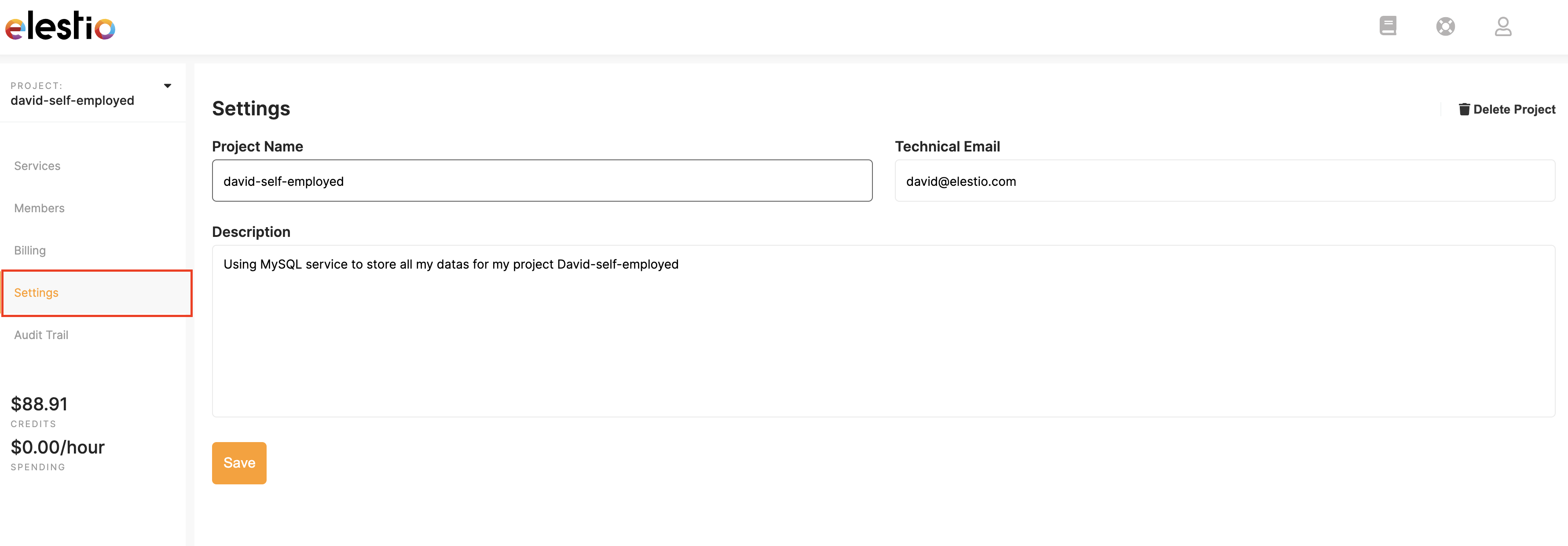
Select Settings from the left menu.
You can easily rename your project, change the technical email target and update the project description.
Don't forget to press Save to store your update!
Delete a project
How do I delete a project?
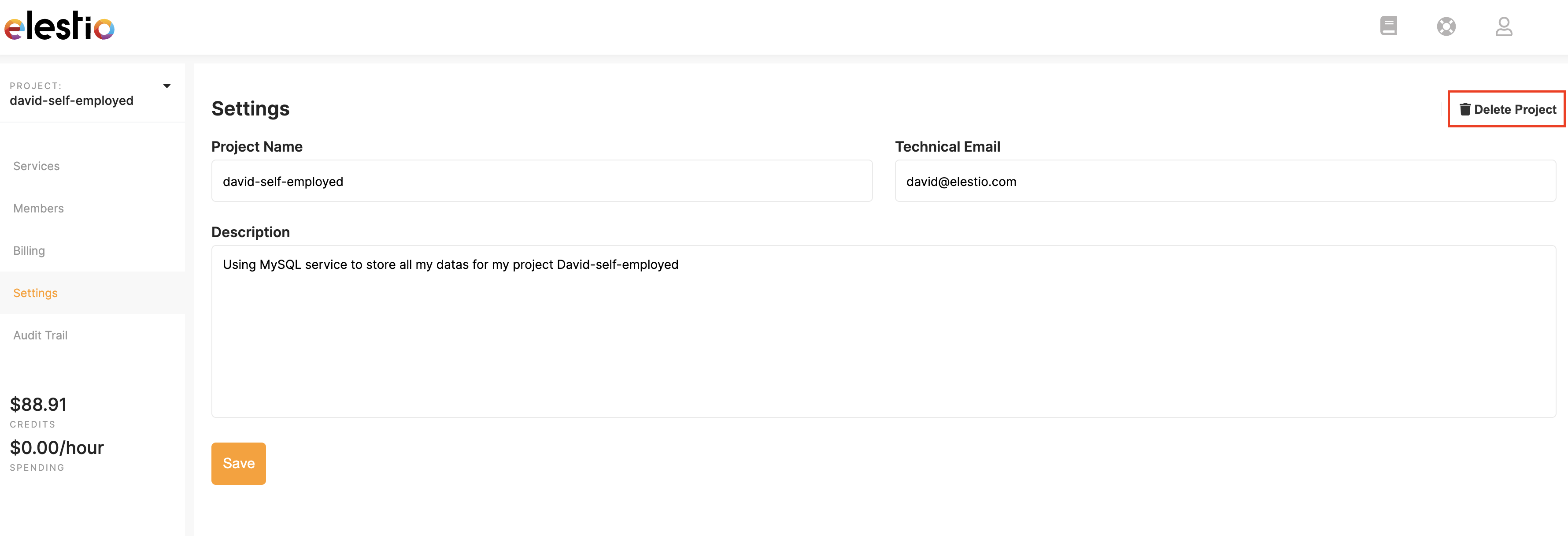
Only owners and admins of projects have permission to delete a project.
- Click on
Project Settingsin the left menu - Select
Delete Project
A user must always have at least one project.
In order to delete a project, it must be free of any services.
We'll always ask for your permission before confirming deletion, so if you click this button by accident, fear not!
Leave a project
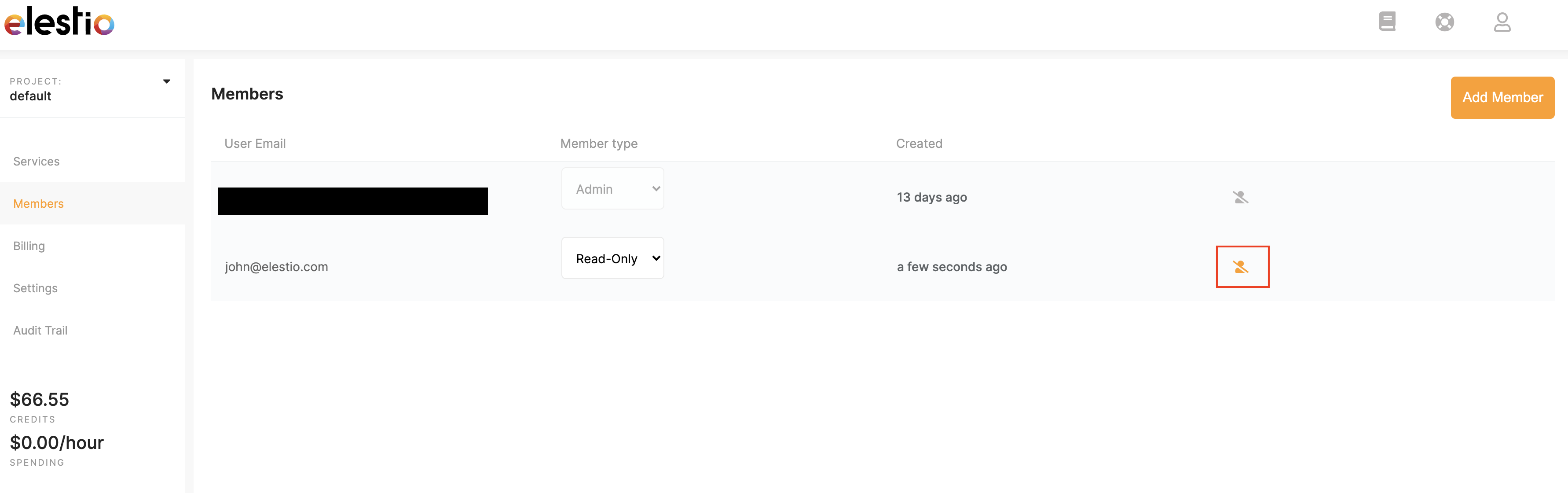
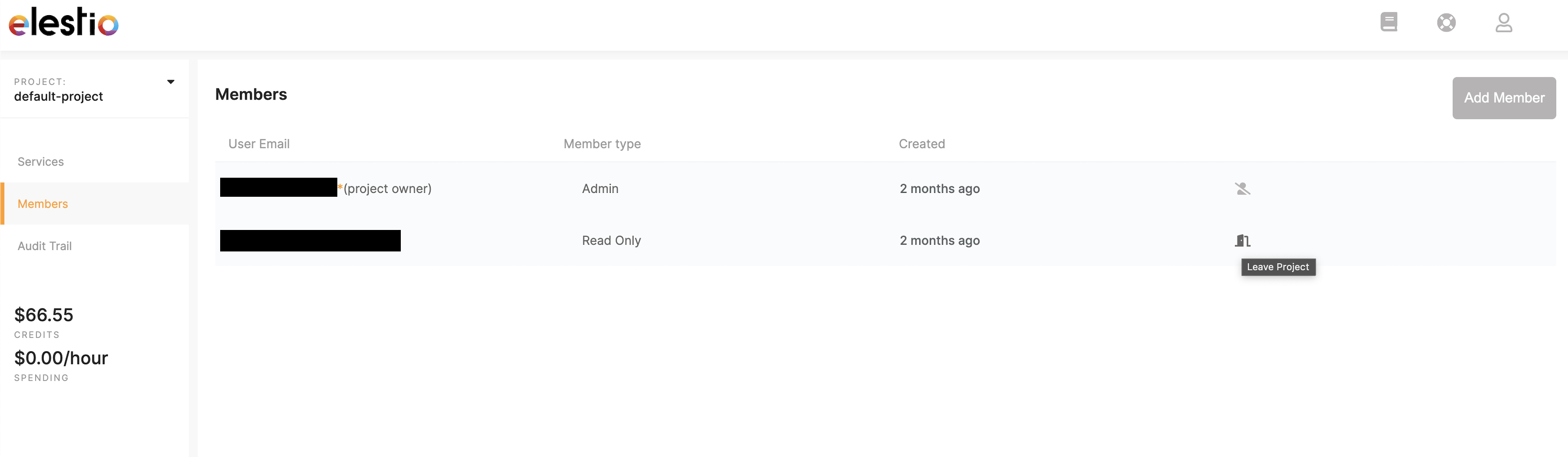
Read-only users are able to leave projects.
- Select
Membersin the left menu - Select the
Leave Projecticon to the right of the project you wish to leave
Update AWS Account Access and Secret Credentials
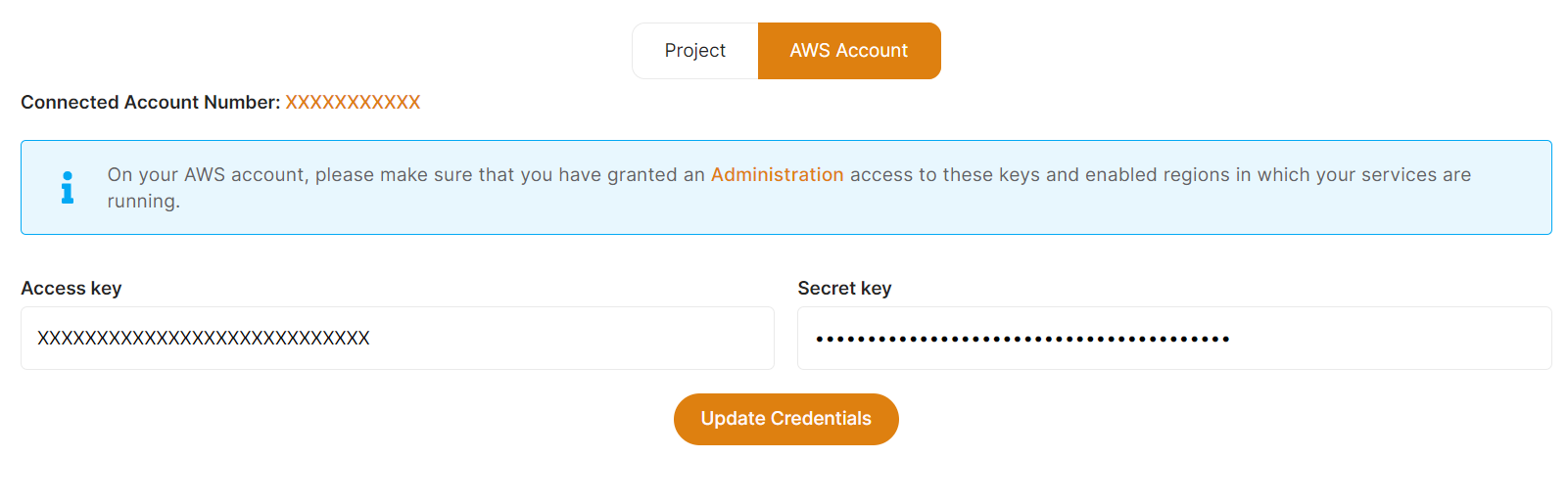
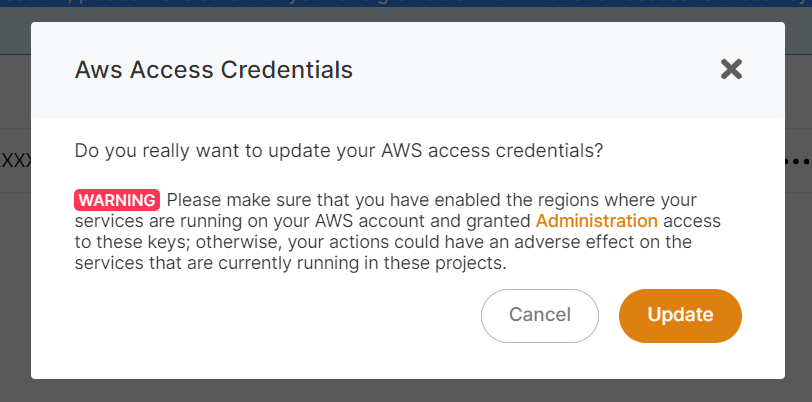
You can update your AWS Access and Secret Credentials at any time inside your project settings.
To update AWS account credentials, go to the project settings in the left sidebar and then to the AWS Account tab.
Enter your AWS Account Administration New access Access Key and Secret Key here, then click the Update Credentials button to validate your new AWS access credentials.
When you click Update Credentials, a confirmation prompt will appear. If you want to update your credentials, click Update; otherwise, click Cancel to reject the update.
Teams
Overview
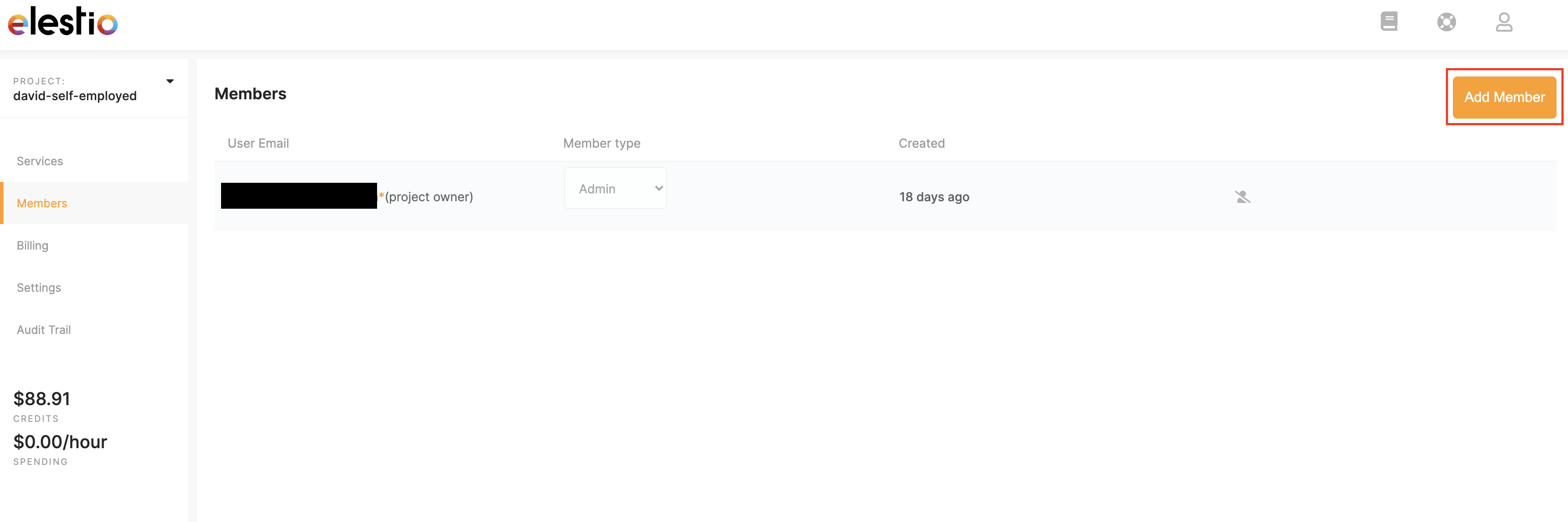
Creating a project assigns you an administrator role as the project owner. As an administrator (Admin) you can invite people to a project and assign them specific access.
To invite a member:
- Select
Membersfrom the left menu - Press the
Add Memberbutton - Enter the member's email address and select their access level
Send Invitation
Member Roles:
Admin (Project owner)
When you create a project, you are automatically assigned as a project owner. You can create a service, remove members and create/edit and delete services within your project.
Admin
Administrators are provided full access to services but are unable to create services.
Read-Only These members are only allowed to view services and are unable to make any changes.
Only Project owner Admins are billed for services within a project.
Add a member
Want to invite someone to your team?
To invite a member:
- Select
Membersfrom the Main menu on the left of the Dashboard - Press the
Add Memberbutton - Enter the member's email address and select their access level
- Press
Send Invitation
Admins are authorized to invite more users to a project. Admins have full access to make changes to services.
Read-Only members are only allowed to view services but are unable to make any changes.
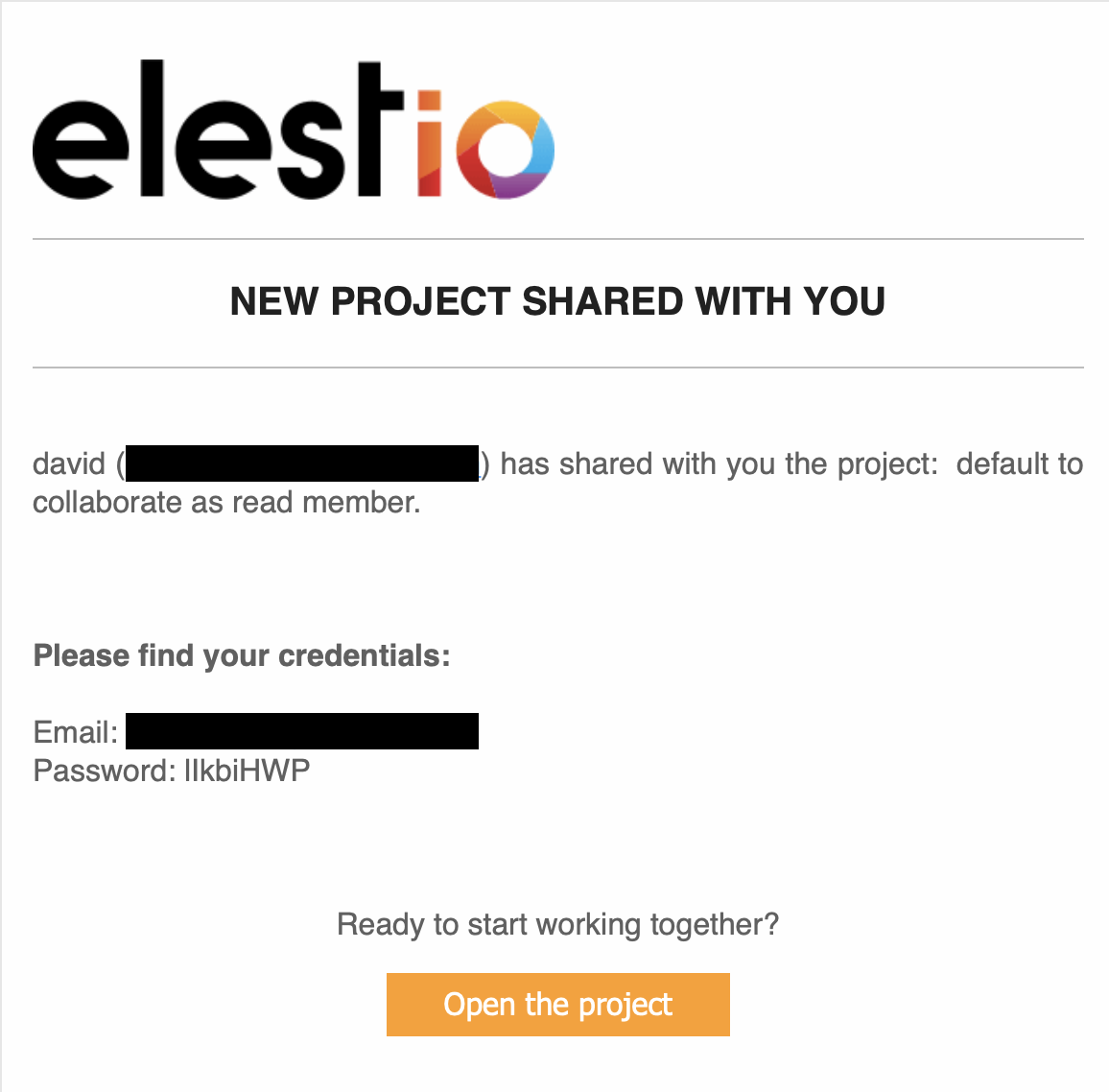
The invited member will receive a confirmation email containing their username (email) and password. They can use this to log in to the elestio dashboard.
Delete a member
You can easily delete a member from your project when and if you need to.
Only admins can delete other members.
To delete a member:
- Select
Membersfrom the Main menu tab on the left of the Dashboard. - Click on the user icon to the right of the user you wish to delete.
- Confirm you really wish to delete the user before pressing
Remove - Deleted users will automatically lose access to your elestio project.
Deleting a member from the elestio dashboard only removes their access to elestio, not your deployed services.
If appropriate, please consider revisiting your service credentials.
The project owner cannot be deleted by other Admins.