Connect to TimescaleDB
Connect to your Elestio TimescaleDB database from your application and CLI tools.
Connecting with Node.js
This guide walks you through the process of connecting a Node.js application to a TimescaleDB database using the pg package. You’ll learn how to set up the environment, configure the connection, and run a simple SQL query.
Variables
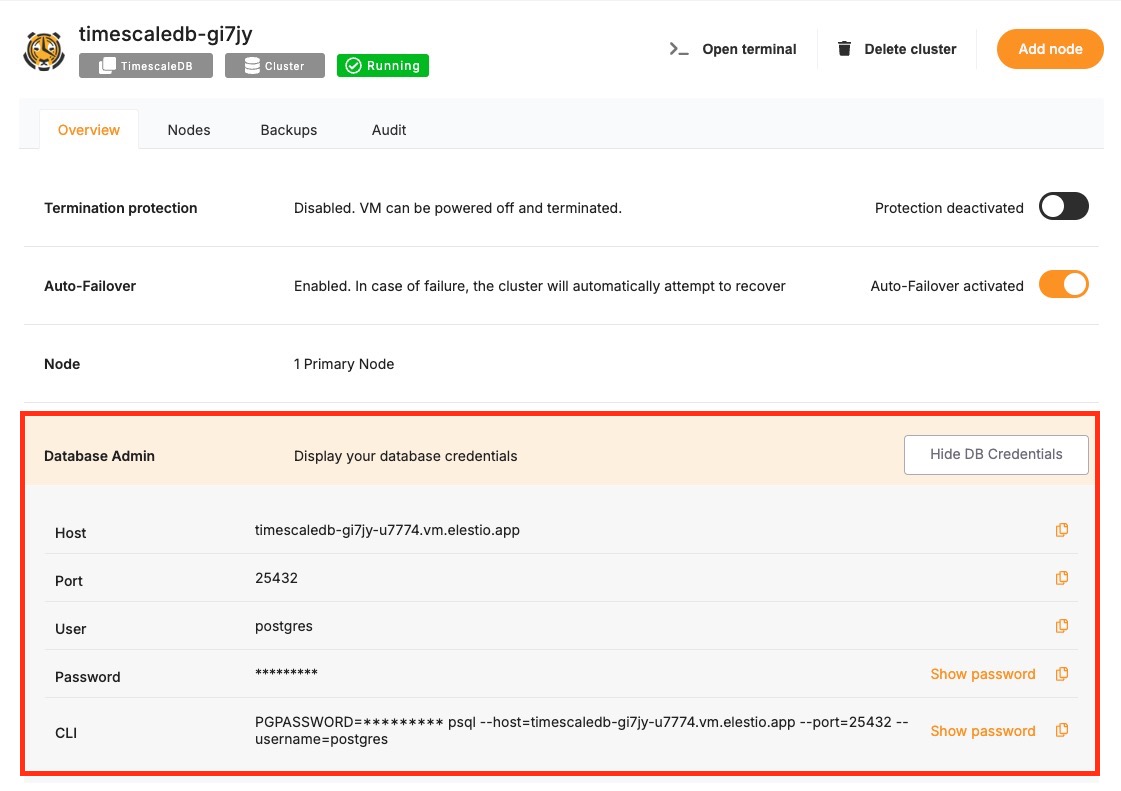
To connect to a TimescaleDB database, the following parameters are required. You can find these details in the Elestio service overview page of your TimescaleDB service.
| Variable | Description | Purpose |
|---|---|---|
USER | TimescaleDB (PostgreSQL) username | Identifies the database user with access privileges |
PASSWORD | TimescaleDB password | Authenticates the user against the TimescaleDB database |
HOST | Hostname of the TimescaleDB instance | Specifies the server address of the database |
PORT | Port for TimescaleDB (usually 5432) | Specifies the network port for connections |
DATABASE | Name of the TimescaleDB database | Specifies which database to access |
These values can usually be found in the Elestio service overview details as shown in the image below, make sure to take a copy of these details and add it to the code moving ahead.
Prerequisites
- Install Node.js and NPM
- Check if Node.js is installed:
node -v
npm -v
-
- If not, download and install it from https://nodejs.org.
- Install the pg Package
- TimescaleDB is PostgreSQL-compatible, so use the pg package:
npm install pg --save
Code
Once all prerequisites are set up, create a new file named tdb.js and add the following code.
const { Client } = require("pg");

// Database connection configuration
const config = {
  host: "HOST",
  user: "USER",
  password: "PASSWORD",
  database: "DATABASE",
  port: PORT,
  ssl: {
    rejectUnauthorized: false, // Only if TimescaleDB requires SSL (check Elestio settings)
  },
};

// Create a new client instance
const client = new Client(config);

// Connect to the TimescaleDB database
client.connect((err) => {
  if (err) {
    console.error("Connection failed:", err.stack);
    return;
  }

  console.log("Connected to TimescaleDB");

  // Run a test query
  client.query("SELECT version()", (err, res) => {
    if (err) {
      console.error("Query failed:", err.stack);
    } else {
      console.log("TimescaleDB/PostgreSQL Version:", res.rows[0].version);
    }

    // Close the connection
    client.end((err) => {
      if (err) console.error("Error closing connection:", err.stack);
    });
  });
});
To execute the script, open the terminal or command prompt and navigate to the directory where tdb.js. Once in the correct directory, run the script with the command
node tdb.js
If successful, you’ll see:
Connected to TimescaleDB
TimescaleDB/PostgreSQL Version: PostgreSQL 14.13 (Debian 14.13-1.pgdg120+1) on x86_64-pc-linux-gnu, compiled by gcc (Debian 12.2.0-14) 12.2.0, 64-bit
Connecting with Python
This guide explains how to connect a Python application to a TimescaleDB database using the psycopg2-binary package. It covers environment setup, configuration, and execution of a simple query to test connectivity.
Variables
To connect to a TimescaleDB database, you only need one environment variable — the connection URI.
| Variable | Description | Purpose |
|---|---|---|
TIMESCALE_URI | Full TimescaleDB (PostgreSQL-compatible) connection string from the Elestio service overview | Provides all credentials and connection details in a single URI |
A typical URI format looks like:
postgresql://<USER>:<PASSWORD>@<HOST>:<PORT>/<DATABASE>
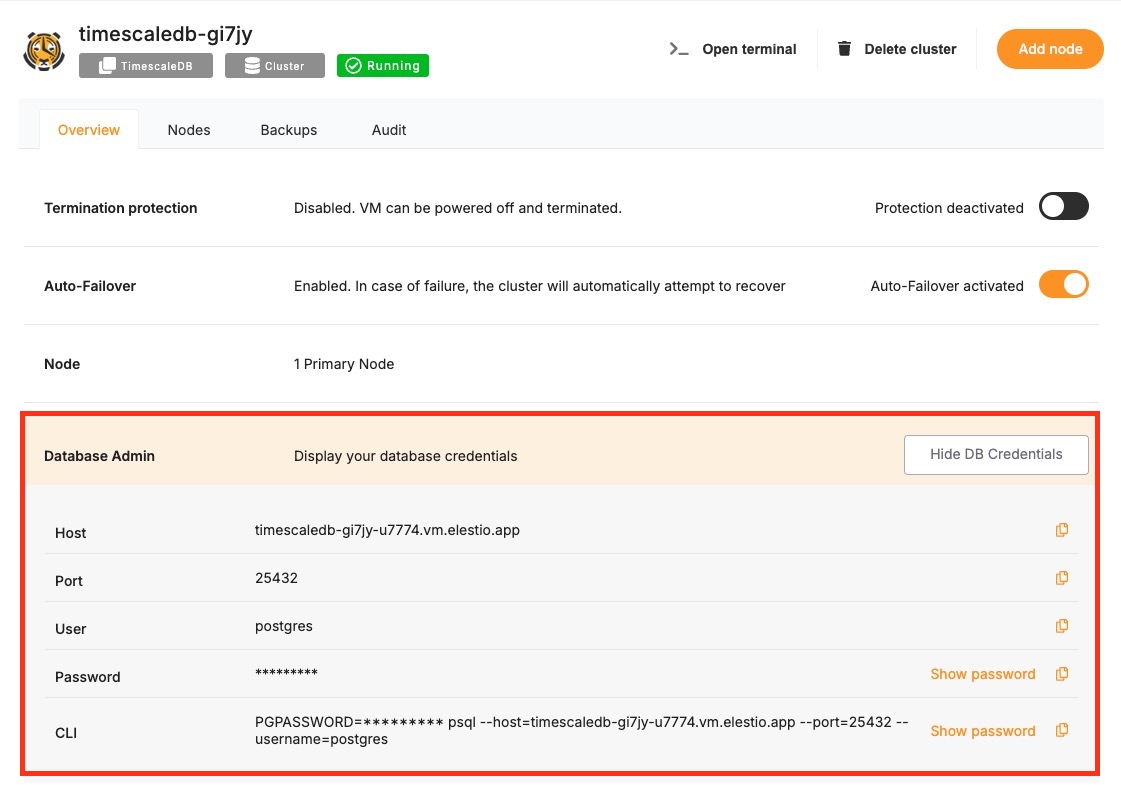
You can find the details needed in the URI from the Elestio service overview details. Copy and replace the variables carefully in the URI example provided above.
Prerequisites
Install Python
Check if Python is installed:
python --version
If not installed, download it from https://python.org.
Install psycopg2-binary
Install the PostgreSQL driver for Python:
pip install psycopg2-binary
Code
Once all prerequisites are set up, create a new file named tdb.py and add the following code and replace the TIMESCALE_URI with actual link or in environment setup as you wish:
import psycopg2
import os

def get_db_version():
    try:
        # Use the TimescaleDB URI from environment variable
        connection_uri = os.getenv('TIMESCALE_URI', 'POSTGRESQL_URI')
        db_connection = psycopg2.connect(connection_uri)
        db_cursor = db_connection.cursor()
        db_cursor.execute('SELECT VERSION()')
        db_version = db_cursor.fetchone()[0]
        return db_version

    except Exception as e:
        print(f"Database connection error: {e}")
        return None

    finally:
        if 'db_cursor' in locals():
            db_cursor.close()
        if 'db_connection' in locals():
            db_connection.close()

def display_version():
    version = get_db_version()
    if version:
        print(f"Connected to TimescaleDB: {version}")

if __name__ == "__main__":
    display_version()
🔐 Tip: Save your URI in an .env file or set it in your terminal session like this:
export TIMESCALE_URI=postgresql://user:password@host:port/database
To execute the script, open the terminal or command prompt and navigate to the directory where tdb.py. Once in the correct directory, run the script with the command
python tdb.py
If the connection is successful, you’ll see:
Connected to TimescaleDB: PostgreSQL 14.13 (Debian 14.13-1.pgdg120+1) on x86_64-pc-linux-gnu, compiled by gcc (Debian 12.2.0-14) 12.2.0, 64-bit
Connecting with PHP
This guide explains how to connect a PHP application to a TimescaleDB database using the PDO extension. It covers setting up prerequisites, configuring the connection URI, and running a test SQL query.
Variables
To connect to a TimescaleDB database, you only need one environment variable — the connection URI.
| Variable | Description | Purpose |
|---|---|---|
TIMESCALE_URI | Full TimescaleDB connection string from Elestio | Encodes all connection info in one URI |
A typical URI looks like this:
postgresql://<USER>:<PASSWORD>@<HOST>:<PORT>/<DATABASE>
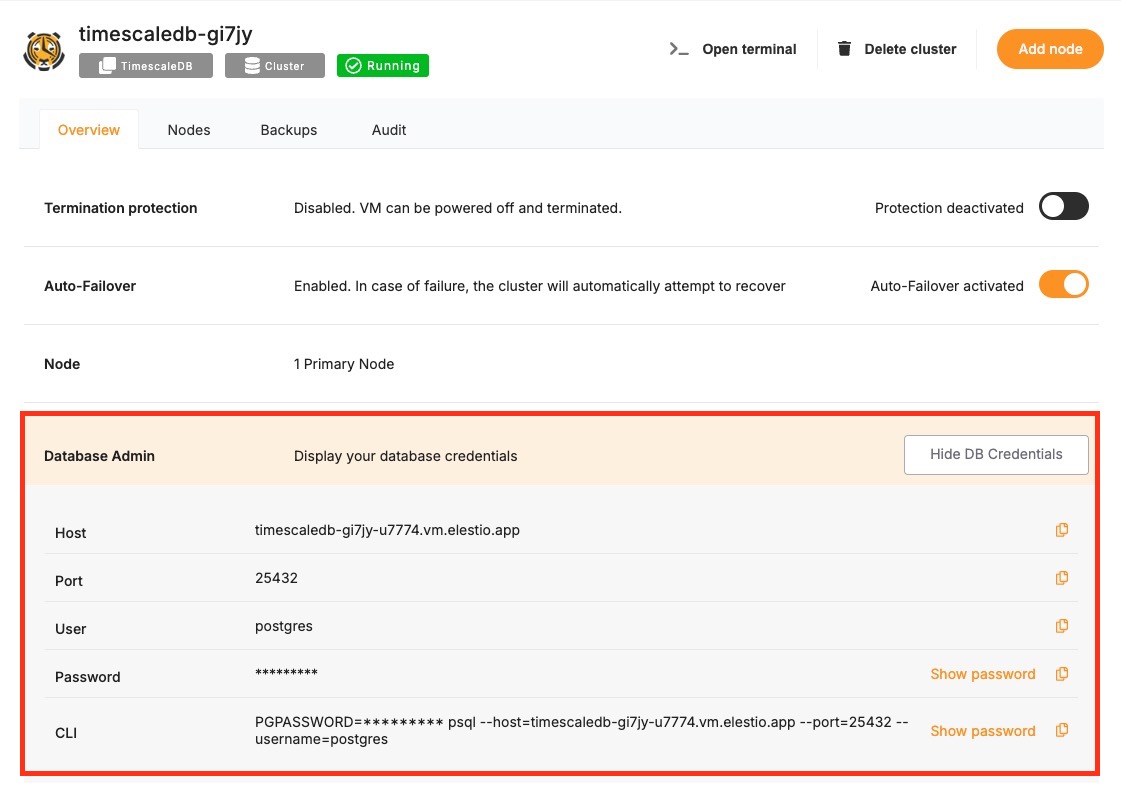
You can find the details needed in the URI from the Elestio service overview details. Copy and replace the variables carefully in the URI example provided above.
Prerequisites
Install PHP
Check if PHP is installed:
php -v
If not, download and install PHP from: https://www.php.net/downloads.php
Code
Once all prerequisites are set up, create a new file named tdb.php and add the following code and replace the TIMESCALE_URI with actual link or in environment setup as you wish:
<?php
$db_url = getenv("TIMESCALE_URI") ?: "postgresql://user:password@host:port/database";
$db_parts = parse_url($db_url);
$db_name = ltrim($db_parts['path'], '/');
$dsn = "pgsql:host={$db_parts['host']};port={$db_parts['port']};dbname={$db_name}";

try {
    $pdo = new PDO($dsn, $db_parts['user'], $db_parts['pass']);
    $version = $pdo->query("SELECT VERSION()")->fetchColumn();
    echo "Connected to TimescaleDB: " . $version . PHP_EOL;
} catch (PDOException $e) {
    echo "Connection failed: " . $e->getMessage() . PHP_EOL;
}
To execute the script, open the terminal or command prompt and navigate to the directory where tdb.php. Once in the correct directory, run the script with the command
export TIMESCALE_URI=postgresql://user:password@host:port/database
Navigate to the directory containing tdb.php and run:
php tdb.php
If successful, you’ll see output like:
Connecting with Go
This guide walks you through setting up a Go application to connect to a TimescaleDB database, using the PostgreSQL-compatible lib/pq driver, and running a basic query to verify the connection.
Variables
To connect to a TimescaleDB database, you only need one environment variable — the connection URI. This URI contains all the necessary information like username, password, host, port, and database name.
| Variable | Description | Purpose |
|---|---|---|
TIMESCALE_URI | Full TimescaleDB (PostgreSQL-compatible) connection string from the Elestio service overview | Provides all credentials and connection details in a single URI |
A typical URI format looks like:
postgresql://<USER>:<PASSWORD>@<HOST>:<PORT>/<DATABASE>
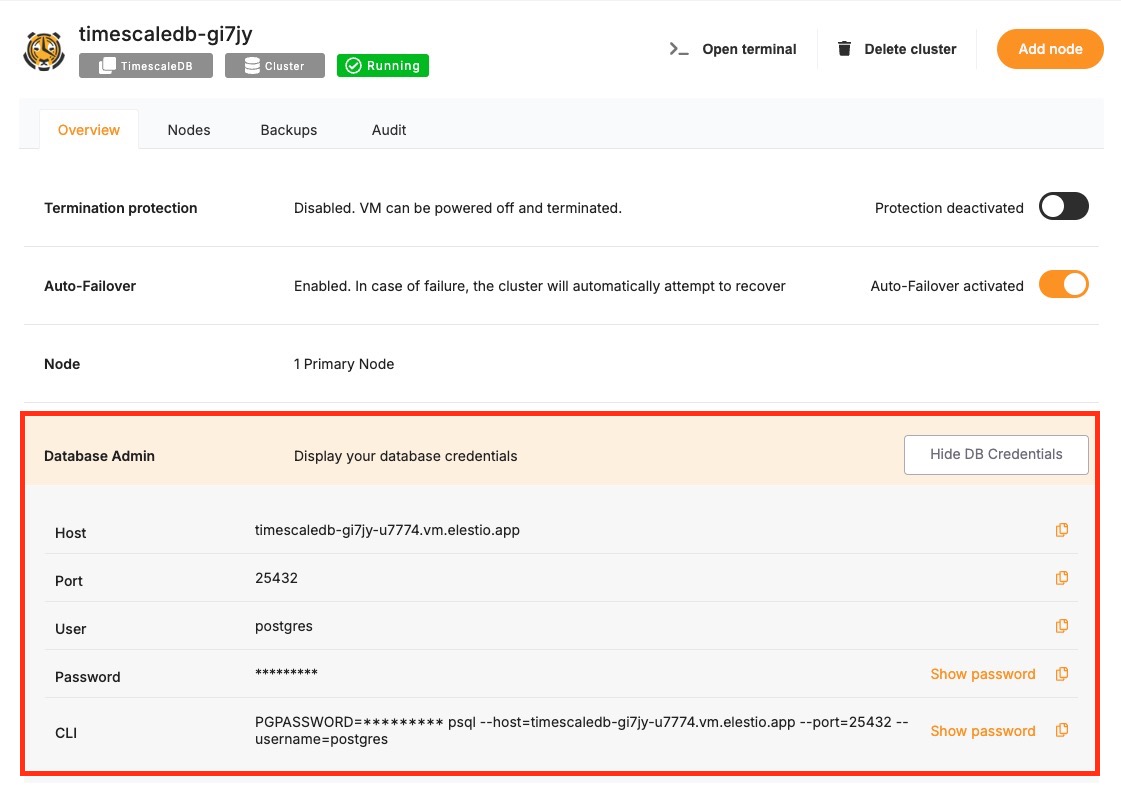
You can find the details needed in the URI from the Elestio service overview details. Copy and replace the variables carefully in the URI example provided above.
Prerequisites
- Install Go
- Check if Go is installed:
go version
-
- If not, download and install Go: https://go.dev/dl/
- Install pq Driver
go get github.com/lib/pq
Code
Once all prerequisites are set up, create a new file named main.go and add the following code, and replace the TIMESCALE_URI with actual link or in environment setup as you wish:
package main

import (
	"database/sql"
	"fmt"
	"log"
	"os"

	_ "github.com/lib/pq"
)

func getDBConnection(connStr string) (*sql.DB, error) {
	db, err := sql.Open("postgres", connStr)
	if err != nil {
		return nil, fmt.Errorf("failed to open database connection: %v", err)
	}

	if err := db.Ping(); err != nil {
		return nil, fmt.Errorf("failed to ping database: %v", err)
	}

	return db, nil
}

func main() {
	// Get the TimescaleDB connection string from environment variable
	connStr := os.Getenv("TIMESCALE_URI")
	if connStr == "" {
		log.Fatal("TIMESCALE_URI environment variable not set")
	}

	db, err := getDBConnection(connStr)
	if err != nil {
		log.Fatal(err)
	}
	defer db.Close()

	query := "SELECT current_database(), current_user, version()"
	row := db.QueryRow(query)

	var dbName, user, version string
	if err := row.Scan(&dbName, &user, &version); err != nil {
		log.Fatal("Failed to scan row:", err)
	}

	fmt.Printf("Connected to TimescaleDB\nDatabase: %s\nUser: %s\nVersion: %s\n", dbName, user, version)
}
Set your TimescaleDB URI as an environment variable:
export TIMESCALE_URI=postgresql://user:password@host:port/database
To execute the script, open the terminal or command prompt and navigate to the directory where main.go. Once in the correct directory, run the script with the command
go run main.go
If successful, you’ll see output like:
Connected to TimescaleDB
Database: elestio
User: postgres
Version: PostgreSQL 14.13 (Debian 14.13-1.pgdg120+1) on x86_64-pc-linux-gnu, compiled by gcc (Debian 12.2.0-14) 12.2.0, 64-bit
Connecting with Java
This guide shows how to connect your Java app to a TimescaleDB database using the PostgreSQL JDBC driver, parse command-line arguments, and run a basic query.
Variables
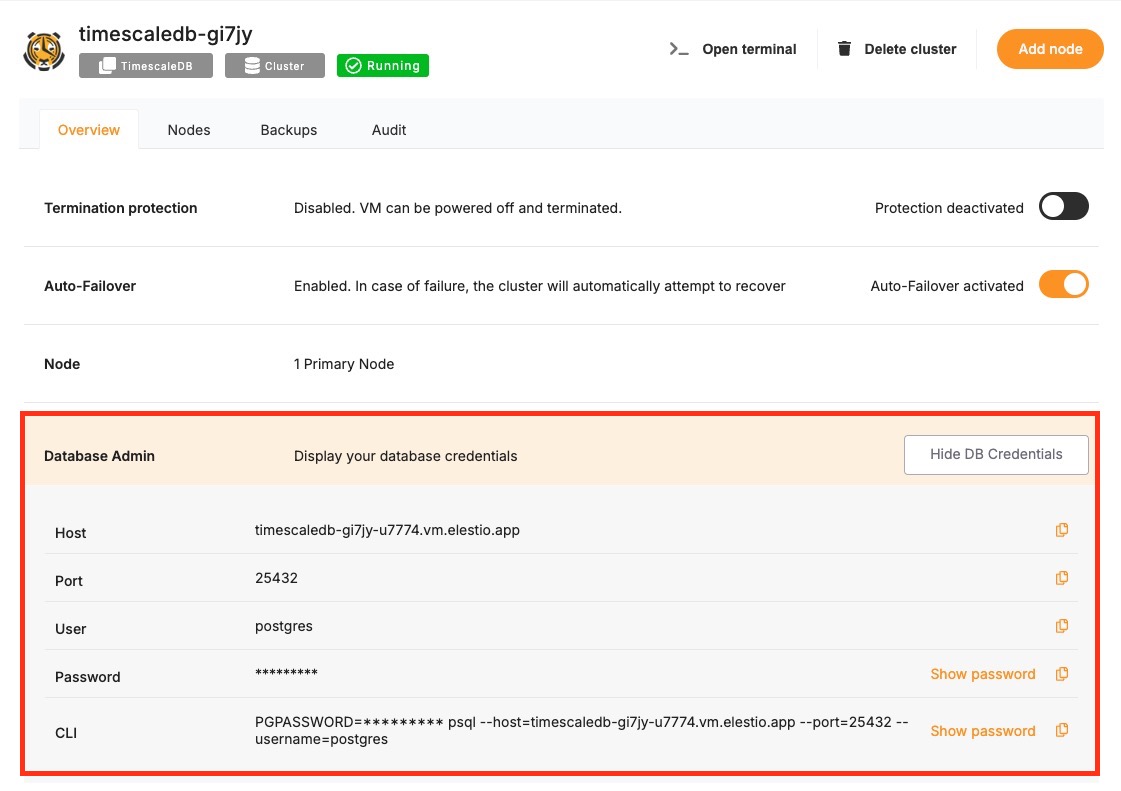
To connect to a TimescaleDB database, the following parameters are required. You can find these details in the Elestio service overview page of your TimescaleDB service.
| Variable | Description | Purpose |
|---|---|---|
USER | TimescaleDB (PostgreSQL) username | Identifies the database user with access privileges |
PASSWORD | TimescaleDB password | Authenticates the user against the TimescaleDB database |
HOST | Hostname of the TimescaleDB instance | Specifies the server address of the database |
PORT | Port for TimescaleDB (usually 5432) | Specifies the network port for connections |
DATABASE | Name of the TimescaleDB database | Specifies which database to access |
These values can usually be found in the Elestio service overview details as shown in the image below, make sure to take a copy of these details and add it to the code moving ahead.
Prerequisites
Install Java & JDBC driver
Check if Java is installed by running:
java -version
If not installed, install it first and then download and install JDBC driver from https://jdbc.postgresql.org/download/ or if you have Maven installed, run the following command with updated version of the driver:
mvn org.apache.maven.plugins:maven-dependency-plugin:2.8:get \
  -Dartifact=org.postgresql:postgresql:42.7.5:jar \
  -Ddest=postgresql-42.7.5.jar
Code
Once all prerequisites are set up, create a new file named TDB.java and add the following code:
import java.sql.Connection;
import java.sql.DriverManager;
import java.sql.ResultSet;
import java.sql.SQLException;
import java.sql.Statement;
import java.util.HashMap;
import java.util.Map;

public class TDB {

    static class Config {
        String host, port, database, username, password;

        Config(String host, String port, String database, String username, String password) {
            this.host = host;
            this.port = port;
            this.database = database;
            this.username = username;
            this.password = password;
        }

        String getJdbcUrl() {
            return String.format("jdbc:postgresql://%s:%s/%s?sslmode=require", host, port, database);
        }

        boolean isComplete() {
            return host != null && port != null && database != null && username != null && password != null;
        }
    }

    static Map<String, String> parseArgs(String[] args) {
        Map<String, String> map = new HashMap<>();
        for (int i = 0; i < args.length - 1; i += 2) {
            map.put(args[i], args[i + 1]);
        }
        return map;
    }

    public static void main(String[] args) {
        try {
            Class.forName("org.postgresql.Driver");

            Map<String, String> argMap = parseArgs(args);
            Config cfg = new Config(
                argMap.get("-host"),
                argMap.get("-port"),
                argMap.get("-database"),
                argMap.get("-username"),
                argMap.get("-password")
            );

            if (!cfg.isComplete()) {
                System.err.println("Missing required arguments. Example usage:");
                System.err.println("java -cp postgresql-42.7.5.jar:. TDB -host <HOST> -port <PORT> -database <DB> -username <USER> -password <PASS>");
                return;
            }

            try (Connection conn = DriverManager.getConnection(cfg.getJdbcUrl(), cfg.username, cfg.password)) {
                System.out.println("Connected to TimescaleDB database successfully.");

                Statement stmt = conn.createStatement();
                ResultSet rs = stmt.executeQuery("SELECT current_database(), current_user, version()");

                while (rs.next()) {
                    System.out.println("Database: " + rs.getString(1));
                    System.out.println("User: " + rs.getString(2));
                    System.out.println("Version: " + rs.getString(3));
                }

                rs.close();
                stmt.close();
            }

        } catch (ClassNotFoundException e) {
            System.err.println("PostgreSQL JDBC driver not found.");
            e.printStackTrace();
        } catch (SQLException e) {
            System.err.println("Connection or query error:");
            e.printStackTrace();
        }
    }
}
To execute the script, open the terminal or command prompt and navigate to the directory where TDB.java. Once in the correct directory, run the script with the command (Update the variables with actual values acquired from previous steps).
javac TDB.java
java -cp postgresql-42.7.5.jar:. TDB -host HOST -port PORT -database DATABASE -username USERNAME -password PASSWORD
If the connection is successful, the terminal will display output similar to:
Connected to TimescaleDB database successfully.
Database: elestio
User: postgres
Version: PostgreSQL 14.13 (Debian 14.13-1.pgdg120+1) on x86_64-pc-linux-gnu, compiled by gcc (Debian 12.2.0-14) 12.2.0, 64-bit
Connecting with psql
This guide explains how to connect to a TimescaleDB database using the psql command-line tool. It walks through the necessary setup, connection process, and execution of a simple SQL query.
Variables
To connect to a TimescaleDB database, you only need one environment variable — the connection URI.
| Variable | Description | Purpose |
|---|---|---|
TIMESCALE_URI | Full TimescaleDB connection string from Elestio | Encodes all connection info in one URI |
A typical URI looks like this:
postgresql://<USER>:<PASSWORD>@<HOST>:<PORT>/<DATABASE>
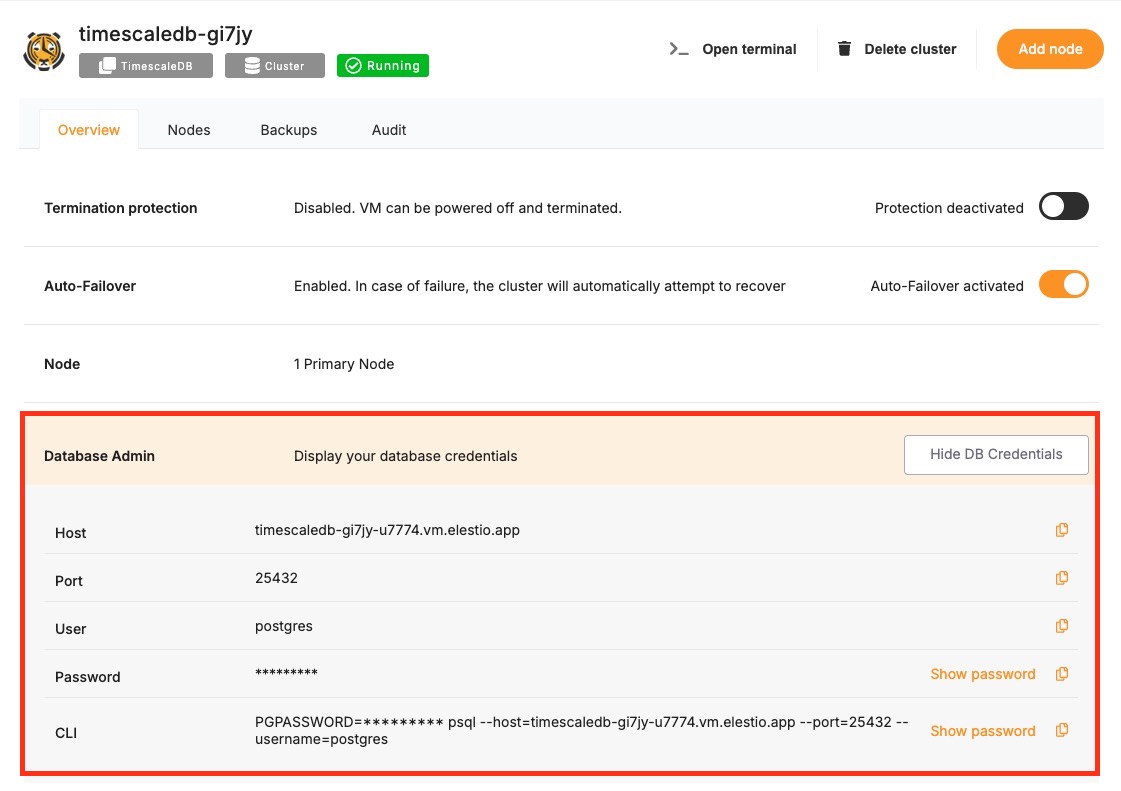
You can find the details needed in the URI from the Elestio service overview details. Copy and replace the variables carefully in the URI example provided above.
Prerequisites
While following this tutorial, you will need to have psql already installed; if not head over to https://www.postgresql.org/download/ and download it first.
Connecting to TimescaleDB
Open your terminal and run the following command to connect to your TimescaleDB database using the full connection URI:
psql TIMESCALE_URI
If the connection is successful, you’ll see output similar to this. Here it will show you the database you tried to connect to, which in this case is Elestio:
psql (17.4, server 14.13 (Debian 14.13-1.pgdg120+1))
SSL connection (protocol: TLSv1.3, cipher: TLS_AES_256_GCM_SHA384, compression: off, ALPN: none)
Type "help" for help.

elestio=#
To ensure you're connected correctly, run this command inside the psql prompt:
SELECT version();
You should receive output like the following:
version
---------------------------------------------------------------------------------------------------------------------
PostgreSQL 16.8 (Debian 16.8-1.pgdg120+1) on x86_64-pc-linux-gnu, compiled by gcc (Debian 12.2.0-14) 12.2.0, 64-bit
(1 row)
Connecting with pgAdmin
pgAdmin is a widely used graphical interface for TimescaleDB that allows you to manage, connect to, and run queries on your databases with ease.
Variables
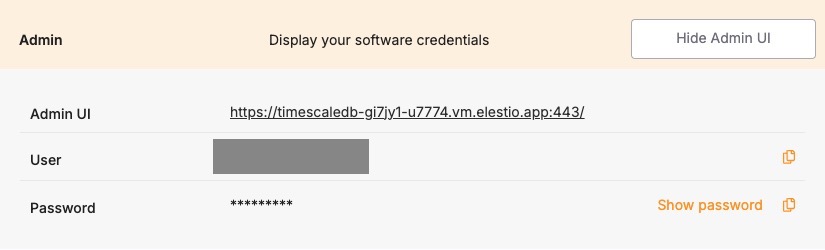
To connect using pgAdmin, you'll need the following connection parameters. When you deploy a TimescaleDB service on Elestio, you also get a pgAdmin dashboard configured for you to use with these variables. These details are available in the Elestio service overview page:
| Variable | Description | Purpose |
|---|---|---|
USER | pgAdmin username | Identifies the pgAdmin user with access permission. |
PASSWORD | pgAdmin password | Authentication key for the USER. |
You can find these values in your Elestio project dashboard under Admin section.
Prerequisites
Make sure the TimescaleDB service is correctly deployed on Elestio and you are able to access the Admin section like the one in the image above.
Setting Up the Connection
-
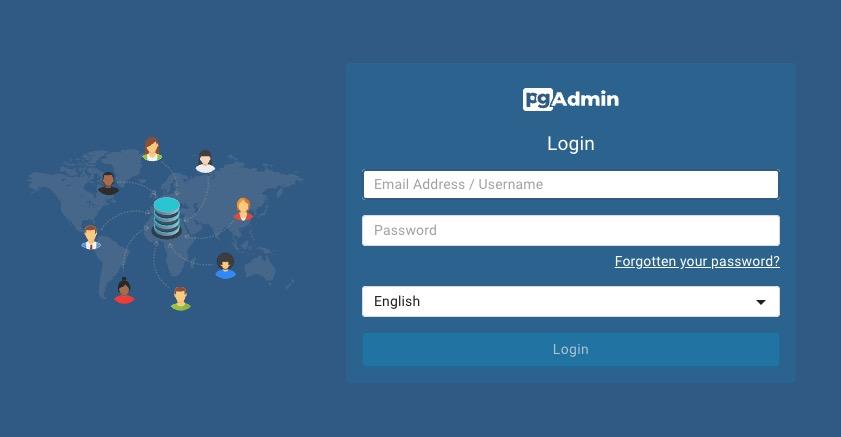
Launch pgAdmin from the Admin UI URL and log in with the credentials acquired in the steps before.
-
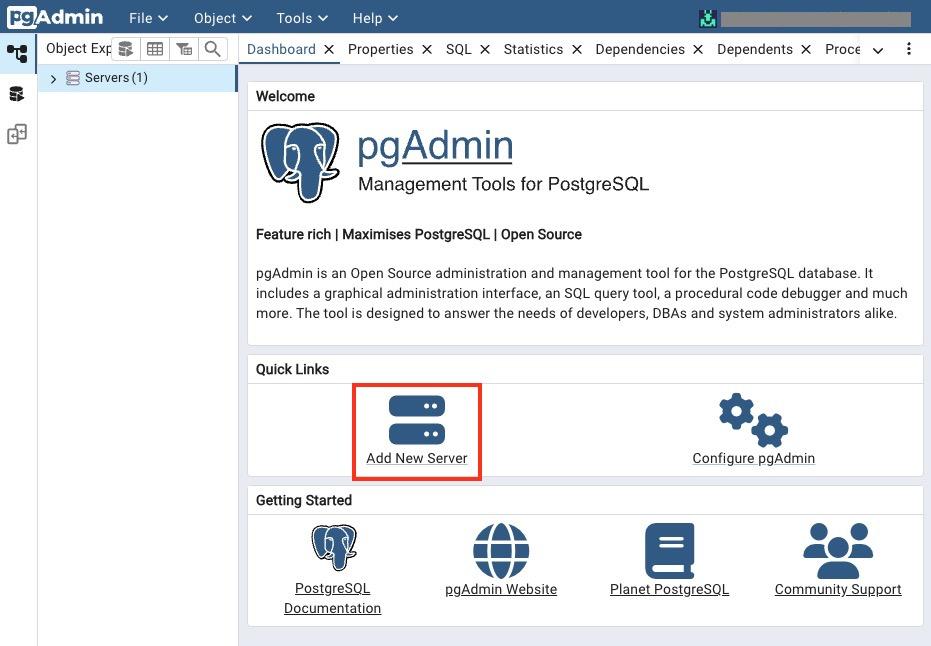
Click on "Create" and select "Server…" from the dropdown, or find Add New Server from the quick links
-
In the General tab:
- Enter a name for your connection (e.g.,
Trial pgAdmin Connection).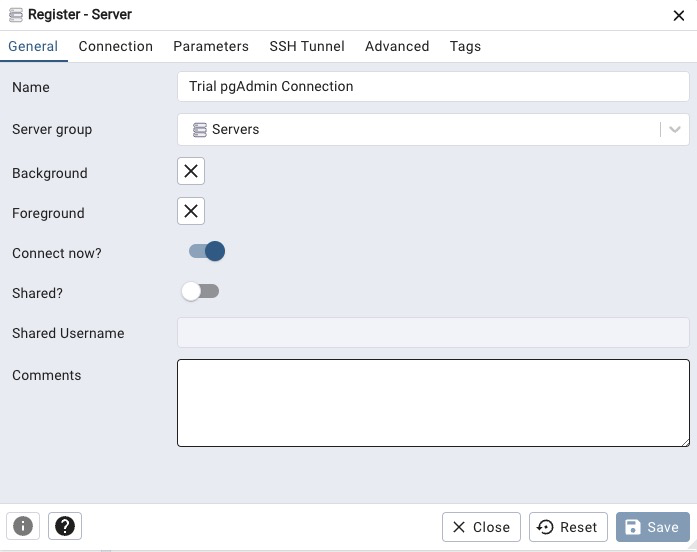
- Enter a name for your connection (e.g.,
-
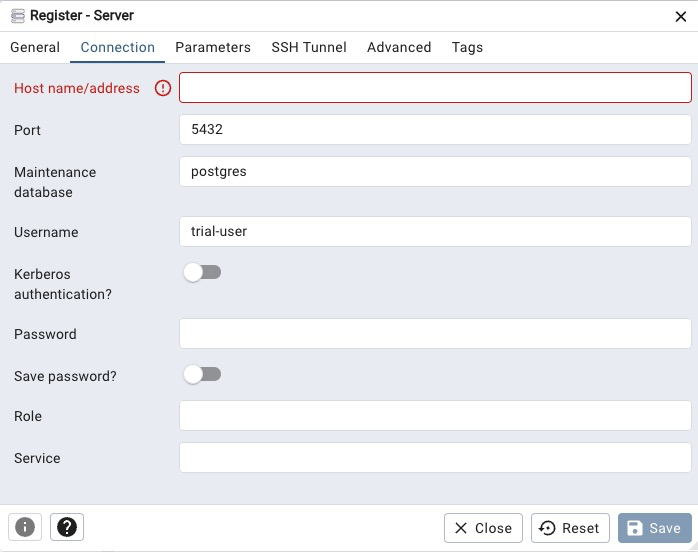
Go to the Connection tab and enter the following details:
- Host name/address:
HOSTNAME - Port:
PORT - Maintenance database:
DATABASE - Username:
USERNAME - Password:
PASSWORD
- Host name/address: