Microsoft Azure (BYO-AZURE)
Deploy Elestio services into your own Microsoft Azure account with Bring Your Own Azure.
This guide explains the Azure permissions and configuration required for customers who want to deploy Elestio services in their own Azure subscription. By connecting your Azure account, Elestio will create and manage resources directly in your Azure environment.
Prerequisites
Before connecting your Azure subscription to Elestio, ensure you have:
- An active Azure subscription
- Global Administrator, Privileged Role Administrator, or Application Administrator role in Azure AD
- Contributor role on the target Azure subscription (or ability to assign it)
Required Azure Permissions
Minimum Required Role
- Role:
Contributor - Scope: Subscription level
Why:
This role allows Elestio to create, manage, and delete resources in your subscription while preventing it from modifying access controls or role assignments.
Alternative: Custom Role (Advanced)
If your organization requires granular permissions, you can create a custom role with the following permissions:
{
  "Name": "Elestio Service Manager",
  "Description": "Custom role for Elestio to manage cloud resources",
  "Actions": [
    "Microsoft.Resources/subscriptions/resourceGroups/*",
    "Microsoft.Compute/virtualMachines/*",
    "Microsoft.Compute/disks/*",
    "Microsoft.Network/virtualNetworks/*",
    "Microsoft.Network/networkInterfaces/*",
    "Microsoft.Network/networkSecurityGroups/*",
    "Microsoft.Network/publicIPAddresses/*",
    "Microsoft.Storage/storageAccounts/*",
    "Microsoft.RecoveryServices/vaults/*",
    "Microsoft.RecoveryServices/register/action",
    "Microsoft.Authorization/locks/*"
  ],
  "NotActions": [],
  "AssignableScopes": [
    "/subscriptions/{your-subscription-id}"
  ]
}
What Resources Will Elestio Create?
When you deploy services through Elestio using your Azure subscription, the following resources are created:
| Resource Type | Purpose |
|---|---|
| Resource Groups | Logical containers for all resources (elestio-{region}) |
| Virtual Machines | Compute instances for your applications |
| Managed Disks | OS and data storage for VMs |
| Virtual Networks | Network isolation |
| Network Interfaces | VM network connectivity |
| Public IP Addresses | IPv4 and IPv6 external access |
| Network Security Groups | Firewall rules |
| Storage Accounts | Backups and object storage |
| Recovery Services Vaults | Backup and disaster recovery |
| Resource Locks | Prevent accidental deletion |
OAuth Scope Required
Elestio uses the following OAuth 2.0 scope:
https://management.azure.com/user_impersonation
This allows Elestio to act on your behalf via Azure Resource Manager.
Step-by-Step Setup Guide
Step 1: Assign Contributor Role
- Sign in to the Azure Portal
- Go to Subscriptions
- Select your subscription
- Open Access control (IAM)
- Click + Add → Add role assignment
- Select Contributor
- Assign it to your user account
- Click Review + assign
You can assign the role in the Azure portal by following the steps outlined in the Microsoft documentation.
Verification:
Your account should appear under Role assignments with the Contributor role.
Step 2: Register Elestio Application in Azure AD
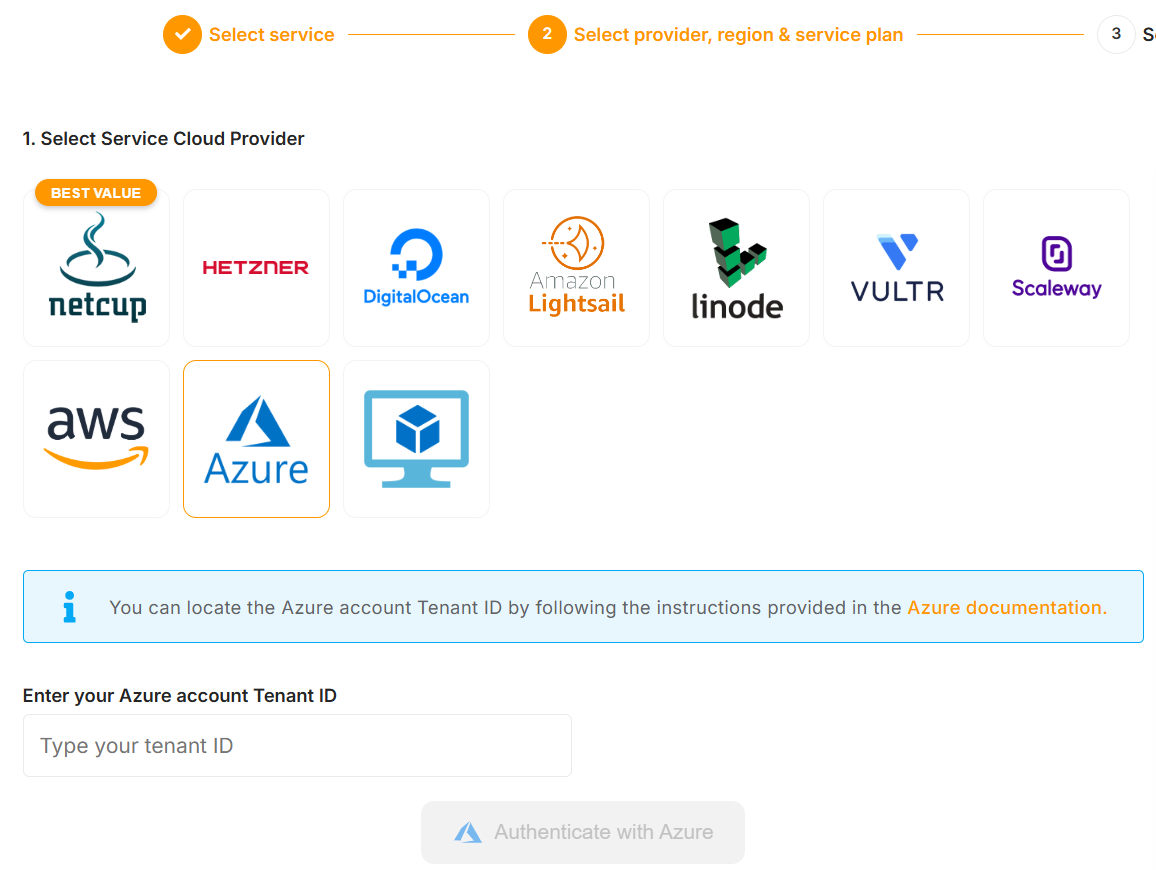
- Log in to the Elestio dashboard
- Select Software inside Services.
- Go to Cloud Providers → Azure
- Enter your Azure Tenant ID (see how to find it in the Azure portal)
- Click Authenticate with Azure
You will be redirected to the Microsoft login page.
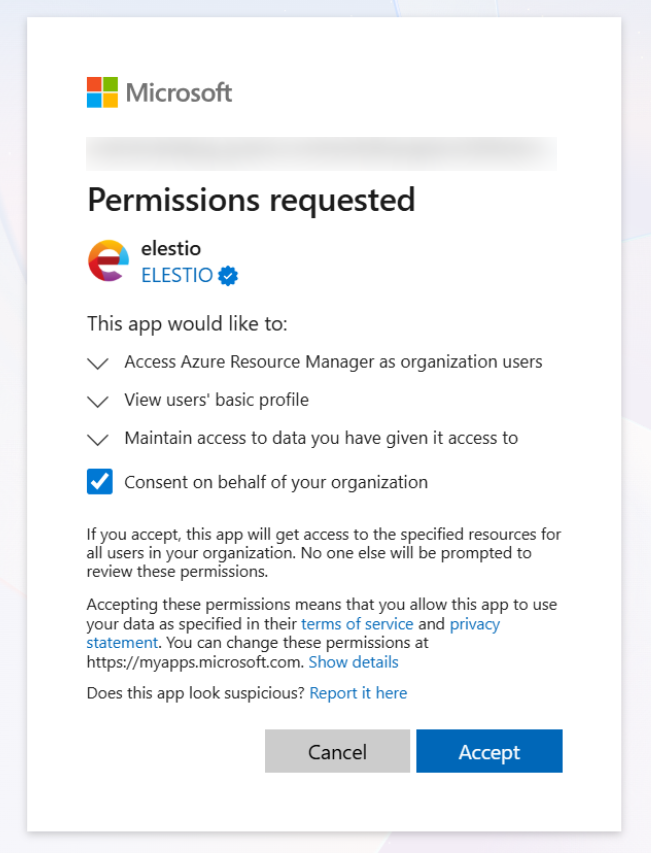
Step 3: Grant Admin Consent
-
Review requested permissions:
- Access Azure Service Management as you (
user_impersonation)
- Access Azure Service Management as you (
-
Sign in with an admin account if required
-
Click Accept
Note: If you lack privileges, your Azure AD administrator must grant consent.
Step 4: Select Subscription
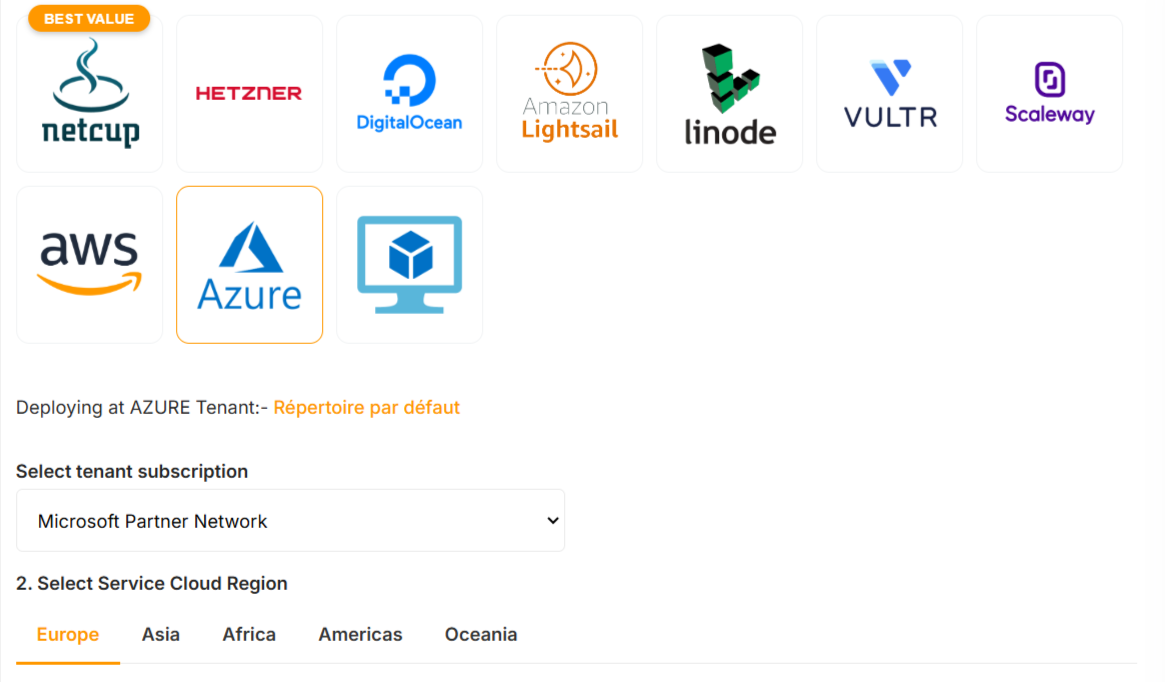
- Return to the Elestio dashboard
- Select the Azure subscription.
Your Azure account is now connected.
Security Best Practices
Use Dedicated Subscriptions
Recommended for production to ensure:
- Clear cost tracking
- Workload isolation
- Easier audits and compliance
Resource Naming Conventions
| Resource | Pattern | Example |
|---|---|---|
| Resource Group | elestio-{region} | elestio-eastus |
| VM | {service-name} | my-postgres-db |
| Public IPv4 | {service-name}_ipv4 | my-postgres-db_ipv4 |
| Public IPv6 | {service-name}_ipv6 | my-postgres-db_ipv6 |
| Virtual Network | elestio_{region}_vnet | elestio_eastus_vnet |
| Backup Policy | elestioBackup | elestioBackup |
Troubleshooting
Insufficient Permissions
Cause: Missing Contributor role
Fix:
- Assign Contributor at subscription level
- Wait 5–10 minutes for propagation
Admin Consent Required
Cause: Azure AD consent missing
Fix:
- Ask an admin to approve permissions
Provider Not Registered
Fix:
- Subscriptions → Resource providers
- Register
Microsoft.RecoveryServices
Quota Exceeded
Fix:
- Check Usage + quotas
- Request an increase via Azure Support