Migrate Superset to Elestio
This migration document focuses on Apache Superset, which is supported by Elestio. Find the complete software list here
This document provides a step-by-step guide for migrating your existing Apache Superset instance to Elestio. Elestio is designed to enhance performance, scalability, and overall system efficiency.
1️⃣ Pre-requisites
- Create Account: Set up your account on Elestio
- Access Current Superset: Log in to your Superset admin dashboard on the server where your current instance is deployed
- Check Application Health: Ensure your application works correctly with no critical errors in logs
- Version Matching: Use the same Superset version on Elestio as your current service to prevent migration failures
2️⃣ Exporting Dashboards and Data
Step 1: Export Dashboards
- Navigate to your original Superset dashboard
- Select all dashboards you plan to migrate
- Click "Export"
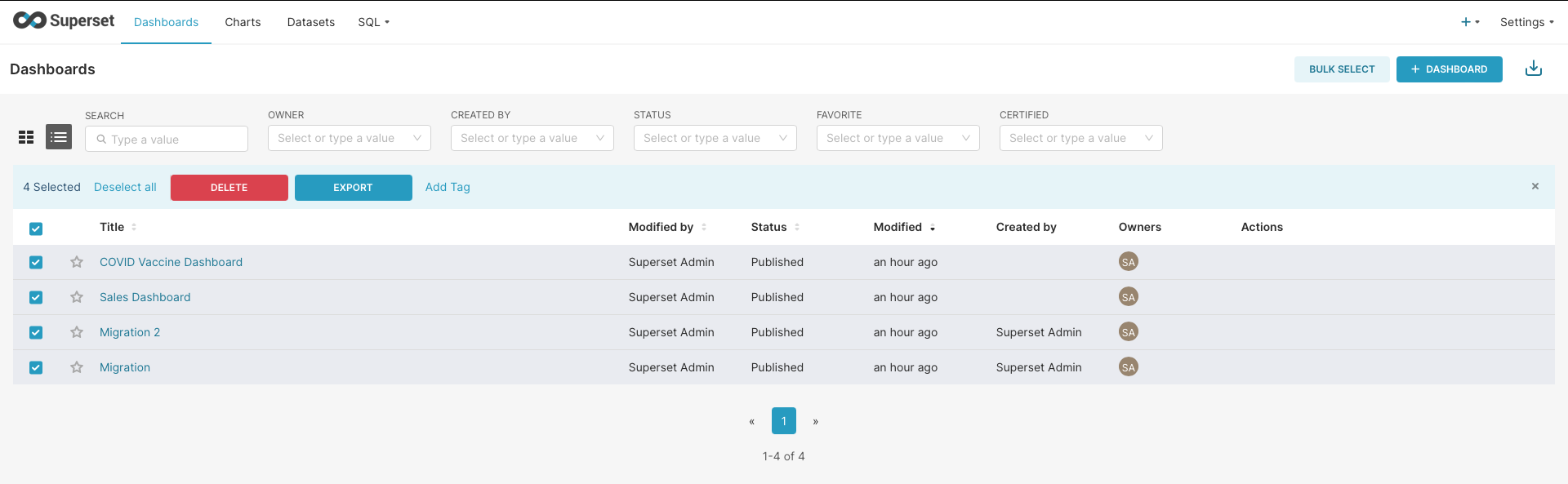
Step 2: Export Charts
- Navigate to the Charts section
- Select all required charts
- Click "Export"
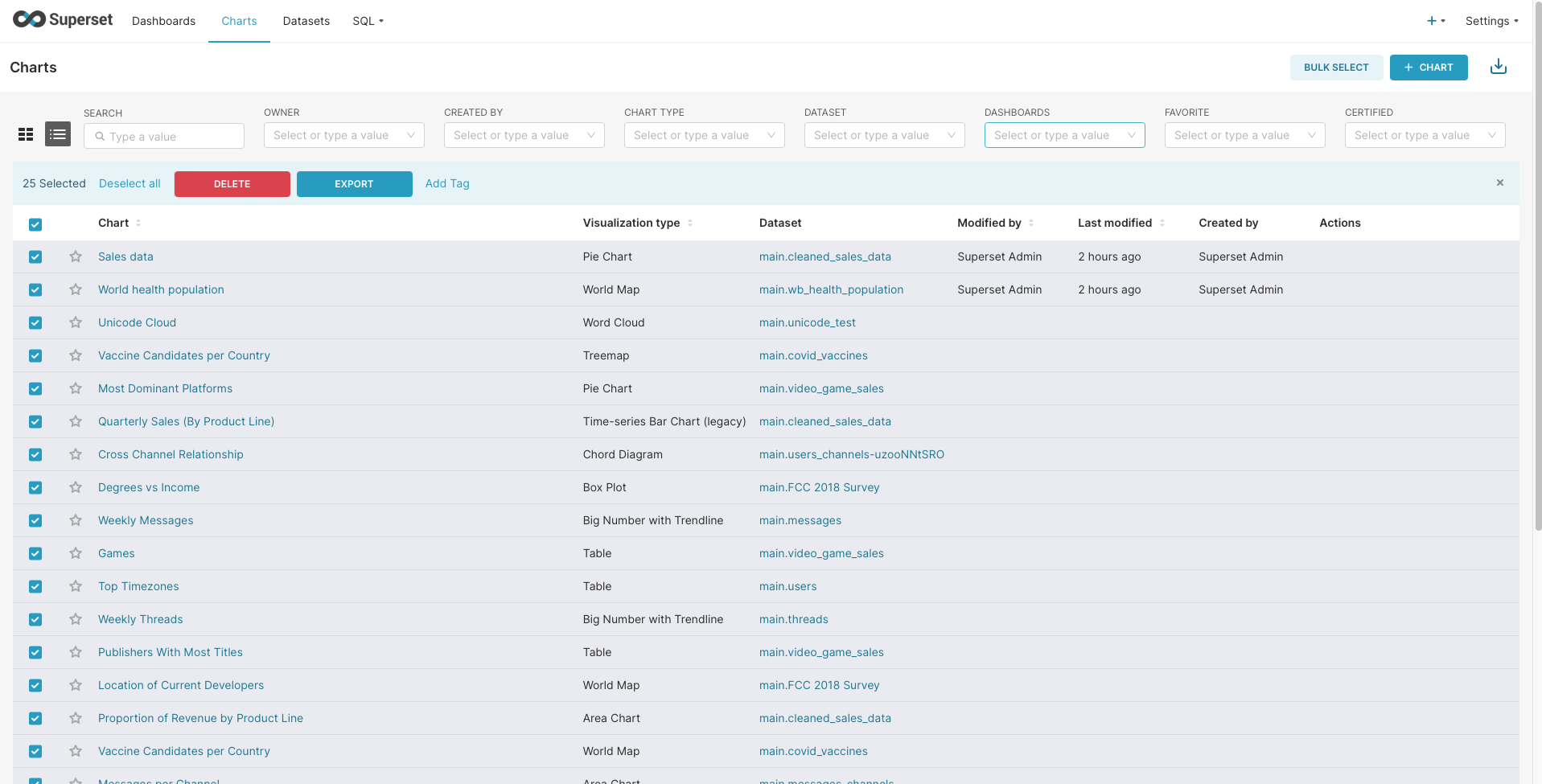
Step 3: Prepare Export Files
- Exported files will be stored on your local machine in
.zipformat - Keep track of these files for the import process
Step 4: Database Considerations
- Database Configuration: You'll need to reconfigure your connected databases with Superset after migration
- Gather Connection Information: Ensure you have all necessary database connection details
- Database Migration: If you want to migrate the database as well, refer to Elestio's Migration Docs for specific database migration instructions
If you want to migrate your database for seamless integration with Superset, refer to Elestio's Database Migration Docs for instructions specific to your database type.
3️⃣ Setting Up Superset on Elestio
Step 1: Deploy Superset Service
- Log in to your Elestio account
- Go to "Create Services" and select "Superset"
Step 2: Configure Service
Select your service provider, region, and service configuration
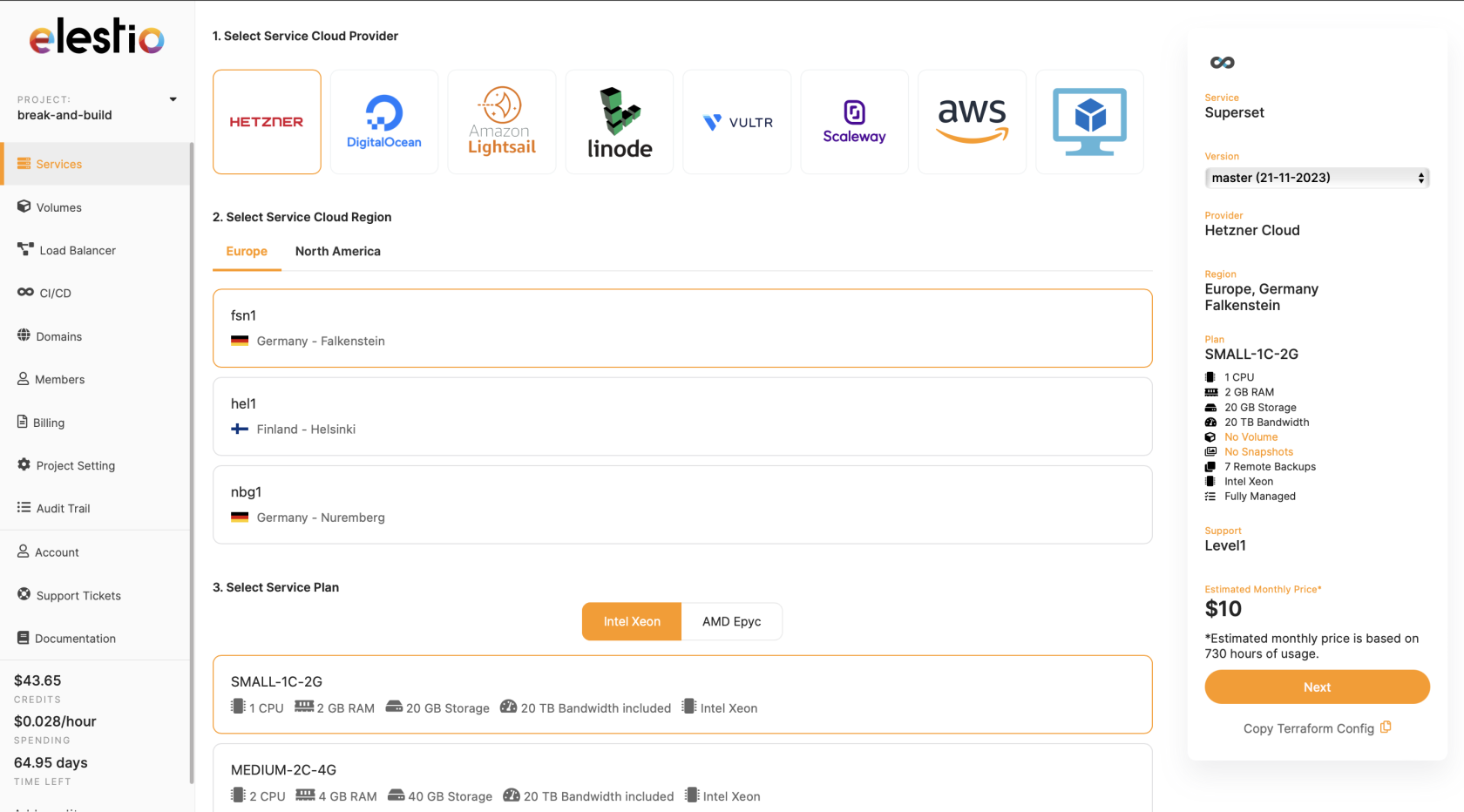
Step 3: Deploy Service
Name your service, configure settings and support level, then click "Create Service"
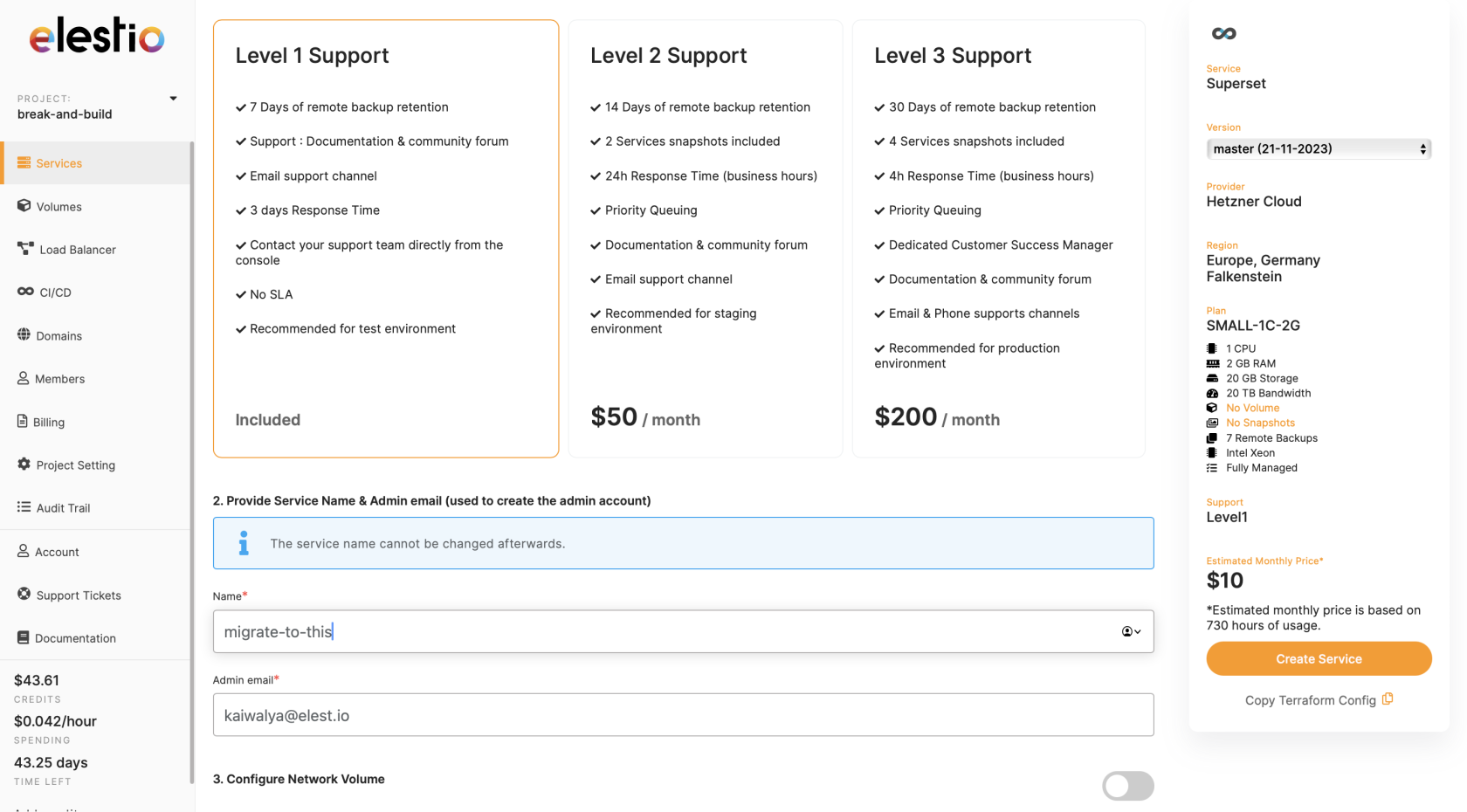
4️⃣ Importing Dashboards and Data
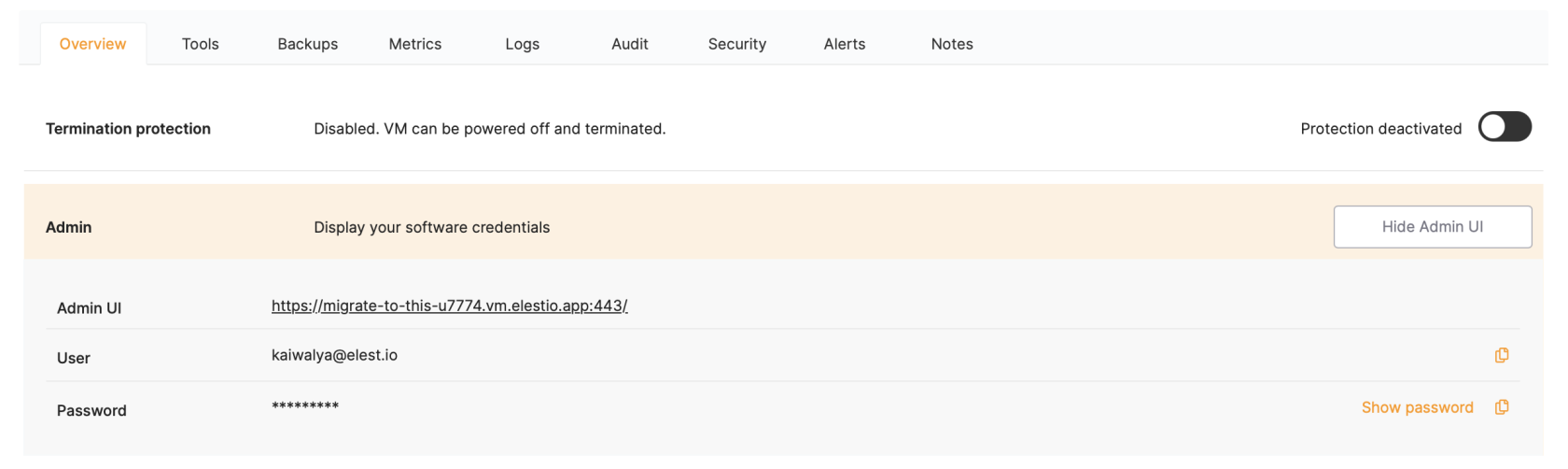
Step 1: Access Elestio Superset
Once deployed, navigate to the service details and use the credentials provided under "Admin UI" to access the Superset dashboard
Step 2: Import Dashboards
- Log in to your new Superset instance
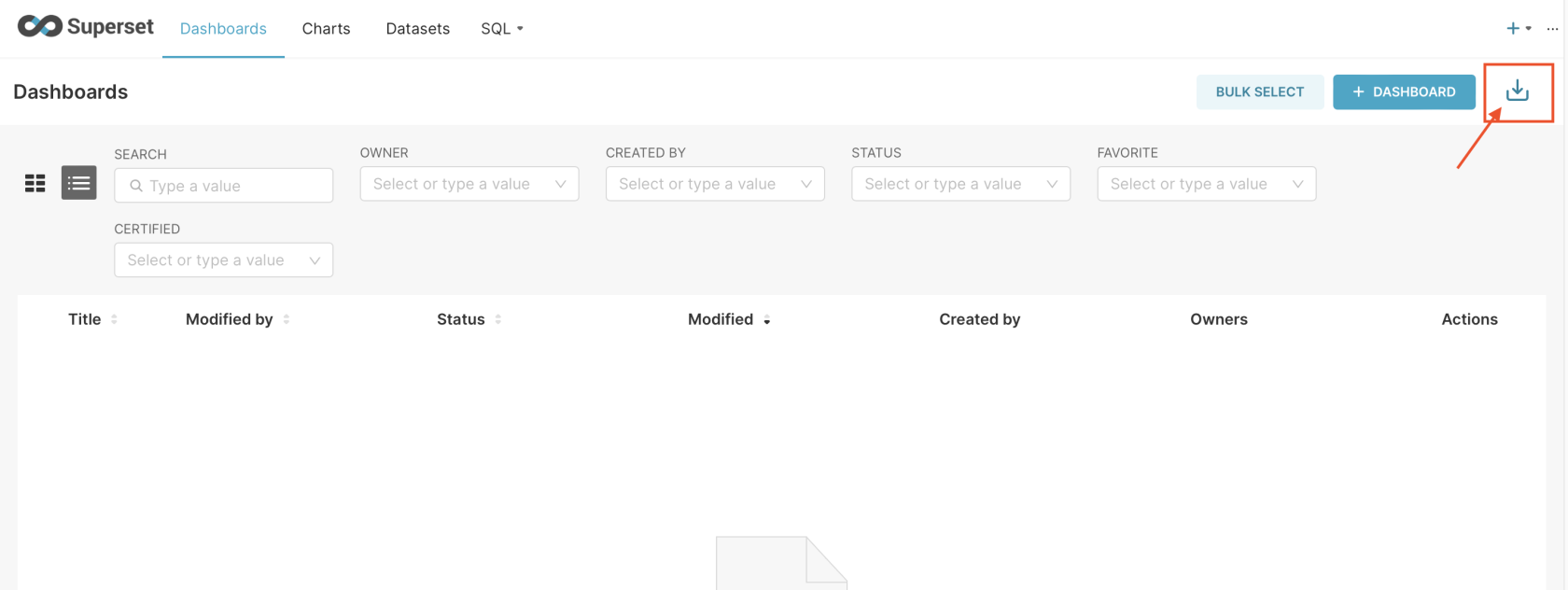
- Navigate to the Dashboards tab
- Click the "Import" button
Step 3: Upload Dashboard Export
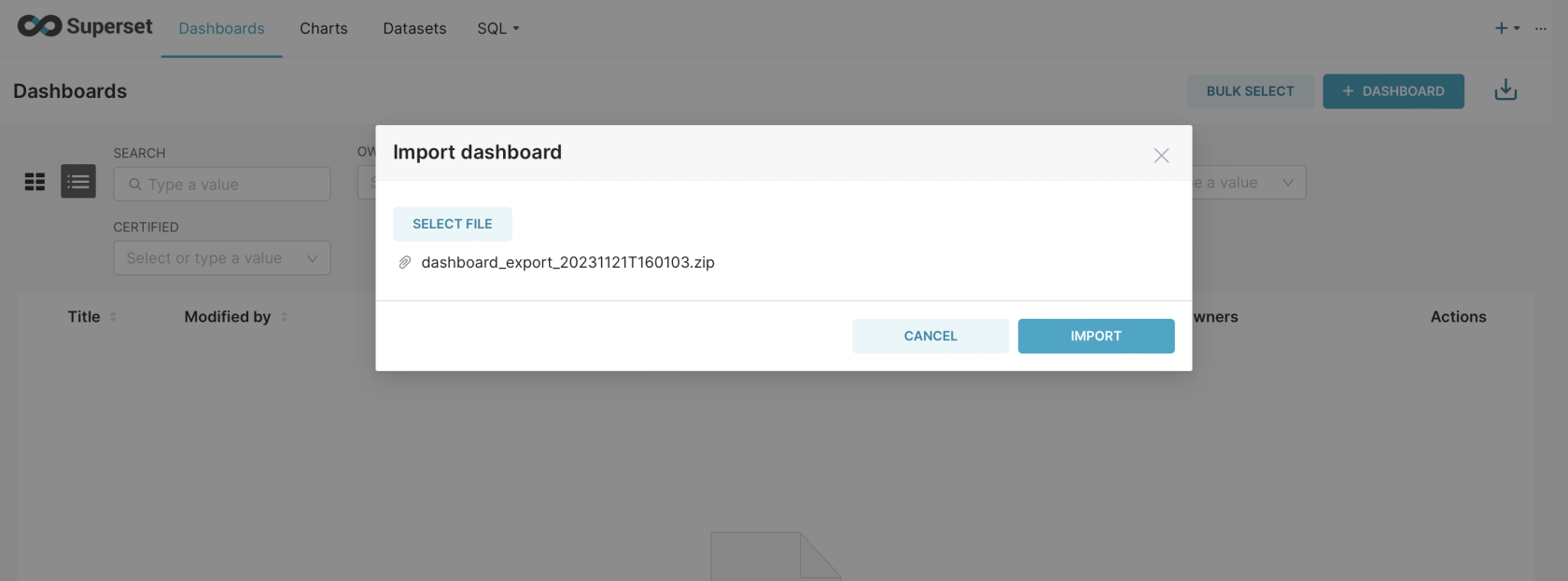
- Click "Select File"
- Choose the dashboard export (
.zipfile) from step 2 - Click "Import"
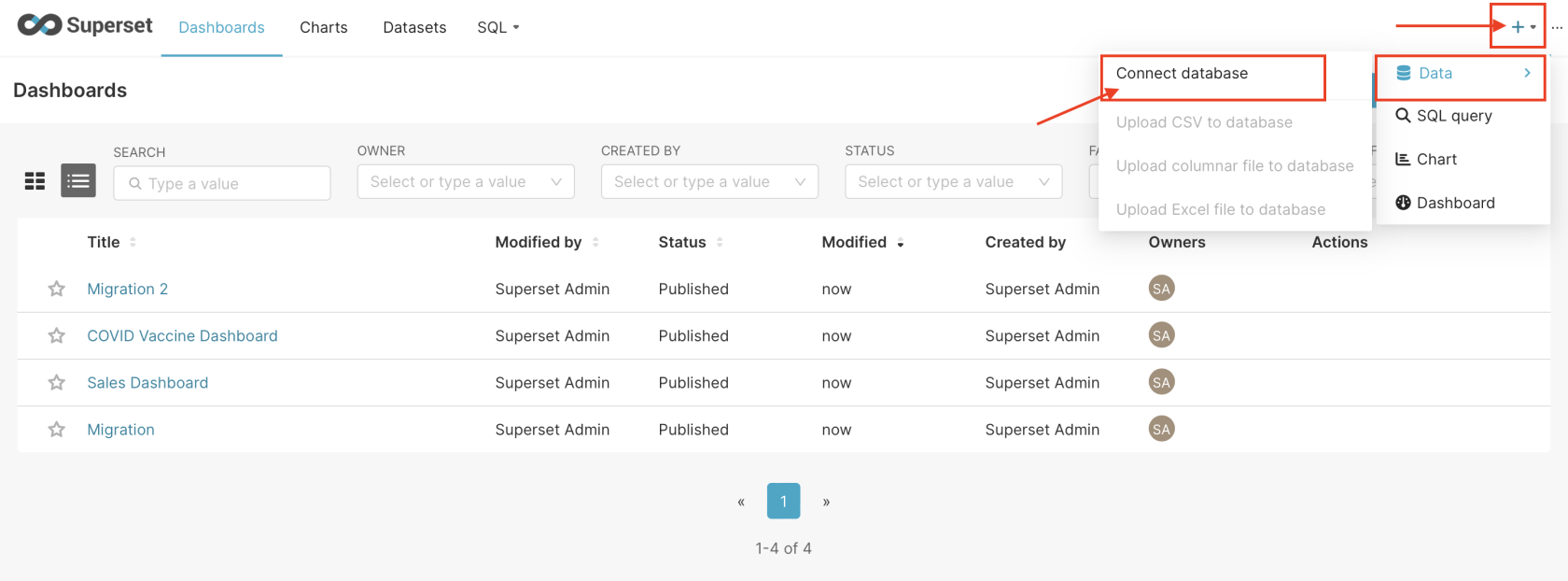
Step 4: Configure Database Connections
Add and configure your databases using the settings interface:
Step 5: Import Charts
Repeat the import process for charts:
- Navigate to the Charts section
- Use the import function to upload your charts export file
- Follow the same process as dashboard import
Congratulations! 🎉 You have successfully imported all your dashboards and charts.
5️⃣ Testing the Migration
Verify Dashboard Import
- Navigate to the Dashboards section
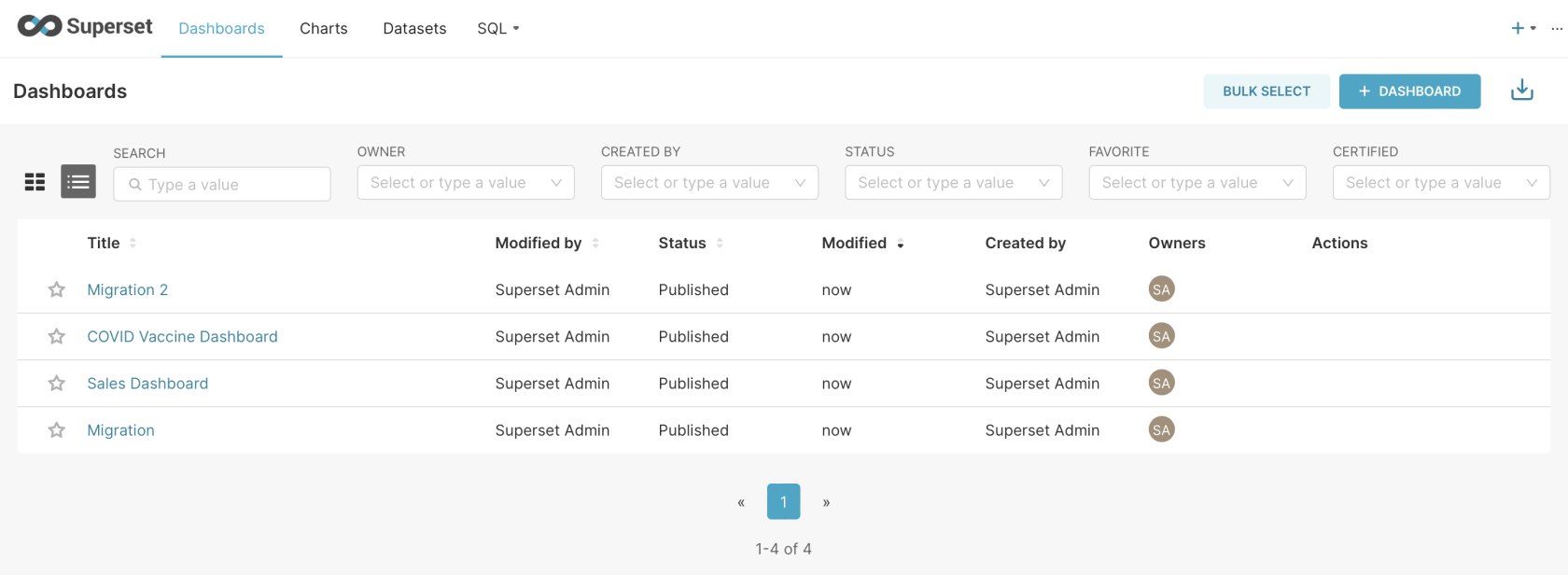
- Confirm all dashboards are present and accessible
- Test dashboard functionality and data connections
Example Verification
Here's an example of successfully imported dashboards:
Post-Migration Checks
- Test Data Sources: Verify all database connections are working
- Check Visualizations: Ensure all charts and graphs display correctly
- Verify Permissions: Confirm user access and permissions are properly configured
- Test Functionality: Check filters, drill-downs, and interactive features
6️⃣ Post-Migration Steps
After successful migration, consider these additional steps:
- Reconnect Data Sources: Configure connections to your databases (migrated or existing)
- User Management: Set up user accounts and appropriate permissions
- Performance Tuning: Optimize cache settings and query performance
- Security Configuration: Configure authentication and authorization settings
- Backup Strategy: Set up regular backups for your Superset configuration
7️⃣ Need Additional Help?
Stuck somewhere? We're here to help! Create a support ticket and we'll get back to you promptly.
Related Resources
- Superset Service Details - Learn more about Elestio's Superset offering
- Database Migration Guides - For migrating your underlying databases
- Best Practices - General migration tips and best practices