Billing & Payments
This section covers frequently asked questions about billing, payments, credits, and account funding.
Why am I receiving a low credit warning even though auto recharge is enabled?
Users who have credits remaining for less than 7 days receive a low credit warning email once per day.
To avoid this, increase your credit warning limit to a level corresponding to your cash burn rate to satisfy the 7-day credit requirement.
You can change your credit warning limit anytime within your account settings or by visiting https://dash.elest.io/account/payment-options.
Why did the payment fail when I was attempting to add credits?
Resolving Payment Failures: A Step-by-Step Guide
If you've been experiencing payment failures while adding credits from our dashboard, here's what you need to do:
1. Verify Card Details: Ensure the accurate input of your card number, expiry date, and CVV/CVC/CSC during the payment process.
2. International Payments Check: Confirm whether your card allows international payments, as this could be a potential reason for the payment failure.
3. Account Compatibility: Check that your account supports e-commerce transactions and ensure that the set limits are appropriate for a seamless payment process.
Possible Reasons for Payment Failure:
If the aforementioned conditions are met and you're still facing issues, consider the following potential reasons:
1. Unsupported Card: It's possible that the card you're using may not be supported for this type of transaction.
2. Insufficient Funds: Ensure that your account has sufficient funds to cover the intended payment amount.
3. Bank Declined Payment: The bank may have declined the card payment for security or other reasons.
For a more accurate understanding of the specific reason behind the payment failure, we recommend reaching out to Elestio's support.
Our dedicated support team will provide precise information to help you successfully resolve the issue and get back to enjoying our services hassle-free.
I added fund to my elestio account, but my service is still not running
If your service was suspended due to lack of credits and now it is still inactive even after adding the funds to your elestio account then please follow the below steps to active the inactive services.
If termination protection is enabled on your service, kindly disable it first before proceeding with the action. You can find instructions on how to disable termination protection here
Step 1: Navigate to the elest.io dashboard and access the "Services" option in the left sidebar.
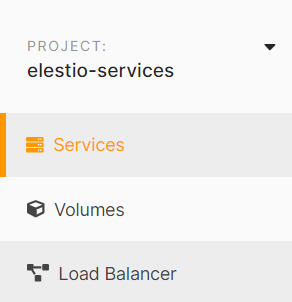
Step 2: Choose the specific service you wish to activate from the list, and within your service details overview, locate the "Power" tab.

Step 3: Activate the service by clicking the "Power On" button. A confirmation prompt will appear; proceed by clicking the "Accept" button to confirm the action.
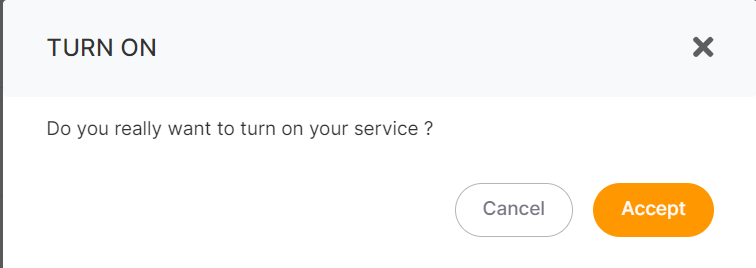
Success: After completing these steps, your service will become active within a matter of seconds.
Info: To prevent service suspension due to insufficient credits, consider enabling the auto-refill setting. For detailed instructions on how to set up auto-refill, please refer to this guide.
How can project ownership or service billing be transferred to another user's account?
Are you looking to transfer project ownership or service billing to another user's account? While our direct project owner transfer feature is in the pipeline, there's a workaround available for you to accomplish this task.
Presently, we operate on a global account-level billing structure that is not directly tied to specific projects. Consequently, all services affiliated with projects under your ownership will be invoiced to your account.
To transfer ownership or billing responsibility to another account, you can follow these steps:
- Grant Admin Access: Within your project, navigate to the "Members" tab on the left sidebar, and select "Add Member." Input the email of the new account user into the designated field, choose 'Admin' as their role, and then press the 'Send Invitation' button.
- Log in to the New Account: The new user should then log in to their account.
- Navigate to the Project: Once logged in, the new user should navigate to the project that you've shared with them.
- Move the Service: Within the project, move the service to the new account by following the steps outlined in our documentation.
- Choose the Project: When moving the service, select the project owned by the new account as the destination.
By following these steps, you'll successfully transfer the service to the new account, effectively transferring ownership and billing responsibility.
While this method serves as a temporary solution until our direct project owner transfer feature is available.
How Does Elestio’s Pricing Work?
Elestio offers a flexible cloud hosting platform that allows you to deploy and manage applications with ease. Unlike traditional cloud providers, Elestio's pricing is based on an hourly billing system with prepaid credits, providing transparency and control over your expenses.
1. Hourly Billing with Prepaid Credits
Elestio operates on an hourly billing model, meaning you are charged for every hour a service exists on your account.
- Billing continues until deletion: Shutting down or powering off a service does not stop billing.
- Prepaid credits: You must add prepaid credits to your account. The hourly costs are automatically deducted.
- Service plan determines cost: Pricing is fixed by the plan and does not depend on usage, traffic, or resource consumption.
2. Service Plans and Pricing
Elestio offers a variety of service plans to cater to different workloads. Each plan specifies the number of CPUs, RAM, storage, and the associated hourly cost.
Netcup Plans (Hourly & Monthly Approximate Cost)
| Plan | CPUs | RAM | Storage | Hourly Cost | Monthly Cost* |
|---|---|---|---|---|---|
| NC-MEDIUM-2C-4G | 2 | 4 GB | 60 GB | $0.0219 | $16 |
| NC-LARGE-4C-8G | 4 | 8 GB | 100 GB | $0.0411 | $30 |
| NC-XLARGE-8C-16G | 8 | 16 GB | 200 GB | $0.0753 | $55 |
| NC-2XLARGE-16C-32G | 16 | 32 GB | 400 GB | $0.1534 | $112 |
| NC-3XLARGE-16C-64G | 16 | 64 GB | 600 GB | $0.2315 | $169 |
*Monthly cost is an approximation assuming continuous usage.
Note: Pricing is fixed per plan and does not depend on traffic, CPU usage, or number of users.
3. Support Plans
Support plans are also charged hourly and can change once a month.
-
Support Levels: Level 1 (Free), Level 2 ($50/service/month), and Level 3 ($200/service/month).
-
Minimum Period for Level 2 & 3:
-
For Level 2 and Level 3 support plans, you must keep your service for at least two weeks.
-
If you delete a service within the first two weeks, you will be charged a fee:
- Level 2: $25
- Level 3: $100
-
-
Support plans provide features such as service support, high retention periods, automated Borg backups, uptime guarantees, and priority assistance.
4. Billing Continuity
- Hourly billing continues regardless of the service power state.
- Deleting a service is the only way to stop charges.
- Partial hours are billed as full hours, ensuring predictable costs.
5. Cost Management Tips
- Choose the right service plan – avoid over-provisioning.
- Track prepaid credits – refill before running out.
- Delete unused services – to stop hourly charges.
- Plan support subscriptions; consider a minimum two-week period for Level 2 and 3 plans.
6. Conclusion
Elestio’s pricing model provides flexibility, predictability, and control. By understanding hourly billing, prepaid credits, service plans, and support plan rules, you can manage your cloud resources efficiently and avoid unexpected charges.
For detailed pricing and plans, visit the Elestio Pricing Page.