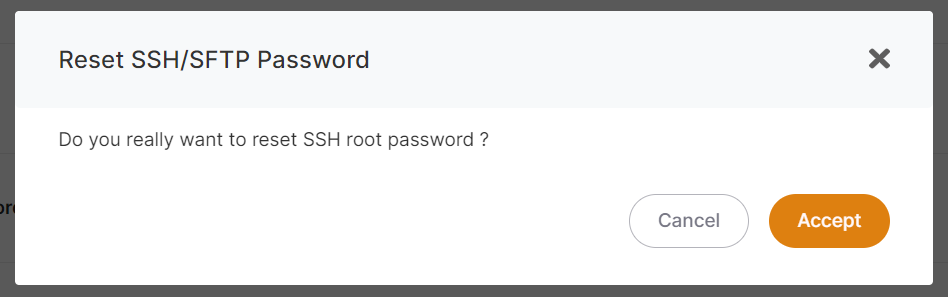
Tools
The Tools tab gives you browser-based access to your service: an editor, a file manager, a terminal, and an SSH password reset.
VS Code
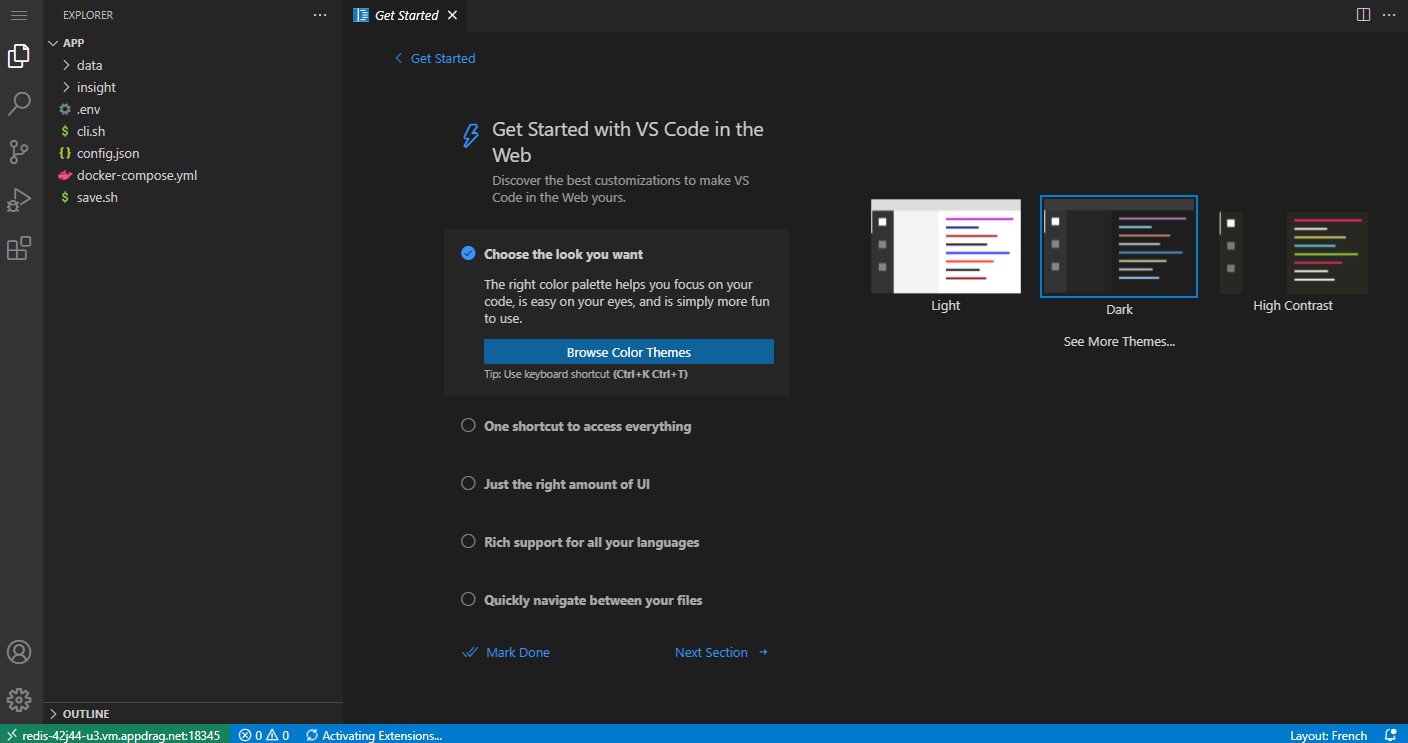
From the Tools tab, click VS Code to open VS Code in the browser, in the context of your service. Edit configuration, drag and drop files to download or upload, or open a terminal.
The first launch can take 1 to 2 minutes while VS Code installs. Later launches are nearly instant.
File Explorer
From the Tools tab, click Open File Explorer.
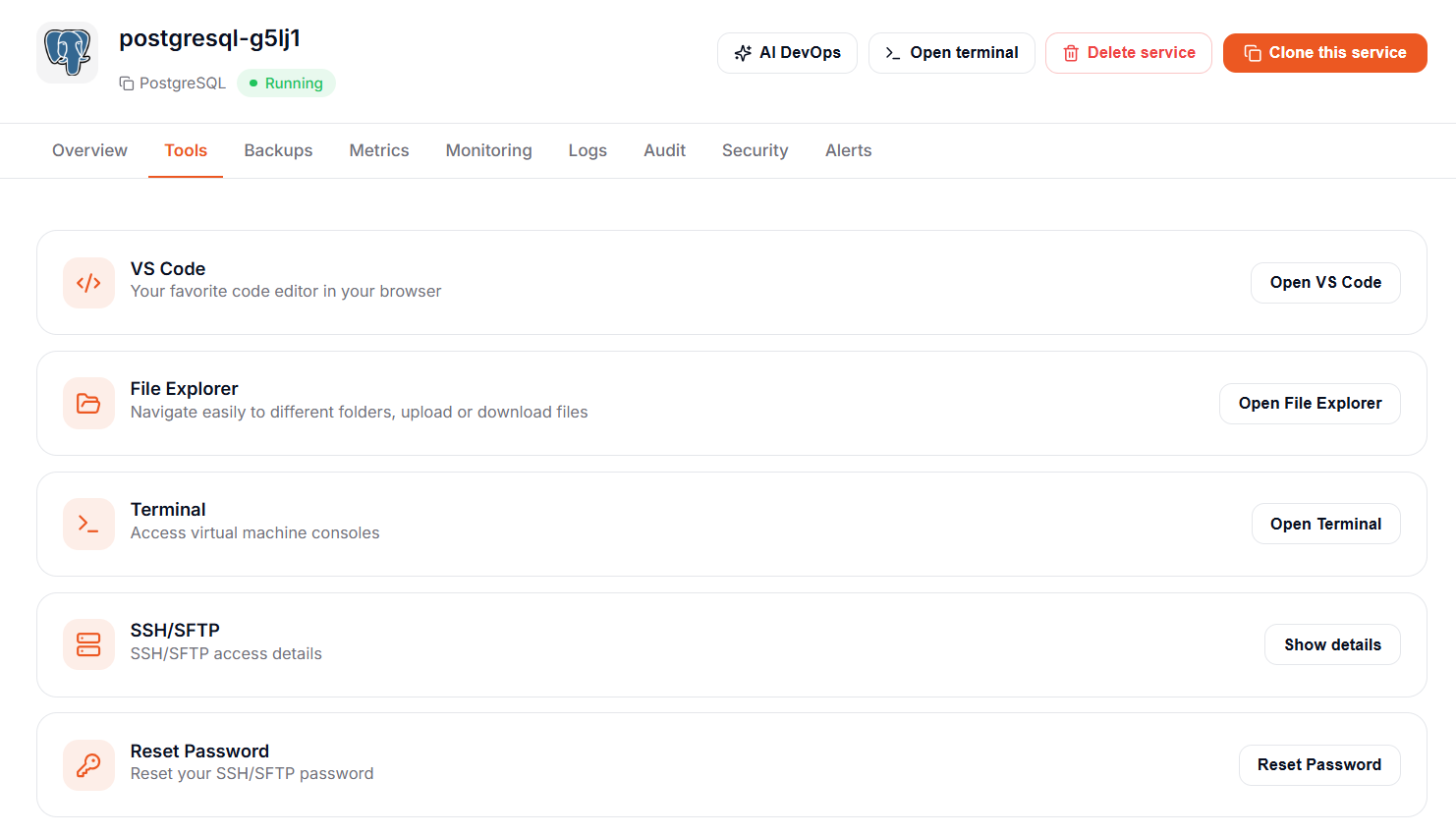
The first launch can take 1 to 2 minutes while File Explorer installs on your service. Later launches are nearly instant.
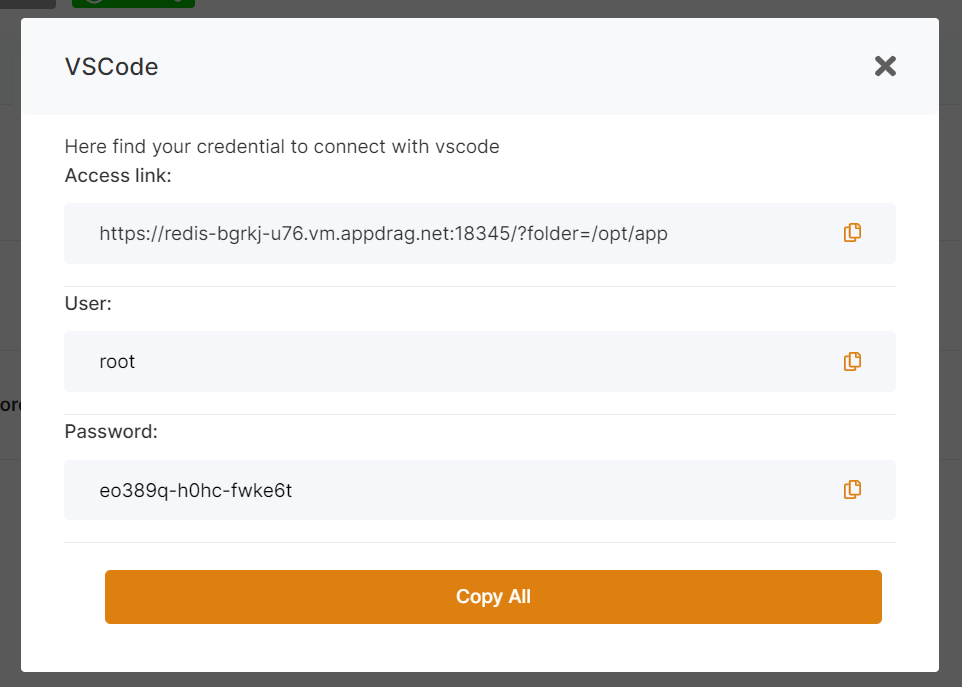
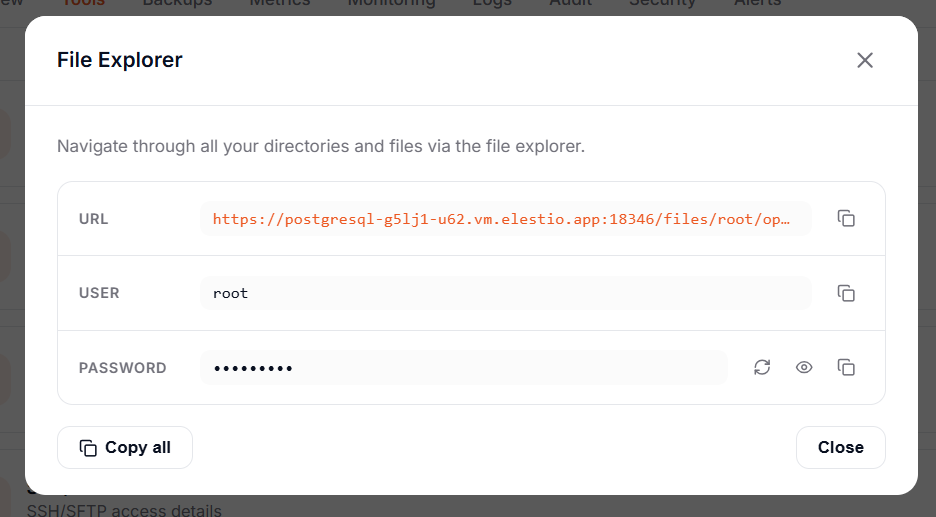
A pop-up gives you the access link, the user and a temporary password. Copy them (Copy all copies everything) and open the link.
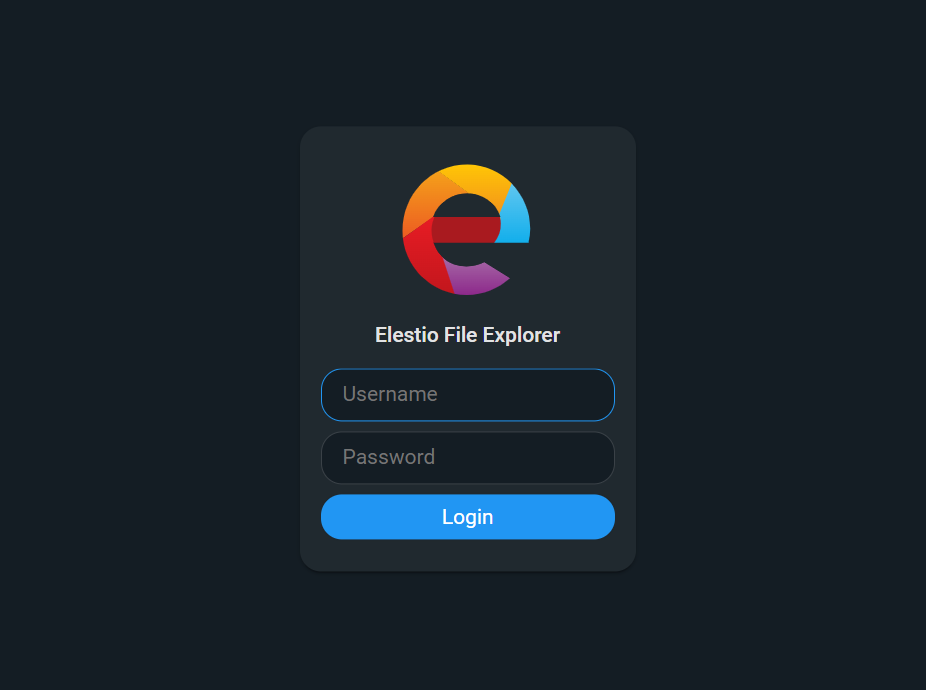
Authenticate on the File Explorer page.
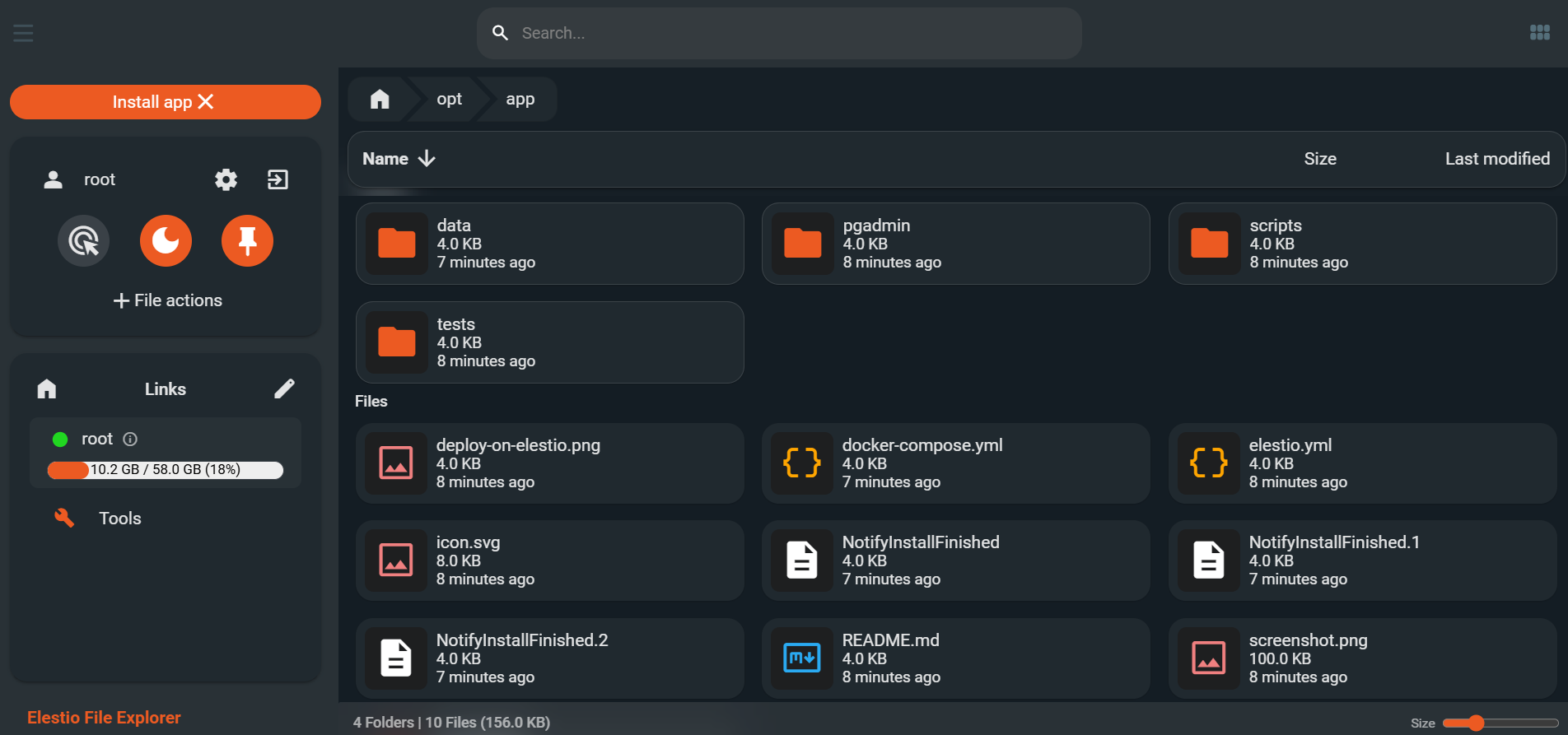
Once in, browse, edit, download, and upload files on the server.
Web Terminal
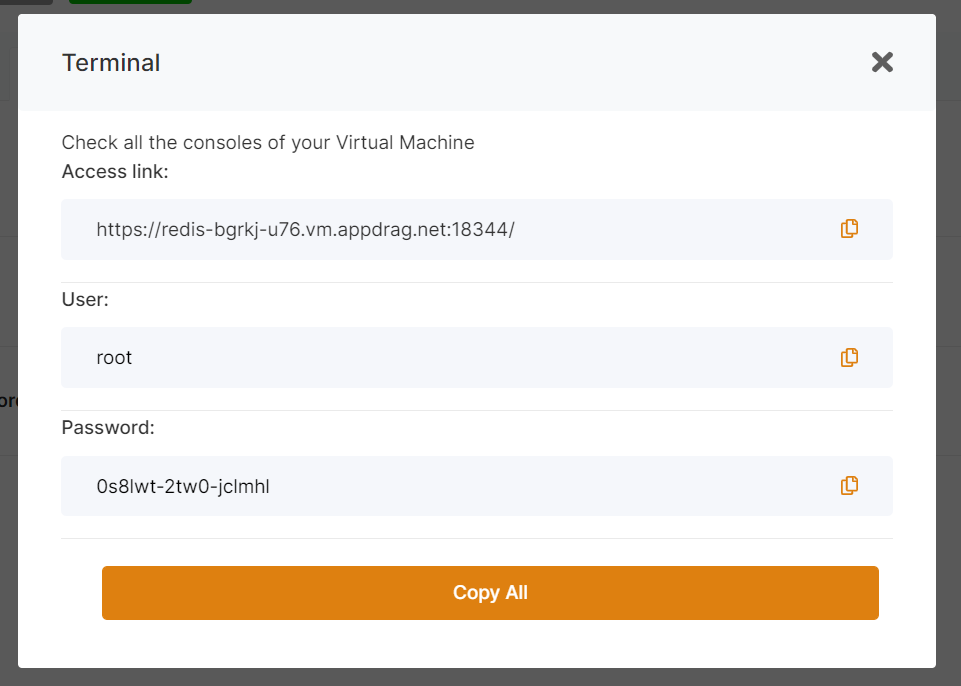
From the Tools tab, click Terminal.
The first launch can take 1 to 2 minutes while the Web Terminal installs on your service. Later launches are nearly instant.

Reset SSH/SFTP password
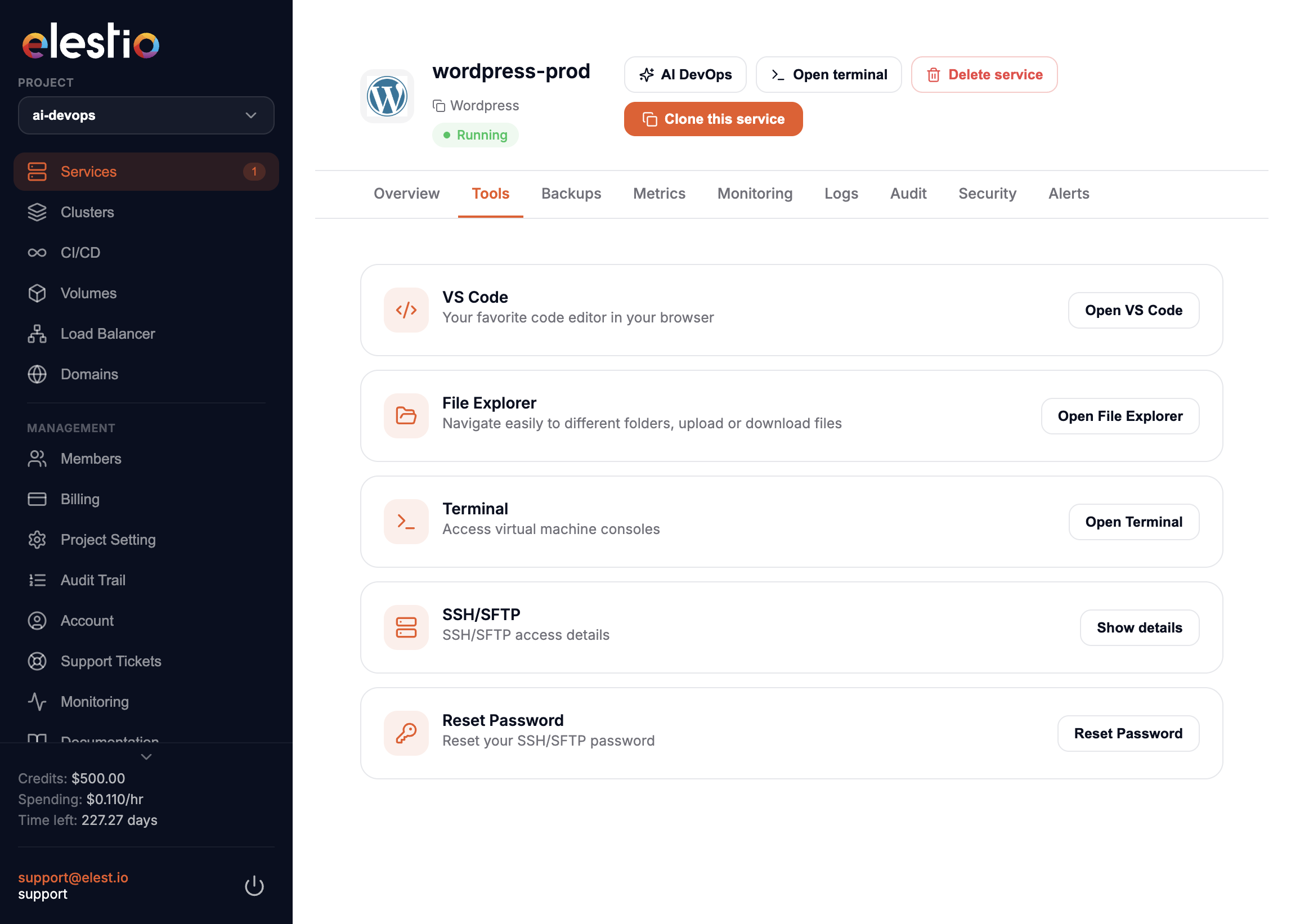
Password authentication is disabled by default. For security, we recommend SSH public keys instead.
From the Tools tab, click Reset Password.