Create a bucket
Step 1: open Object Storage
In the dashboard, click Object Storage in the left menu, then Create a new bucket.
Step 2: choose the region
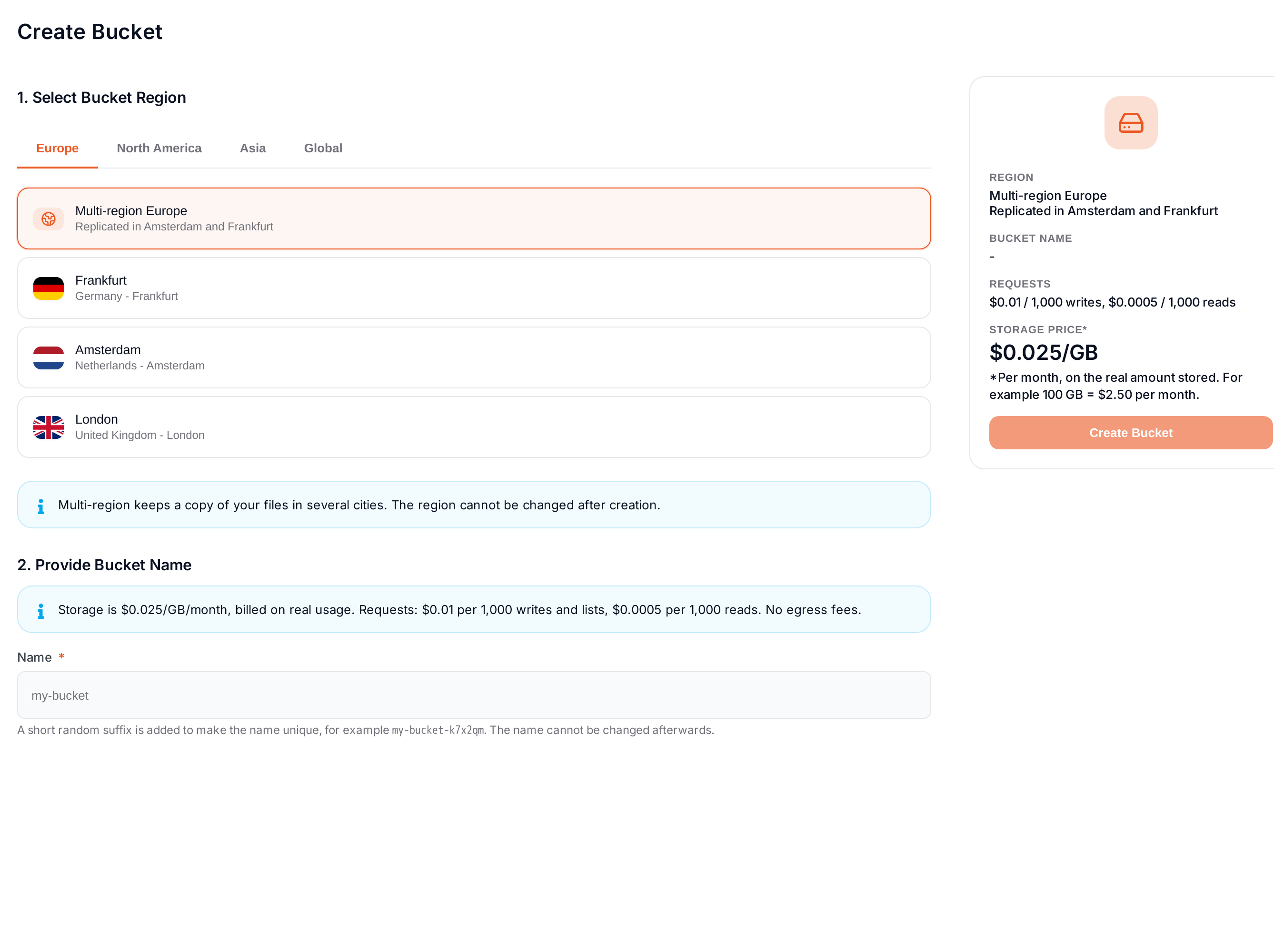
- Multi-region Europe (Amsterdam, Frankfurt) is the default: a copy of your files is kept in several cities.
- Multi-region US (San Jose, Chicago, Ashburn) does the same in the United States.
- Global: your files follow where they are read. Data can be stored outside the EU.
- A single city: Frankfurt, Amsterdam, London, Ashburn, Chicago, San Jose, Singapore or Tokyo.
The region cannot be changed after creation. To move a bucket, create a new one and copy the files with any S3 tool (for example rclone sync or aws s3 sync).
Step 3: name the bucket
The name must be 3 to 56 characters long, with lowercase letters, digits and hyphens only. It must start and end with a letter or a digit, and cannot contain two hyphens in a row.
A short random suffix is added to make the name unique, for example my-bucket-k7x2qm. This full name is the one your tools use. The name cannot be changed afterwards.
Step 4: save your first key
When the bucket is created, Elestio shows a Read and write API key for it.
Copy the secret now: it is shown only once. If you lose it, open the API Keys tab and rotate the key to get a new one.
Copy everything as environment variables gives you the endpoint, the region, the bucket and the key in one go. Next: connect your code.