Files
Open a bucket: the Files tab is a file browser for your bucket.
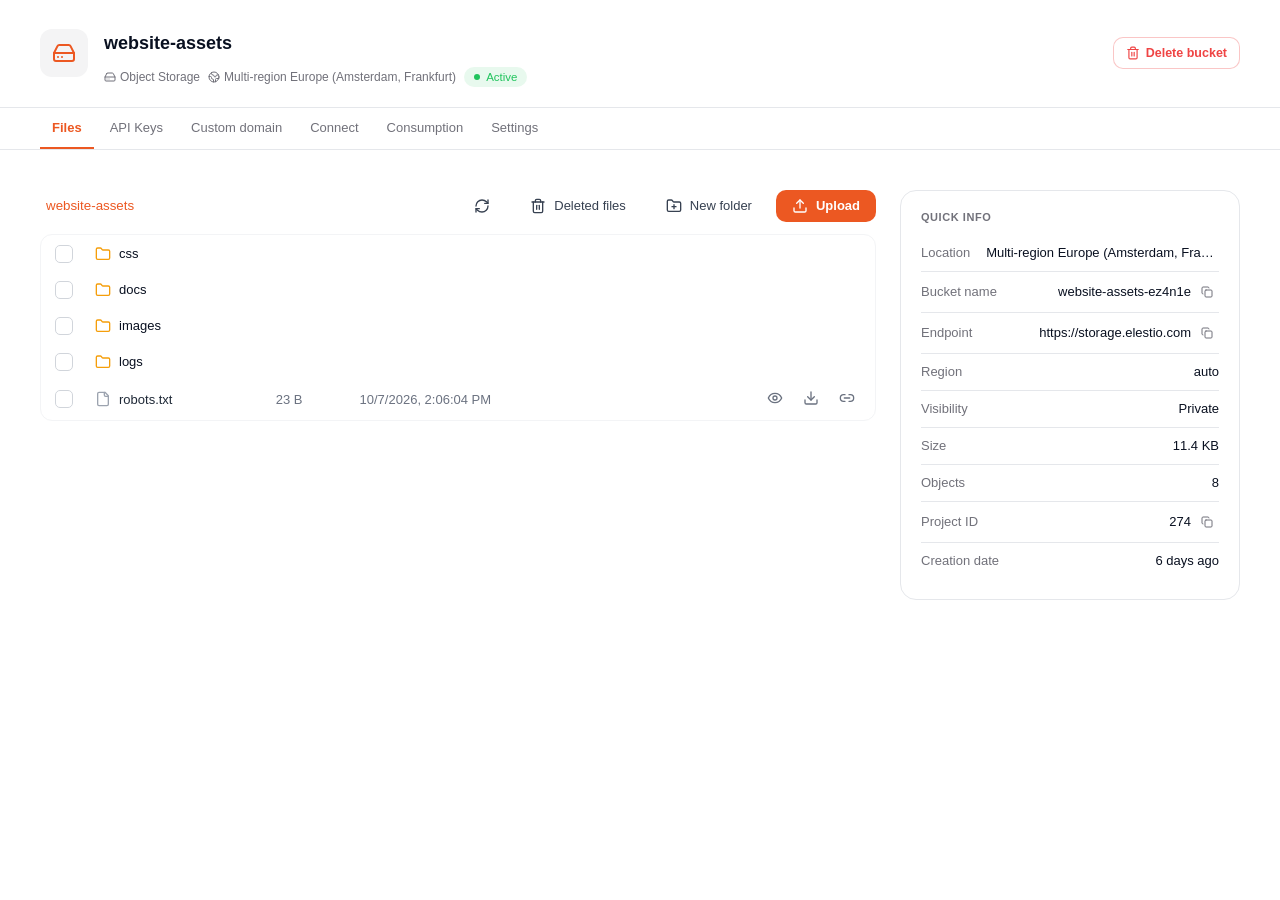
Upload files
Click Upload, or drop files on the list. Large files are sent in several parts automatically. Files go straight from your browser to the storage.
Folders
Click New folder to create one. Click a folder to open it, and use the path at the top to go back.
Folders are part of the file names (for example photos/2026/beach.jpg). An empty folder stays visible until you delete it.
Preview and download
- The eye icon opens a preview of images, PDF files (up to 50 MB), videos, audio and text files (the first 1 MB).
- The download icon saves the file on your computer.
Share a file
The link icon creates a temporary link that anyone can open, from 1 minute to 7 days. It cannot be cancelled before it expires, so keep links short.
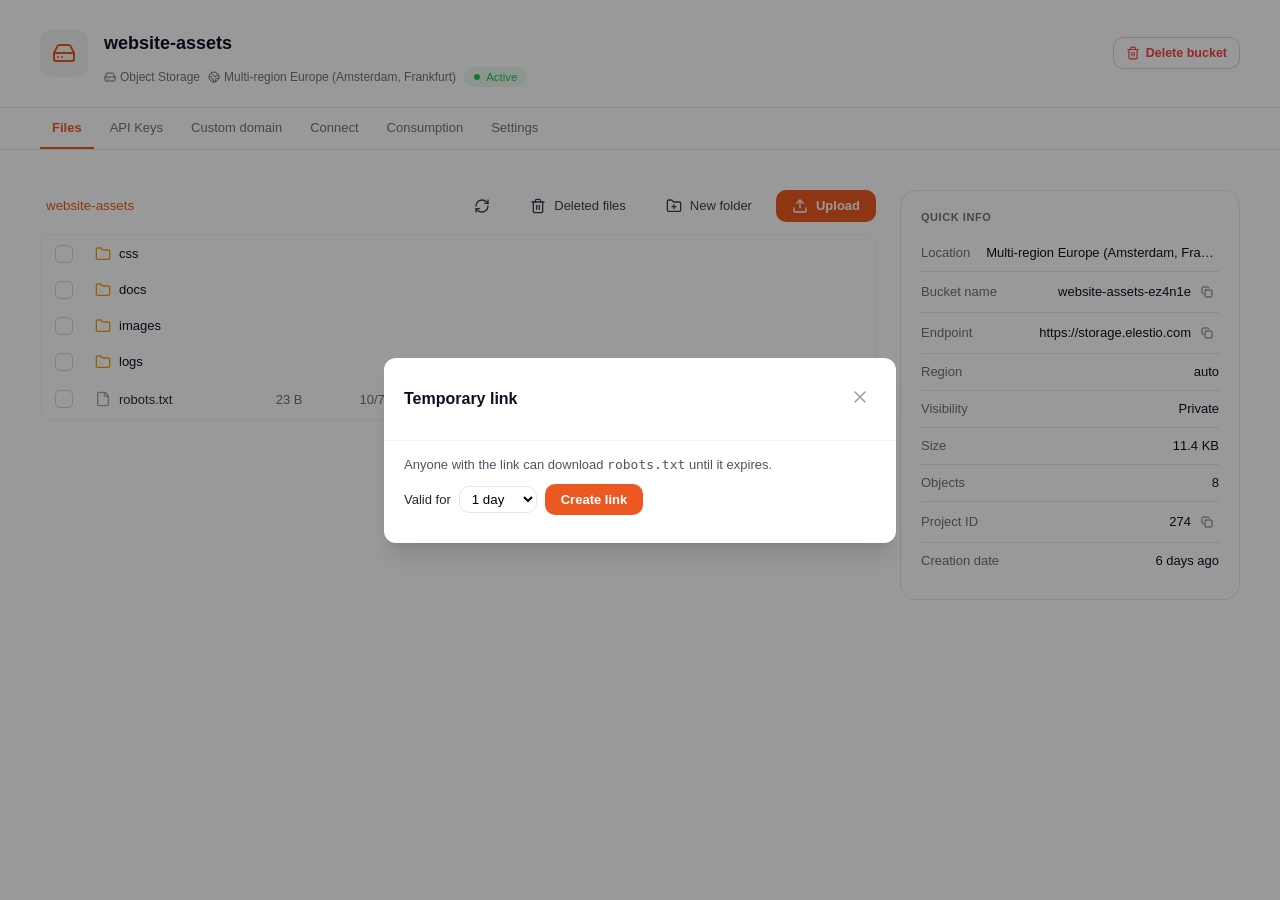
If the bucket is public, the link icon gives the public address of the file instead, which does not expire.
Temporary links are for the owners and admins of the project.
Delete files
Tick files or folders, then click Delete. If the recycle bin is on, deleted files are kept for a while and can be restored from Deleted files. Otherwise, deletion is final.
Archived files
A file uploaded with another storage class through the S3 API (for example --storage-class GLACIER) shows its class in the list.
An archived file cannot be read until it is restored: click Restore, choose for how long it stays readable, and wait. A restore can take several hours, and the data read is billed.