IPv6
IPv6 is the latest version of the Internet Protocol. In some cases, such as hitting Docker Hub rate limits, you may want to disable it. This guide covers enabling and disabling IPv6 on the VM, then making Nginx listen on it.
Docker Hub rate limits
If you hit Docker Hub rate limits, disabling IPv6 on the VM often resolves it. See Disable IPv6 below.
Open the terminal with Open Terminal at the top right of your service overview, then follow the steps for your case.
Enable IPv6
Temporarily (reverts on reboot):
sudo sysctl -w net.ipv6.conf.all.disable_ipv6=0
sudo sysctl -w net.ipv6.conf.default.disable_ipv6=0
Permanently:
- Edit
sysctl.conf:
sudo nano /etc/sysctl.conf
- Comment out these lines if present:
# net.ipv6.conf.all.disable_ipv6 = 1
# net.ipv6.conf.default.disable_ipv6 = 1
- Apply:
sudo sysctl -p
Disable IPv6
Temporarily (resets on reboot):
sudo sysctl -w net.ipv6.conf.all.disable_ipv6=1
sudo sysctl -w net.ipv6.conf.default.disable_ipv6=1
Permanently:
- Edit
sysctl.conf:
sudo nano /etc/sysctl.conf
- Add these lines:
net.ipv6.conf.all.disable_ipv6 = 1
net.ipv6.conf.default.disable_ipv6 = 1
- Apply:
sudo sysctl -p
Make Nginx listen on IPv6
If your VM already supports IPv6, tell Nginx to listen on an IPv6 socket. (If IPv6 is disabled on the VM, enable it first using the steps above.)
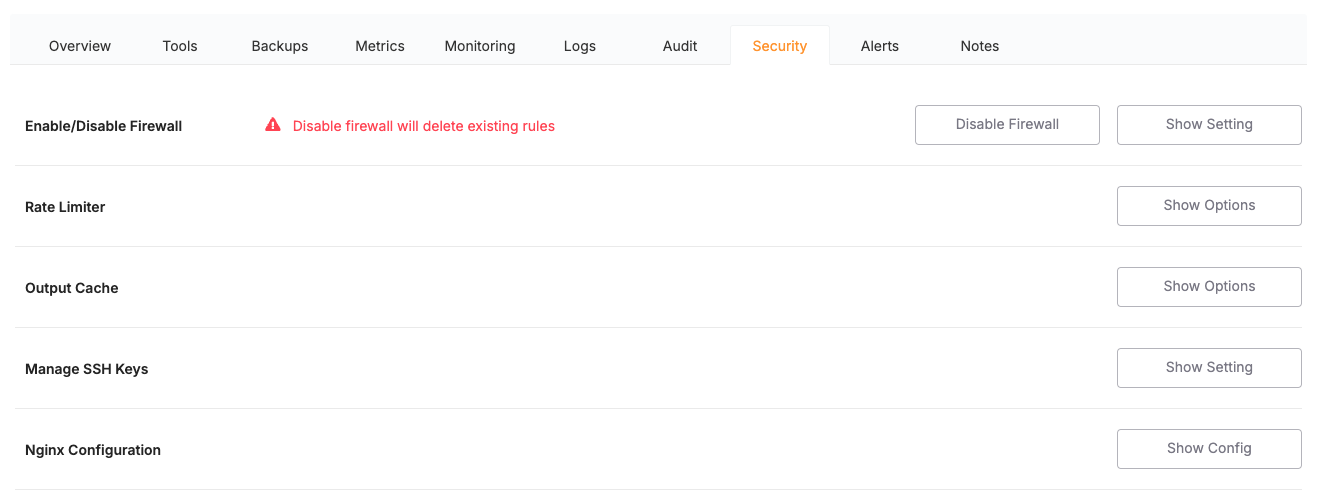
- Go to your project, then Services › Security tab, and click NGINX Configuration › Show config.
- Choose your domain and find this line in the server block:
listen 443 ssl http2;
- Add the IPv6 line directly beneath it, keeping the IPv4 line:
listen 443 ssl http2;
listen [::]:443 ssl http2;
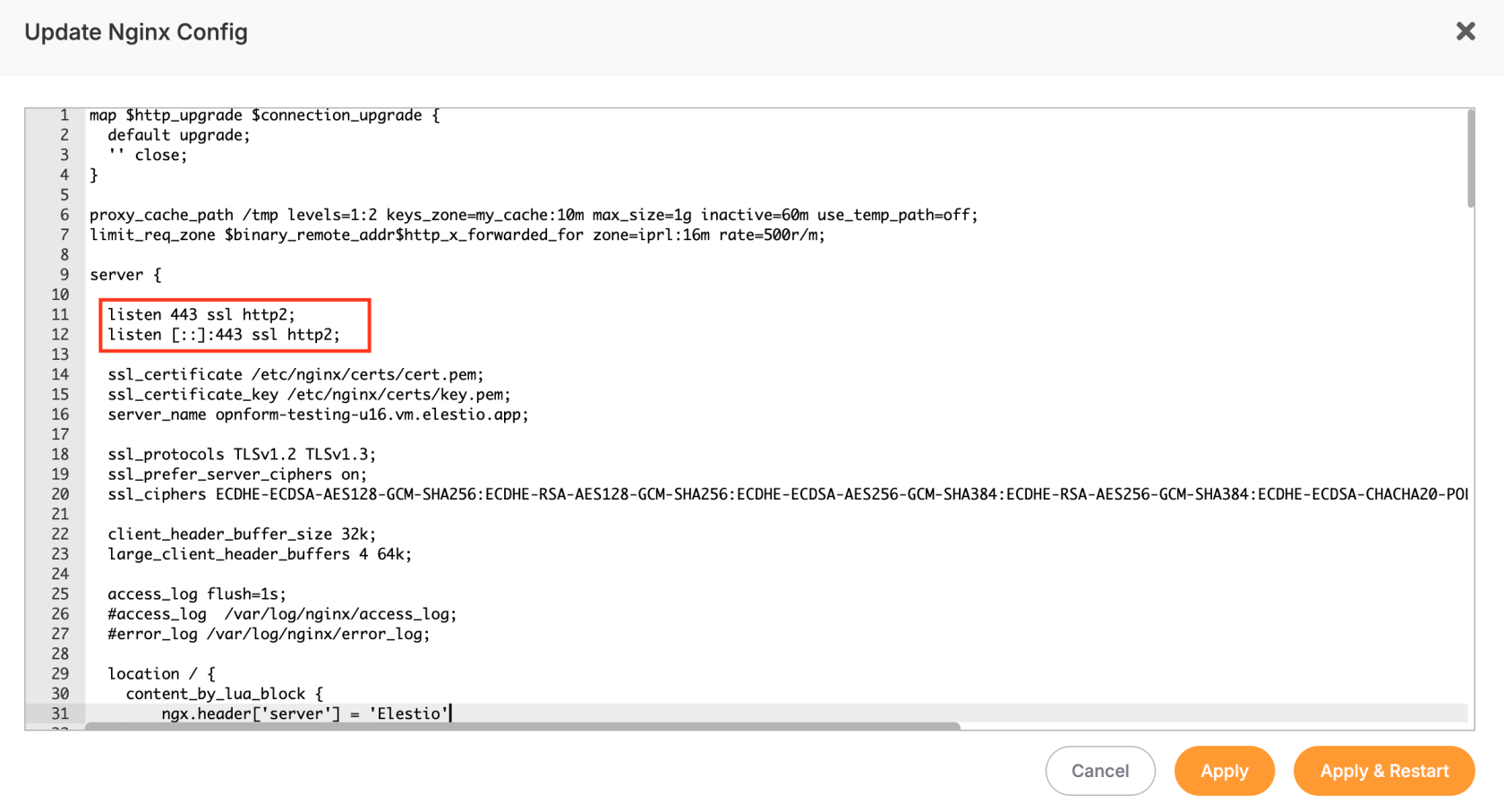
- Click Apply & Restart. Nginx reloads and now serves HTTPS over both IPv4 and IPv6.