Multi-Factor Authentication
Elestio protects your account with MFA. Two methods are available.
- Email-based MFA (default) — A one-time code is emailed on each login.
- TOTP MFA — A code is generated by an app on your phone, so your account stays safe even if your mailbox is compromised.
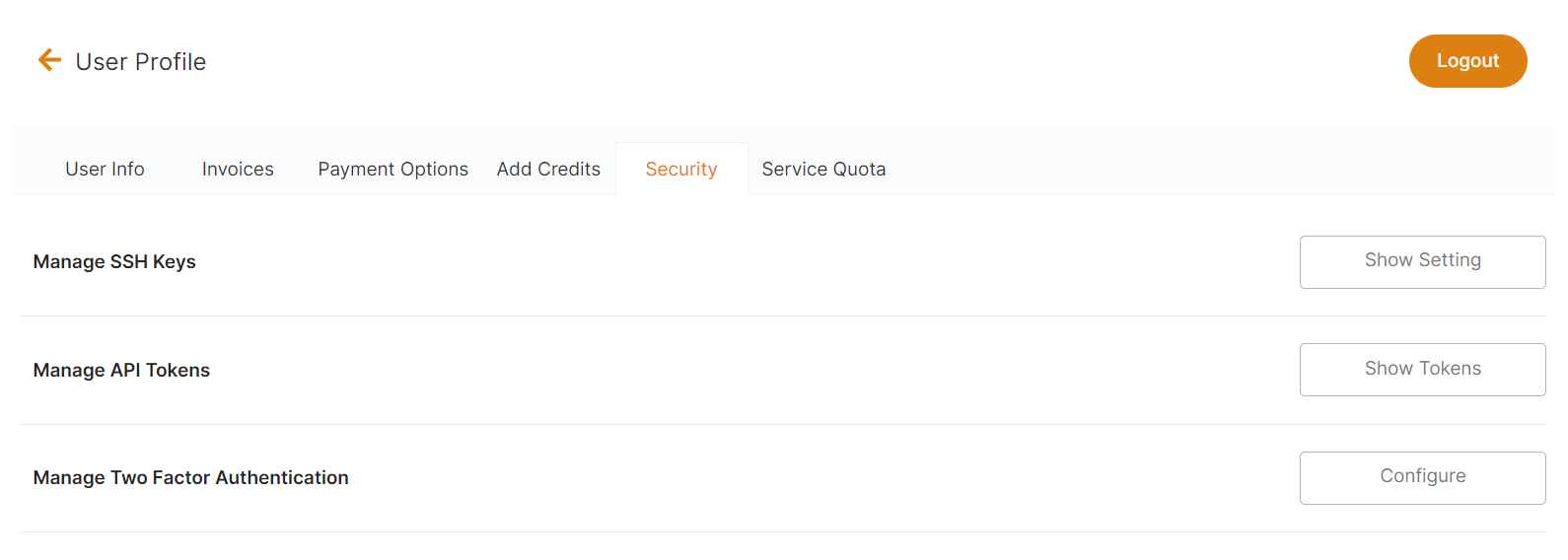
We recommend TOTP for all users. Enable it in a few clicks from your dashboard, under User profile › Security.
Enable TOTP MFA
- Open account security.
- Click Configure under Manage Two-Factor Authentication.
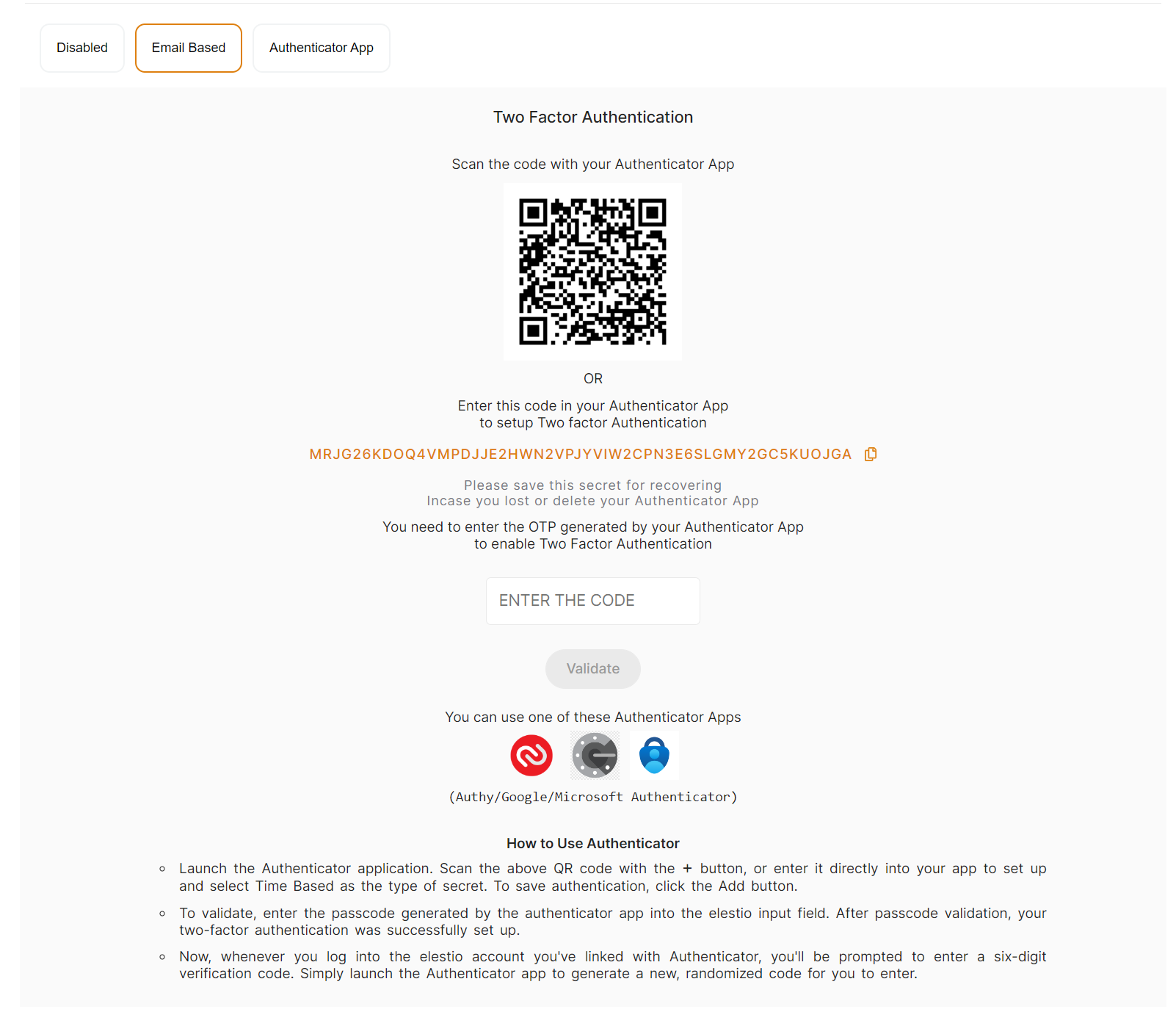
- Select the Authenticator App tab.
- Install an authenticator app: Authy (recommended), Google Authenticator, or Microsoft Authenticator.
- Scan the on-screen QR code with your app.
- Enter the generated code on the Elestio screen.
- Click Validate.
Strong MFA is now required to sign in.
Keep your recovery secret
Save the text version of the secret (shown in orange in the screenshot) somewhere safe. It lets you recover access if you lose your phone or authenticator app.
Lost access?
If you lose both your authenticator app and the text secret, contact support by email with proof of identity to have MFA removed.
Enable email-based MFA
- Open account security.
- Click Configure under Manage Two-Factor Authentication.
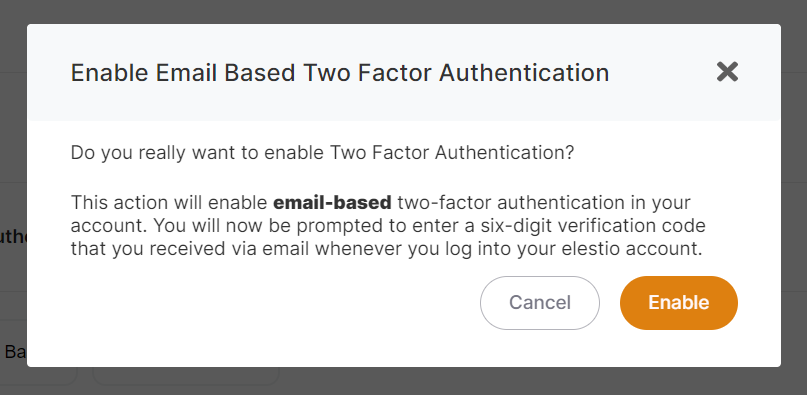
- Select the Email Based tab.
- Click Enable.
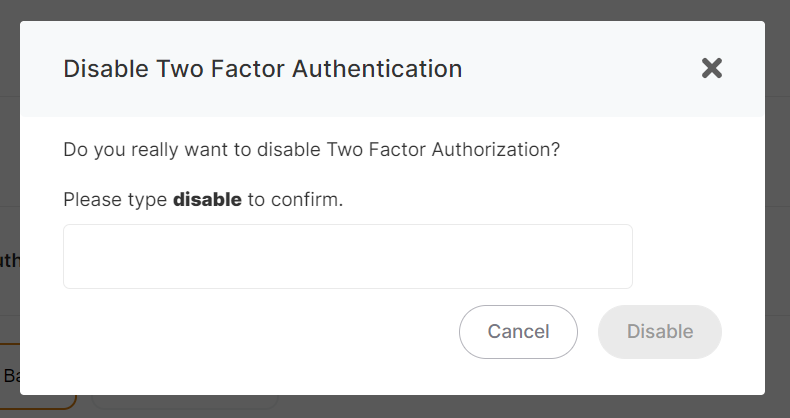
Disable MFA
- Open account security.
- Click Configure under Manage Two-Factor Authentication.
- Select the Disabled tab.
- Type
disablein the confirmation field. - Click Disable.